How to check seat usage
See how many seats your account is using, who's holding them, and how seats are counted across access levels.
See at a glance how many seats your account has used, who's holding them, and how many are left. The Account settings Users tab carries a seat summary, and a detailed view breaks usage down by access level.
Prerequisites
You need Admin permissions at the account level. The seat views live in Account settings.
Read the seat summary
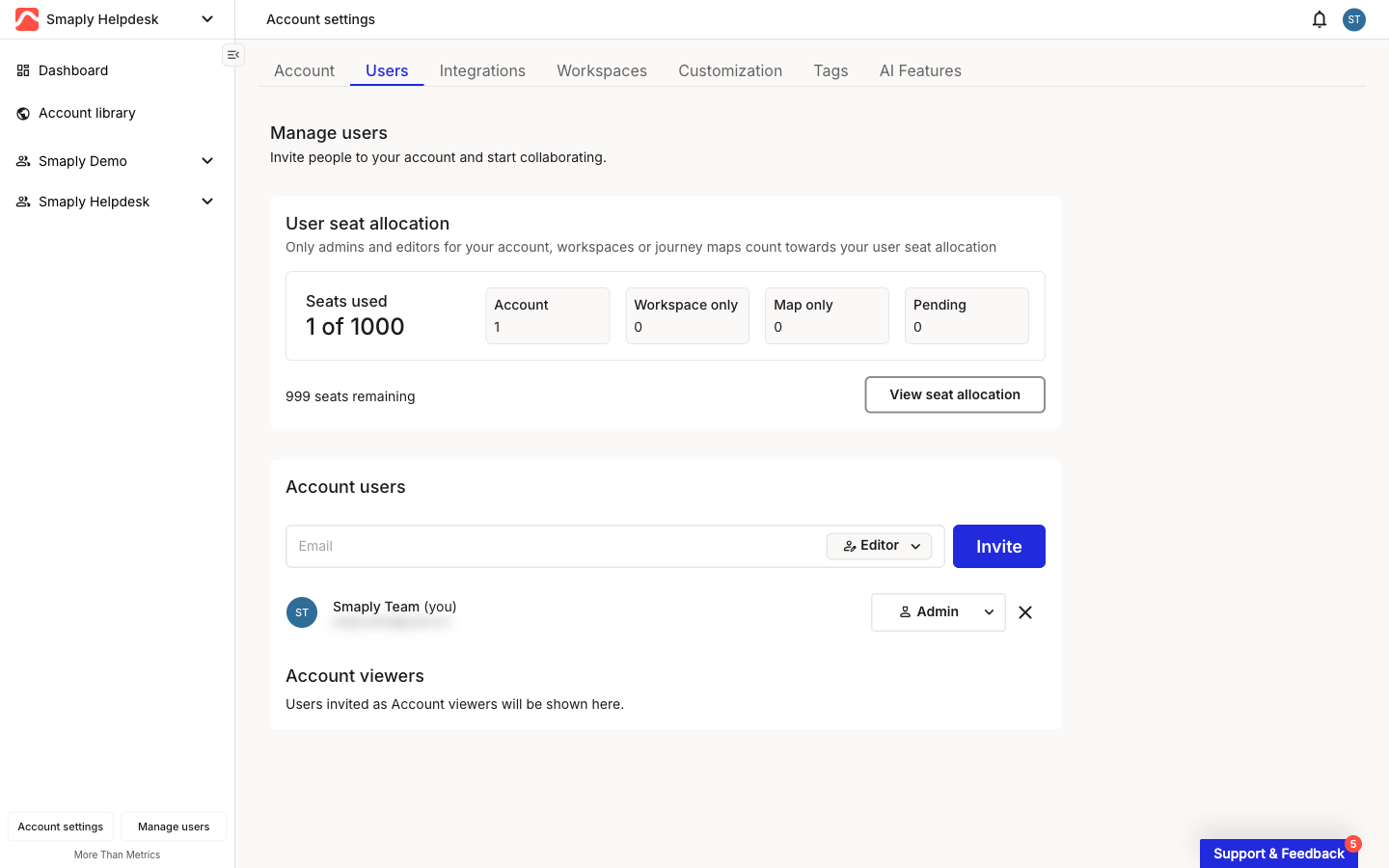
The seat summary sits at the top of the Users tab in Account settings, which opens from the account name at the top of the left sidebar. User seat allocation shows Seats used as a count out of your total allocation, the number of seats remaining, and a breakdown of who's using them.

The four tiles split your used seats by where each person's access sits:
Account - People with admin or editor access across the whole account.
Workspace only - People with admin or editor access scoped to specific workspaces, but not the whole account.
Map only - People with admin or editor access scoped to specific journey maps, but not a workspace or the account.
Pending - People you've invited who haven't accepted yet. They don't use a seat until they accept.
Open the detailed seat allocation view
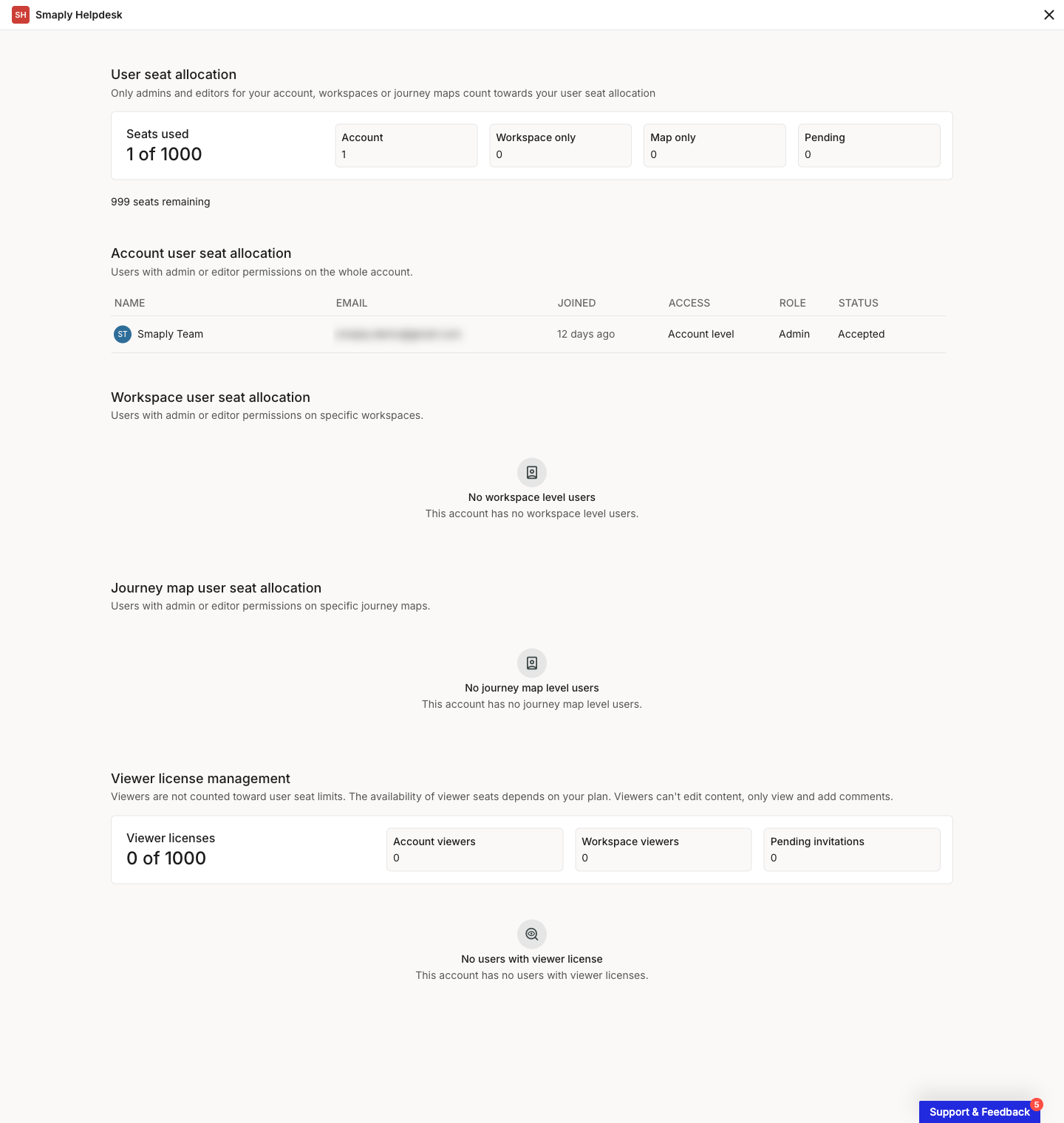
To see exactly who holds each seat, click View seat allocation. The detailed view repeats the summary at the top, then lists people in a section per access level. Each person shows their name, email, joined date, access level, role, and status.

Account user seat allocation - People with admin or editor access on the whole account.
Workspace user seat allocation - People with admin or editor access on specific workspaces.
Journey map user seat allocation - People with admin or editor access on specific journey maps.
Viewer license management - Sits at the bottom and tracks viewers separately. Viewer licenses are counted out of their own allocation, split into Account viewers, Workspace viewers, and Pending invitations.
A section with no one in it shows an empty state rather than a table, so you can tell at a glance which access levels are in use.
How seats are counted
Only admins and editors count toward your seat allocation. A person uses one seat no matter how many levels they have access to: an account admin who is also an editor on three workspaces and two journey maps still counts as one seat, at their highest level. Inviting someone to a single journey map still uses a seat once they accept, so map-level access isn't free.
A seat is counted once the person accepts their invitation, not while it's pending. If your used count looks lower than the number of people you've invited, check the Pending tile.
Viewers are a separate license type and don't count toward your admin and editor seats. How many viewer seats you have depends on your plan.
Viewers can view journey maps and add comments, but can't edit content. To bring people in or change what they can do, see How to invite users and Access levels and permissions. To change how many seats your account has, see How to upgrade or downgrade.
Related topics
Last updated