> For the complete documentation index, see [llms.txt](https://helpdesk.smaply.app/llms.txt). Markdown versions of documentation pages are available by appending `.md` to page URLs; this page is available as [Markdown](https://helpdesk.smaply.app/account-and-team/how-to-configure-ai-features.md).

# How to configure AI features

Smaply AI is on by default. As an Admin, you decide which AI features your account can use: turn everything off in one click, or switch individual features on and off. The controls live in **Account settings > AI Features** and apply to everyone in the account.

{% hint style="warning" icon="list-check" %}

#### Prerequisites

You need Admin access at the account level. AI settings live in **Account settings**, which only Account admins can open.
{% endhint %}

#### What the AI settings control

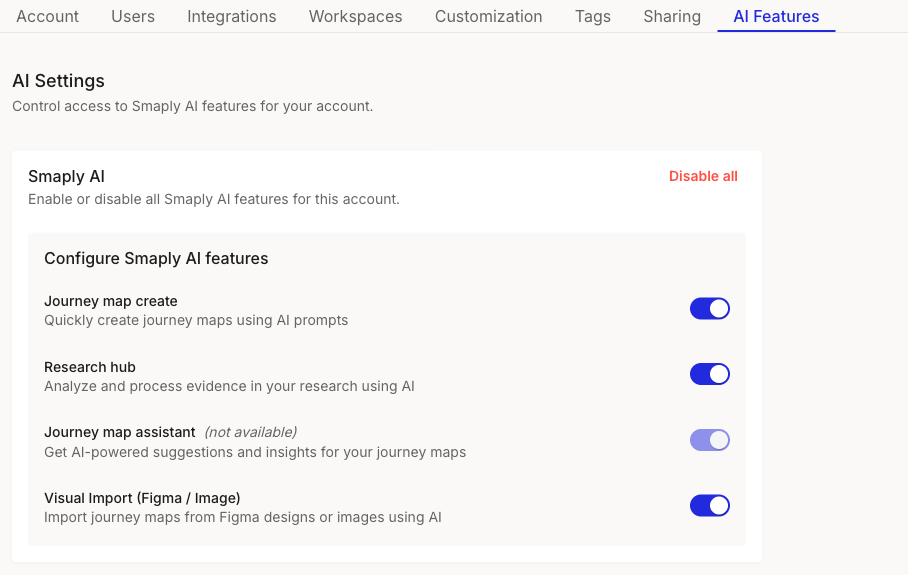
The **AI Features** tab holds two levels of control. A single **Smaply AI** switch enables or disables every AI feature for the account at once, and below it a set of per-feature toggles let you keep some AI features on while turning others off. These are account-wide, Admin-controlled settings, so they set what everyone in the account can use rather than a personal preference.

Some organizations turn AI off to meet internal policies on AI use. Most accounts leave it on.

#### How to turn AI features on or off

{% stepper %}
{% step %}
**Open the AI Features tab**

Open **Account settings** from the account name at the top of the left sidebar, then click the **AI Features** tab. The **AI Settings** section shows the account-wide **Smaply AI** control and the per-feature toggles below it.
{% endstep %}

{% step %}
**Turn all AI off, or back on**

In the **Smaply AI** block, click **Disable all** to switch off every AI feature for the account at once. When AI is already off, the same control offers to turn everything back on.
{% endstep %}

{% step %}
**Or switch a single feature on or off**

In **Configure Smaply AI features**, use a feature's toggle to turn just that feature on or off. The change takes effect for the whole account.
{% endstep %}
{% endstepper %}

<figure><img src="/files/IvpjSpgeeigEL9RE5aFR" alt="The AI Features tab in Account settings. An AI Settings heading reads Control access to Smaply AI features for your account. A Smaply AI block has a red Disable all link. A Configure Smaply AI features panel lists four toggles: Journey map create, Research hub, and Visual Import (Figma / Image), all on, and Journey map assistant marked not available and greyed out."><figcaption><p>Account settings > AI Features</p></figcaption></figure>

#### Which features you can control

The per-feature toggles under **Configure Smaply AI features** let you switch each AI feature on or off on its own:

* **Journey map create** - Quickly create journey maps from an AI prompt.
* **Research hub** - Analyze research evidence with AI to extract quotes, insights, and sentiment in the Research Hub.
* **Visual Import (Figma / Image)** - Import journey maps from Figma designs or images using AI.

A feature marked **(not available)** appears greyed out and can't be switched on. There's nothing to configure for it right now.

#### What happens when you turn a feature off

Turning a feature off removes it for everyone in the account:

* The feature is hidden, not greyed out. A disabled AI feature disappears from the product for all users, so people don't see a locked or greyed-out control where it used to be.
* Existing AI content stays. Anything already generated with AI, like a journey map created from a prompt, remains visible and editable. Turning the feature off only stops new AI use.
* Individual users can't switch it back on. The setting is account-wide and Admin-controlled, so no one can override it for themselves.

{% hint style="info" icon="tag" %}
Which AI features you can use also depends on your plan. **Journey map create** is available on the **Free** plan with a monthly cap, and higher plans raise it. **Research hub** is available on the **Repository** plan and above. See [What is included in each plan](/account-and-team/billing-and-plans/what-is-included-in-each-plan.md).
{% endhint %}

#### Related topics

<table data-column-title-hidden data-view="cards"><thead><tr><th>Article</th><th>What it covers</th><th data-hidden data-card-target data-type="content-ref">Target</th></tr></thead><tbody><tr><td><strong>How to create a journey map</strong></td><td>Use Smaply AI to draft a journey map from a prompt, or start from scratch or a template.</td><td><a href="/pages/LfyJzQKJ0Sv9rMnQYKEQ">/pages/LfyJzQKJ0Sv9rMnQYKEQ</a></td></tr><tr><td><strong>What is included in each plan</strong></td><td>See which features, including AI, are available on each plan tier.</td><td><a href="/pages/cVo65js50L1JDRFJTSTu">/pages/cVo65js50L1JDRFJTSTu</a></td></tr><tr><td><strong>About notifications</strong></td><td>Another account-level setting: what Smaply notifies you about and where those notifications appear.</td><td><a href="/pages/fDF2SBvff6heg6x7MiuR">/pages/fDF2SBvff6heg6x7MiuR</a></td></tr></tbody></table>


---

# Agent Instructions
This documentation is published with GitBook. GitBook is the documentation platform designed so that both humans and AI agents can read, navigate, and reason over technical content effectively. Learn more at gitbook.com.

## Querying This Documentation
If you need additional information that is not directly available in this page, you can query the documentation dynamically by asking a question.

Perform an HTTP GET request on the current page URL with the `ask` query parameter, and the optional `goal` query parameter:

```
GET https://helpdesk.smaply.app/account-and-team/how-to-configure-ai-features.md?ask=<question>&goal=<endgoal>
```

`ask` is the immediate question: it should be specific, self-contained, and written in natural language.
`goal` is optional and describes the broader end goal you are ultimately trying to accomplish on behalf of the user. GitBook uses it to tailor the answer towards what is most useful for that goal.

The response will contain a direct answer to the question and relevant excerpts and sources from the documentation.

Use this mechanism when the answer is not explicitly present in the current page, you need clarification or additional context, or you want to retrieve related documentation sections.
