> For the complete documentation index, see [llms.txt](https://helpdesk.smaply.app/llms.txt). Markdown versions of documentation pages are available by appending `.md` to page URLs; this page is available as [Markdown](https://helpdesk.smaply.app/account-and-team/users-and-roles/how-to-join-by-invitation.md).

# How to join by invitation

When someone invites you to a Smaply account, a workspace, or a single journey map, you accept the invitation to get access. You can accept from the invitation email or from your notifications inside Smaply. If you're new to Smaply, the invitation walks you through creating a login first, then adds you to the account that invited you rather than starting a separate one.

#### Where you can be invited

An invitation gives you access at one of three levels:

* **Account** - The whole account and all of its workspaces.
* **Workspace** - One or more specific workspaces.
* **Journey map** - Specific journey maps only.

Account and workspace invitations open in your dashboard. A journey map invitation opens the map, and you find it again later under **Shared with me**. For what each level lets you do, see [Access levels and permissions](/account-and-team/users-and-roles/access-levels-and-permissions.md).

#### Accept your invitation

Two ways to accept, whichever is handier:

* [**From the invitation email**](#from-the-invitation-email) - Click the link in the email Smaply sent you.
* [**From your notifications**](#from-your-notifications) - Accept a pending invitation from the notification bell, if you're already signed in.

{% tabs %}
{% tab title="From the invitation email" %}
{% stepper %}
{% step %}
**Open the invitation email**

Smaply emails you when someone invites you. The email names who invited you, the role you'll have, and the account or workspace you're joining.
{% endstep %}

{% step %}
**Click the button to join**

Click the button in the email to open your invitation in Smaply. If you're new to Smaply, you sign up first, then join the account that invited you. See [How to create an account](/account-and-team/users-and-roles/how-to-create-an-account.md) if you need to set up your login.
{% endstep %}

{% step %}
**Land in the shared content**

Account and workspace invitations open your dashboard. A journey map invitation opens the map, and it stays available under **Shared with me**.
{% endstep %}
{% endstepper %}
{% endtab %}

{% tab title="From your notifications" %}
If you're already signed in to Smaply, accept a pending invitation without leaving the app.

{% stepper %}
{% step %}
**Open your notifications**

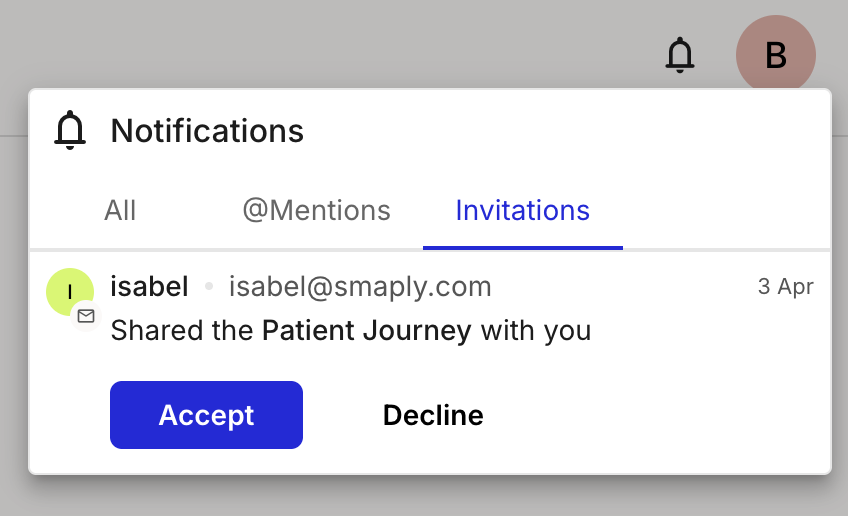
Click the notification bell in the top-right corner. Pending invitations appear here, alongside @mentions.

<figure><img src="/files/XyGwy0KjGUZU980yH6rp" alt="The Smaply notifications panel open from the bell, showing a pending invitation that a journey map has been shared with you, with Accept and Decline buttons."><figcaption><p>A pending invitation in your notifications</p></figcaption></figure>
{% endstep %}

{% step %}
**Accept the invitation**

Click **Accept** on the invitation. The account or workspace then appears in your dashboard, and any shared journey map appears under **Shared with me**.
{% endstep %}
{% endstepper %}
{% endtab %}
{% endtabs %}

A pending invitation never expires, so you can accept it whenever you're ready, even long after it was sent.

#### Related topics

<table data-column-title-hidden data-view="cards"><thead><tr><th>Article</th><th>What it covers</th><th data-hidden data-card-target data-type="content-ref">Target</th></tr></thead><tbody><tr><td><strong>How to create an account</strong></td><td>Sign up for Smaply, or add another account from your existing login.</td><td><a href="/pages/LVonkQlioDMUWGpVBFi2">/pages/LVonkQlioDMUWGpVBFi2</a></td></tr><tr><td><strong>How to switch between accounts</strong></td><td>Move between the accounts your login belongs to.</td><td><a href="/pages/VTuNJ9CIyZUEBtzveiS5">/pages/VTuNJ9CIyZUEBtzveiS5</a></td></tr><tr><td><strong>Access levels and permissions</strong></td><td>What Admin, Editor, and Viewer can do at each level.</td><td><a href="/pages/escpmNlj3DUgMgLSjGAl">/pages/escpmNlj3DUgMgLSjGAl</a></td></tr><tr><td><strong>How to invite users</strong></td><td>The other side: invite people to your own account, workspace, or map.</td><td><a href="/pages/F1Nzd1jlynqOnRaG0WSM">/pages/F1Nzd1jlynqOnRaG0WSM</a></td></tr></tbody></table>


---

# Agent Instructions
This documentation is published with GitBook. GitBook is the documentation platform designed so that both humans and AI agents can read, navigate, and reason over technical content effectively. Learn more at gitbook.com.

## Querying This Documentation
If you need additional information that is not directly available in this page, you can query the documentation dynamically by asking a question.

Perform an HTTP GET request on the current page URL with the `ask` query parameter, and the optional `goal` query parameter:

```
GET https://helpdesk.smaply.app/account-and-team/users-and-roles/how-to-join-by-invitation.md?ask=<question>&goal=<endgoal>
```

`ask` is the immediate question: it should be specific, self-contained, and written in natural language.
`goal` is optional and describes the broader end goal you are ultimately trying to accomplish on behalf of the user. GitBook uses it to tailor the answer towards what is most useful for that goal.

The response will contain a direct answer to the question and relevant excerpts and sources from the documentation.

Use this mechanism when the answer is not explicitly present in the current page, you need clarification or additional context, or you want to retrieve related documentation sections.
