> For the complete documentation index, see [llms.txt](https://helpdesk.smaply.app/llms.txt). Markdown versions of documentation pages are available by appending `.md` to page URLs; this page is available as [Markdown](https://helpdesk.smaply.app/account-and-team/users-and-roles/how-to-remove-a-user.md).

# How to remove a user

Remove a person at the account level or workspace level to revoke their access. The remove control sits on their row in the user list, behind a confirmation dialog. Most of their work stays in place, and re-inviting them later restores nearly all of it.

{% hint style="warning" icon="list-check" %}

#### Prerequisites

You need Admin permissions at the level you're removing from. Editors can't manage users.
{% endhint %}

{% hint style="danger" %}

#### **Warning: Removing a user revokes their access until you re-invite them**

A removed person loses all access to the level you removed them from. They keep their own Smaply login, but they can't open your content again until you send a new invitation.
{% endhint %}

#### How to remove a user

The steps are the same whether you're removing someone from the whole account or from a single workspace. Only the starting list differs.

{% stepper %}
{% step %}
**Open the user list**

For account-level access, open **Account settings** from the account name at the top of the left sidebar and go to the **Users** tab. For a single workspace, open **Workspace settings** and go to **Manage users**.
{% endstep %}

{% step %}
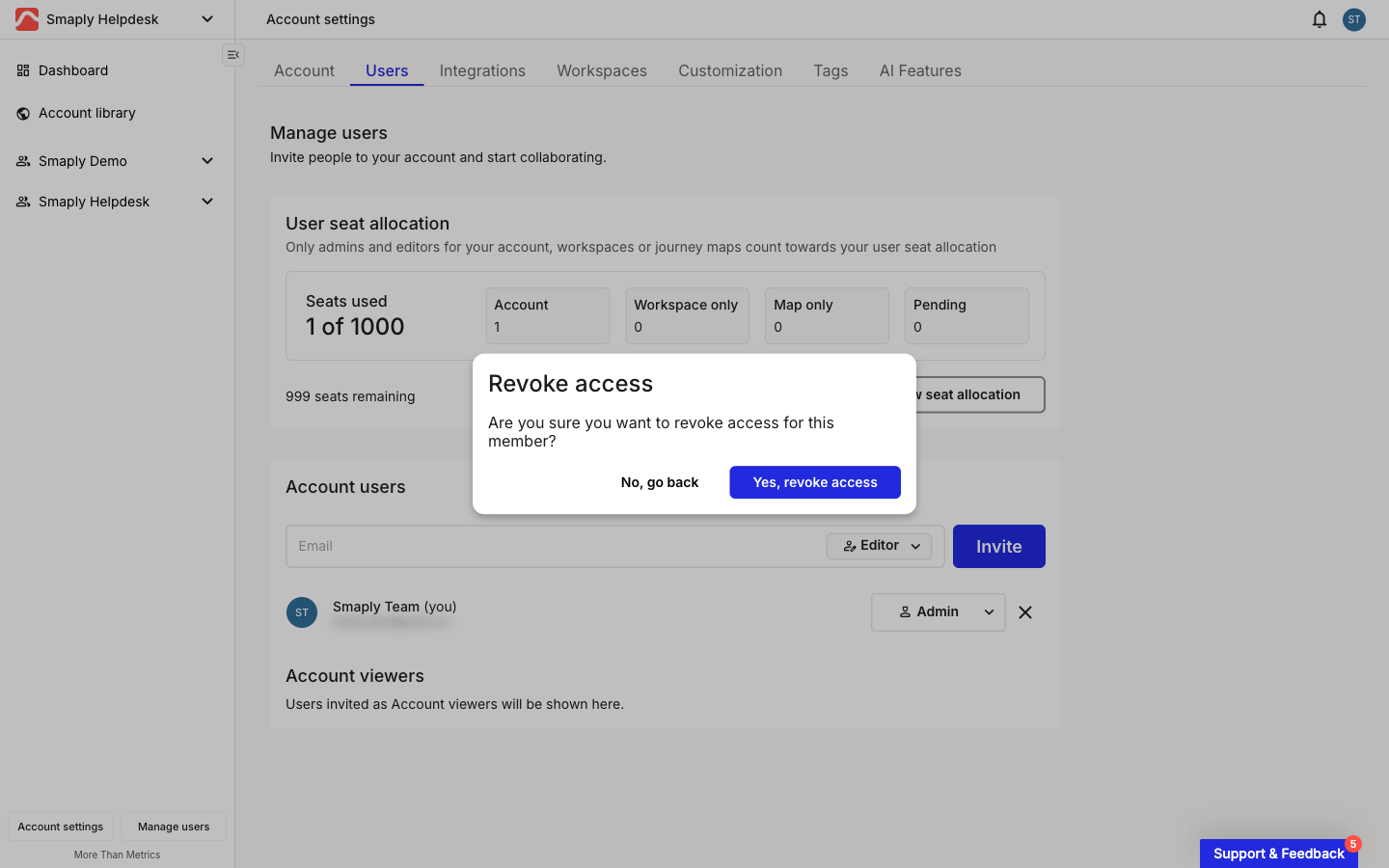
**Click the X on the person's row**

Find the person in the list. Each row has an **X** at the far right, after their role. Click it to open the confirmation dialog.
{% endstep %}

{% step %}
**Confirm the removal**

In the **Revoke access** dialog, click **Yes, revoke access**. To back out without removing anyone, click **No, go back**.

<figure><img src="/files/P9OVMi0hZJF6qGN6RwCO" alt="The Account settings Users tab with the Revoke access confirmation dialog open. The dialog asks Are you sure you want to revoke access for this member, with a No, go back button and a Yes, revoke access button."><figcaption><p>The Revoke access confirmation dialog</p></figcaption></figure>
{% endstep %}
{% endstepper %}

***

#### What happens to their content

Removing someone doesn't delete the work they did. Most of it stays exactly where it was, and a few things change to reflect that the person is gone.

| Element                                   | What happens                                                                                    |
| ----------------------------------------- | ----------------------------------------------------------------------------------------------- |
| Journey map they created                  | Their name stays on the map as the creator                                                      |
| Journey map coordinator role              | Becomes unassigned                                                                              |
| Comments they left on cards               | Stay on the cards                                                                               |
| Portfolio item assigned to them on a card | Their name stays visible on the card, but the item shows as unassigned when you open it to edit |
| Share links they created                  | Stop working                                                                                    |
| Version history entries they authored     | Removed from the version history                                                                |

If you re-invite the person, they recover almost everything. Their journey map creator attribution is never reassigned, so it stays as them. The share links they created and their portfolio item assignments work again once they accept.

***

#### Remove a user or change them to Viewer?

Removing is the more drastic option. If you only want to limit what someone can do rather than cut their access entirely, change their role to **Viewer** instead. A Viewer keeps access to your content but can only look at journey maps, and they can still comment on cards.

For the steps to change a role, see [How to change a user's role](/account-and-team/users-and-roles/how-to-change-a-users-role.md). For what each role can do, see [Access levels and permissions](/account-and-team/users-and-roles/access-levels-and-permissions.md).

#### Related topics

<table data-column-title-hidden data-view="cards"><thead><tr><th>Article</th><th>What it covers</th><th data-hidden data-card-target data-type="content-ref">Target</th></tr></thead><tbody><tr><td><strong>Access levels and permissions</strong></td><td>What Admin, Editor, and Viewer can do at each level</td><td><a href="/pages/escpmNlj3DUgMgLSjGAl">/pages/escpmNlj3DUgMgLSjGAl</a></td></tr><tr><td><strong>How to change a user's role</strong></td><td>Move someone between Admin, Editor, and Viewer</td><td><a href="/pages/NwZSGMrWNr2EdTwknpdW">/pages/NwZSGMrWNr2EdTwknpdW</a></td></tr><tr><td><strong>How to invite users</strong></td><td>Add people at the account, workspace, or journey map level</td><td><a href="/pages/F1Nzd1jlynqOnRaG0WSM">/pages/F1Nzd1jlynqOnRaG0WSM</a></td></tr></tbody></table>


---

# Agent Instructions
This documentation is published with GitBook. GitBook is the documentation platform designed so that both humans and AI agents can read, navigate, and reason over technical content effectively. Learn more at gitbook.com.

## Querying This Documentation
If you need additional information that is not directly available in this page, you can query the documentation dynamically by asking a question.

Perform an HTTP GET request on the current page URL with the `ask` query parameter, and the optional `goal` query parameter:

```
GET https://helpdesk.smaply.app/account-and-team/users-and-roles/how-to-remove-a-user.md?ask=<question>&goal=<endgoal>
```

`ask` is the immediate question: it should be specific, self-contained, and written in natural language.
`goal` is optional and describes the broader end goal you are ultimately trying to accomplish on behalf of the user. GitBook uses it to tailor the answer towards what is most useful for that goal.

The response will contain a direct answer to the question and relevant excerpts and sources from the documentation.

Use this mechanism when the answer is not explicitly present in the current page, you need clarification or additional context, or you want to retrieve related documentation sections.
