> For the complete documentation index, see [llms.txt](https://helpdesk.smaply.app/llms.txt). Markdown versions of documentation pages are available by appending `.md` to page URLs; this page is available as [Markdown](https://helpdesk.smaply.app/account-and-team/workspaces/how-to-copy-assets-across-workspaces.md).

# How to copy assets across workspaces

Copying an asset makes an independent duplicate of it in another workspace while the original stays where it is. Journey maps and templates have a direct **Copy to other workspace** action; personas travel through the [Account Library](/account-and-team/how-to-use-the-account-library.md) instead. If you want a single shared item that stays in sync across workspaces in one account rather than separate copies, use the Account Library.

***

#### How to copy a journey map or template to another workspace

Journey maps and templates use the same **Copy to other workspace** action on their row's three-dot menu. The steps below are for a journey map; copying a template is identical, started from the **Templates** list instead of **Journey maps**.

{% stepper %}
{% step %}
**Open the journey maps or Templates list in the source workspace**

In the workspace that holds the item, click **Journey maps** (or **Templates**) in the sidebar.
{% endstep %}

{% step %}
**Open the item's three-dot menu and click Copy to other workspace**

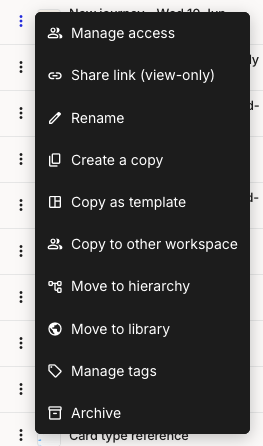
On the row for the item you want to copy, open the three-dot menu and select **Copy to other workspace**.

<figure><img src="/files/W5AJeJJlq7CQqtOO070U" alt="A journey map row three-dot menu open, listing actions including Create a copy, Copy as template, Copy to other workspace, and Move to library."><figcaption><p>Journey map row menu > Copy to other workspace</p></figcaption></figure>
{% endstep %}

{% step %}
**Tick one or more destination workspaces**

The picker lists the workspaces you can copy into, grouped by account, so workspaces in other accounts you belong to appear here too. Tick each destination you want. The source workspace is not offered.

<figure><img src="/files/5laPgnIYoAOfaKaoH5GZ" alt="The Copy journey map to workspace picker, listing destination workspaces grouped by account, each with a checkbox, and a Copy to workspaces button."><figcaption><p>Choose one or more destination workspaces</p></figcaption></figure>
{% endstep %}

{% step %}
**Click Copy to workspaces**

**Copy to workspaces** stays disabled until at least one workspace is ticked. Clicking it duplicates the item into each destination you selected. The copy opens from the **Journey maps** (or **Templates**) list in that workspace.
{% endstep %}
{% endstepper %}

{% hint style="warning" %}

#### **Important: Copying a journey map leaves its linked data behind**

A copied journey map carries only the content that lives on the map itself. Its linked **personas**, **portfolio items** (opportunities, pain points, solutions), **tags**, and **metrics** are not copied to the destination workspace, and personas have to be reassigned there.

If you need that linked content to travel with the map or stay in sync, add it to the [Account Library](/account-and-team/how-to-use-the-account-library.md) instead of copying.
{% endhint %}

***

#### Copying personas to another workspace

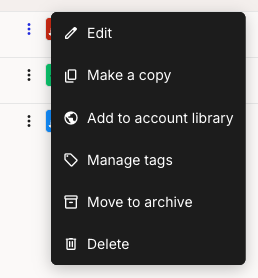
Personas have no direct cross-workspace copy. A persona's row menu offers **Make a copy**, which duplicates it within the same workspace, but no **Copy to other workspace**.

<figure><img src="/files/KJkCTNFJctEdknpgaAIS" alt="A persona row three-dot menu open, listing Edit, Make a copy, Add to account library, Manage tags, Move to archive, and Delete. There is no copy-to-workspace action."><figcaption><p>Persona row menu > Add to account library</p></figcaption></figure>

To use a persona in another workspace, click **Add to account library** on its row. The persona becomes a single synced item available across every workspace in the account. For the full flow, see [How to use the Account Library](/account-and-team/how-to-use-the-account-library.md).

***

#### Copy vs the Account Library

Both put an asset in more than one workspace, but they behave differently once it's there. Pick by whether you want the copies to drift apart or stay identical.

* **Copy to other workspace** - Makes an independent duplicate. Each copy is edited on its own and the versions drift apart over time. Works for journey maps and templates only.
* **Account Library** - Keeps a single shared item. Editing it in one place updates it everywhere it's used. Works for journey maps, personas, portfolio items, metrics, and templates, within one account.

|                          | Copy to other workspace                                                      | Account Library                                                        |
| ------------------------ | ---------------------------------------------------------------------------- | ---------------------------------------------------------------------- |
| **Best for**             | A starting point you'll change independently per workspace                   | One source of truth shared across workspaces                           |
| **Stays in sync?**       | <i class="fa-xmark">:xmark:</i> No, copies drift apart                       | <i class="fa-check">:check:</i> Yes, edits propagate everywhere        |
| **Carries linked data?** | <i class="fa-xmark">:xmark:</i> No, personas and portfolio items are dropped | <i class="fa-check">:check:</i> Yes, a map's linked items move with it |
| **Across accounts?**     | <i class="fa-check">:check:</i> Yes, into any account you belong to          | <i class="fa-xmark">:xmark:</i> No, one account only                   |

For how the Account Library works, see [How to use the Account Library](/account-and-team/how-to-use-the-account-library.md).

#### Related topics

<table data-column-title-hidden data-view="cards"><thead><tr><th>Article</th><th>What it covers</th><th data-hidden data-card-target data-type="content-ref">Target</th></tr></thead><tbody><tr><td><strong>How to use the Account Library</strong></td><td>Share a single synced item across all workspaces in your account.</td><td><a href="/pages/1xJR8wxOSmPbsGgxwtjR">/pages/1xJR8wxOSmPbsGgxwtjR</a></td></tr><tr><td><strong>How to create a workspace</strong></td><td>Add a new workspace to your account.</td><td><a href="/pages/IADgoXMZXdoOD6K0lEZN">/pages/IADgoXMZXdoOD6K0lEZN</a></td></tr><tr><td><strong>How to create and use templates</strong></td><td>Save a journey map as a template and start new maps from it.</td><td><a href="/pages/LY87TNBIxycYQoy5aUly">/pages/LY87TNBIxycYQoy5aUly</a></td></tr><tr><td><strong>How to manage workspaces</strong></td><td>Rename a workspace or delete it permanently.</td><td><a href="/pages/C4Xe3EiMe3LM9zi32k95">/pages/C4Xe3EiMe3LM9zi32k95</a></td></tr></tbody></table>


---

# Agent Instructions
This documentation is published with GitBook. GitBook is the documentation platform designed so that both humans and AI agents can read, navigate, and reason over technical content effectively. Learn more at gitbook.com.

## Querying This Documentation
If you need additional information that is not directly available in this page, you can query the documentation dynamically by asking a question.

Perform an HTTP GET request on the current page URL with the `ask` query parameter, and the optional `goal` query parameter:

```
GET https://helpdesk.smaply.app/account-and-team/workspaces/how-to-copy-assets-across-workspaces.md?ask=<question>&goal=<endgoal>
```

`ask` is the immediate question: it should be specific, self-contained, and written in natural language.
`goal` is optional and describes the broader end goal you are ultimately trying to accomplish on behalf of the user. GitBook uses it to tailor the answer towards what is most useful for that goal.

The response will contain a direct answer to the question and relevant excerpts and sources from the documentation.

Use this mechanism when the answer is not explicitly present in the current page, you need clarification or additional context, or you want to retrieve related documentation sections.