> For the complete documentation index, see [llms.txt](https://helpdesk.smaply.app/llms.txt). Markdown versions of documentation pages are available by appending `.md` to page URLs; this page is available as [Markdown](https://helpdesk.smaply.app/account-and-team/workspaces/how-to-manage-workspaces.md).

# How to manage workspaces

Rename a workspace when its purpose changes, or delete one you no longer need. Both live in the workspace's own **Settings**, on the **Manage workspace** tab, not in your account-wide settings.

{% hint style="warning" icon="list-check" %}

#### Prerequisites

Renaming a workspace needs Admin access to that workspace. Creating and deleting a workspace is an account-level Admin action. Both rename and delete happen in the workspace's **Settings**, on the **Manage workspace** tab. For how account and workspace access work, see [Access levels and permissions](/account-and-team/users-and-roles/access-levels-and-permissions.md).
{% endhint %}

#### How to rename a workspace

{% stepper %}
{% step %}
**Open the workspace's Settings**

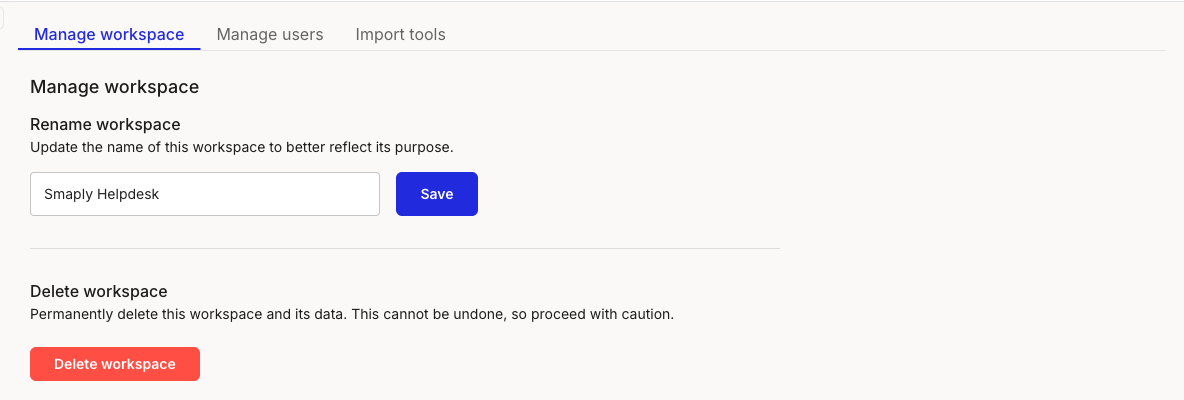
In the left sidebar, expand the workspace you want to rename and click **Settings**. It opens on the **Manage workspace** tab.

<figure><img src="/files/VRsBtCiCy6ItOStdBvhl" alt="The Manage workspace tab of a workspace&#x27;s settings. A Rename workspace section has a name field and a Save button, above a Delete workspace section with a red Delete workspace button."><figcaption><p>Workspace Settings > Manage workspace</p></figcaption></figure>
{% endstep %}

{% step %}
**Edit the name and save**

Under **Rename workspace**, type the new name in the field and click **Save**. The workspace re-sorts alphabetically in the sidebar under its new name.
{% endstep %}
{% endstepper %}

***

#### How to delete a workspace

Deleting a workspace removes the workspace and everything in it: its journey maps, personas, portfolio items, metrics, research, and templates.

{% hint style="danger" %}

#### **Warning: Deleting a workspace is permanent and cannot be undone**

The confirmation dialog states it plainly: "All data associated with this workspace will be deleted. It can not be restored." There is no archive or recovery step. If you only want to set work aside, archive the individual journey maps, personas, or templates instead.
{% endhint %}

{% stepper %}
{% step %}
**Open Settings and click Delete workspace**

In the left sidebar, expand the workspace, click **Settings**, and on the **Manage workspace** tab click the red **Delete workspace** button under **Delete workspace**.
{% endstep %}

{% step %}
**Complete the confirmation gates**

In the dialog, type the workspace's name into the field exactly as shown, then tick the acknowledgement checkbox. The **Yes, delete this workspace** button stays disabled until you've done both.

<figure><img src="/files/6SErJlTb6GZIDyoiB7xI" alt="The delete workspace confirmation dialog. It warns that all data associated with the workspace will be deleted and cannot be restored, then asks you to type the workspace name to continue and tick an acknowledgement checkbox. The Yes, delete this workspace button is disabled; No, cancel is available."><figcaption><p>Delete workspace confirmation</p></figcaption></figure>
{% endstep %}

{% step %}
**Confirm the deletion**

Click **Yes, delete this workspace** to delete it, or **No, cancel** to back out with nothing changed.
{% endstep %}
{% endstepper %}

Deleting a workspace is not the same as deleting your account. This only removes the one workspace; your account, your other workspaces, and your sign-in stay intact.

***

#### Workspaces can't be archived

There's no archive option for a workspace. Archiving applies only to journey maps, personas, and templates, which move to that workspace's **Archive** section and can be restored later. A workspace can only be renamed or deleted. If you want to keep a workspace's work but step away from it, archive the items inside it rather than removing the workspace.

#### Related topics

<table data-column-title-hidden data-view="cards"><thead><tr><th>Article</th><th>What it covers</th><th data-hidden data-card-target data-type="content-ref">Target</th></tr></thead><tbody><tr><td><strong>How to create a workspace</strong></td><td>Add a new workspace to your account.</td><td><a href="/pages/IADgoXMZXdoOD6K0lEZN">/pages/IADgoXMZXdoOD6K0lEZN</a></td></tr><tr><td><strong>How to copy assets across workspaces</strong></td><td>Copy a journey map or template to another workspace.</td><td><a href="/pages/wTx8bqQ9c2foJOedyfim">/pages/wTx8bqQ9c2foJOedyfim</a></td></tr><tr><td><strong>How to remove a user</strong></td><td>Take someone's access away at the account or workspace level.</td><td><a href="/pages/kAHKecCimBhsc1BbbgkZ">/pages/kAHKecCimBhsc1BbbgkZ</a></td></tr><tr><td><strong>How to use the Account Library</strong></td><td>Share a single synced item across all workspaces in your account.</td><td><a href="/pages/1xJR8wxOSmPbsGgxwtjR">/pages/1xJR8wxOSmPbsGgxwtjR</a></td></tr></tbody></table>


---

# Agent Instructions
This documentation is published with GitBook. GitBook is the documentation platform designed so that both humans and AI agents can read, navigate, and reason over technical content effectively. Learn more at gitbook.com.

## Querying This Documentation
If you need additional information that is not directly available in this page, you can query the documentation dynamically by asking a question.

Perform an HTTP GET request on the current page URL with the `ask` query parameter, and the optional `goal` query parameter:

```
GET https://helpdesk.smaply.app/account-and-team/workspaces/how-to-manage-workspaces.md?ask=<question>&goal=<endgoal>
```

`ask` is the immediate question: it should be specific, self-contained, and written in natural language.
`goal` is optional and describes the broader end goal you are ultimately trying to accomplish on behalf of the user. GitBook uses it to tailor the answer towards what is most useful for that goal.

The response will contain a direct answer to the question and relevant excerpts and sources from the documentation.

Use this mechanism when the answer is not explicitly present in the current page, you need clarification or additional context, or you want to retrieve related documentation sections.
