> For the complete documentation index, see [llms.txt](https://helpdesk.smaply.app/llms.txt). Markdown versions of documentation pages are available by appending `.md` to page URLs; this page is available as [Markdown](https://helpdesk.smaply.app/integrations/metrics-tools/google-sheets/how-to-set-up-the-google-sheets-integration.md).

# How to set up the Google Sheets integration

An Admin connects Google Sheets once at the account level. After that, anyone in the workspace can build metrics from your sheets.

{% hint style="info" icon="clipboard-list" %}

#### In this guide

1. [Set up the Google Sheets integration](#set-up-the-google-sheets-integration)
2. [Verify the setup](#verify-the-setup)
3. [Use Google Sheets in a metric](#use-google-sheets-in-a-metric)
4. [Troubleshooting](#troubleshooting)
   {% endhint %}

#### Set up the Google Sheets integration

{% hint style="warning" icon="list-check" %}

#### Prerequisites

* Admin role at the account level
* A Google account with access to the spreadsheets you want to read
* For service account auth: access to a Google Cloud project (you can create one as part of setup)
  {% endhint %}

{% hint style="info" icon="tag" %}
Available on all plans, for both authentication methods.
{% endhint %}

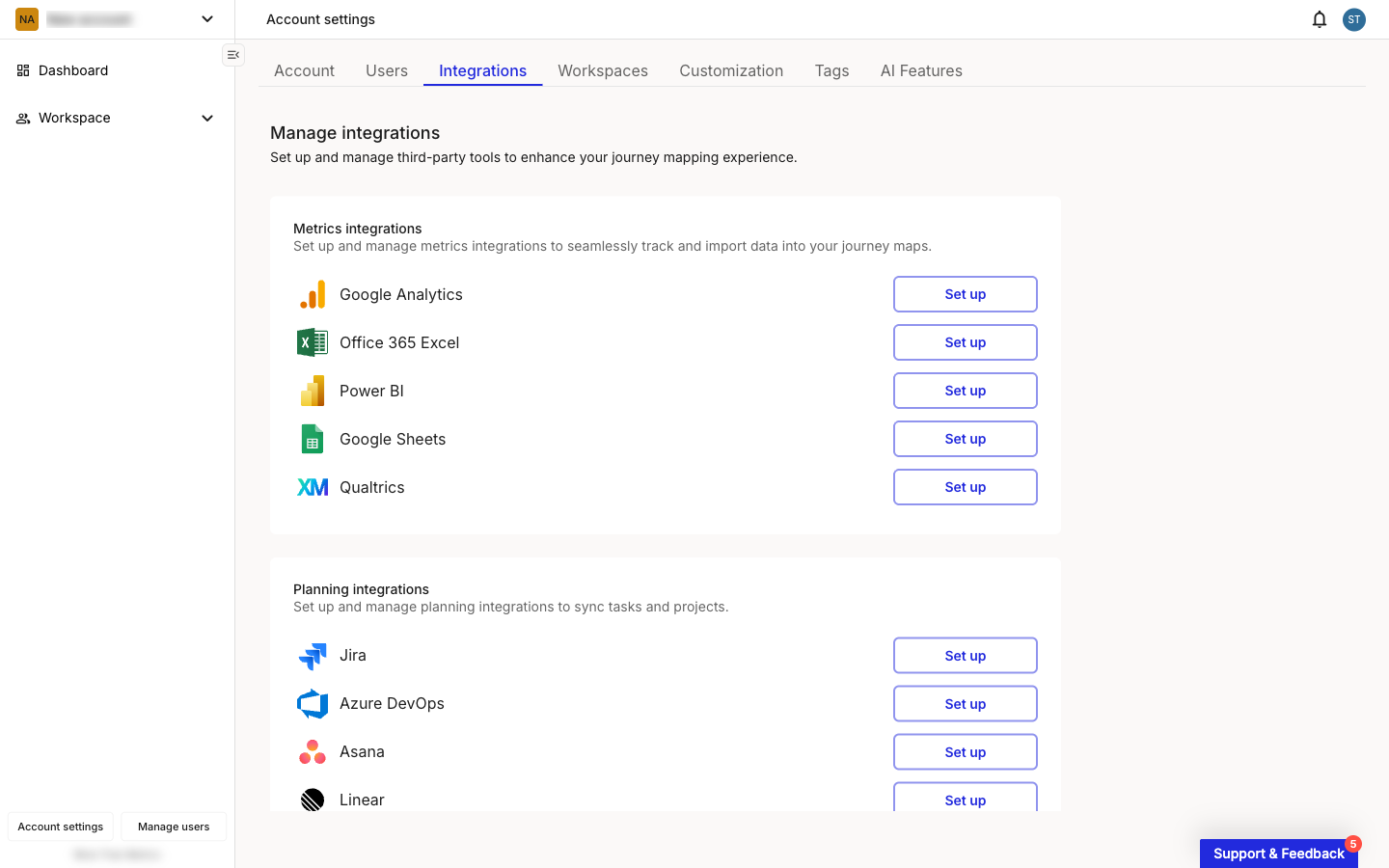
In Smaply, go to **Account Settings > Integrations** and click **Set up** next to **Google Sheets**.

<figure><img src="/files/eB6zAk4d86spcjHZVwE1" alt="Smaply Account settings page with the Integrations tab open. The Metrics integrations section lists Google Analytics, Office 365 Excel, Power BI, Google Sheets, and Qualtrics, each with a Set up button to the right."><figcaption><p>Account settings > Integrations</p></figcaption></figure>

The **Configure Google Sheets** page opens with two authentication options under **Select integration type**.

<figure><img src="/files/CS2BygXpA5D9CTrsy3Ui" alt="Configure Google Sheets page in the unconfigured state. The left pane shows two integration types: Login with your Google Sheets service account (selected by default) and Login with your Google Sheets account (oAuth). The right pane shows the Configure service account section with a Service account file upload area."><figcaption><p>Configure Google Sheets, unconfigured</p></figcaption></figure>

Pick the authentication method that fits:

* **Service account (recommended)** - Server-to-server, so the connection isn't tied to one person's login. Best when your team works on the same Smaply account.
* **OAuth** - Signs Smaply in as you. Simpler when only one person needs the data.

{% tabs %}
{% tab title="Service account (recommended)" %}
A service account is a Google identity that connects Smaply to Google Sheets without being tied to a single person's login. You create the account in Google Cloud, share each source spreadsheet with its email address, and upload its key file in Smaply.

Keep the **Configure Google Sheets** page open in another tab. You'll come back to it at the end of this flow to upload the key file.

{% stepper %}
{% step %}
**Choose Login with your Google Sheets service account**

<figure><img src="/files/qzQPaaXM2mgujZOMgaCy" alt="Configure Google Sheets page with Login with your Google Sheets service account selected. The right pane shows Configure service account with a Service account file label, the instruction Upload your Google Sheets service account JSON file, and an empty state reading No file uploaded yet. with a + Upload File button."><figcaption><p>Configure Google Sheets, service account selected</p></figcaption></figure>

On the **Configure Google Sheets** page, the **Login with your Google Sheets service account** option is selected by default. The right pane shows the **Configure service account** form where you'll upload the JSON key.
{% endstep %}

{% step %}
**Create a Google Cloud project**

In the [Google Cloud Console](https://console.cloud.google.com), create a new project for the integration. We recommend naming it something like `Smaply-Sheets` so the purpose is obvious if you audit projects later.

{% hint style="info" %}
A dedicated project keeps API access organised so you can see at a glance which credentials belong to Smaply.
{% endhint %}
{% endstep %}

{% step %}
**Enable the Google Sheets API**

Inside the project, open **APIs & Services > Library**, search for **Google Sheets API**, and click **Enable**. Smaply needs this API to read data from any sheet the service account has access to.

{% hint style="warning" %}
The Google Sheets API is not enabled by default in new Google Cloud projects. Skipping this step is the most common cause of "no spreadsheets available" later.
{% endhint %}
{% endstep %}

{% step %}
**Create a service account**

Open **IAM & Admin > Service Accounts** and click **Create Service Account**. Give it a recognisable name (for example, `smaply-sheets-reader`) and an optional description. You don't need to grant the service account any project-level roles, since access is granted per spreadsheet in Google Sheets itself. For full background on service accounts, see [Google's Service Account documentation](https://cloud.google.com/iam/docs/service-account-overview).
{% endstep %}

{% step %}
**Create and download a JSON key**

On the service account's detail page, open the **Keys** tab, click **Add Key > Create new key**, choose **JSON**, and download the file. Note the service account's email address from the same page (it ends in `@<project>.iam.gserviceaccount.com`). You'll need it in the next step.

{% hint style="danger" %}

#### **Warning: The JSON key cannot be re-downloaded**

Save the file somewhere secure. If you lose it, you will need to generate a new key and share spreadsheets with the new email address.
{% endhint %}
{% endstep %}

{% step %}
**Share each source spreadsheet with the service account**

In Google Sheets, open every spreadsheet you want Smaply to read. Click **Share** in the top-right corner of the sheet, paste the service account's email address into the people field, set the access level to **Viewer**, and click **Send** (or **Share**). Repeat for every spreadsheet you plan to use.

{% hint style="info" %}
Sharing a spreadsheet with the service account works the same way as sharing it with any colleague. The service account email just looks like a long email address. If you skip this step, the spreadsheet won't appear in the picker when you build a metric.
{% endhint %}
{% endstep %}

{% step %}
**Upload the key in Smaply**

Back on the **Configure Google Sheets** page in Smaply, click **+ Upload File** under **Service account file** and select the JSON key you downloaded.
{% endstep %}

{% step %}
**Verify the connection**

<figure><img src="/files/e4I5msVJLBvVfzCCqLMM" alt="Configure Google Sheets page in the connected state. A details panel on the right shows Added on with a relative time, Added by with the connecting account name, and a red Disconnect account button. Below the panel a green Success banner reads The Integration has been configured successfully."><figcaption><p>Configure Google Sheets, connected</p></figcaption></figure>

A green **Success** banner confirms the connection. The right pane now shows **Added on** and **Added by** (the service account email for service-account connections), plus a red **Disconnect account** button you can use later if you need to remove the connection.
{% endstep %}
{% endstepper %}
{% endtab %}

{% tab title="OAuth" %}
OAuth signs Smaply in as you. The connection inherits whatever spreadsheets your Google account already has access to, and tokens are tied to your individual permissions in Google.

{% stepper %}
{% step %}
**Choose Login with your Google Sheets account (oAuth)**

<figure><img src="/files/GVmAy1gbywqSWpJKCyVP" alt="Configure Google Sheets page with Login with your Google Sheets account (oAuth) selected. The right pane shows Connect Google Sheets with an info panel titled How to setup Google Sheets OAuth listing three numbered steps (Sign in with Google, Grant permissions, Authorize the connection) and a blue Connect Google Sheets button below."><figcaption><p>Configure Google Sheets, OAuth selected</p></figcaption></figure>

On the **Configure Google Sheets** page, choose **Login with your Google Sheets account (oAuth)**. The right pane shows a **Connect Google Sheets** section with a three-step info panel and the **Connect Google Sheets** button.
{% endstep %}

{% step %}
**Click Connect Google Sheets**

Click **Connect Google Sheets**. Smaply redirects you to Google.
{% endstep %}

{% step %}
**Sign in with Google**

Pick the Google account that has access to the spreadsheets you want to use in Smaply. If you're already signed in to multiple Google accounts, choose the one with the right spreadsheet access.
{% endstep %}

{% step %}
**Grant Smaply read access**

On Google's consent screen, review the permissions Smaply is requesting and click **Allow**. Smaply only needs read access to your Google Sheets data.
{% endstep %}

{% step %}
**Verify the connection**

<figure><img src="/files/e4I5msVJLBvVfzCCqLMM" alt="Configure Google Sheets page in the connected state via OAuth. A details panel shows Added on with a relative time, Added by with the connecting user&#x27;s name, and a red Disconnect account button. Below the panel a green Success banner reads The Integration has been configured successfully."><figcaption><p>Configure Google Sheets, connected</p></figcaption></figure>

Google sends you back to Smaply. A green **Success** banner confirms the connection, and the right pane now shows **Added on**, **Added by**, and a red **Disconnect account** button.

{% hint style="warning" %}
OAuth tokens expire periodically. If you sign out of Google, revoke Smaply's access in your Google account, or lose access to a spreadsheet, the connection drops and metrics that depend on it stop pulling data. Click **Connect Google Sheets** again from the same page to restore it.
{% endhint %}
{% endstep %}
{% endstepper %}
{% endtab %}
{% endtabs %}

***

#### Verify the setup

Reopen the **Configure Google Sheets** page from **Account Settings > Integrations**. A green **Success** banner and the **Added on** and **Added by** details confirm the connection is live. To check that your data is reachable, start a new Google Sheets metric and confirm a spreadsheet you shared (service account) or have access to (OAuth) appears when you click **Select file**.

If the connection shows an error or no spreadsheets resolve, see [Troubleshooting](#troubleshooting) below.

***

#### Use Google Sheets in a metric

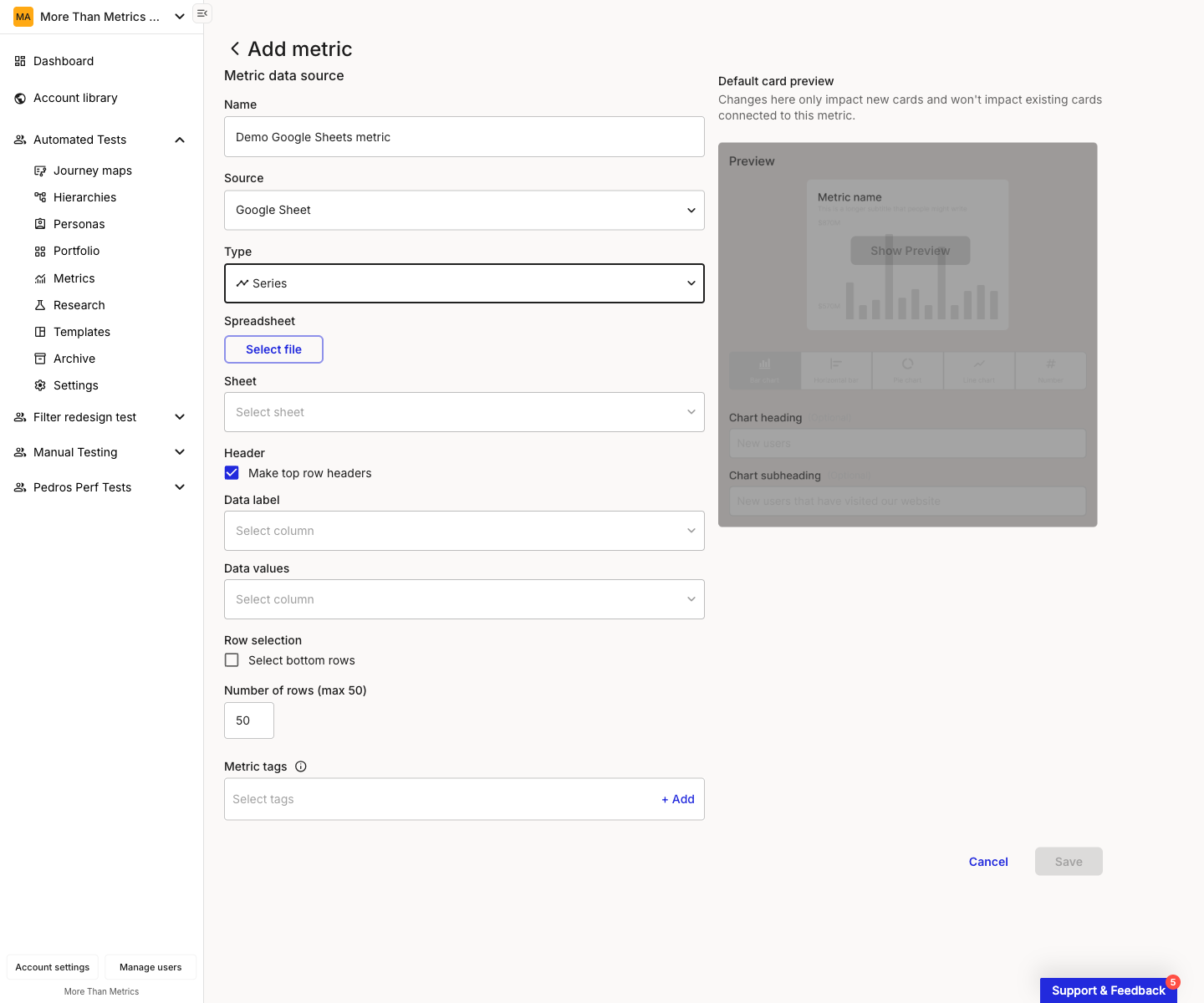
After the integration is connected, Editors create Google Sheets metrics like any other Smaply metric. In the metric configuration modal, set **Source** to **Google Sheet** and then pick the spreadsheet, sheet, and column layout.

<figure><img src="/files/dJdjBB5qSnZxvUU07nRl" alt="Add metric page with Source set to Google Sheet and Type set to Series. The Source step shows the Google Sheets specific fields: Spreadsheet with a Select file button, Sheet combobox, a Make top row headers checkbox under Header (checked), Data label and Data values dropdowns, a Select bottom rows checkbox under Row selection (unchecked), and Number of rows (max 50) defaulting to 50. The right pane shows a muted default card preview."><figcaption><p>Add metric, Source = Google Sheet, Type = Series</p></figcaption></figure>

For Series and Comparison metrics, the Source step exposes these Google-Sheets-specific fields:

* **Spreadsheet** - Click **Select file** to open Google's spreadsheet picker and pick a sheet you've shared with the connected account.
* **Sheet** - Pick the tab inside the spreadsheet. Disabled until a spreadsheet is selected.
* **Make top row headers** - Treats the first row as column names. Checked by default.
* **Data label** - The column that supplies labels (for example, dates or category names).
* **Data values** - The column that supplies numeric values.
* **Select bottom rows** and **Number of rows (max 50)** - Limit the metric to the most recent rows. Smaply reads up to 50 rows per metric.

For **Number** metrics, the Source step is simpler: pick the spreadsheet and sheet, then enter a single cell reference (for example, `A2`) and optional prefix and suffix (for example, `$` and `%`).

The **Save** button stays disabled until **Spreadsheet**, **Sheet**, and the data fields for your chosen type are all set.

For the full metric flow, including chart types, filters, and how the card behaves on a journey map, see [How to create and configure a metric](/metrics/how-to-create-and-configure-a-metric.md).

{% hint style="success" icon="lightbulb" %}

#### **Tip: Match the sheet to the journey context**

If a journey is structured around weekly cohorts, point the metric at a sheet whose rows are weeks. If it's structured around regions, use a sheet with one row per region. Smaply renders what's in the sheet, so the cleaner the sheet's shape matches the journey, the more legible the metric card.
{% endhint %}

Google Sheets metrics refresh on an hourly cycle, in line with all Smaply metric integrations. There's no continuous or streaming pull.

***

#### Troubleshooting

The Integrations tab in Account Settings shows the integration's current state. Pick the symptom below that matches what you're seeing.

<details>

<summary><strong>Connection Failed or Connection Error banner</strong> - Connection issue</summary>

A red banner on the **Configure Google Sheets** page means Smaply cannot reach Google Sheets with the stored credentials.

* For service account: confirm the **Google Sheets API** is enabled in the Google Cloud project. Re-upload the JSON key if the file may have been corrupted or replaced.
* For OAuth: click **Connect Google Sheets** again from the Configure page. The token may have expired or been revoked.

</details>

<details>

<summary><strong>The spreadsheet picker is empty or my sheet isn't listed</strong> - Access issue</summary>

The connection succeeds, but Smaply doesn't show the spreadsheet you expected when you click **Select file** during metric setup.

* For service account: the spreadsheet hasn't been shared with the service account email address. Open the spreadsheet in Google Sheets, click **Share**, paste the service account email, set access to **Viewer**, and click **Send**. The sheet appears in Smaply's picker once sharing is in place.
* For OAuth: the Google account you signed in with doesn't have access to that spreadsheet. Make sure the sheet is shared with that account in Google Sheets, or sign in with the account that does have access.

</details>

<details>

<summary><strong>Token expired and metrics stopped pulling</strong> - OAuth issue</summary>

Metrics that worked previously have stopped pulling data and the OAuth connection shows an error.

* Open the **Configure Google Sheets** page and click **Connect Google Sheets** to refresh the token.
* If you regularly hit token expiry, consider switching to a service account. Switching disconnects the current OAuth connection, so existing metrics stop pulling until you reconnect.

</details>

<details>

<summary><strong>Service account lost access to a sheet</strong> - Permissions issue</summary>

A metric that previously worked starts returning no data, even though the connection still looks active.

* The service account was probably removed from the spreadsheet in Google Sheets. Open the sheet, click **Share**, confirm the service account email is still listed with **Viewer** access, and re-add it if missing.
* If the spreadsheet itself was deleted or moved out of a shared drive, Smaply can't reach it. Move the file back or point the metric at a replacement sheet.

</details>

<details>

<summary><strong>A metric returns no data or unexpected values</strong> - Data issue</summary>

* Check the **Data label** and **Data values** columns in the metric. If headers shifted or columns were reordered in the source sheet, the metric may be reading the wrong column.
* If **Make top row headers** is unchecked but the sheet does have a header row, that row gets read as data. Re-check the box, or remove the header from the sheet.
* If **Select bottom rows** is enabled, confirm **Number of rows (max 50)** is high enough to cover the data range you expect to see.
* Confirm the values in the **Data values** column are numeric. Cells containing text, formulas that return text, or `#REF!` errors won't render as numbers.

</details>

For wider questions about how integrations behave across tools (refresh frequency, switching auth, what happens on disconnect), see [How to manage integrations](/integrations/how-to-manage-integrations-at-account-level.md).

{% hint style="info" icon="headset" %}
**Still not working?** Contact support at <code class="expression">space.vars.supportEmail</code>
{% endhint %}

***

#### Related topics

<table data-column-title-hidden data-view="cards"><thead><tr><th>Title</th><th>Description</th><th data-hidden data-card-target data-type="content-ref">Target</th></tr></thead><tbody><tr><td><strong>Manage integrations</strong></td><td>Disconnect, switch auth, and read connection states across all integrations.</td><td><a href="/pages/eVJNZWbpULcbx2YE06fQ">/pages/eVJNZWbpULcbx2YE06fQ</a></td></tr><tr><td><strong>Create and configure a metric</strong></td><td>The full metric creation flow, including types, charts, and filters.</td><td><a href="/pages/UlZ0vwT23WaSlpB6ae7r">/pages/UlZ0vwT23WaSlpB6ae7r</a></td></tr><tr><td><strong>Metric cards</strong></td><td>Adding metric cards to a journey map and customising their display per card.</td><td><a href="/pages/598LDg8aKf90gVjRC9GG">/pages/598LDg8aKf90gVjRC9GG</a></td></tr><tr><td><strong>Embed cards</strong></td><td>Embed a Google Sheet as live content on a journey map instead of pulling values as a metric.</td><td><a href="/pages/OZrRWKElbHcwoxQO8mln">/pages/OZrRWKElbHcwoxQO8mln</a></td></tr></tbody></table>


---

# Agent Instructions
This documentation is published with GitBook. GitBook is the documentation platform designed so that both humans and AI agents can read, navigate, and reason over technical content effectively. Learn more at gitbook.com.

## Querying This Documentation
If you need additional information that is not directly available in this page, you can query the documentation dynamically by asking a question.

Perform an HTTP GET request on the current page URL with the `ask` query parameter, and the optional `goal` query parameter:

```
GET https://helpdesk.smaply.app/integrations/metrics-tools/google-sheets/how-to-set-up-the-google-sheets-integration.md?ask=<question>&goal=<endgoal>
```

`ask` is the immediate question: it should be specific, self-contained, and written in natural language.
`goal` is optional and describes the broader end goal you are ultimately trying to accomplish on behalf of the user. GitBook uses it to tailor the answer towards what is most useful for that goal.

The response will contain a direct answer to the question and relevant excerpts and sources from the documentation.

Use this mechanism when the answer is not explicitly present in the current page, you need clarification or additional context, or you want to retrieve related documentation sections.