For the complete documentation index, see llms.txt. This page is also available as Markdown.

How to set up the Qualtrics integration

Connect Qualtrics so survey response data flows into your journey-map metric cards.

An Admin connects Qualtrics once at the account level. After that, anyone in the workspace can build metrics from your surveys.

Set up the Qualtrics integration

Plan availability

The Qualtrics integration is available on the Governance plan.

Prerequisites

lightbulb

Tip: Use a dedicated connector account

1

Open the Qualtrics integration in Smaply

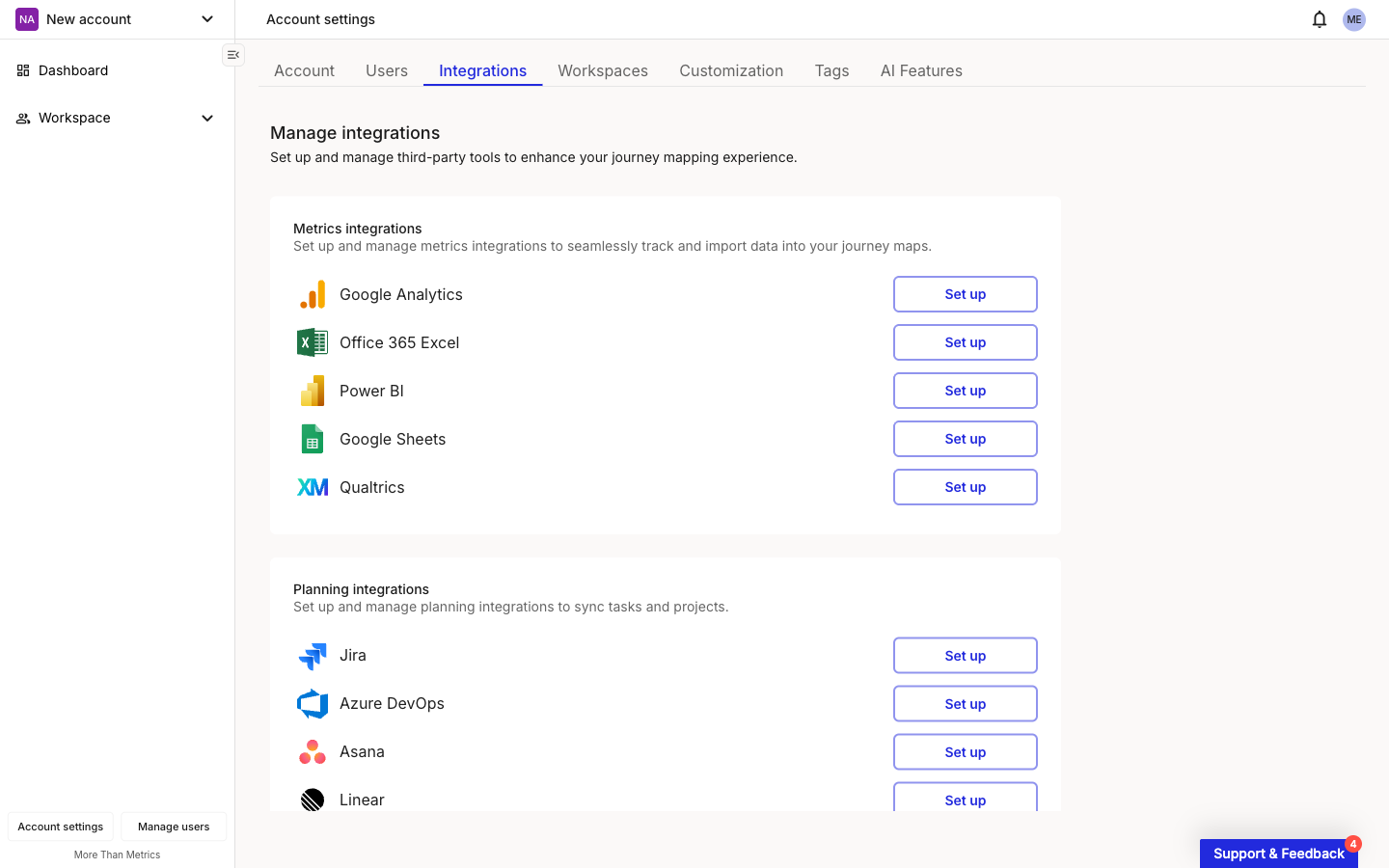
In Smaply, go to Account Settings > Integrations and click Set up next to Qualtrics.

Smaply Account settings page with the Integrations tab open. The Metrics integrations section lists Google Analytics, Office 365 Excel, Power BI, Google Sheets, and Qualtrics, each with a Set up button to the right.
Account settings > Integrations

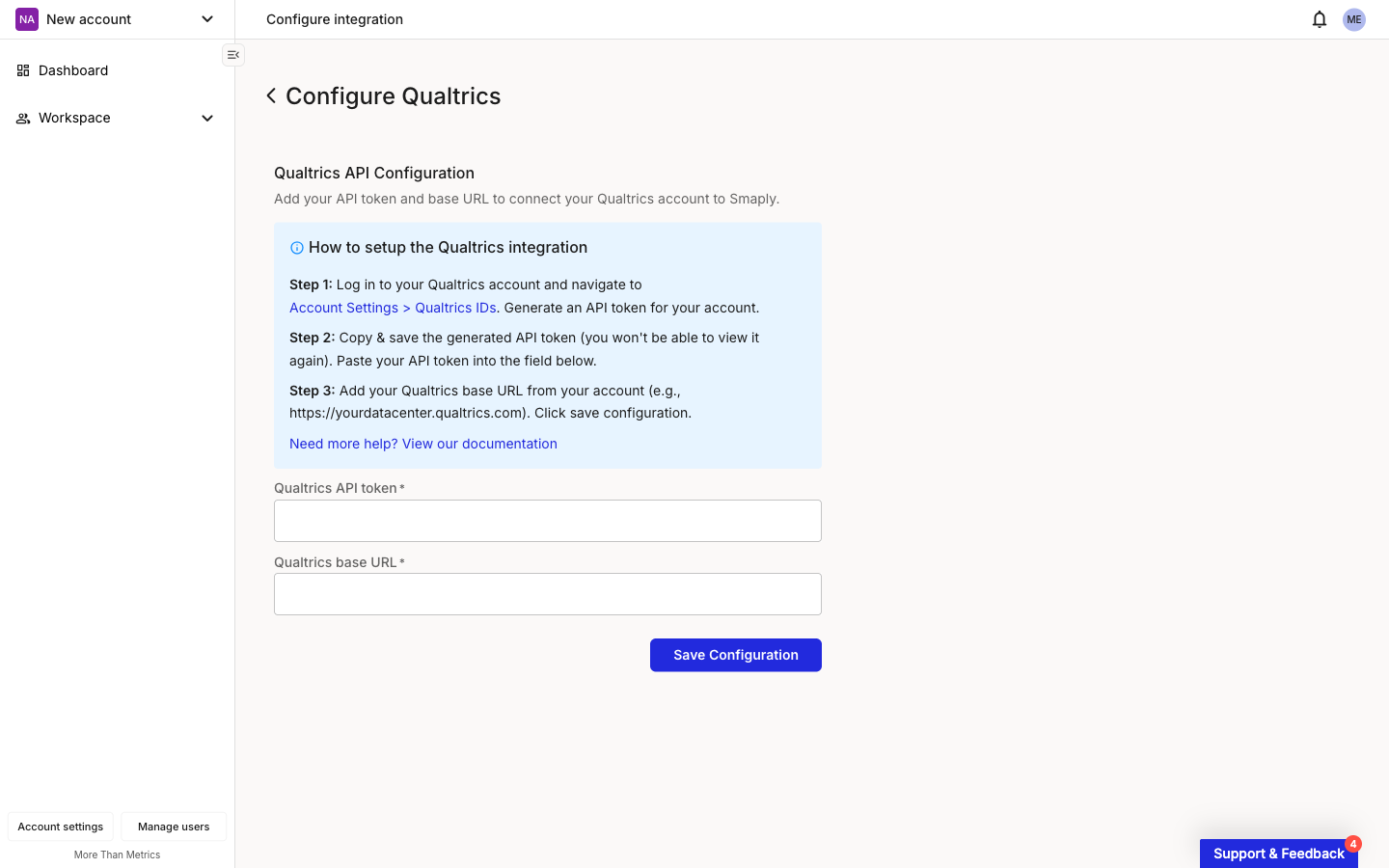
The Configure Qualtrics page opens with empty fields for your API token and base URL, plus an inline help block.

2

Get your Qualtrics credentials

You need two values from Qualtrics: an API token and your datacenter base URL.

Configure Qualtrics page in Smaply with empty Qualtrics API token and Qualtrics base URL fields, plus a how-to setup info block above the form.
Configure Qualtrics, empty form

In Qualtrics:

  • Log in and navigate to Account Settings > Qualtrics IDs. Under API, click Generate Token and copy the token immediately.

  • Take your datacenter base URL from the host part of your Qualtrics web address, for example iad1.qualtrics.com, fra1.qualtrics.com, or syd1.qualtrics.com. Enter the host only, with no https:// and no path after it.

Important: Save the token before leaving the page

3

Enter your credentials and save

Back in Smaply, paste the API token into the Qualtrics API token field and the datacenter URL into the Qualtrics base URL field, then click Save Configuration. Smaply validates the credentials against Qualtrics before storing them.

The token is encrypted at rest and masked in the UI after save. You can edit or delete the configuration later from the same page.

4

Verify the connection

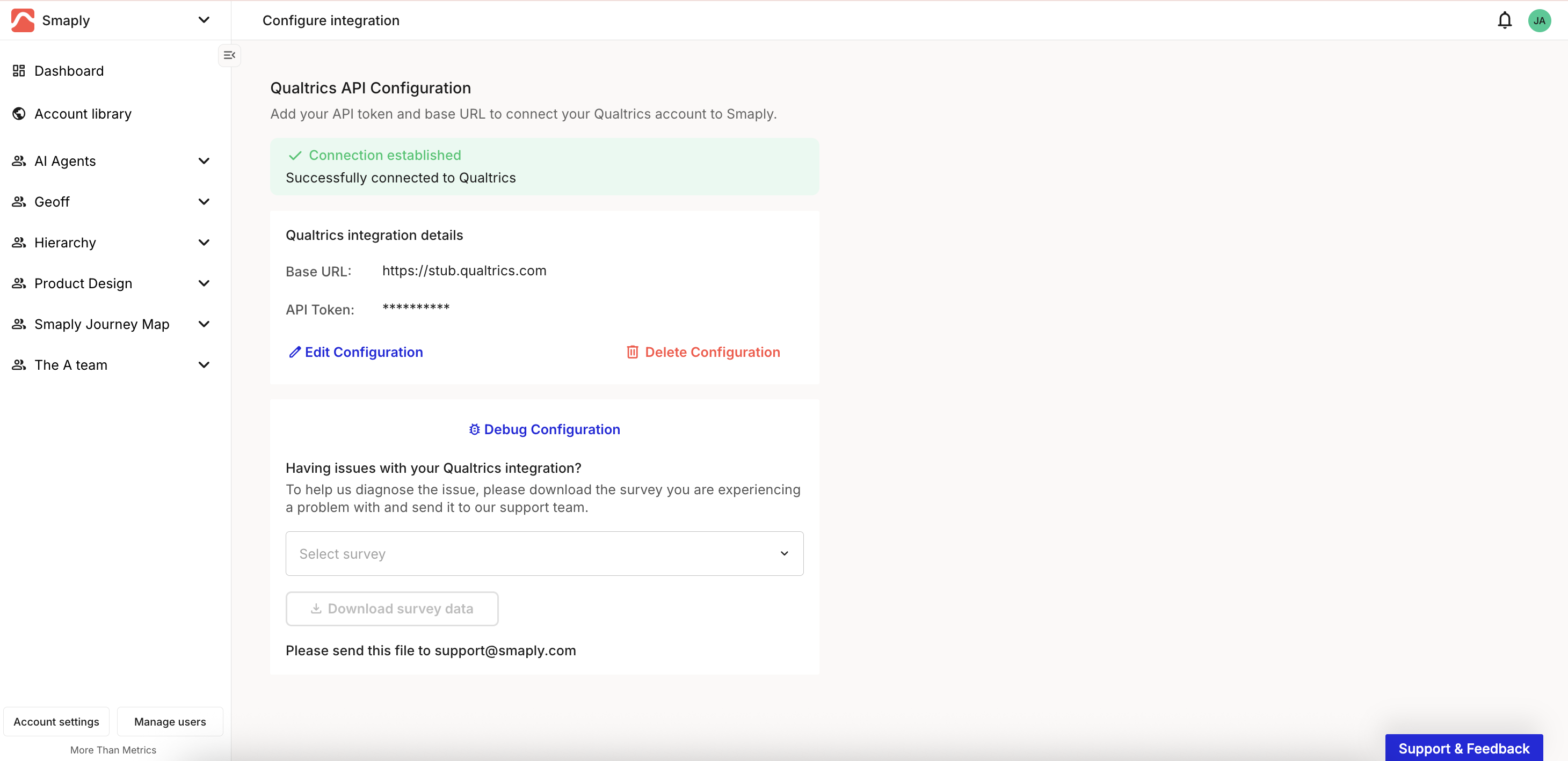
A green Connection established banner confirms Smaply can reach Qualtrics. The page now shows a Qualtrics integration details card with the masked token and base URL, plus Edit Configuration and Delete Configuration buttons.

Configure Qualtrics page after a successful connection, showing a green Connection established banner above a Qualtrics integration details card with the base URL and a masked API token, Edit Configuration and Delete Configuration buttons, and a Debug Configuration section below.
Connection established

Verify the setup

To confirm the connection before anyone builds a metric on it, reopen Account Settings > Integrations and click Edit next to Qualtrics. On the Configure Qualtrics page, a green Connection established banner ("Successfully connected to Qualtrics") means Smaply can reach Qualtrics with the stored credentials.

If you see a red Connection Failed or Connection Error banner instead, see Troubleshooting below.


Use Qualtrics in a metric

Once the integration is connected, Editors create Qualtrics metrics like any other Smaply metric. The metric configuration modal exposes the Qualtrics-specific fields below the standard Name, Source, and Type fields:

  • Survey: which Qualtrics survey to pull responses from

  • Question: the survey question whose responses drive the metric

  • Group by: an option to break the metric down (for example, by response category)

  • Calculation: how individual responses are aggregated into the displayed value

For the full metric flow, including Number, Series, and Comparison types, chart options, and how the card behaves on a journey map, see How to create and configure a metric.

lightbulb

Tip: Match the survey question to the journey moment

Qualtrics metrics refresh on load when the previous update attempt is older than one hour. There is no continuous or streaming pull.


Troubleshooting

The Integrations tab in Account Settings shows the integration's current state. Pick the symptom below that matches what you're seeing.

Connection Failed or Connection Error banner - Connection issue

A red banner on the Configure Qualtrics page means Smaply cannot reach Qualtrics with the stored credentials.

  • Confirm the Qualtrics base URL is the datacenter host only, with no https:// and no path (for example iad1.qualtrics.com). Pasting the full browser address is the most common cause.

  • Re-check the Qualtrics API token. Leading or trailing whitespace pasted from a clipboard is a common cause.

  • If the Qualtrics user that generated the token has been deactivated, the token stops working. Generate a new token from an active account.

Token rejected during Save - Authentication issue

The credentials fail validation when you click Save Configuration.

  • The token may have been revoked in Qualtrics. Open Qualtrics, generate a new token under Account Settings > Qualtrics IDs, and paste the new value into Smaply.

  • The Qualtrics account that generated the token may not have API access enabled. A Qualtrics Brand Administrator can confirm and enable it.

No surveys appear when configuring a metric - Surveys issue

The connection succeeds but the Survey dropdown in the metric configuration is empty.

  • The Qualtrics user behind the token does not have access to any surveys. Share the surveys with that user in Qualtrics, or generate the token from a user that already has access.

  • If you are using a dedicated connector account, confirm that the surveys you expect have been explicitly shared with that account in Qualtrics.

A metric returns no data or unexpected values - Data issue

The metric loads but the values look wrong, empty, or stale.

  • Open the metric and check the Survey, Question, and Calculation are still pointing at the right Qualtrics objects. Question IDs change if a question is deleted and re-added in Qualtrics.

  • Confirm the survey actually has new responses since the last refresh. Metrics refresh on load when the previous update is older than one hour, so freshly-added responses can take up to an hour to appear.

  • If the values are still unexpected, use Debug Configuration on the Configure Qualtrics page. Pick the affected survey, click Download survey data, and send the file to help@smaply.com for diagnosis.

Important: The debug download contains sensitive data

Metrics that worked previously have stopped pulling - Token revoked

A previously working integration shows an error and metrics stop updating.

  • The most common cause is a revoked or rotated API token in Qualtrics. Generate a new token, open the Configure Qualtrics page in Smaply, click Edit Configuration, paste in the new token, and save.

  • If the Qualtrics account itself has been deactivated, generate the token from a different active account (a dedicated connector account is the most resilient option).

For wider questions about how integrations behave across tools (refresh frequency, plan availability, what happens on disconnect), see How to manage integrations.

Still not working? Contact support at help@smaply.com


Last updated