> For the complete documentation index, see [llms.txt](https://helpdesk.smaply.app/llms.txt). Markdown versions of documentation pages are available by appending `.md` to page URLs; this page is available as [Markdown](https://helpdesk.smaply.app/integrations/planning-tools/how-to-set-up-the-monday.com-integration.md).

# How to set up the Monday.com integration

An Admin connects Monday.com once at the account level. After that, anyone in your workspace can search Monday.com and link items to planning cards on any journey map.

{% hint style="info" icon="clipboard-list" %}

#### In this guide

1. [Set up the Monday.com integration](#set-up-the-monday.com-integration)
2. [Verify the setup](#verify-the-setup)
3. [Use Monday.com in planning cards](#use-monday.com-in-planning-cards)
4. [Troubleshooting](#troubleshooting)
   {% endhint %}

#### Set up the Monday.com integration

{% hint style="warning" icon="list-check" %}

#### Prerequisites

* Admin role at the account level. Only Admins can configure integrations, and the connection applies to the whole account.
* A Monday.com account with access to the boards you want to link from.
  {% endhint %}

Monday.com uses a single authentication method: a personal API token. The token carries the permissions of whoever creates it, so connect with a user who can see the boards your team needs.

{% stepper %}
{% step %}
**Open the Monday.com integration in Smaply**

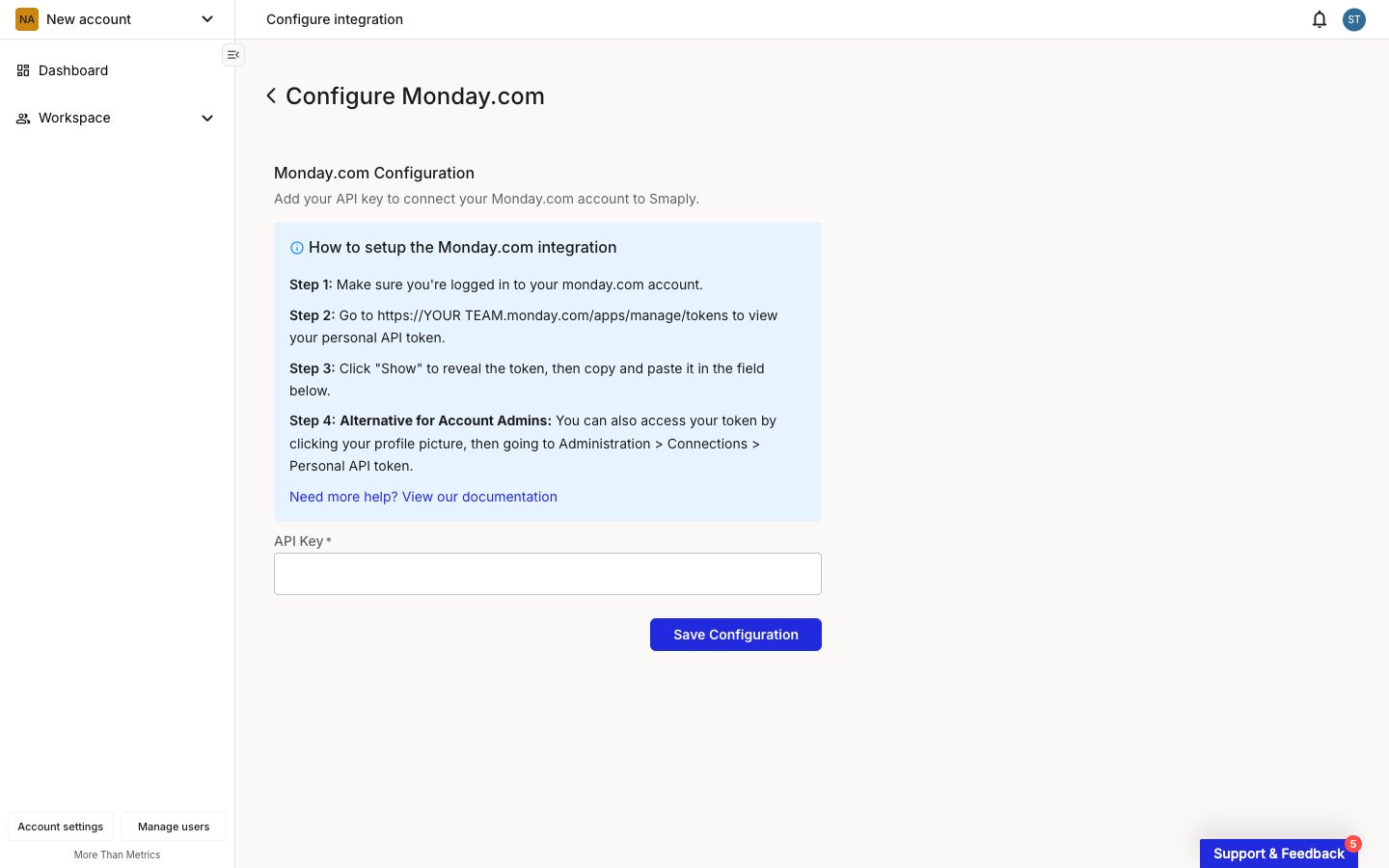
Go to **Account Settings > Integrations** and click **Set up** next to **Monday.com**. The **Configure Monday.com** page opens with an empty **API Key** field and a help block summarising what you need to do next.

<figure><img src="/files/LY79LTWt5llR5TxangTO" alt="The Configure Monday.com page in Smaply. A Monday.com Configuration form shows one empty required field labelled API Key, with a blue help block above listing four setup steps and a Save Configuration button below."><figcaption><p>Configure Monday.com, empty form</p></figcaption></figure>
{% endstep %}

{% step %}
**Get your personal API token from Monday.com**

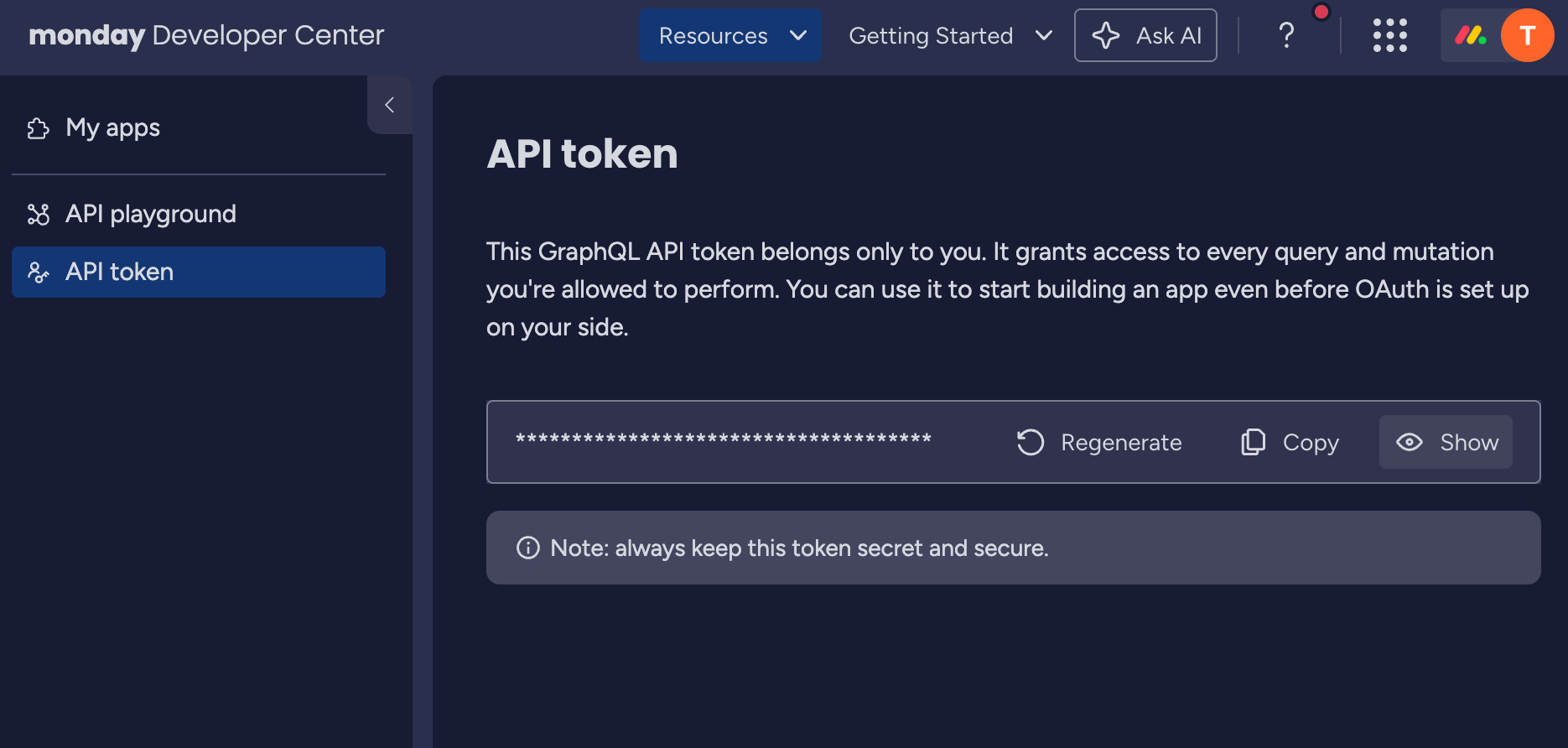
In a new tab, sign in to Monday.com. Click your profile picture, choose **Developers**, then open the **Developer Center**. Under **My Access Tokens**, click **Show** to reveal your token and **Copy** it.

<figure><img src="/files/tDGb6c09YhVcZPZe0xg9" alt="The Monday.com Developer Center on the API token page. The personal API token is masked, with Regenerate, Copy, and Show buttons to its right and a note advising you to keep the token secret."><figcaption><p>Monday.com Developer Center, API token</p></figcaption></figure>

You can also go straight to `https://YOUR-TEAM.monday.com/apps/manage/tokens`, swapping in your own Monday.com subdomain for `YOUR-TEAM`. Account Admins have a second route: profile picture > **Administration** > **Connections** > **Personal API token**.
{% endstep %}

{% step %}
**Enter the API key and save**

Back on the **Configure Monday.com** page, paste the token into the **API Key** field. Monday.com calls it a token and Smaply calls it an API key, but it is the same value. Click **Save Configuration**.
{% endstep %}

{% step %}
**Confirm the connection**

Smaply tests the connection and, once it succeeds, the page shows a green confirmation. Monday.com is now available to everyone in your account.
{% endstep %}
{% endstepper %}

***

#### Verify the setup

Reopen the **Configure Monday.com** page from **Account Settings > Integrations**. A connected integration shows a green **Connection setup** message reading "Successfully connected to Monday.com as ...", along with **Edit Configuration** and **Delete Configuration** actions.

If you don't see the green confirmation, check the [Troubleshooting](#troubleshooting) section below.

***

#### Use Monday.com in planning cards

Once Monday.com is connected, anyone in your workspace can add a planning card to a journey map, search Monday.com, and link the item it relates to. For the full flow, see [How to use planning cards](/journey-maps/cards/how-to-use-planning-cards.md).

***

#### Troubleshooting

The **Configure Monday.com** page shows the integration's current state. Pick the symptom below that matches what you're seeing.

<details>

<summary><strong>Connection Error or the connection won't save</strong> - Connection issue</summary>

The token is wrong or was pasted with extra characters. Reopen **Configure Monday.com**, click **Edit Configuration**, and paste the token again from the Monday.com Developer Center with no leading or trailing spaces. If it still fails, regenerate the token in Monday.com and enter the new one.

</details>

<details>

<summary><strong>No items found when adding a planning card</strong> - Search issue</summary>

The connection works but Monday.com returns nothing for your search. A personal token only reaches the boards its owner can open in Monday.com, so items on boards they can't see won't appear. Check that the search text matches an item the token's owner can access.

</details>

<details>

<summary><strong>A connection that worked has stopped</strong> - Token regenerated or revoked</summary>

Regenerating a token in Monday.com issues a new one and breaks any connection still using the old token. The same happens if the token's owner loses access to the boards.

Copy the current token from the Monday.com Developer Center, then reopen **Configure Monday.com**, click **Edit Configuration**, and paste it in.

</details>

<details>

<summary><strong>Items are missing or you can't connect at all</strong> - Permission issue</summary>

Configuring the integration needs an Admin role at the account level. If **Set up** or **Edit Configuration** isn't available, ask an account Admin to make the change.

For which Monday.com items appear, the connection uses the token owner's permissions. If a teammate can't find an item you can see, the token owner may not have access to that board in Monday.com.

</details>

For questions about how the connection behaves across your account, such as disconnecting Monday.com or what happens when you remove it, see [How to manage integrations](/integrations/how-to-manage-integrations-at-account-level.md).

{% hint style="info" icon="headset" %}
**Still not working?** Contact support at <code class="expression">space.vars.supportEmail</code>
{% endhint %}

***

#### Related topics

<table data-column-title-hidden data-view="cards"><thead><tr><th>Article</th><th>What it covers</th><th data-hidden data-card-target data-type="content-ref">Target</th></tr></thead><tbody><tr><td><strong>How to manage integrations</strong></td><td>Change, disconnect, or reconfigure an existing integration</td><td><a href="/pages/eVJNZWbpULcbx2YE06fQ">/pages/eVJNZWbpULcbx2YE06fQ</a></td></tr><tr><td><strong>How to use planning cards</strong></td><td>Search and link items from connected tools onto a journey map</td><td><a href="/pages/8b7Oqz3iQ0er7DHD7TSo">/pages/8b7Oqz3iQ0er7DHD7TSo</a></td></tr><tr><td><strong>Set up your first integration</strong></td><td>Choose an integration type and connect your first tool</td><td><a href="/pages/MnIIaFvymKzpE7B98hdU">/pages/MnIIaFvymKzpE7B98hdU</a></td></tr></tbody></table>


---

# Agent Instructions
This documentation is published with GitBook. GitBook is the documentation platform designed so that both humans and AI agents can read, navigate, and reason over technical content effectively. Learn more at gitbook.com.

## Querying This Documentation
If you need additional information that is not directly available in this page, you can query the documentation dynamically by asking a question.

Perform an HTTP GET request on the current page URL with the `ask` query parameter, and the optional `goal` query parameter:

```
GET https://helpdesk.smaply.app/integrations/planning-tools/how-to-set-up-the-monday.com-integration.md?ask=<question>&goal=<endgoal>
```

`ask` is the immediate question: it should be specific, self-contained, and written in natural language.
`goal` is optional and describes the broader end goal you are ultimately trying to accomplish on behalf of the user. GitBook uses it to tailor the answer towards what is most useful for that goal.

The response will contain a direct answer to the question and relevant excerpts and sources from the documentation.

Use this mechanism when the answer is not explicitly present in the current page, you need clarification or additional context, or you want to retrieve related documentation sections.