> For the complete documentation index, see [llms.txt](https://helpdesk.smaply.app/llms.txt). Markdown versions of documentation pages are available by appending `.md` to page URLs; this page is available as [Markdown](https://helpdesk.smaply.app/integrations/set-up-your-first-integration.md).

# Set up your first integration

Plug Jira tickets, Google Sheets numbers, Qualtrics survey results, or any supported tool into Smaply once. Then pull their live data into any journey map in your account.

{% hint style="warning" icon="list-check" %}

#### Prerequisites

You need Admin permissions at the account level. Integrations are configured once for the whole account, not per workspace, and only Admins can set them up.
{% endhint %}

***

{% hint style="info" icon="clipboard-list" %}

#### In this guide

1. [Choose the type of integration you need](#choose-the-type-of-integration-you-need)
2. [Find the setup guide for your tool](#find-the-setup-guide-for-your-tool)
3. [Connect the integration in Account Settings](#connect-the-integration-in-account-settings)
4. [Use your integration on a journey map](#use-your-integration-on-a-journey-map)
5. [Verify the integration is working](#verify-the-integration-is-working)
   {% endhint %}

***

#### Choose the type of integration you need

Smaply integrations fall into three types. Match your goal to the right one before you go further:

|                                  | Metrics                                                            | Planning                                                            | Embed                                                                    |
| -------------------------------- | ------------------------------------------------------------------ | ------------------------------------------------------------------- | ------------------------------------------------------------------------ |
| Best for                         | Showing quantitative data (KPIs, survey results, traffic) on a map | Linking delivery work (tickets, tasks) to the journey it relates to | Pulling in live external content like Figma frames, YouTube, Google Docs |
| What you see on a journey map    | A chart or number card pulling from an external data source        | A card showing a live ticket or task from your planning tool        | An interactive preview of the external content inside a card             |
| Where you set it up              | Account Settings, Integrations tab                                 | Account Settings, Integrations tab                                  | Directly on a card, by pasting a URL                                     |
| Account-level setup, Admin only? | Yes                                                                | Yes                                                                 | No, any Editor adds one per card                                         |

This guide covers the **Metrics** and **Planning** integrations you set up in Account Settings. If you want to embed external content, there's nothing to set up at the account level: see [How to use embed integrations](/integrations/how-to-use-embed-integrations.md) instead.

{% hint style="info" icon="tag" %}

#### Plan availability

On the Free plan, metric, planning, and embed cards are each limited to 3 per map. The Framework plan unlocks unlimited use. Service account authentication for Power BI, Google Analytics, and Excel 365 is a Governance plan feature.
{% endhint %}

***

#### Find the setup guide for your tool

Each tool has its own setup article with the exact fields and credentials it needs. Pick yours from the matching section below.

<table data-column-title-hidden data-view="cards"><thead><tr><th>Title</th><th>Description</th><th data-hidden data-card-target data-type="content-ref">Target</th></tr></thead><tbody><tr><td><strong>Metrics tools</strong></td><td>Google Analytics, Power BI, Excel 365, Google Sheets, Qualtrics</td><td><a href="/pages/Kf9X1ug2MQ8PofLSSbUl">/pages/Kf9X1ug2MQ8PofLSSbUl</a></td></tr><tr><td><strong>Planning tools</strong></td><td>Jira, Asana, Azure DevOps, Linear, Monday.com, Trello</td><td><a href="/pages/1UFmZNSO8c4cjWEYlFUe">/pages/1UFmZNSO8c4cjWEYlFUe</a></td></tr></tbody></table>

***

#### Connect the integration in Account Settings

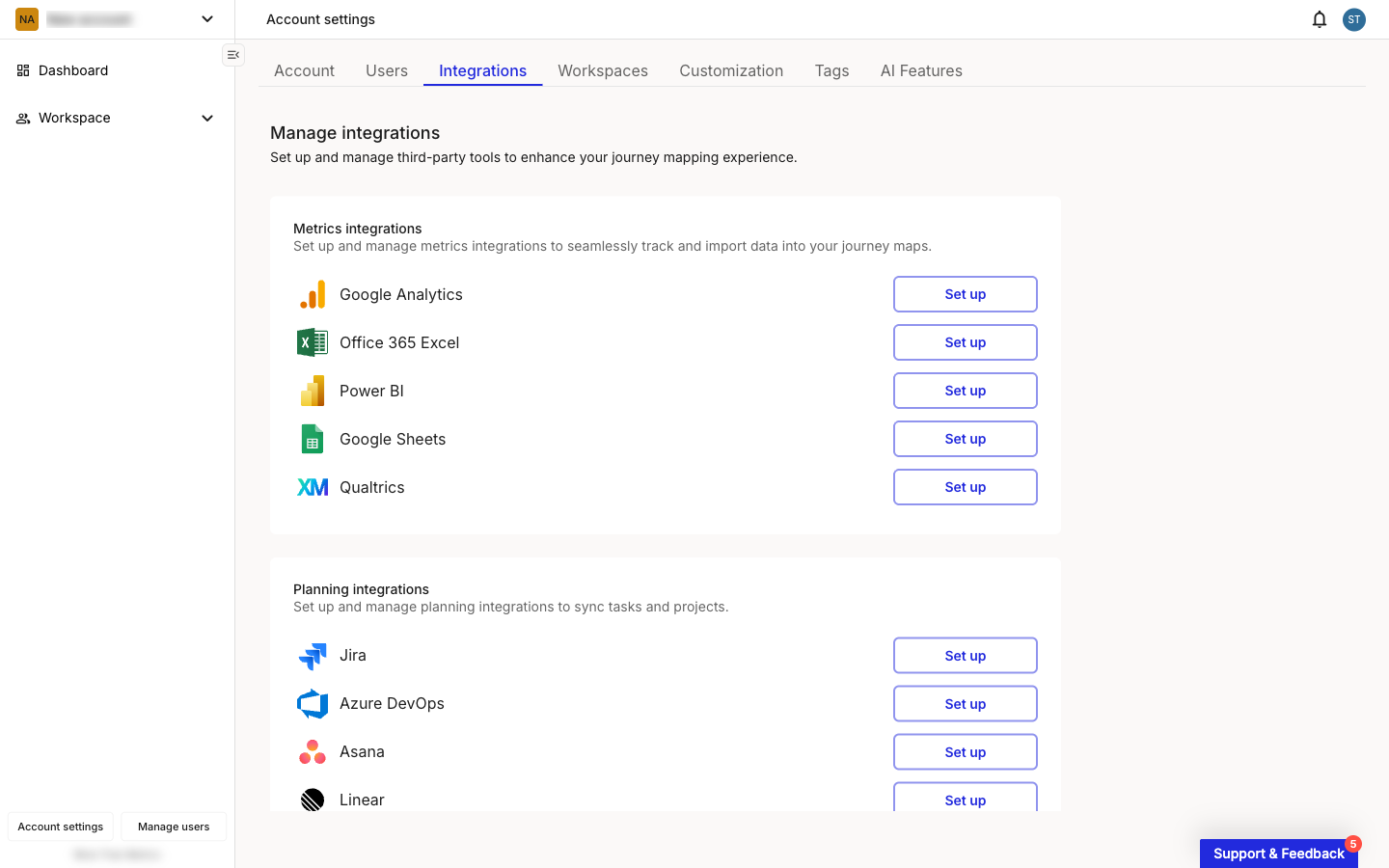
Every integration connects in the same place: **Account Settings**, on the **Integrations** tab. The connection applies across every workspace in your account, and you only set it up once.

<figure><img src="/files/eB6zAk4d86spcjHZVwE1" alt="Account settings page with the Integrations tab open. A Metrics integrations section lists Google Analytics, Office 365 Excel, Power BI, Google Sheets, and Qualtrics, each with a Set up button. A Planning integrations section below lists Jira, Azure DevOps, Asana, and Linear, also each with a Set up button."><figcaption><p>Account Settings > Integrations</p></figcaption></figure>

Each tool shows a **Set up** button when it isn't connected yet, or an **Edit** button once it is. Most tools need something prepared in the external service first, either an API token (for tools like Jira, Asana, Linear, and Qualtrics) or sign-in to an account with the right access (for the OAuth-based tools). Your tool's setup article lists the exact steps.

For the OAuth-based tools (Google Analytics, Power BI, Google Sheets), you also choose an authentication method when you connect:

{% columns %}
{% column %}
**Login with your account (OAuth)**

Tied to one person and their access to the data. Best for individual connections or quick testing.
{% endcolumn %}

{% column %}
**Service account**

A server-to-server connection, not tied to a specific person. Best for team-wide integrations that shouldn't break when someone leaves.
{% endcolumn %}
{% endcolumns %}

{% hint style="info" icon="tag" %}
Service account authentication is available on the **Governance** plan.
{% endhint %}

Only one method can be active per integration at a time. After you connect, the tool shows one of these states on the Integrations tab:

* **Connected**, a green banner: the connection is working.
* **Connection Error**, a red banner: the connection failed and needs reconfiguring, usually because credentials are wrong or have expired.
* **Connection Failed**, a red banner: failure caused by something on the external service, for example a plan upgrade required on that tool.
* **Not configured**: the setup form is shown with empty fields.

For switching auth methods, refresh frequency, and what happens on disconnect, see [How to manage integrations](/integrations/how-to-manage-integrations-at-account-level.md).

***

#### Use your integration on a journey map

How the connected data lands on a map depends on the integration type.

{% tabs %}
{% tab title="Metrics" %}
Using a metrics integration is a two-step flow: create a metric, then place it on a map as a metric card. A single metric can be reused across multiple journey maps, and data refreshes on a roughly hourly cycle.

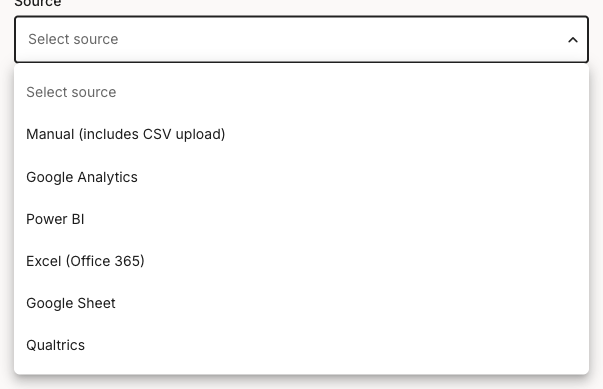
In the metric builder, your connected tool appears in the **Source** dropdown alongside the other metrics tools.

<figure><img src="/files/zHTxnP28I3A8h62aEjUt" alt="The Source dropdown in the metric builder, expanded. The options read Manual (includes CSV upload), Google Analytics, Power BI, Excel (Office 365), Google Sheet, and Qualtrics."><figcaption><p>Metric builder, Source dropdown</p></figcaption></figure>

For the full flow, see:

* [How to create and configure a metric](/metrics/how-to-create-and-configure-a-metric.md)
* [How to choose a metric type](/metrics/how-to-choose-a-metric-type.md)
* [How to use metric cards](/journey-maps/cards/how-to-use-metric-cards.md)
  {% endtab %}

{% tab title="Planning" %}
Planning items live in the connected tool (Jira, Asana, Linear, and so on), not in Smaply. On a journey map, open the Add card menu, choose a planning card, and search for the item you want to link. The card then reflects status changes from the source tool automatically.

For the full flow, see [How to use planning cards](/journey-maps/cards/how-to-use-planning-cards.md).
{% endtab %}
{% endtabs %}

***

#### Verify the integration is working

A quick end-to-end check confirms the whole pipeline, from credentials to card display.

* **For a metrics integration:** create a small test metric (for example, a single Number pulling a value you can recognise), add it as a metric card on any journey map, and confirm the card renders with real data. If the card is empty or shows an error, open **Account Settings** and check that the integration shows as **Connected** on the Integrations tab.
* **For a planning integration:** add a planning card to a test map, search for a known item in your tool, and confirm the card populates with the expected fields. If the search returns nothing, confirm the integration is still **Connected** and that the credentials reach the projects you're searching.

If the Integrations tab shows **Connection Error** or **Connection Failed**, the credentials have expired or lack the access they need. Re-enter them from your tool's setup article, or check the inline troubleshooting at the bottom of that article.

***

#### What's next

<table data-column-title-hidden data-view="cards"><thead><tr><th>Article</th><th>What it covers</th><th data-hidden data-card-target data-type="content-ref">Target</th></tr></thead><tbody><tr><td><strong>How to use metric cards</strong></td><td>Place and customise metric cards on a journey map</td><td><a href="/pages/598LDg8aKf90gVjRC9GG">/pages/598LDg8aKf90gVjRC9GG</a></td></tr><tr><td><strong>How to use planning cards</strong></td><td>Search and add planning items from connected tools</td><td><a href="/pages/8b7Oqz3iQ0er7DHD7TSo">/pages/8b7Oqz3iQ0er7DHD7TSo</a></td></tr><tr><td><strong>How to manage integrations</strong></td><td>Change, disconnect, or reconfigure an existing integration</td><td><a href="/pages/eVJNZWbpULcbx2YE06fQ">/pages/eVJNZWbpULcbx2YE06fQ</a></td></tr><tr><td><strong>First steps for admins</strong></td><td>Broader admin onboarding beyond integrations</td><td><a href="/pages/lfeGHTTNt6pNYxV044Ne">/pages/lfeGHTTNt6pNYxV044Ne</a></td></tr></tbody></table>


---

# Agent Instructions
This documentation is published with GitBook. GitBook is the documentation platform designed so that both humans and AI agents can read, navigate, and reason over technical content effectively. Learn more at gitbook.com.

## Querying This Documentation
If you need additional information that is not directly available in this page, you can query the documentation dynamically by asking a question.

Perform an HTTP GET request on the current page URL with the `ask` query parameter, and the optional `goal` query parameter:

```
GET https://helpdesk.smaply.app/integrations/set-up-your-first-integration.md?ask=<question>&goal=<endgoal>
```

`ask` is the immediate question: it should be specific, self-contained, and written in natural language.
`goal` is optional and describes the broader end goal you are ultimately trying to accomplish on behalf of the user. GitBook uses it to tailor the answer towards what is most useful for that goal.

The response will contain a direct answer to the question and relevant excerpts and sources from the documentation.

Use this mechanism when the answer is not explicitly present in the current page, you need clarification or additional context, or you want to retrieve related documentation sections.