> For the complete documentation index, see [llms.txt](https://helpdesk.smaply.app/llms.txt). Markdown versions of documentation pages are available by appending `.md` to page URLs; this page is available as [Markdown](https://helpdesk.smaply.app/journey-maps/cards/how-to-comment-on-a-card.md).

# How to comment on a card

Every card carries its own comment conversation, so feedback and questions stay attached to the exact step they're about. Open the card details panel, type in the **Comments** section, and press Enter to post. @Mention a teammate to notify them.

{% hint style="info" icon="tag" %}
Commenting on cards is available on the **Repository** plan and above. On **Free**, collaboration is limited to a single journey map.
{% endhint %}

{% hint style="info" icon="clipboard-list" %}

#### In this guide

1. [How to add a comment to a card](#how-to-add-a-comment-to-a-card)
2. [How to @mention a teammate](#how-to-mention-a-teammate)
3. [How to delete a comment](#how-to-delete-a-comment)
4. [What a comment notifies](#what-a-comment-notifies)
   {% endhint %}

***

#### How to add a comment to a card

Comments live in the card details panel, which you open by clicking **Show card details** on the card toolbar, choosing **Card details** from the three-dot menu, or double-clicking the card. The panel works the same on every card type. For the panel itself, see [How to add and edit cards](/journey-maps/cards/how-to-add-and-edit-cards.md).

{% stepper %}
{% step %}
**Open the Comments section**

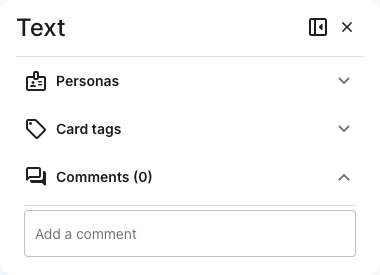
In the card details panel, expand **Comments**. The heading shows the current count, so an untouched card reads **Comments (0)**.

<figure><img src="/files/ppYIekZY1BlxohDi4VUm" alt="A card details panel with Personas, Card tags, and Comments sections. The Comments section is expanded and reads Comments (0), with an empty Add a comment field below it."><figcaption><p>The Comments section on a card with no comments yet</p></figcaption></figure>
{% endstep %}

{% step %}
**Type your comment**

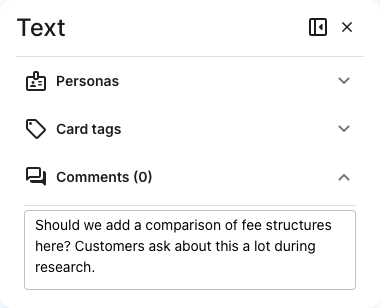
Click into the **Add a comment** field and write your note. The field grows to fit longer text.

<figure><img src="/files/rVRtOQ1CyMoODhf7ZgqX" alt="The Comments section with a comment being typed into the Add a comment field, reading Should we add a comparison of fee structures here? Customers ask about this a lot during research."><figcaption><p>Writing a comment in the composer</p></figcaption></figure>
{% endstep %}

{% step %}
**Press Enter to post**

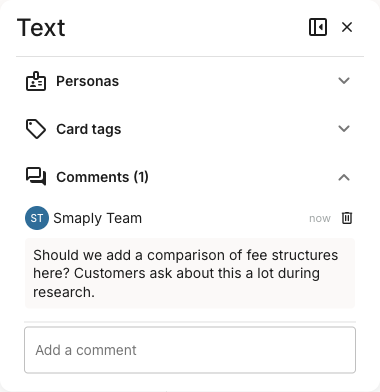
There's no separate post button. Pressing Enter submits the comment, the count ticks up, and your comment appears with your name and the time you posted.

<figure><img src="/files/wFajmTyX1eDtUa5y6TXA" alt="A posted comment under a Comments (1) heading, attributed to Smaply Team with a now timestamp and a delete icon, followed by an empty Add a comment field ready for the next comment."><figcaption><p>A posted comment, with the empty composer ready for the next one</p></figcaption></figure>
{% endstep %}
{% endstepper %}

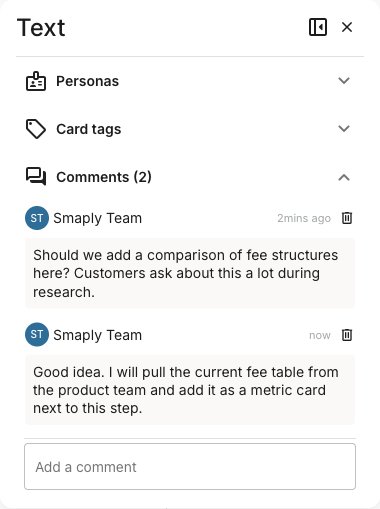
Comments stack in a single list, newest at the bottom, so a back-and-forth on a card reads in order. Anyone with access to the map sees the same conversation.

<figure><img src="/files/qeawnO6OSeiEhz4FA2VE" alt="A Comments (2) section showing two comments in one list, each attributed to Smaply Team with a timestamp and a delete icon. The first asks about adding a comparison of fee structures; the second replies that the author will pull the current fee table and add it as a metric card. An empty Add a comment field sits below."><figcaption><p>A two-comment conversation in the card's comment list</p></figcaption></figure>

***

#### How to @mention a teammate

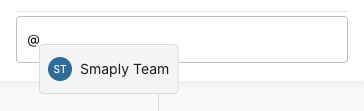
To pull a specific person into the conversation, type `@` in the composer. A list of the people in your workspace opens, and picking one inserts a mention into your comment.

<figure><img src="/files/XXSgOVJF7kFjKNymOxAT" alt="A comment composer with an @ typed in it. A dropdown below the field lists a workspace member, Smaply Team, with their avatar, ready to be selected as a mention."><figcaption><p>Typing @ opens the list of workspace members to mention</p></figcaption></figure>

Anyone who can comment can be mentioned, including teammates with Viewer access. The mention sends them a notification so they know to look. For what that notification is and where it lands, see [What a comment notifies](#what-a-comment-notifies) below.

***

#### How to delete a comment

Hover or look to the right of any comment for the delete (trash) icon, and click it to remove that comment. Deleting is the only edit available on a posted comment, and the count drops to match.

***

#### What a comment notifies

An @mention is the only comment activity that notifies anyone. The person you mention gets an in-app notification on the notification bell at the top-right of the app. There's no email for mentions, and a plain comment with no mention notifies no one.

For the full picture of what Smaply notifies you about and where, see [About notifications](/account-and-team/about-notifications.md).

***

#### Related topics

<table data-column-title-hidden data-view="cards"><thead><tr><th>Title</th><th>Description</th><th data-hidden data-card-target data-type="content-ref">Target</th></tr></thead><tbody><tr><td><strong>How to add and edit cards</strong></td><td>Parent how-to for the card details panel and the shared mechanics every card type uses.</td><td><a href="/pages/DI00pTOdaJmOwltHKgIa">/pages/DI00pTOdaJmOwltHKgIa</a></td></tr><tr><td><strong>About notifications</strong></td><td>What an @mention sends, where it shows up, and what you can and can't change.</td><td><a href="/pages/fDF2SBvff6heg6x7MiuR">/pages/fDF2SBvff6heg6x7MiuR</a></td></tr><tr><td><strong>How to assign a persona to a card</strong></td><td>Another card details panel section: tag a card with one or more personas.</td><td><a href="/pages/42b6nVolnvr4VE3kfJ6s">/pages/42b6nVolnvr4VE3kfJ6s</a></td></tr><tr><td><strong>How to bulk edit cards</strong></td><td>Apply tags, personas, or formatting across many cards at once.</td><td><a href="/pages/D239Y2x0Gzcz0VuWHA1p">/pages/D239Y2x0Gzcz0VuWHA1p</a></td></tr></tbody></table>


---

# Agent Instructions
This documentation is published with GitBook. GitBook is the documentation platform designed so that both humans and AI agents can read, navigate, and reason over technical content effectively. Learn more at gitbook.com.

## Querying This Documentation
If you need additional information that is not directly available in this page, you can query the documentation dynamically by asking a question.

Perform an HTTP GET request on the current page URL with the `ask` query parameter, and the optional `goal` query parameter:

```
GET https://helpdesk.smaply.app/journey-maps/cards/how-to-comment-on-a-card.md?ask=<question>&goal=<endgoal>
```

`ask` is the immediate question: it should be specific, self-contained, and written in natural language.
`goal` is optional and describes the broader end goal you are ultimately trying to accomplish on behalf of the user. GitBook uses it to tailor the answer towards what is most useful for that goal.

The response will contain a direct answer to the question and relevant excerpts and sources from the documentation.

Use this mechanism when the answer is not explicitly present in the current page, you need clarification or additional context, or you want to retrieve related documentation sections.