> For the complete documentation index, see [llms.txt](https://helpdesk.smaply.app/llms.txt). Markdown versions of documentation pages are available by appending `.md` to page URLs; this page is available as [Markdown](https://helpdesk.smaply.app/journey-maps/cards/how-to-use-embed-cards.md).

# How to use embed cards

Embed cards put live content from the tools your team already uses, like a Figma frame, a Google Doc, a Miro board, or a YouTube video, directly on a journey map. You paste a share link and the content renders in the card.

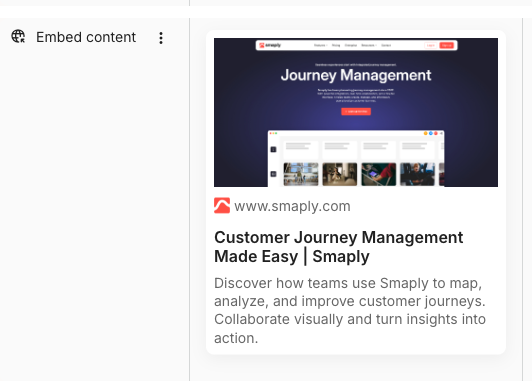
<figure><img src="/files/rJ4pb8OeSpJUjVXAv8ou" alt="An embed card on a journey map showing a rich link preview of a website: a page thumbnail, the site favicon and URL, the page title, and a short description. The card sits in a lane labelled Embed content."><figcaption><p>An embed card showing a rich preview of the embedded link</p></figcaption></figure>

To add one, hover an empty cell and click **+ Add card**, then choose **Embed**. It sits under **ADVANCED CARDS** in the picker. Embed cards take a share link rather than typed content, so adding one opens the **Embed** modal straight away.

{% hint style="info" icon="tag" %}
Embed cards are an advanced card type. On the **Free** and **Repository** plans you can add up to 3 advanced cards per map. Advanced cards are unlimited from the **Framework** plan.
{% endhint %}

***

#### How to embed content from a URL

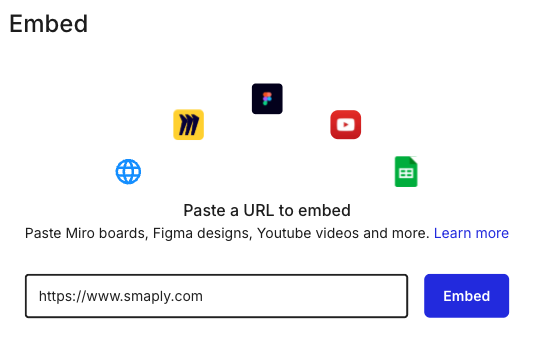
When you add an embed card, the **Embed** modal opens with logos for some of the supported sources and the prompt **Paste a URL to embed**.

{% stepper %}
{% step %}
**Copy a share link from the source**

Open the source tool (Figma, a Google file, Miro, YouTube, and so on) and copy its share or embed link. The link has to be one that anyone with access to the map can open, not a private editing URL tied to your own login. For per-source guidance, see [How to use embed integrations](/integrations/how-to-use-embed-integrations.md).
{% endstep %}

{% step %}
**Paste the URL into the Embed modal**

Paste the link into the URL field. The **Embed** button stays greyed out until the field has a URL in it, then turns active.

<figure><img src="/files/wCItJhF89BZRc9iWVBbn" alt="The Embed modal with a URL typed into the input field. Logos for Miro, Figma, YouTube, a generic web globe, and Google Sheets sit above the prompt Paste a URL to embed. The Embed button to the right of the field is now active."><figcaption><p>The Embed button activates once the field has a URL</p></figcaption></figure>
{% endstep %}

{% step %}
**Click Embed**

The modal closes and the content renders on the card. By default it shows as a rich preview.
{% endstep %}
{% endstepper %}

***

#### Which sources you can embed

Smaply embeds content from Figma, Google Docs, Google Sheets, Google Slides, Miro, Mural, YouTube, Power BI, Tableau, Monday.com, SharePoint, and OneDrive. Generic web URLs work too, rendering as a rich link preview when the page exposes the right metadata.

This article is the home for embedding content onto cards. The link type each source needs and how to set a source's own sharing so the embed renders for everyone are covered in [How to use embed integrations](/integrations/how-to-use-embed-integrations.md).

***

#### How to switch between rich preview and a simple link

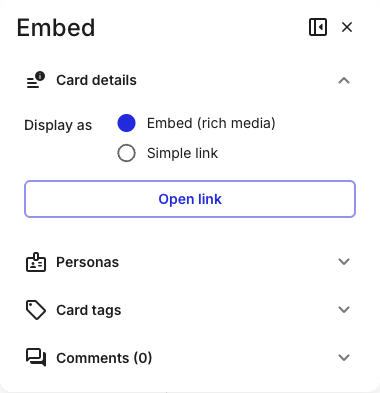
An embed card shows in one of two display modes, set by the **Display as** toggle in the card details panel. The toggle sits inside the **Card details** section, which opens collapsed, so expand it to reach the toggle.

{% stepper %}
{% step %}
**Open the card details panel**

Select the card and click **Show card details** on the toolbar, or double-click the card. The panel opens on the right.
{% endstep %}

{% step %}
**Expand Card details and pick a mode**

Expand the **Card details** section, then choose **Embed (rich media)** or **Simple link** under **Display as**.

<figure><img src="/files/8HyVCduGfcqQxcBzKvES" alt="The embed card details panel headed Embed. An expanded Card details section shows a Display as toggle with two options, Embed (rich media) selected and Simple link, above an Open link button. Below sit the collapsed Personas, Card tags, and Comments sections."><figcaption><p>Display as toggle inside the expanded Card details section</p></figcaption></figure>
{% endstep %}
{% endstepper %}

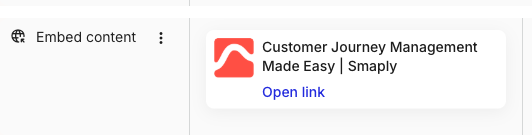
**Embed (rich media)** is the default and renders the full preview: a thumbnail, title, and description for a link, or the live content for a supported source. **Simple link** collapses the card to a compact favicon, the page title, and an **Open link** link.

<figure><img src="/files/FcQwEcMFfTtJacgNO8Ny" alt="An embed card switched to Simple link display, showing a compact favicon, the page title, and an Open link link. The card sits in a lane labelled Embed content."><figcaption><p>The same card in Simple link mode</p></figcaption></figure>

***

#### How to open the embedded content

To open the source in a new tab, click **Open link** on the card's toolbar. The same button is also in the card details panel.

<figure><img src="/files/xQZGAThjKleXPsEWJPt8" alt="The floating toolbar for a selected embed card. From left: an Open link button labelled with text and an open-in-new icon, then a card header icon, a fill (paint bucket) icon, a show card details icon, a delete icon, and a three-dot overflow menu."><figcaption><p>Open link is the leftmost button on the embed card toolbar</p></figcaption></figure>

If the card is blank, or shows a permission prompt or a login screen, the cause is almost always the source's own sharing setting rather than Smaply. See [How to use embed integrations](/integrations/how-to-use-embed-integrations.md) for how to set each source's sharing so the embed renders for everyone who opens the map.

***

#### What embed cards share with other cards

Embed cards use the same toolbar tail, card details panel, colour system, and multi-select as every other card type. The Display as toggle and the embedded content are what's specific to this type; the rest is shared:

* Accent colour, background style, and card header (the fill control and the controls after it)
* Card details panel for personas, tags, and comments
* Duplicate, expand, shrink, and delete from the three-dot menu
* Multi-select with Shift+click

See [How to add and edit cards](/journey-maps/cards/how-to-add-and-edit-cards.md) for the canonical walkthrough of these mechanics. To put an embed card in its own lane, see [How to add and manage lanes](/journey-maps/lanes/how-to-add-and-manage-lanes.md).

***

#### Related topics

<table data-column-title-hidden data-view="cards"><thead><tr><th>Title</th><th>Description</th><th data-hidden data-card-target data-type="content-ref">Target</th></tr></thead><tbody><tr><td><strong>How to use embed integrations</strong></td><td>Get a shareable link from each source and set its sharing so the embed renders for everyone.</td><td><a href="/pages/xEXHdynnj0g2GXg8mY4m">/pages/xEXHdynnj0g2GXg8mY4m</a></td></tr><tr><td><strong>How to add and edit cards</strong></td><td>Parent how-to for shared card mechanics: toolbar, details panel, colours, and headers.</td><td><a href="/pages/DI00pTOdaJmOwltHKgIa">/pages/DI00pTOdaJmOwltHKgIa</a></td></tr><tr><td><strong>How to add and manage lanes</strong></td><td>Add a lane to hold your embed cards, or any other lane type.</td><td><a href="/pages/cEW7pumNPGKdJ65EEAz7">/pages/cEW7pumNPGKdJ65EEAz7</a></td></tr><tr><td><strong>How to bulk edit cards</strong></td><td>Select multiple cards and apply tags, personas, or colour in one go.</td><td><a href="/pages/D239Y2x0Gzcz0VuWHA1p">/pages/D239Y2x0Gzcz0VuWHA1p</a></td></tr><tr><td><strong>How to comment on a card</strong></td><td>Add comments and @mention teammates on any card from its details panel.</td><td><a href="/pages/Kk7GjJu76NovaA8LF2EL">/pages/Kk7GjJu76NovaA8LF2EL</a></td></tr></tbody></table>


---

# Agent Instructions
This documentation is published with GitBook. GitBook is the documentation platform designed so that both humans and AI agents can read, navigate, and reason over technical content effectively. Learn more at gitbook.com.

## Querying This Documentation
If you need additional information that is not directly available in this page, you can query the documentation dynamically by asking a question.

Perform an HTTP GET request on the current page URL with the `ask` query parameter, and the optional `goal` query parameter:

```
GET https://helpdesk.smaply.app/journey-maps/cards/how-to-use-embed-cards.md?ask=<question>&goal=<endgoal>
```

`ask` is the immediate question: it should be specific, self-contained, and written in natural language.
`goal` is optional and describes the broader end goal you are ultimately trying to accomplish on behalf of the user. GitBook uses it to tailor the answer towards what is most useful for that goal.

The response will contain a direct answer to the question and relevant excerpts and sources from the documentation.

Use this mechanism when the answer is not explicitly present in the current page, you need clarification or additional context, or you want to retrieve related documentation sections.