> For the complete documentation index, see [llms.txt](https://helpdesk.smaply.app/llms.txt). Markdown versions of documentation pages are available by appending `.md` to page URLs; this page is available as [Markdown](https://helpdesk.smaply.app/journey-maps/cards/how-to-use-linked-journey-map-cards.md).

# How to use linked journey map cards

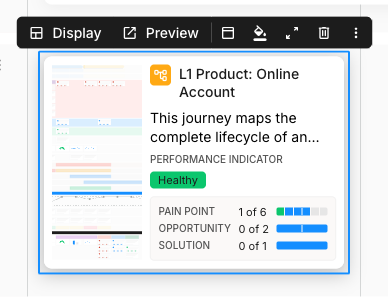
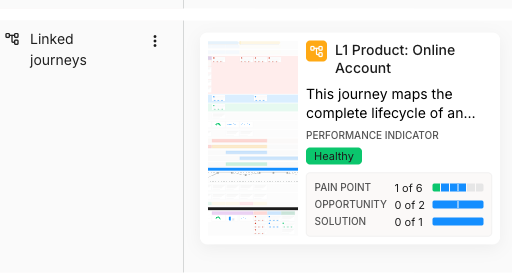
A linked journey map card points to another journey map and shows a snapshot of it right on the card: a thumbnail, the map name, its description, and its performance indicator. It's how you connect a high-level map to a detailed sub-journey, or reuse one sub-flow across several parent maps, and move between them in a click.

<figure><img src="/files/W0Fp7ePgCSpsg08amc6E" alt="A journey map lane labelled Linked journeys holding a linked journey map card. The card shows a small map thumbnail, the map name L1 Product: Online Account with a hierarchy icon, a truncated description, a PERFORMANCE INDICATOR heading with a green Healthy chip, and a portfolio summary reading PAIN POINT 1 of 6, OPPORTUNITY 0 of 2, SOLUTION 0 of 1 with segmented bars."><figcaption><p>A linked journey map card on a journey map lane</p></figcaption></figure>

{% hint style="info" icon="tag" %}
Linked journey map cards are available on the **Repository** plan and above. They aren't available on **Free**.
{% endhint %}

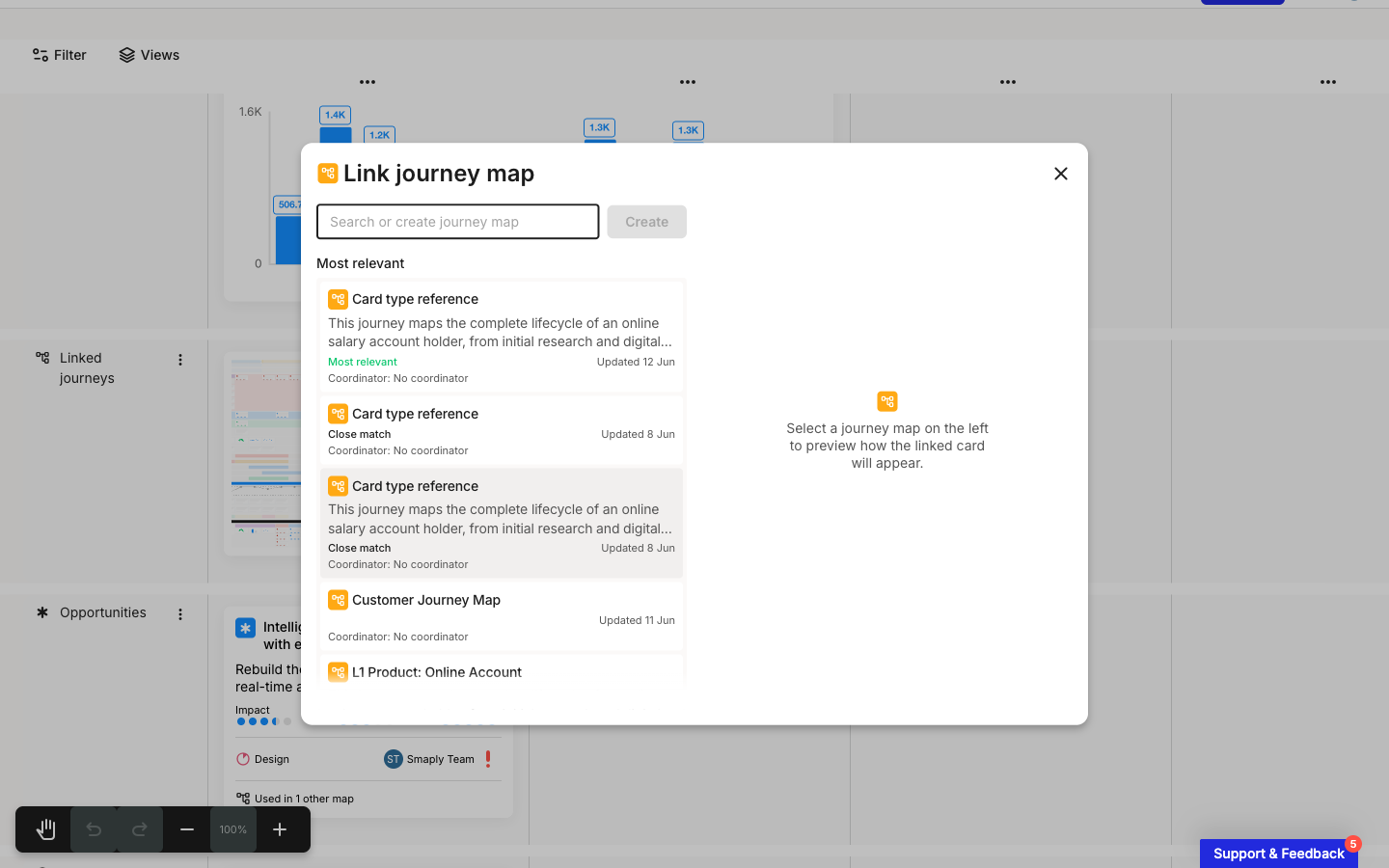
To add one, hover an empty cell and click **+ Add card**, then choose **Link journey map**. It sits under **ADVANCED CARDS** in the picker. The **Link journey map** window opens straight away so you can pick the map to link as you add the card.

These cards work the same on a standard journey map and on a hierarchy map, where they are the building blocks that link maps together.

***

#### How to pick the journey map to link

{% stepper %}
{% step %}
**Find the map in the Link journey map window**

Type in the **Search or create journey map** field to filter, or scan the **Most relevant** list. Each result shows the map name, its description, a relevance label like **Most relevant** or **Close match**, when it was last updated, and its coordinator.

<figure><img src="/files/2NnVyZWtzC4noSg0RADx" alt="The Link journey map window open over a journey map. A Search or create journey map field sits at the top with a disabled Create button beside it. Below, a Most relevant list of journey maps, each with a name, description, a match label such as Most relevant or Close match, an Updated date, and a Coordinator line. The right pane reads Select a journey map on the left to preview how the linked card will appear."><figcaption><p>Link journey map, with the ranked Most relevant list</p></figcaption></figure>
{% endstep %}

{% step %}
**Select a map to preview how the card will look**

Click a map in the list. The right pane previews how the linked card will appear before you commit, so you can confirm you've picked the right map.
{% endstep %}

{% step %}
**Add the card, or create a new map to link**

Selecting a map adds the linked journey map card to the slot. To link a brand-new map instead, type a name in the field and click **Create**, which makes the map and links it in one step.
{% endstep %}
{% endstepper %}

***

#### What the linked journey map card shows

The card face is a live snapshot of the map it links to, so it stays current as that map changes. It always shows the map thumbnail, the map name, the description, and the **PERFORMANCE INDICATOR** (a status chip such as **Healthy**).

A few fields appear only when they're set on the linked map:

* **Coordinator** - the person responsible for the linked map, shown when one is assigned.
* **Portfolio summary** - per-type counts of the pain points, opportunities, and solutions on the linked map, each as a "1 of 6" figure with a segmented bar.
* **Tags** - the linked map's tags, shown as chips.

If the linked map has no coordinator or tags, those fields are left off the card rather than shown empty.

***

#### How to preview or open the linked map

Select the card to bring up its toolbar, which adds **Display** and **Preview** to the left of the shared controls.

<figure><img src="/files/pZa6lORQU7UkZriIvnNO" alt="A selected linked journey map card with a blue selection border and its floating toolbar above. The toolbar shows Display and Preview on the left, then the shared card header, fill, show card details, delete, and three-dot overflow controls."><figcaption><p>The linked journey map card toolbar adds Display and Preview</p></figcaption></figure>

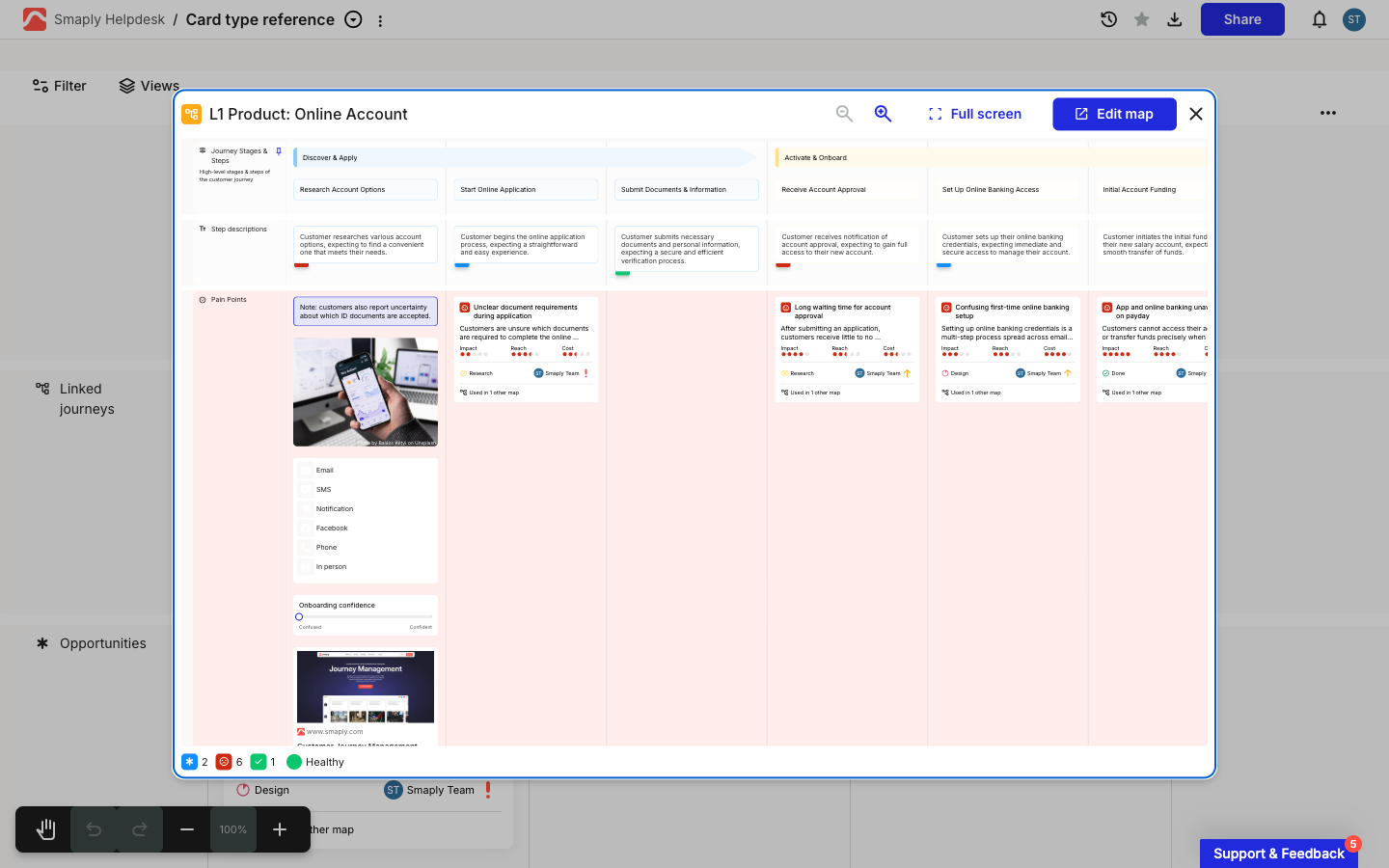
**Preview** opens the linked map in an overlay on top of the map you are on, so you can read its full stages, steps, lanes, and cards without losing your place. The overlay header carries a search, a zoom control, a **Full screen** toggle, and an **Edit map** button.

<figure><img src="/files/LJzPClhsA6rOm6v2ByeO" alt="A linked journey map open in a preview overlay on top of the current map. The overlay shows the full L1 Product: Online Account map with its stages, steps, and pain point cards. The overlay header reads L1 Product: Online Account on the left, with a search icon, zoom control, Full screen toggle, Edit map button, and close X on the right."><figcaption><p>Preview opens the linked map in an overlay, in context</p></figcaption></figure>

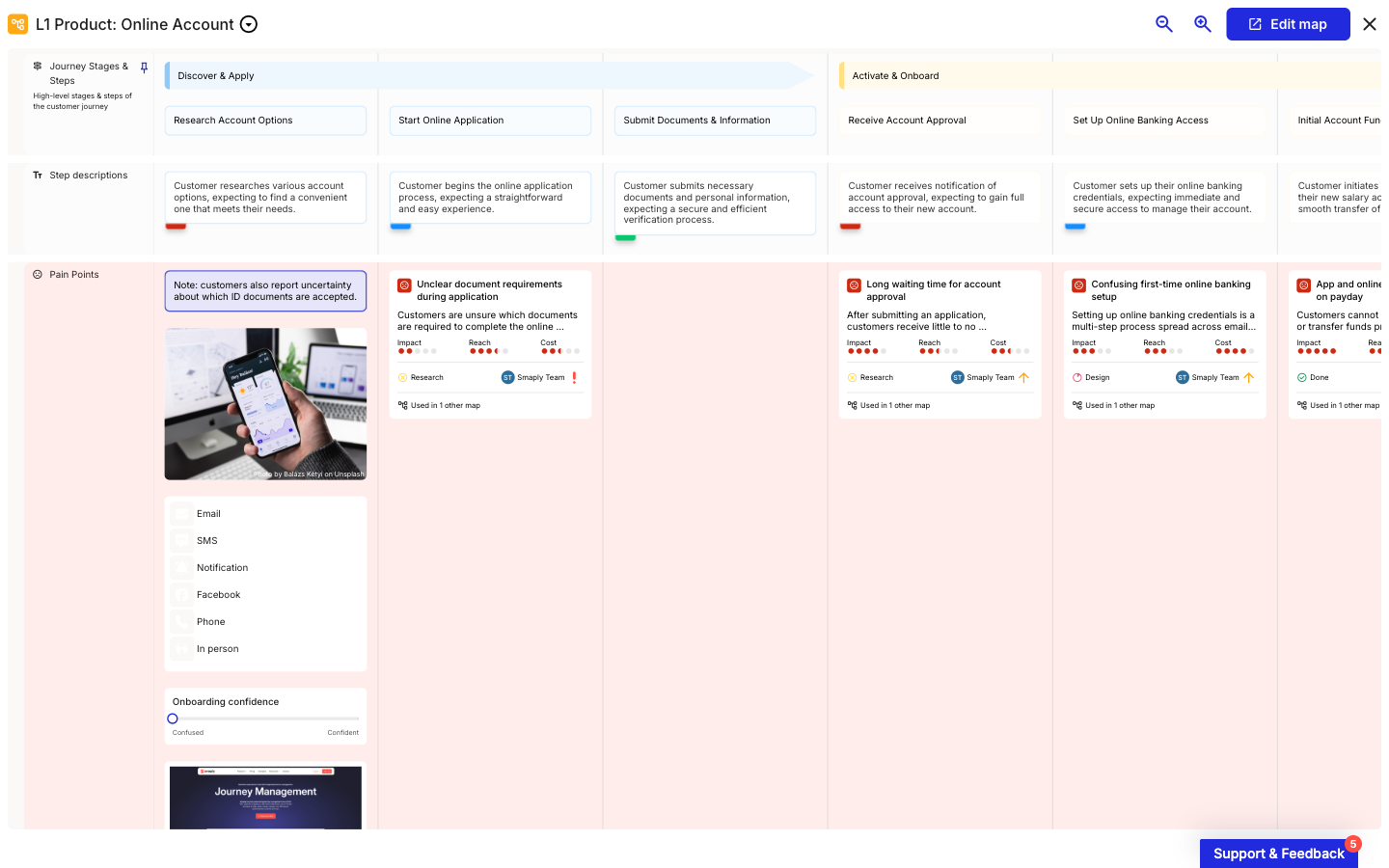
Switch on **Full screen** for a larger read-only view of the same map.

<figure><img src="/files/h5sVe1qXJ3u4k0aChNlN" alt="The linked journey map L1 Product: Online Account expanded to a full-screen read-only view that fills the window. The header keeps the Edit map button and a close X."><figcaption><p>Full screen gives the linked map room to read</p></figcaption></figure>

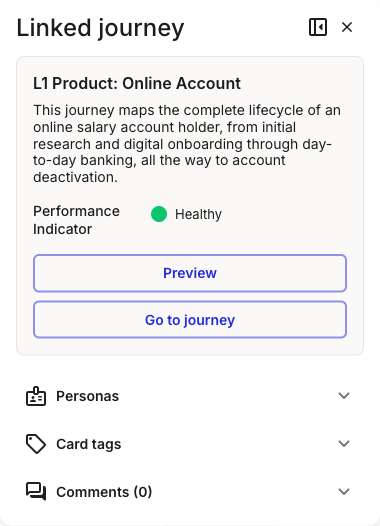
To open the linked map for editing, click **Edit map**, which opens it in a new browser tab so the map you started from stays open behind it. The card details panel carries the same actions: click **Show card details** to open the panel (header **Linked journey**), which repeats the map name, full description, and performance indicator above **Preview** and **Go to journey** buttons.

<figure><img src="/files/Woqj04Np0uBXhwfnJRuk" alt="The card details panel for a linked journey map card. The header reads Linked journey, followed by the map name L1 Product: Online Account, its full description, a Performance Indicator labelled Healthy with a green dot, and Preview and Go to journey buttons. Below sit the universal Personas, Card tags, and Comments (0) sections."><figcaption><p>The Linked journey details panel, with Preview and Go to journey</p></figcaption></figure>

***

#### What linked journey map cards share with other cards

Linked journey map cards use the same toolbar tail, card details panel, colour system, and multi-select as every other card type. The card details panel holds the universal **Personas**, **Card tags**, and **Comments** sections beneath the linked-map fields.

See [How to add and edit cards](/journey-maps/cards/how-to-add-and-edit-cards.md) for the canonical walkthrough of these shared mechanics.

***

#### Related topics

<table data-column-title-hidden data-view="cards"><thead><tr><th>Title</th><th>Description</th><th data-hidden data-card-target data-type="content-ref">Target</th></tr></thead><tbody><tr><td><strong>How to add and edit cards</strong></td><td>Parent how-to for shared card mechanics: toolbar, details panel, colours, and headers.</td><td><a href="/pages/DI00pTOdaJmOwltHKgIa">/pages/DI00pTOdaJmOwltHKgIa</a></td></tr><tr><td><strong>How to create a hierarchy map</strong></td><td>Gather journey maps into a dedicated space and link them with these cards as the nodes.</td><td><a href="/pages/R4eKe96wbOcrolkAQeNP">/pages/R4eKe96wbOcrolkAQeNP</a></td></tr><tr><td><strong>How to choose between a journey map and a hierarchy map</strong></td><td>Decide when to capture something as a single journey map and when a hierarchy fits better.</td><td><a href="/pages/ANYZEQ2NKtnOB6djd635">/pages/ANYZEQ2NKtnOB6djd635</a></td></tr><tr><td><strong>How to use portfolio item cards</strong></td><td>Add the pain points, opportunities, and solutions that feed a linked map's portfolio summary.</td><td><a href="/pages/7otLTFAejxDBK1QT5H5e">/pages/7otLTFAejxDBK1QT5H5e</a></td></tr><tr><td><strong>How to bulk edit cards</strong></td><td>Select multiple cards and apply tags, personas, or colour in one go.</td><td><a href="/pages/D239Y2x0Gzcz0VuWHA1p">/pages/D239Y2x0Gzcz0VuWHA1p</a></td></tr></tbody></table>


---

# Agent Instructions
This documentation is published with GitBook. GitBook is the documentation platform designed so that both humans and AI agents can read, navigate, and reason over technical content effectively. Learn more at gitbook.com.

## Querying This Documentation
If you need additional information that is not directly available in this page, you can query the documentation dynamically by asking a question.

Perform an HTTP GET request on the current page URL with the `ask` query parameter, and the optional `goal` query parameter:

```
GET https://helpdesk.smaply.app/journey-maps/cards/how-to-use-linked-journey-map-cards.md?ask=<question>&goal=<endgoal>
```

`ask` is the immediate question: it should be specific, self-contained, and written in natural language.
`goal` is optional and describes the broader end goal you are ultimately trying to accomplish on behalf of the user. GitBook uses it to tailor the answer towards what is most useful for that goal.

The response will contain a direct answer to the question and relevant excerpts and sources from the documentation.

Use this mechanism when the answer is not explicitly present in the current page, you need clarification or additional context, or you want to retrieve related documentation sections.