> For the complete documentation index, see [llms.txt](https://helpdesk.smaply.app/llms.txt). Markdown versions of documentation pages are available by appending `.md` to page URLs; this page is available as [Markdown](https://helpdesk.smaply.app/journey-maps/filtering-and-views/how-to-save-and-apply-a-view.md).

# How to save and apply a view

Save a filter you reach for often as a named view, so you can reapply it from the journey map without rebuilding it each time. A view is a saved filter: select it and the map snaps back to the cards that filter shows.

{% hint style="info" icon="tag" %}

#### Plan availability

Saved views are available on the **Repository** plan and above.
{% endhint %}

#### How to save a filter as a view

You save a view from an active filter, so apply the filter you want first. For the full filter flow across lanes, personas, tags, and portfolio items, see [How to filter a journey map](/journey-maps/filtering-and-views/how-to-filter-a-journey-map.md).

{% stepper %}
{% step %}
**Apply a filter to the map**

In the journey map editor, click **Filter** and set up the filter you want to save. Once at least one filter is active, a **Create view** button appears in the bar, next to **Filter** and **Views**.

<figure><img src="/files/PK6FzJE9oF3dJ38YeTAm" alt="A journey map filtered to one persona. The bar above the canvas shows the Filter button with a count badge, a chip naming the active persona filter, a blue Create view button, and a Clear button."><figcaption><p>Create view appears once a filter is active</p></figcaption></figure>
{% endstep %}

{% step %}
**Open the Create view dialog**

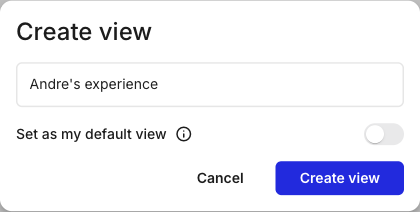
Click **Create view**. The **Create view** dialog opens with a **View name** field and a **Set as my default view** toggle.

<figure><img src="/files/vBmD2AKyF1rLFXhieXAV" alt="The Create view dialog. A View name field holds the text &#x27;Andre&#x27;s experience&#x27;. Below it is a &#x27;Set as my default view&#x27; toggle, then Cancel and Create view buttons."><figcaption><p>Create view dialog</p></figcaption></figure>
{% endstep %}

{% step %}
**Name the view and save**

Give the view a name that describes what it shows, like the persona or segment it isolates. Turn on **Set as my default view** if you want this filter applied automatically each time you open the map. Click **Create view** to save it.
{% endstep %}
{% endstepper %}

***

#### How to apply or switch a saved view

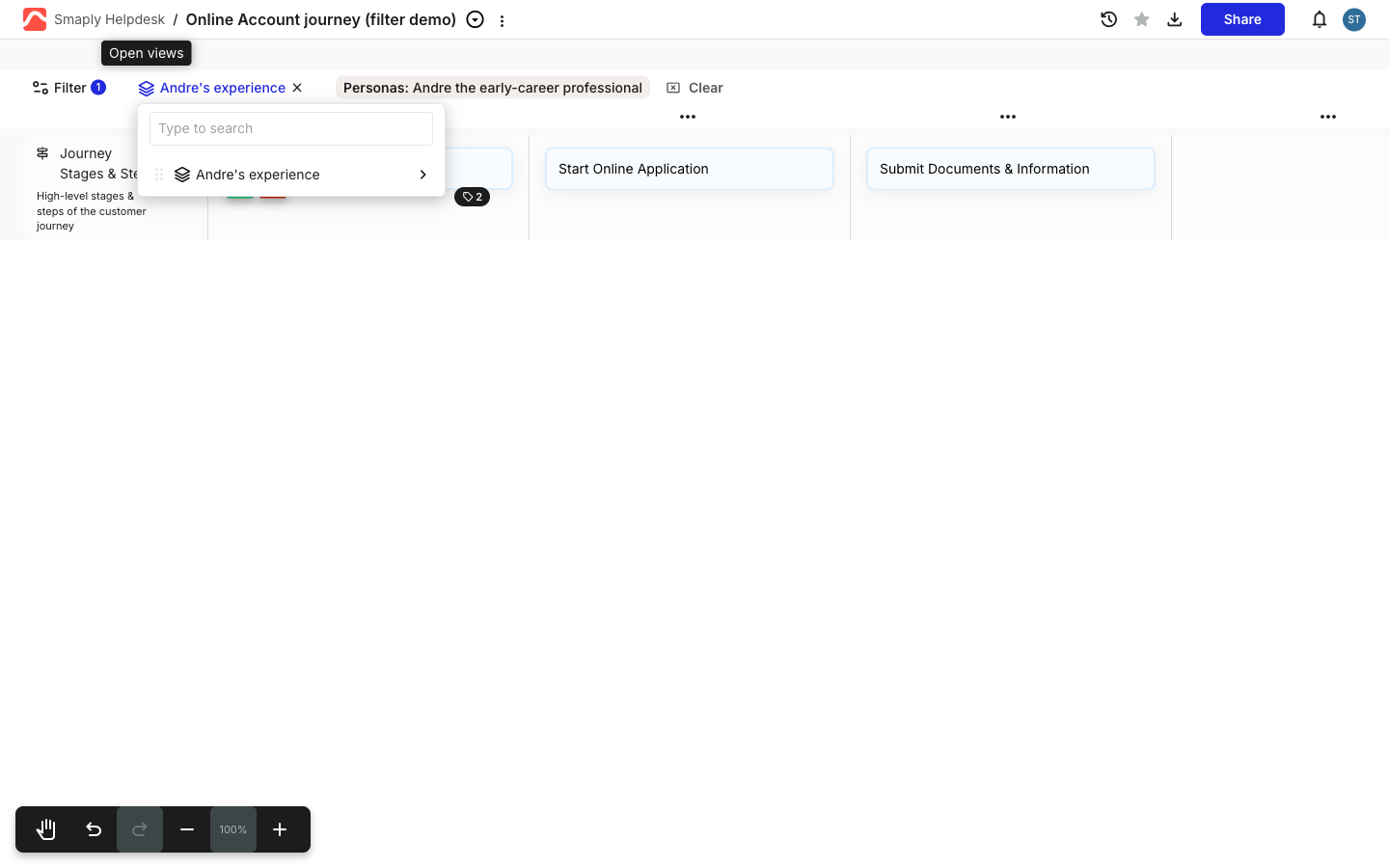
Click **Views** in the bar to open the views dropdown. Use **Type to search** to find a view by name, or pick it from the list, and the map reapplies that view's filter. Once a view is active, the **Views** button relabels to the view's name with an **x** beside it; click the **x** to clear the view and return to the unfiltered map.

<figure><img src="/files/BBwCx6OO0IcO9FCQKaJB" alt="The Views dropdown open on a journey map. It has a &#x27;Type to search&#x27; box at the top and one saved view row, &#x27;Andre&#x27;s experience&#x27;, with a drag handle on its left and a chevron on its right. The Views button in the bar has been relabelled to the active view&#x27;s name with an x to clear it."><figcaption><p>Views dropdown with a saved view</p></figcaption></figure>

Saved views belong to the map, so anyone with access to it sees the same views. To send someone a single view as a read-only link, see [How to share a saved view](/sharing-and-exporting/how-to-share-a-saved-view.md).

***

#### How to reorder or delete a view

Open the **Views** dropdown and click **Edit views** at the bottom. The **Edit views** dialog lists every saved view, where you can drag a view to reorder it, or open a view's menu to **Set as default view** or **Delete** it.

A view stays in sync with the map. Cards you add inside the filter's scope show up in the view automatically, with no need to re-save. If you change the map's structure in a way that falls outside the view, like adding a new lane, Smaply prompts you to update the view to include or leave out the new content.

#### Related topics

<table data-column-title-hidden data-view="cards"><thead><tr><th>Title</th><th>Description</th><th data-hidden data-card-target data-type="content-ref">Target</th></tr></thead><tbody><tr><td><strong>Filter a journey map</strong></td><td>Filter by lanes, personas, tags, or portfolio items, and combine dimensions.</td><td><a href="/pages/TvWyNP7bpL7PzUBbgLJ2">/pages/TvWyNP7bpL7PzUBbgLJ2</a></td></tr><tr><td><strong>Share a saved view</strong></td><td>Generate a separate read-only link for one saved view, independent of the full map.</td><td><a href="/pages/EzewsMl4q3GLzrR9AXm0">/pages/EzewsMl4q3GLzrR9AXm0</a></td></tr><tr><td><strong>Filter a journey map by persona</strong></td><td>Narrow a map to one or more personas using the Personas filter dimension.</td><td><a href="/pages/zxwopszZeIAP89VtDjFI">/pages/zxwopszZeIAP89VtDjFI</a></td></tr></tbody></table>


---

# Agent Instructions
This documentation is published with GitBook. GitBook is the documentation platform designed so that both humans and AI agents can read, navigate, and reason over technical content effectively. Learn more at gitbook.com.

## Querying This Documentation
If you need additional information that is not directly available in this page, you can query the documentation dynamically by asking a question.

Perform an HTTP GET request on the current page URL with the `ask` query parameter, and the optional `goal` query parameter:

```
GET https://helpdesk.smaply.app/journey-maps/filtering-and-views/how-to-save-and-apply-a-view.md?ask=<question>&goal=<endgoal>
```

`ask` is the immediate question: it should be specific, self-contained, and written in natural language.
`goal` is optional and describes the broader end goal you are ultimately trying to accomplish on behalf of the user. GitBook uses it to tailor the answer towards what is most useful for that goal.

The response will contain a direct answer to the question and relevant excerpts and sources from the documentation.

Use this mechanism when the answer is not explicitly present in the current page, you need clarification or additional context, or you want to retrieve related documentation sections.