> For the complete documentation index, see [llms.txt](https://helpdesk.smaply.app/llms.txt). Markdown versions of documentation pages are available by appending `.md` to page URLs; this page is available as [Markdown](https://helpdesk.smaply.app/journey-maps/how-to-archive-a-journey-map.md).

# How to archive a journey map

Move a journey map out of your active list while keeping it recoverable. You can bring archived maps back from the workspace **Archive** section any time.

{% hint style="warning" icon="list-check" %}

#### Prerequisites

Editor or Admin role at the workspace level. Viewers can't archive content.
{% endhint %}

{% hint style="info" icon="clipboard-list" %}

#### In this guide

1. [Archive from the journey map editor](#archive-from-the-journey-map-editor)
2. [Archive from the journey maps list](#archive-from-the-journey-maps-list)
3. [Where archived journey maps live](#where-archived-journey-maps-live)
4. [How to restore an archived journey map](#how-to-restore-an-archived-journey-map)
   {% endhint %}

You can archive a journey map two ways: from the three-dot menu next to the title inside the map's editor, or from the three-dot menu on the map's row in the journey maps list. Both open the same confirmation modal.

#### Archive from the journey map editor

Use this when you already have the map open.

{% stepper %}
{% step %}
**Open the journey map**

From the workspace **Journey maps** list, click the map you want to archive to open it in the editor.
{% endstep %}

{% step %}
**Select Archive from the more menu**

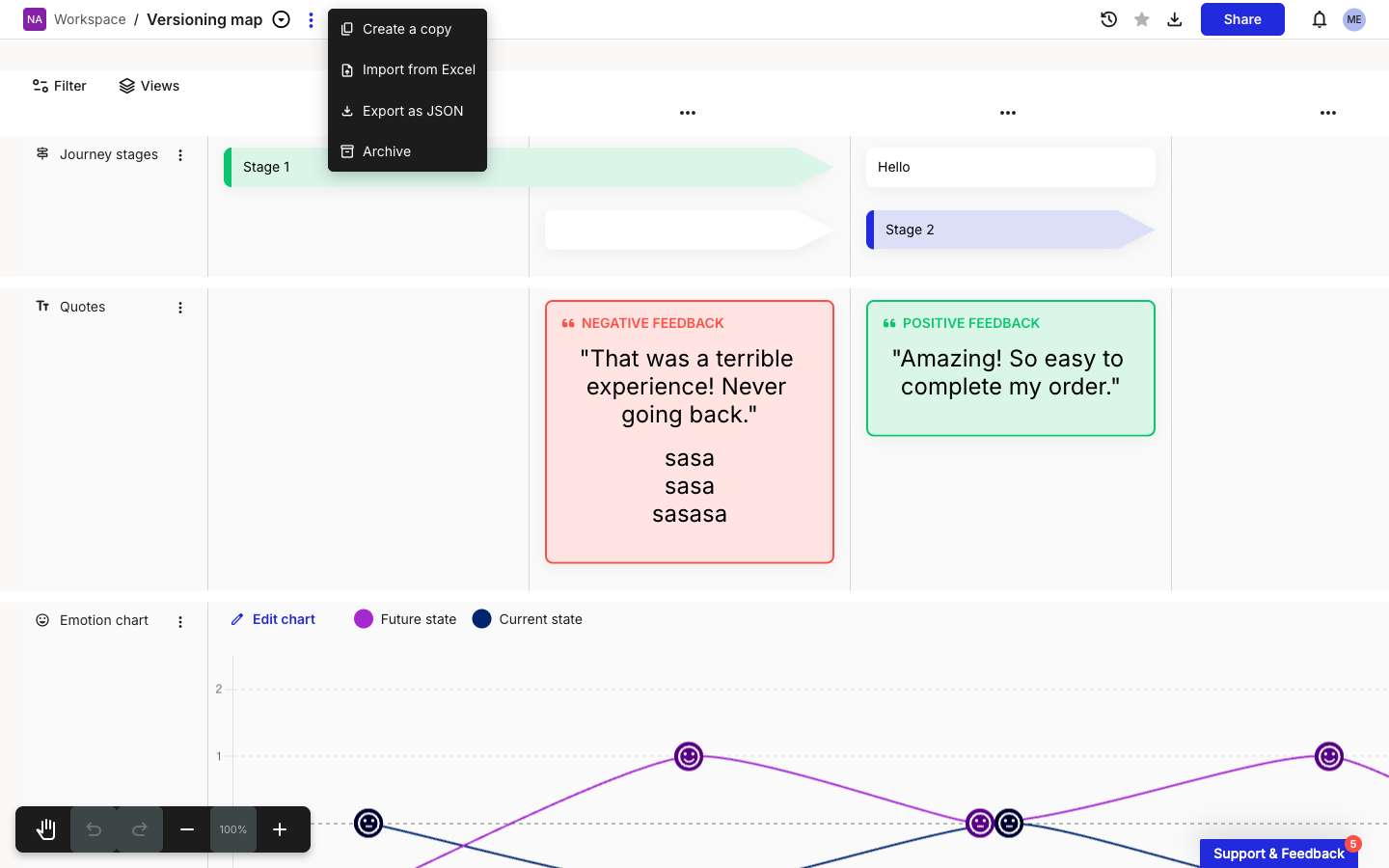
Next to the map title in the top bar, click the three-dot menu and select **Archive**.

<figure><img src="/files/IeBzITecYKmekz6mS567" alt="The journey map editor top bar with the three-dot menu open next to the map title &#x27;Versioning map&#x27;. The menu shows Create a copy, Import from Excel, Export as JSON, and Archive."><figcaption><p>Editor > more menu</p></figcaption></figure>
{% endstep %}

{% step %}
**Confirm**

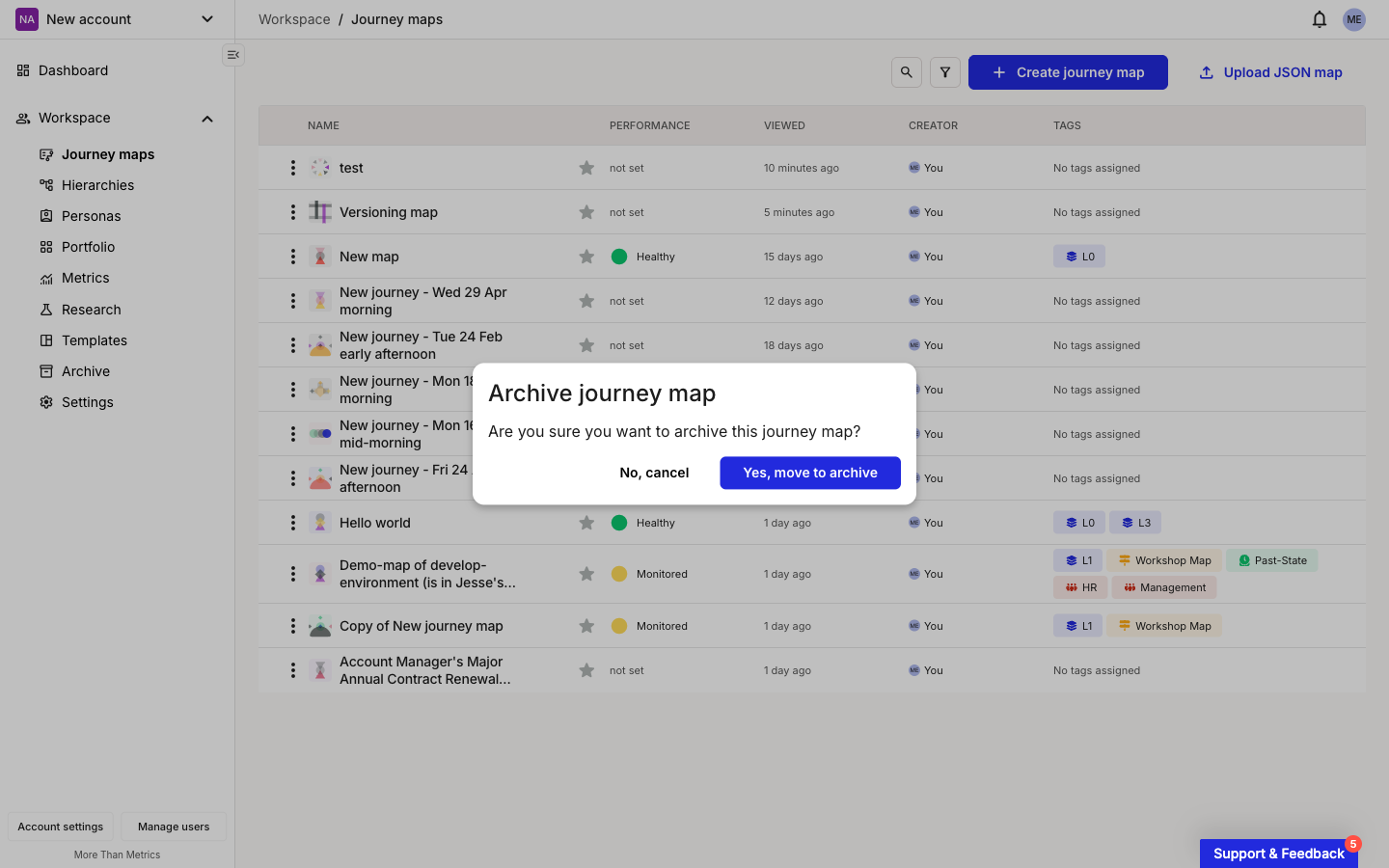
In the **Archive journey map** modal, click **Yes, move to archive**.

<figure><img src="/files/ZvwtysdZYXZ5CnkEZ69r" alt="The Archive journey map confirmation modal. The body reads &#x27;Are you sure you want to archive this journey map?&#x27; with buttons labelled No, cancel and Yes, move to archive."><figcaption><p>Archive journey map confirmation</p></figcaption></figure>

The editor closes and the workspace journey maps list opens. The map is no longer in the list.
{% endstep %}
{% endstepper %}

***

#### Archive from the journey maps list

Use this when you're already on the journey maps list.

{% stepper %}
{% step %}
**Open the journey maps list**

In the workspace sidebar, click **Journey maps**.
{% endstep %}

{% step %}
**Select Archive from the row menu**

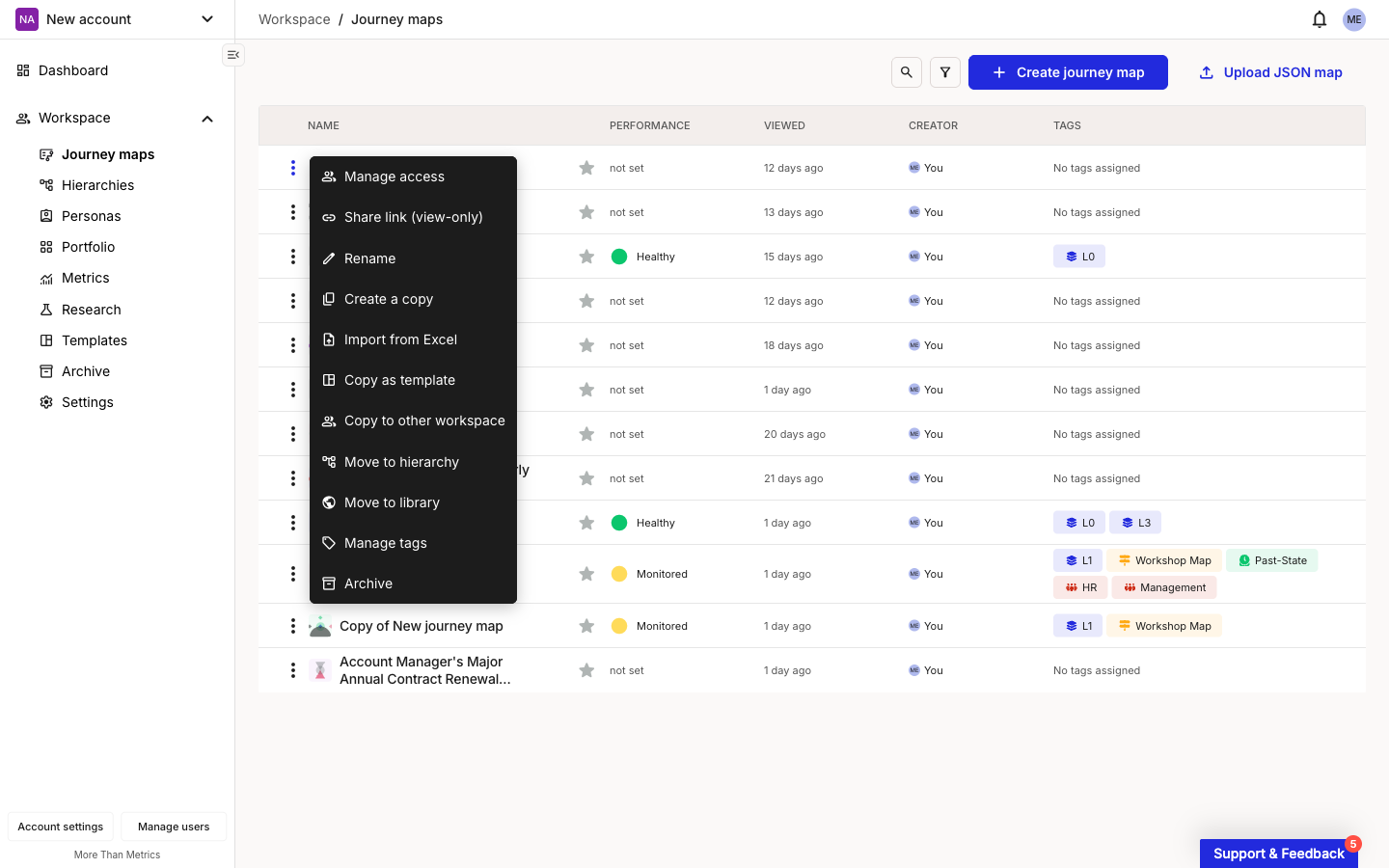
On the row for the map you want to archive, click the three-dot menu and select **Archive**.

<figure><img src="/files/j8rTA698EGSohnh47Bhy" alt="A row&#x27;s three-dot menu open on the journey maps list. Menu items: Manage access, Share link (view-only), Rename, Create a copy, Import from Excel, Copy as template, Copy to other workspace, Move to hierarchy, Move to library, Manage tags, Archive."><figcaption><p>Journey maps list > row menu</p></figcaption></figure>
{% endstep %}

{% step %}
**Confirm**

In the **Archive journey map** modal, click **Yes, move to archive**.

The row disappears from the list. You stay on the journey maps page.
{% endstep %}
{% endstepper %}

***

#### Where archived journey maps live

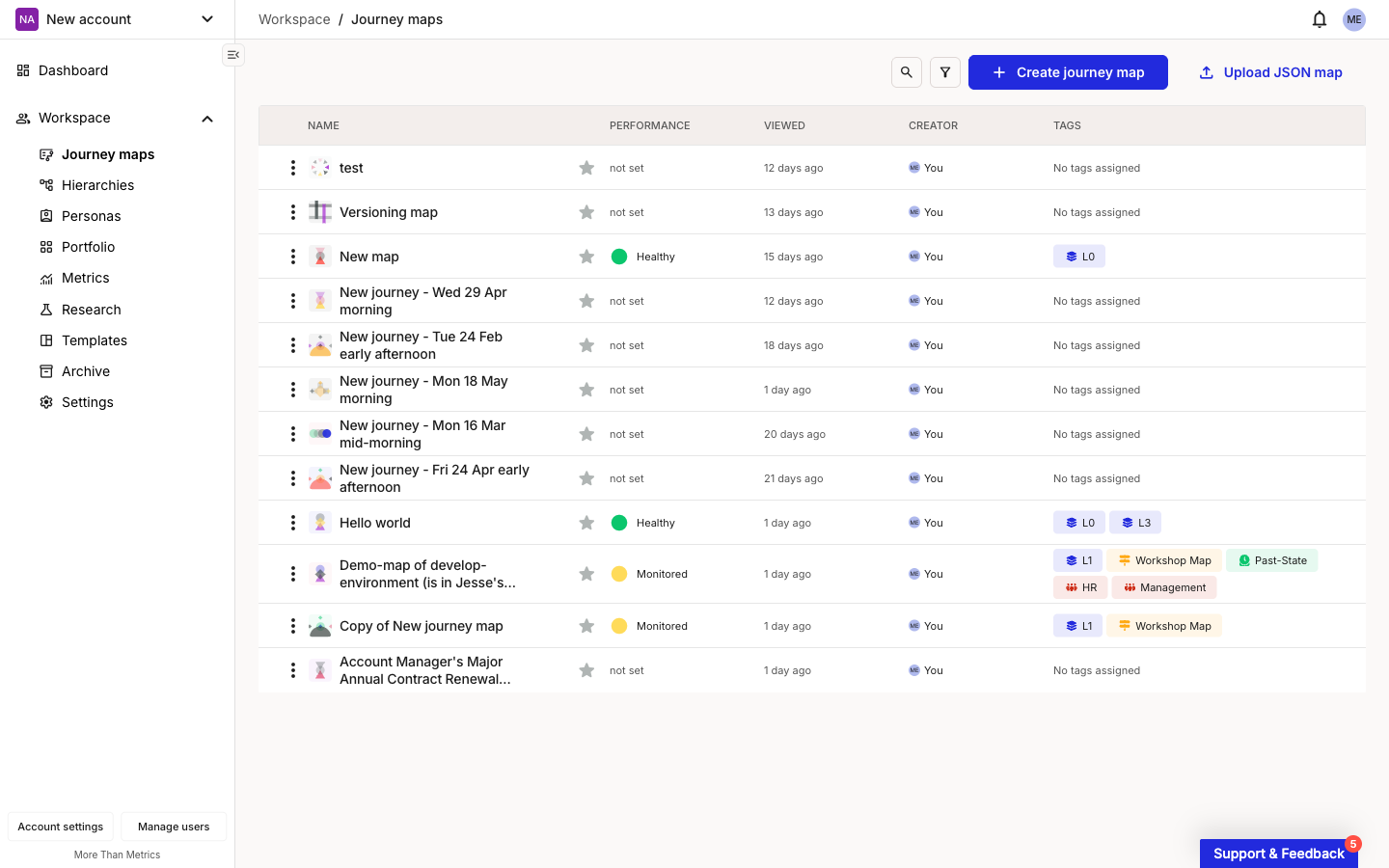
Archived journey maps move to the workspace **Archive** section in the sidebar, between **Templates** and **Settings**.

<figure><img src="/files/g27L6GPqd5G1CmSZyEJ7" alt="The workspace sidebar showing Dashboard, Workspace, Journey maps, Hierarchies, Personas, Portfolio, Metrics, Research, Templates, Archive, and Settings. Archive sits between Templates and Settings."><figcaption><p>Workspace sidebar > Archive</p></figcaption></figure>

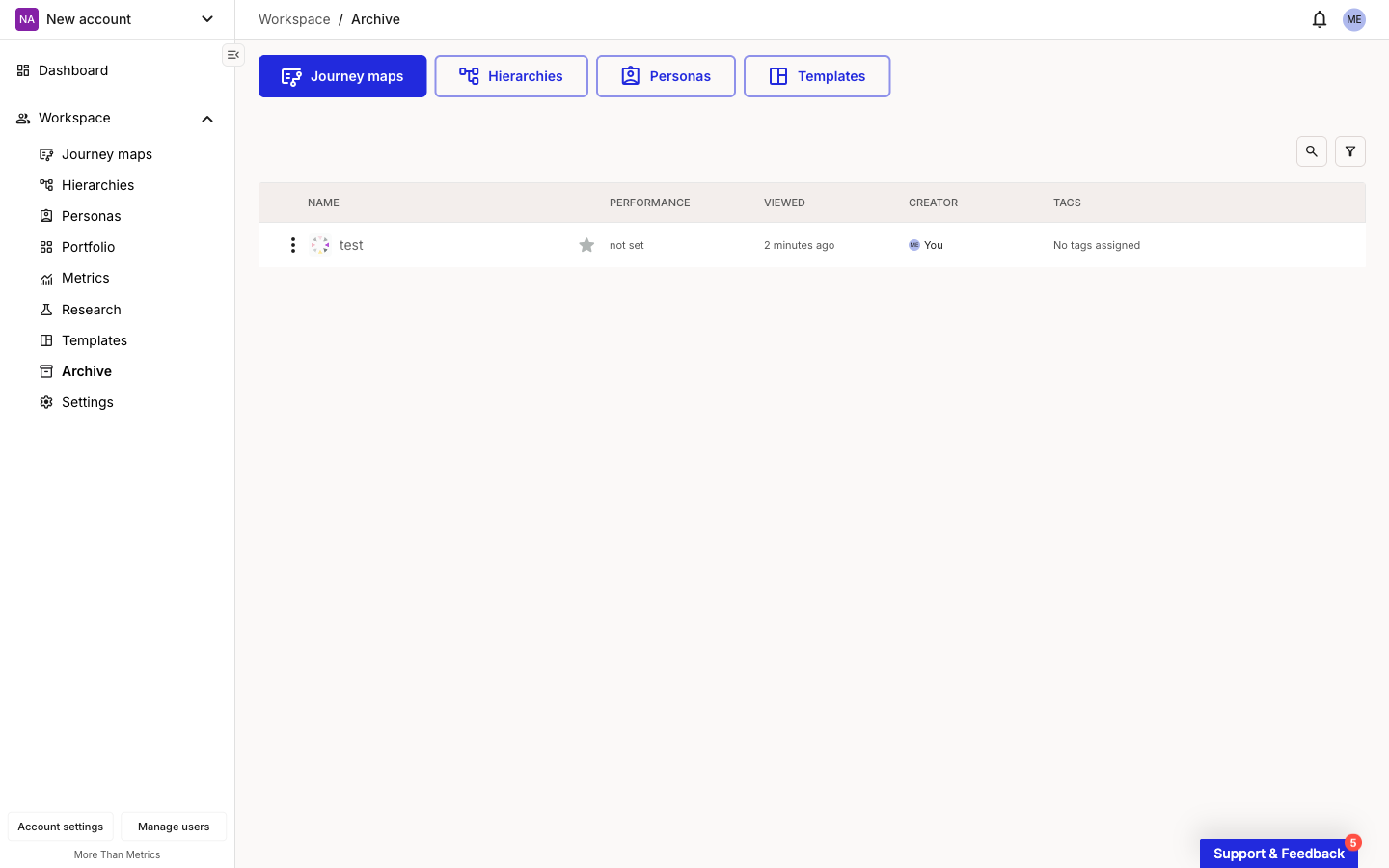
The Archive section organises content by type. Category buttons at the top let you switch between **Journey maps**, **Hierarchies**, **Personas**, and **Templates**. **Journey maps** is selected by default.

The list shows the same columns as the active journey maps list: **NAME**, **PERFORMANCE**, **VIEWED**, **CREATOR**, and **TAGS**.

<figure><img src="/files/ybBI7EZpeaY5m3aQUWGc" alt="The workspace Archive section with the Journey maps tab selected. One archived map named &#x27;test&#x27; is listed with columns NAME, PERFORMANCE, VIEWED, CREATOR, TAGS."><figcaption><p>Archive > Journey maps, populated</p></figcaption></figure>

With no archived maps yet, you'll see **No archived journey maps** above the message "Archived journey maps will appear here for future reference."

{% hint style="info" icon="tag" %}
On the **Free** plan you can create up to 10 journey maps, and archived maps still count toward that limit. Archiving won't free up a slot. To make room, delete maps from the Archive (see Archive vs Delete below).
{% endhint %}

***

#### How to restore an archived journey map

Restoring is a one-click action with no confirmation modal.

{% stepper %}
{% step %}
**Open the Archive section**

In the workspace sidebar, click **Archive**. **Journey maps** is selected by default.
{% endstep %}

{% step %}
**Unarchive the map**

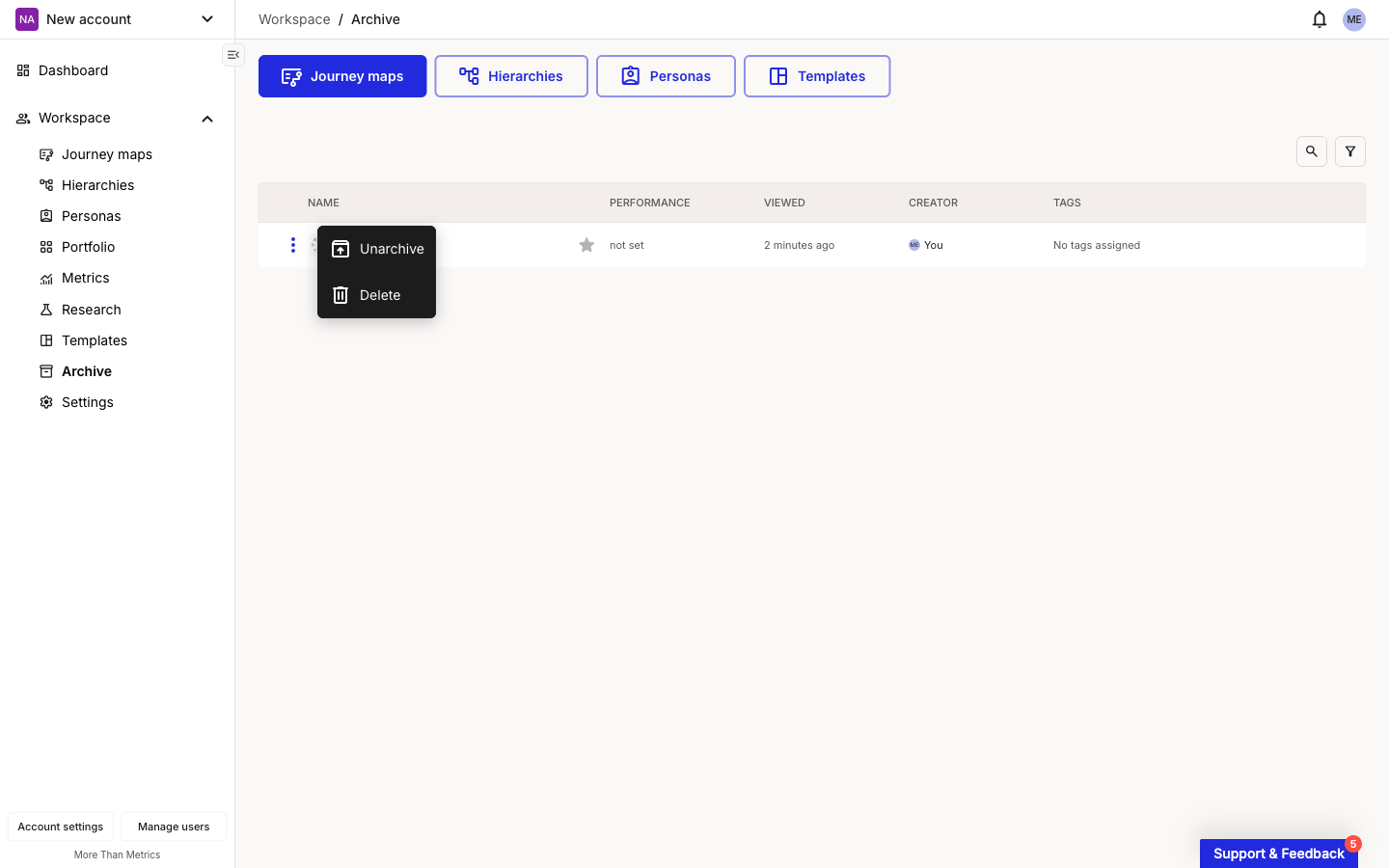
On the row for the map you want to bring back, click the three-dot menu and select **Unarchive**.

<figure><img src="/files/k3ij2gGDaa9bBNmHLWdx" alt="The Archive section row three-dot menu open on an archived map. Two items: Unarchive and Delete."><figcaption><p>Archive > row menu</p></figcaption></figure>

The map disappears from the Archive list and returns to the workspace **Journey maps** list in its previous place.
{% endstep %}
{% endstepper %}

{% hint style="info" %}

#### Archive vs Delete

The same row menu has a **Delete** option below **Unarchive**. Archiving is reversible. Deleting permanently removes the map and cannot be undone. As a safeguard, a journey map has to be archived before you can delete it. The same archive-first rule applies to templates. Personas can be deleted directly.
{% endhint %}

***

#### Related topics

<table data-column-title-hidden data-view="cards"><thead><tr><th>Title</th><th>Description</th><th data-hidden data-card-target data-type="content-ref">Target</th></tr></thead><tbody><tr><td><strong>Use version history</strong></td><td>Restore a previous version of a journey map without archiving it.</td><td><a href="/pages/aLe0UdsSSiKGSOJEzvb8">/pages/aLe0UdsSSiKGSOJEzvb8</a></td></tr><tr><td><strong>Create a journey map</strong></td><td>Start a new journey map with Smaply AI, from scratch, or from a template.</td><td><a href="/pages/LfyJzQKJ0Sv9rMnQYKEQ">/pages/LfyJzQKJ0Sv9rMnQYKEQ</a></td></tr><tr><td><strong>Manage workspaces</strong></td><td>Rename or delete a workspace. Workspaces themselves can't be archived.</td><td><a href="/pages/C4Xe3EiMe3LM9zi32k95">/pages/C4Xe3EiMe3LM9zi32k95</a></td></tr></tbody></table>


---

# Agent Instructions
This documentation is published with GitBook. GitBook is the documentation platform designed so that both humans and AI agents can read, navigate, and reason over technical content effectively. Learn more at gitbook.com.

## Querying This Documentation
If you need additional information that is not directly available in this page, you can query the documentation dynamically by asking a question.

Perform an HTTP GET request on the current page URL with the `ask` query parameter, and the optional `goal` query parameter:

```
GET https://helpdesk.smaply.app/journey-maps/how-to-archive-a-journey-map.md?ask=<question>&goal=<endgoal>
```

`ask` is the immediate question: it should be specific, self-contained, and written in natural language.
`goal` is optional and describes the broader end goal you are ultimately trying to accomplish on behalf of the user. GitBook uses it to tailor the answer towards what is most useful for that goal.

The response will contain a direct answer to the question and relevant excerpts and sources from the documentation.

Use this mechanism when the answer is not explicitly present in the current page, you need clarification or additional context, or you want to retrieve related documentation sections.