For the complete documentation index, see llms.txt. This page is also available as Markdown.

How to change a card's type

Convert a card to a different type in place, keeping its text, colour, personas, card tags, and comments.

Turn a rough note you jotted down as a text card while drafting a map into a real, tracked pain point, or promote a pain point you've worked on into an opportunity or solution, all without rebuilding the card.

Available on the Repository plan and above.


How to change one card's type

1

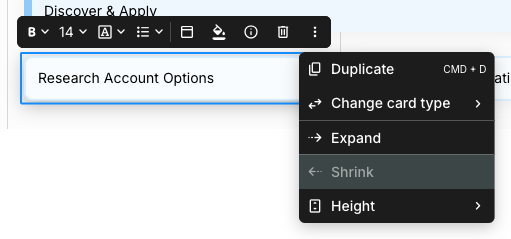
Select the card and open its three-dot menu

Click the card once, then click the three-dot button at the right end of the floating toolbar. This is unavailable on a locked journey map, since locking hides the card toolbar entirely.

A selected text card on a journey map with its three-dot overflow menu open. The menu lists Duplicate with a CMD + D shortcut, Change card type with a submenu arrow, Expand, Shrink greyed out, and Height with a submenu arrow.
Change card type sits in the card's three-dot menu
2

Click Change card type

The submenu opens on click, not on hover.

The Change card type submenu open beside a card's three-dot menu, listing Text, Stage, Opportunity, Pain point, Solution, Goals, and Risk, each with its own icon.
The conversion list: Text, Stage, and your account's portfolio item types
3

Pick the new type

The card's current type is greyed out and can't be clicked. Converting between Text and Stage applies immediately, with no confirmation.

4

Confirm the details if you picked a portfolio type

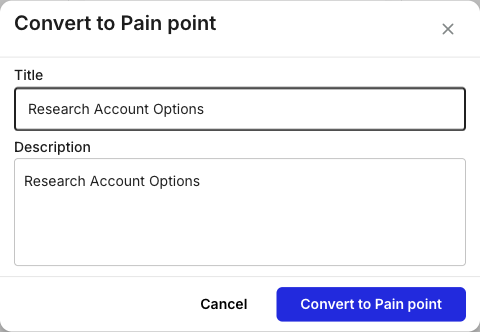
A Convert to [type] dialog opens with Title and Description, both pre-filled with the card's text. Edit either one, then click Convert to [type].

The Convert to Pain point dialog with a Title field and a Description field, both pre-filled with the card's text, and Cancel and Convert to Pain point buttons.
Convert to Pain point, with the card's text pre-filled
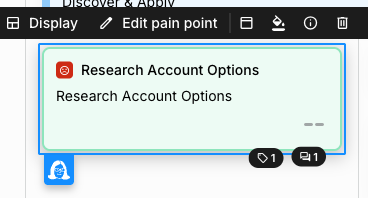
The card keeps its place in the lane and takes on the new type's shape and controls, so a converted portfolio card gains Display and Edit [type] on its toolbar.

A pain point card on a journey map after conversion, showing the pain point icon with the item title, the description below it, the card's tag and comment badges, and a toolbar above with Display and Edit pain point buttons.
The converted card, now with the portfolio item's own controls

How to change the type of several cards at once

The bulk action bar carries the same action under a shorter label, Change type. It appears only when every card in the selection is the same type and that type supports conversion, so adding a slider or image card to the selection drops it off the bar.

1

Select the cards

Hold Shift and click each card, or use Select all cards from a lane or column menu. See How to bulk edit cards for the full selection and bulk-action flow.

2

Click Change type on the bulk bar

The bar names the selection, for example Bulk edit · 2 text cards. The type list is the same one you get on a single card.

The bulk action bar at the bottom of the journey map editor, reading Bulk edit, 2 text cards, with bold, font size, font, and height controls, then fill, Header, Tags, Persona, Change type, and Delete actions.
Change type on the bulk bar
3

Pick the new type

Text and Stage apply to the whole selection at once. Converting to a portfolio type asks for a single confirmation instead of the Title and Description dialog, and each card's own text becomes its new item's title.

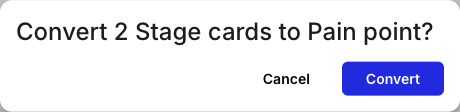
A confirmation dialog reading Convert 2 Stage cards to Pain point? with Cancel and Convert buttons.
Bulk conversion to a portfolio type asks for one confirmation
A bulk conversion to a portfolio type creates one new portfolio item per card, so converting ten cards adds ten items to your workspace.

A journey map holds up to 3 portfolio item cards on the Free plan, and an unlimited number from the Repository plan and above.


Which card types you can convert between

Conversion is offered on the card types whose content is text: Text, Stage, and your account's portfolio item types. The account in these screenshots has Opportunity, Pain point, Solution, Goals, and Risk. Your own list depends on the portfolio item types set up in your account. Any of these can become any other.

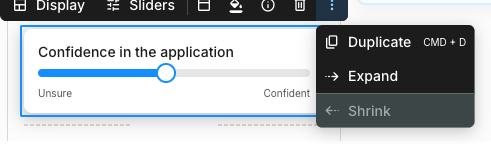
Every other card type carries configuration of its own that has no equivalent elsewhere, like an uploaded image, a set of slider labels, an embed URL, or a connected metric. Those types don't offer conversion at all, so Change card type is absent from their three-dot menus.

A selected slider card with its three-dot overflow menu open, listing only Duplicate with a CMD + D shortcut, Expand, and Shrink. There is no Change card type item.
A slider card's menu has no Change card type

To put one of those types in the same slot, delete the card and add the type you want from + Add card. See Cards for what each type does.


What carries over when a card changes type

A conversion changes the card's type in place and keeps everything on it that isn't type-specific:

  • Its text, which becomes the new card's content, label, or item title

  • Its accent colour and background style

  • Assigned personas, card tags, and comments

  • Its position in the lane and column, including any columns it spans

A card details panel after a conversion. The Personas section still shows the assigned persona Sofia the first-time saver, the Card tags section shows a Young Adult tag, and a Comments (1) section sits below.
Personas, card tags, and comments survive the conversion

Because only text-based types can convert, there's no type-specific configuration to lose along the way. What does change is the set of controls the card offers. A stage card has no card header, for example, so that toolbar button disappears when a text card becomes a stage.


What happens to the portfolio item

A text or stage card holds its own content. A portfolio item card is a view of an item that lives in your workspace and can appear on several maps. Converting across that line acts on the item too, in one of three ways.

Two common moments to reach for this: promoting a pain point drafted quickly as a text card while you were mapping into a real, trackable item, and converting a pain point you've since worked on into an opportunity or solution once you know what to do about it.

Converting to a portfolio type creates a new item - The Title and Description you confirm become a brand-new item of that type in your workspace, alongside items you create in the Portfolio directly. It starts with no scores, status, priority, or assignee, so open Edit [type] on the card to fill those in.

Converting away from a portfolio type only unlinks the card - The change is instant, with no dialog. The card becomes a text or stage card holding the item's title and description on two lines, and the item stays in your workspace.

A row in the Portfolio table for an item left behind by a conversion, showing its key PAI-24, its name, scores of zero, a Used in column reading (not used), No status, a priority of None, and no tags.
An item whose only card was converted away reads (not used)
Important: Converting away from a portfolio type leaves the item behind

If the same item also appears on other journey maps, converting one of its cards away only unlinks that card. The item itself is untouched and stays exactly as it was on every other map that holds it.

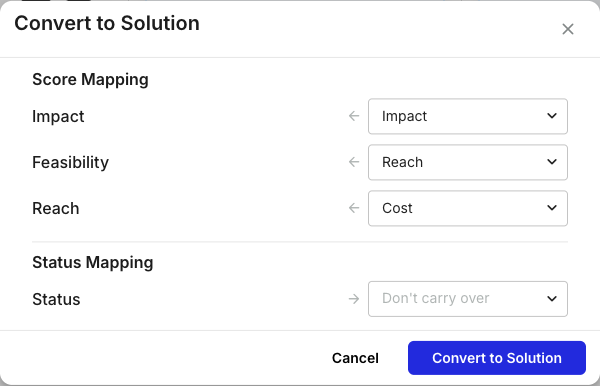
Converting between portfolio types changes the same item - No second item is created. The item itself becomes the new type, which is why this conversion asks you how its fields should carry across.

Important: Converting between portfolio types changes the item everywhere it's used

The Convert to Solution dialog. A Score Mapping section lists the target type's Impact, Feasibility, and Reach dimensions, each with a dropdown naming the source dimension it inherits from: Impact, Reach, and Cost. A Status Mapping section has a single Status dropdown showing Don't carry over. Cancel and Convert to Solution buttons sit at the bottom.
Portfolio type to portfolio type: map the scores and the status
  • Score Mapping - One row per score dimension on the new type, each with a dropdown naming the dimension it inherits its value from. Smaply pre-fills these in order, so check them if the two types score different things.

  • Status Mapping - Statuses belong to a type, so the item's status is dropped unless you map it. Pick one of the new type's statuses, or leave the default, Don't carry over.

The item keeps the Key it was first given, a short identifier like PAI-24, so a converted item's key prefix can end up naming its old type.


How to undo a type change

Click the undo button on the zoom control at the bottom-left of the canvas. It reverts the conversion, including the underlying item's type when you converted between portfolio types.

CMD + Z (CTRL + Z on Windows) does the same, but depends on the canvas having focus, so use the undo button if you've clicked elsewhere since converting.


Last updated