For the complete documentation index, see llms.txt. This page is also available as Markdown.

How to use activity history

See who changed what on a journey map, group and filter the change feed, and highlight unseen changes directly on the canvas.

Activity history is a running feed of the changes made to a journey map's cards: who created, edited, or deleted what, and when. It shares a panel with version history, so both live behind the same icon.

Plan availability

Activity history is available on the Governance plan.

How to open activity history

In the journey map editor, click the history (clock) icon in the top bar, to the left of the Share button. The History panel opens with two tabs, Activity and Versions; Activity is selected by default.

The journey map editor's top bar. The history clock icon sits to the left of the star, download, and Share buttons.
The history icon, top bar

If someone else has changed the map since your last visit, the icon shows a count badge, and its tooltip says how many changes by others have happened since you were last there.

For the Versions tab, which lets you preview and restore an earlier version of the map, see How to use version history.


Reading the activity feed

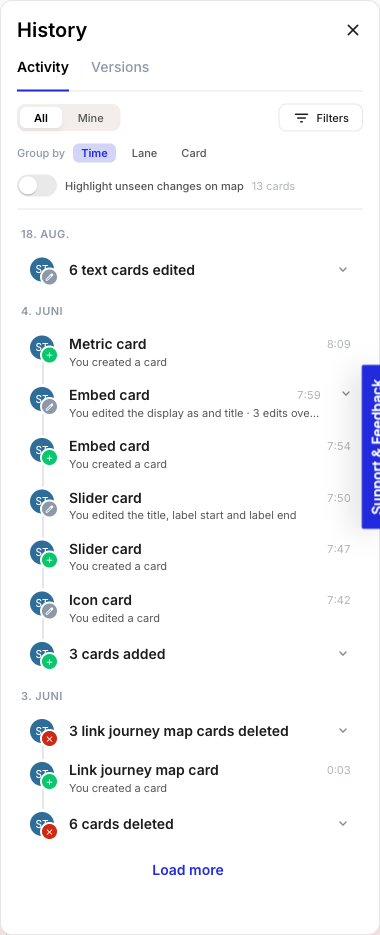
The Activity tab of the History panel. An All/Mine toggle and a Filters button sit above a Group by row (Time, Lane, Card), then a Highlight unseen changes on map toggle showing 13 cards, then a feed of dated entries such as 6 text cards edited, Metric card - You created a card, and Embed card - You edited the display as and title, ending in a Load more link.
Activity tab, grouped by time

Each entry names the card type, who made the change (or You), and what happened: created, edited (with the specific field named where possible, like "edited the color" or "edited the text"), duplicated, expanded, collapsed, or deleted. A card's overflow-menu Shrink shows up here as "collapsed."

A run of small edits to the same card collapses into one line with a count, like "edited the color · 2 edits over 1 min" - click it to expand the individual edits. Likewise, when you (or someone else) make the same kind of change to three or more cards at once, the feed rolls them up into a single line, like "6 text cards edited" or "3 cards added"; click it to see each card.

Click any entry to jump to that card: the canvas scrolls to it and selects it. Deleted cards are shown struck through and aren't clickable.

Click Load more at the bottom to page further back through the map's history.

Not everything is logged


Filter and group the feed

  • All / Mine - Switch to Mine to see only your own changes.

  • Filters - Narrow the feed by Person (everyone, you, or a specific collaborator) or Card type.

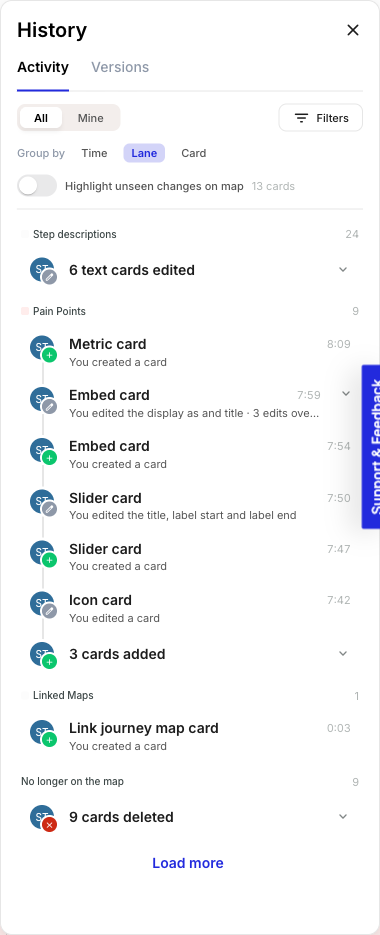
  • Group by - Switch between Time (the default, grouped by date), Lane (grouped by the lane each card is in, with a "No longer on the map" group for cards whose lane no longer exists), and Card (one row per changed card, showing how many changes it has).

The Activity tab grouped by Lane, showing group headers Step descriptions, Pain Points, and Linked Maps with a change count next to each, and a No longer on the map group for cards whose lane has been removed.
Grouped by lane

Highlight unseen changes on the map

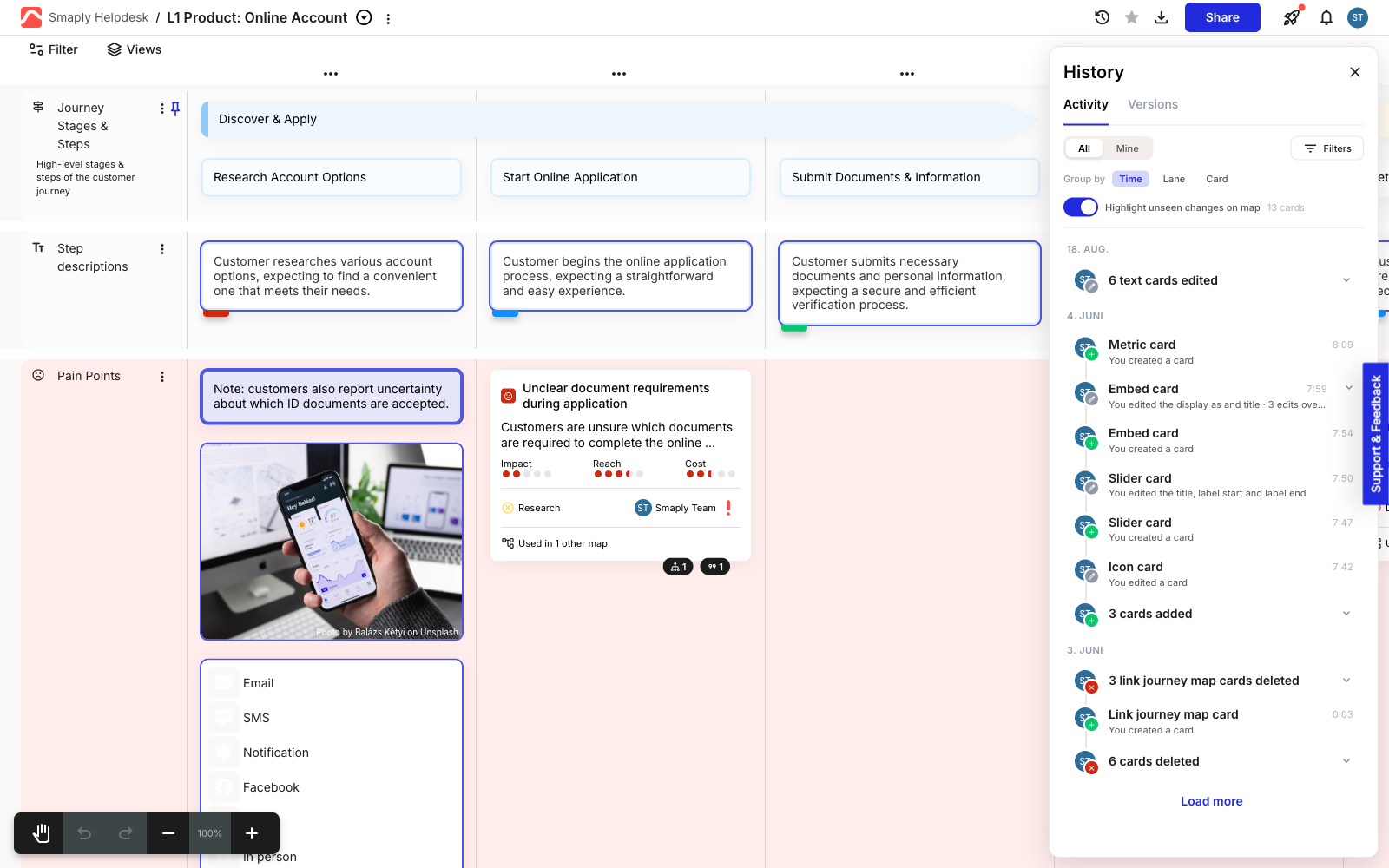
Turn on Highlight unseen changes on map to draw a coloured border around every card that has a change you haven't seen yet. The label next to the toggle shows how many cards are affected. This only counts changes made by other people; your own edits are never flagged.

A journey map canvas with several cards outlined in a blue border, marking cards with changes the current viewer hasn't seen yet. The History panel is open on the right with the Highlight unseen changes on map toggle switched on.
Unseen changes highlighted on the canvas

Once you've viewed a card's changes, it drops out of the unseen count.

Last updated