> For the complete documentation index, see [llms.txt](https://helpdesk.smaply.app/llms.txt). Markdown versions of documentation pages are available by appending `.md` to page URLs; this page is available as [Markdown](https://helpdesk.smaply.app/journey-maps/how-to-use-enhanced-paste.md).

# How to use enhanced paste

Bring content in from outside Smaply without rebuilding it card by card. Copy a table, a block of text, or an image from another tool, paste it into a journey map, and Smaply spreads it across a lane as cards you can then rearrange.

{% hint style="info" icon="compass" %}
This covers pasting clipboard content into a lane as new cards. To paste a whole lane you copied from another map, see [How to copy lanes across journey maps](/journey-maps/lanes/how-to-copy-lanes-across-journey-maps.md).
{% endhint %}

You can paste from Excel, Google Drive, Miro, and Mural, among other apps. Tables and text become text cards; images and screengrabs become image cards.

#### How to paste content into a journey map

There are two ways to start a paste:

* **From a lane menu** - Open the lane's three-dot menu and click **Paste content**.
* **With the keyboard** - Press **Cmd+V** (Mac) or **Ctrl+V** (Windows) anywhere in the map.

{% stepper %}
{% step %}
**Start the paste**

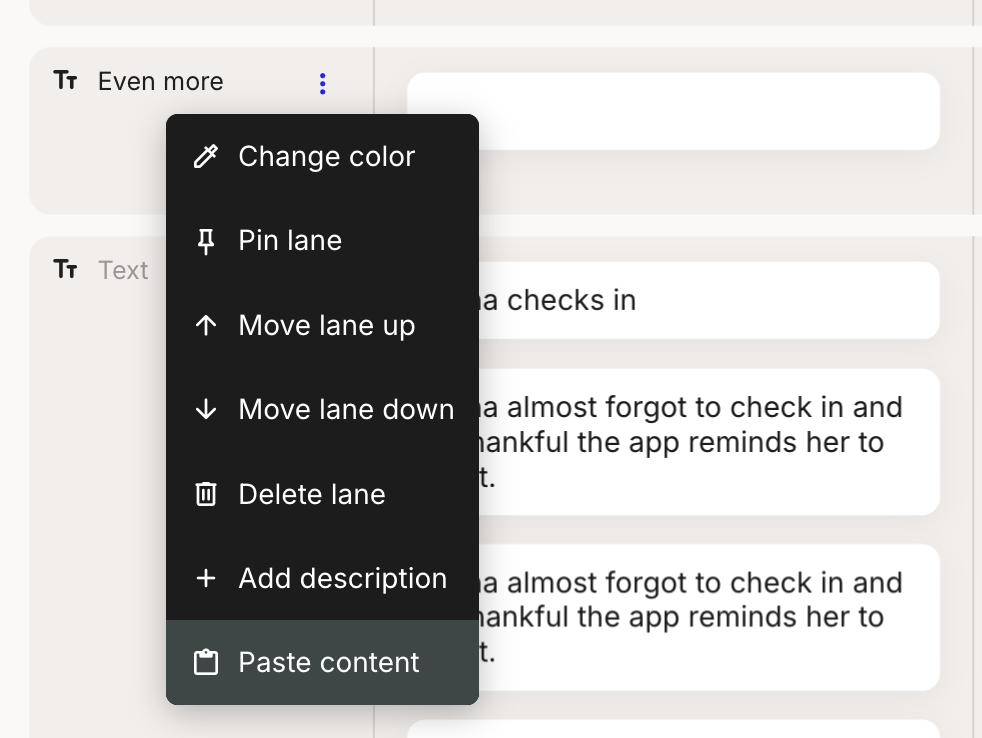
Copy your content in the source tool first. Then, in the journey map, either open a lane's three-dot menu and click **Paste content**, or press **Cmd+V** / **Ctrl+V**.

<figure><img src="/files/0z23CSx6vHdtUBfDm9RU" alt="A lane three-dot menu open in the journey editor. The menu lists Change color, Pin lane, Move lane up, Move lane down, Delete lane, Add description, and Paste content, with Paste content highlighted."><figcaption><p>The lane menu, with Paste content selected</p></figcaption></figure>

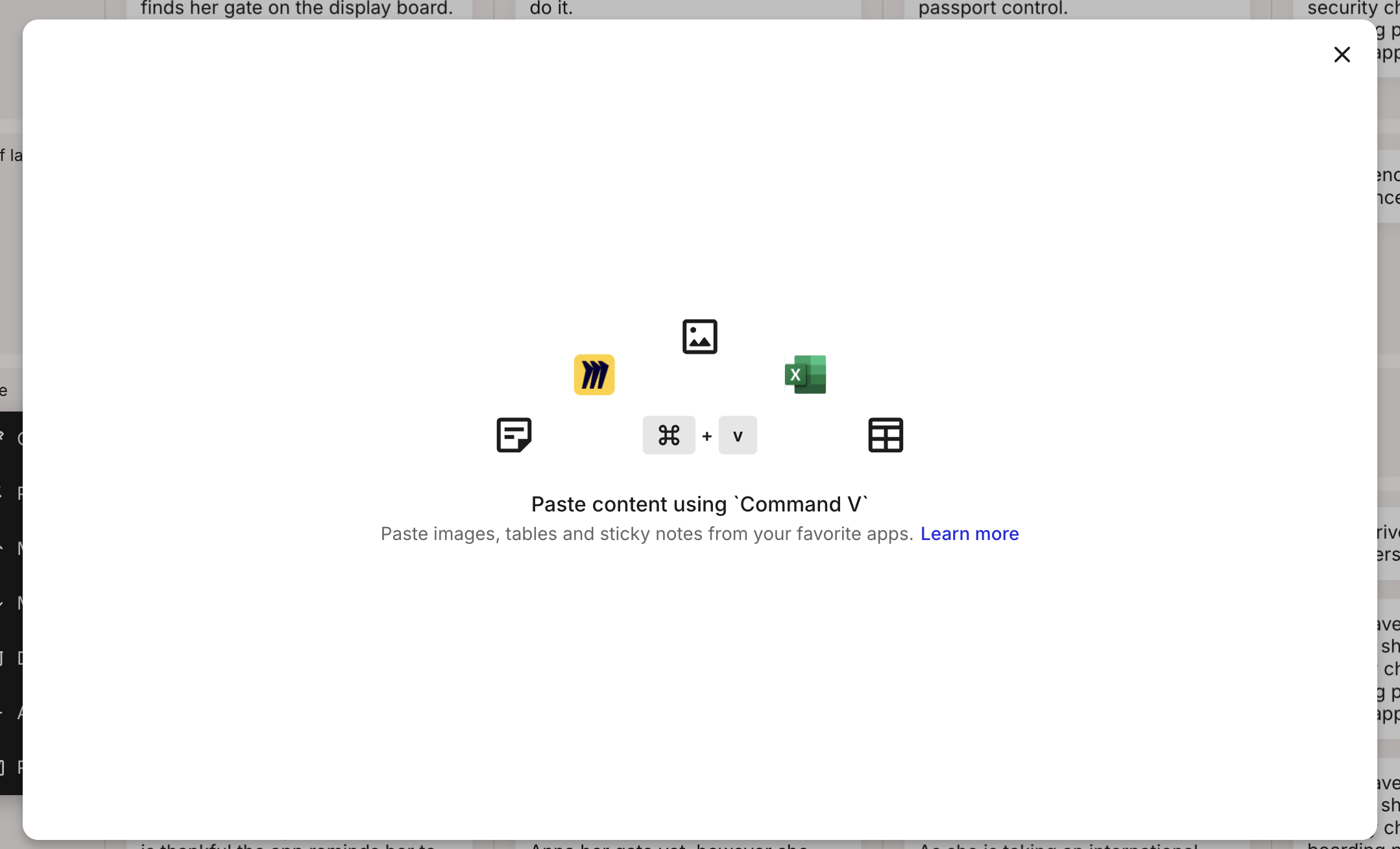
If you press the shortcut with nothing on your clipboard yet, Smaply shows a prompt with the supported source apps and the **Cmd + V** hint, so you know what you can paste and how.

<figure><img src="/files/6qhgEF3U3GhnjmZyKMWe" alt="A full-screen paste prompt over a journey map reading Paste content using Command V, with icons for Mural, Excel, images, sticky notes, and tables, and the subtitle Paste images, tables and sticky notes from your favorite apps."><figcaption><p>The paste prompt and its supported sources</p></figcaption></figure>
{% endstep %}

{% step %}
**Choose the destination lane**

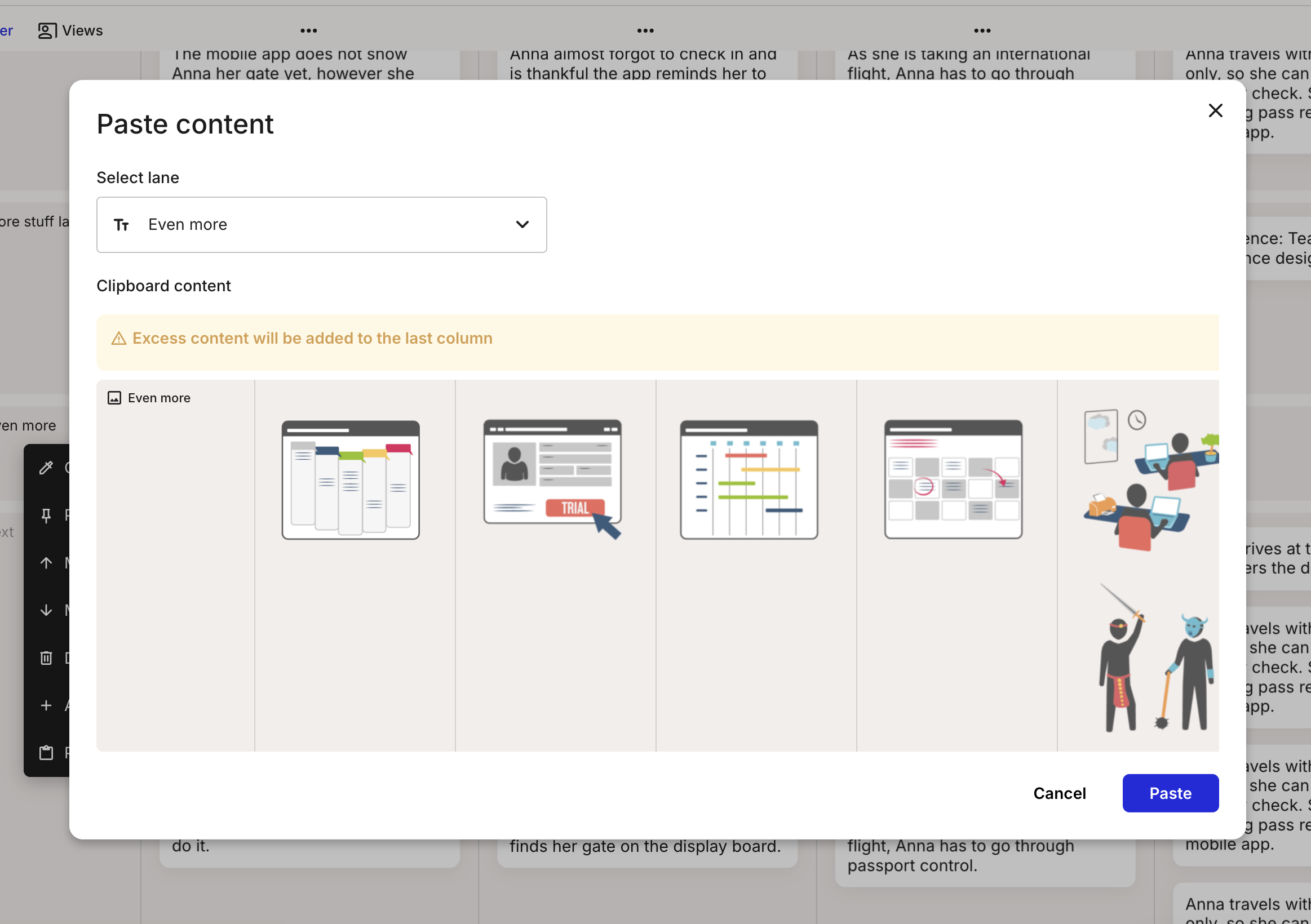
The **Paste content** window opens with a **Select lane** dropdown, already set to the lane you triggered the paste from. To send the cards elsewhere, pick a different lane from the dropdown. The **Clipboard content** preview below shows the cards that will be created, so you can check the paste before committing. Click **Paste** to confirm, or **Cancel** to back out.

<figure><img src="/files/jPImLZ2KXiMuJxASHOtn" alt="The Paste content window with a Select lane dropdown, a Clipboard content preview showing a row of cards to be created, a notice that excess content will be added to the last column, and Cancel and Paste buttons."><figcaption><p>The Paste content window, with a preview of the cards</p></figcaption></figure>

{% hint style="warning" %}

#### **Important: Extra content piles into the last column**

If the pasted content has more items than the map has columns, the overflow is added to the last column rather than creating new ones. The window flags this with **Excess content will be added to the last column**. To spread everything out, [add columns](/journey-maps/lanes/how-to-add-and-manage-columns.md) to the map before you paste.
{% endhint %}
{% endstep %}

{% step %}
**Rearrange the new cards**

Smaply adds the content as new cards spread across the lane, one item per card, filling left to right. From here you can move, edit, or delete them like any other card. For the card toolbar and details panel, see [How to add and edit cards](/journey-maps/cards/how-to-add-and-edit-cards.md).
{% endstep %}
{% endstepper %}

For a worked example, here's a paste straight from Miro:

{% embed url="<https://files.gitbook.com/v0/b/gitbook-x-prod.appspot.com/o/spaces%2For99xDEElfps9uMDY60K%2Fuploads%2F6fx7eRqiznKoyxTmBs1r%2Fpaste_miro.mp4?alt=media&token=f59cc44a-4447-4eb2-9d06-29c0d9c88aba>" %}

#### How to paste an image or screengrab

Pasting a copied image or a screengrab creates an image card. Copy the image in another app, or take a screengrab, then paste it into the map the same way: from a lane's **Paste content** menu, or with **Cmd+V** / **Ctrl+V**. It lands as an image card in the lane you choose.

{% embed url="<https://files.gitbook.com/v0/b/gitbook-x-prod.appspot.com/o/spaces%2For99xDEElfps9uMDY60K%2Fuploads%2FHsjABfkk0SNuNj7GOddS%2Fcopy_and_paste_image.mp4?alt=media&token=de168fec-9fe4-4589-b916-fe971491500f>" %}

For more on working with image cards once they're on the map, see [How to use image cards](/journey-maps/cards/how-to-use-image-cards.md).

#### Related topics

<table data-column-title-hidden data-view="cards"><thead><tr><th>Title</th><th>Description</th><th data-hidden data-card-target data-type="content-ref">Target</th></tr></thead><tbody><tr><td><strong>How to copy lanes across journey maps</strong></td><td>Copy a whole lane, cards and all, and paste it into any other map.</td><td><a href="/pages/FfdIjPLBahBicIppECHQ">/pages/FfdIjPLBahBicIppECHQ</a></td></tr><tr><td><strong>How to add and edit cards</strong></td><td>Add cards, edit their content, and manage tags, personas, and comments.</td><td><a href="/pages/DI00pTOdaJmOwltHKgIa">/pages/DI00pTOdaJmOwltHKgIa</a></td></tr><tr><td><strong>How to use image cards</strong></td><td>Add an image to a card and adjust how it fits.</td><td><a href="/pages/UabgkrybgXpRIkiajDwP">/pages/UabgkrybgXpRIkiajDwP</a></td></tr></tbody></table>


---

# Agent Instructions
This documentation is published with GitBook. GitBook is the documentation platform designed so that both humans and AI agents can read, navigate, and reason over technical content effectively. Learn more at gitbook.com.

## Querying This Documentation
If you need additional information that is not directly available in this page, you can query the documentation dynamically by asking a question.

Perform an HTTP GET request on the current page URL with the `ask` query parameter, and the optional `goal` query parameter:

```
GET https://helpdesk.smaply.app/journey-maps/how-to-use-enhanced-paste.md?ask=<question>&goal=<endgoal>
```

`ask` is the immediate question: it should be specific, self-contained, and written in natural language.
`goal` is optional and describes the broader end goal you are ultimately trying to accomplish on behalf of the user. GitBook uses it to tailor the answer towards what is most useful for that goal.

The response will contain a direct answer to the question and relevant excerpts and sources from the documentation.

Use this mechanism when the answer is not explicitly present in the current page, you need clarification or additional context, or you want to retrieve related documentation sections.