> For the complete documentation index, see [llms.txt](https://helpdesk.smaply.app/llms.txt). Markdown versions of documentation pages are available by appending `.md` to page URLs; this page is available as [Markdown](https://helpdesk.smaply.app/journey-maps/how-to-use-version-history.md).

# How to use version history

Every journey map keeps a running history of itself. Open the **Version history** panel to see earlier versions, preview any one of them, and restore it as a fresh working copy if you need to step back.

{% hint style="info" icon="tag" %}

#### Plan availability

Version history is available on the **Governance** plan.
{% endhint %}

#### How version history works

Smaply saves a version of your journey map automatically every 10 minutes while you are editing. There is no save-version button to press and no way to create a version on demand. The history builds itself in the background as you work.

Version history covers journey maps only. Personas, portfolio items, and metrics do not have their own version history.

***

#### How to view and restore an earlier version

{% stepper %}
{% step %}
**Open the Version history panel**

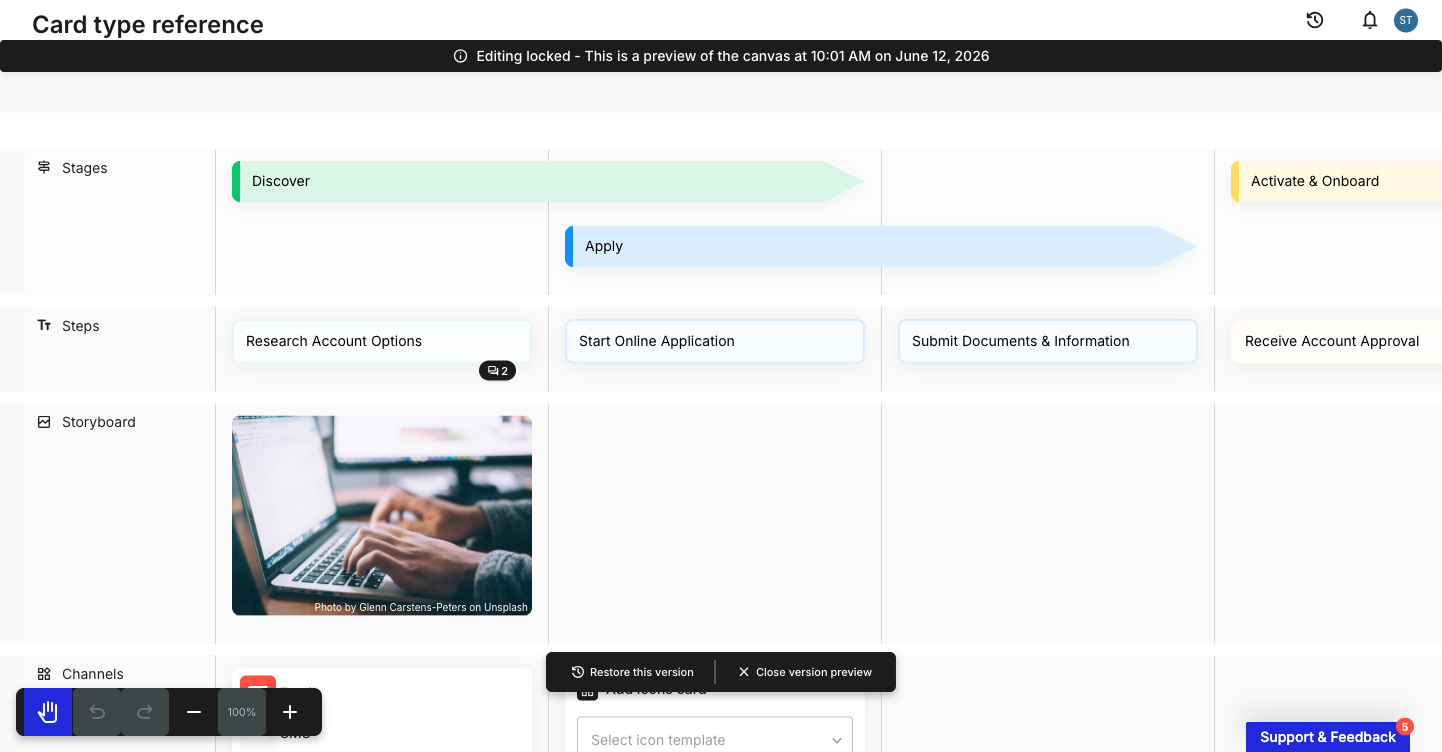
In the journey map editor, click the history (clock) icon in the top bar, to the left of the **Share** button. The **Version history** panel opens with **Current version** at the top, followed by earlier versions listed by date and time. Each entry shows the people who edited it.

<figure><img src="/files/UemIFwa7fU69yOUi5Mfq" alt="Version history panel open in the journey map editor. The clock icon sits in the top bar to the left of the Share button. The panel lists Current version at the top, then earlier versions labelled with a date and time and the avatars of the people who edited them."><figcaption><p>Version history panel, opened from the clock icon</p></figcaption></figure>
{% endstep %}

{% step %}
**Click a version to preview it**

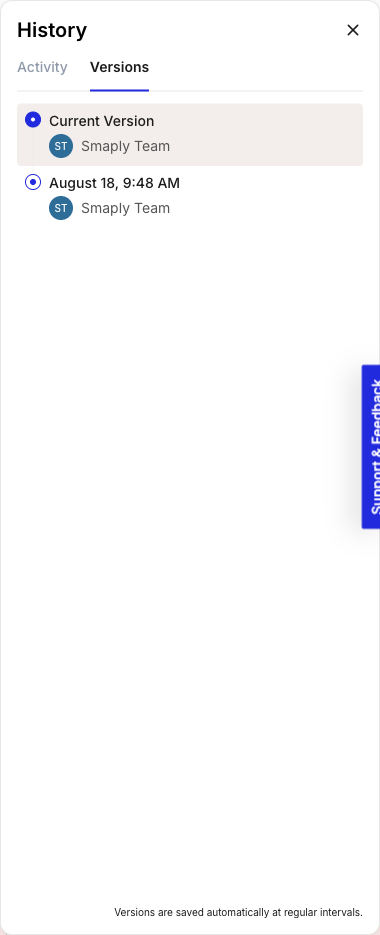
Clicking a version opens it as a read-only preview, so you can check its contents before deciding to restore. An **Editing locked** banner across the top confirms you are looking at a past version rather than the live map.

<figure><img src="/files/MsTgMVfgGd0Fv9LMX9Mz" alt="A past version open as a read-only preview. A black Editing locked banner runs across the top, and a floating toolbar at the bottom shows Restore this version and Close version preview."><figcaption><p>Read-only version preview with the floating toolbar</p></figcaption></figure>

To leave the preview without changing anything, click **Close version preview** in the floating toolbar at the bottom.
{% endstep %}

{% step %}
**Restore the version**

With the version you want open in the preview, click **Restore this version** in the floating toolbar. A confirmation dialog explains what happens next; confirm it to restore.

Restoring is non-destructive. It creates a new working version from the one you picked and leaves your current version untouched. The restored copy opens in a new browser tab, where you can carry on editing.
{% endstep %}
{% endstepper %}

***

#### What a restored version does and does not bring back

A version stores only the journey map's own layout and content. Anything that lives outside the map is linked in, not stored, so it always appears as it is today rather than as it was when the version was saved.

{% hint style="warning" %}

#### **Important: linked items do not roll back**

Restoring a version does not revert these. They show their current state, not their state at the time of the version:

* Portfolio items
* The content of metric cards
* The content of embed cards
* The content of planning cards
* Personas
* Tags
  {% endhint %}

{% hint style="success" icon="lightbulb" %}

#### **Tip: restore and rename before a major change**

Before a big round of edits, restore the current version and rename the restored copy. You get a clean checkpoint to work from and a clear way to tell the two apart later.
{% endhint %}

#### Related topics

<table data-column-title-hidden data-view="cards"><thead><tr><th>Title</th><th>Description</th><th data-hidden data-card-target data-type="content-ref">Target</th></tr></thead><tbody><tr><td><strong>How to archive a journey map</strong></td><td>Move a journey map out of the active list and bring it back later.</td><td><a href="/pages/0p0xTsJoEwHiuKOfOd3Y">/pages/0p0xTsJoEwHiuKOfOd3Y</a></td></tr><tr><td><strong>How to create a journey map</strong></td><td>Start a new journey map with Smaply AI, from scratch, or from a template.</td><td><a href="/pages/LfyJzQKJ0Sv9rMnQYKEQ">/pages/LfyJzQKJ0Sv9rMnQYKEQ</a></td></tr><tr><td><strong>What's included in each plan</strong></td><td>See which features, including version history, are available on your plan.</td><td><a href="/pages/cVo65js50L1JDRFJTSTu">/pages/cVo65js50L1JDRFJTSTu</a></td></tr></tbody></table>


---

# Agent Instructions
This documentation is published with GitBook. GitBook is the documentation platform designed so that both humans and AI agents can read, navigate, and reason over technical content effectively. Learn more at gitbook.com.

## Querying This Documentation
If you need additional information that is not directly available in this page, you can query the documentation dynamically by asking a question.

Perform an HTTP GET request on the current page URL with the `ask` query parameter, and the optional `goal` query parameter:

```
GET https://helpdesk.smaply.app/journey-maps/how-to-use-version-history.md?ask=<question>&goal=<endgoal>
```

`ask` is the immediate question: it should be specific, self-contained, and written in natural language.
`goal` is optional and describes the broader end goal you are ultimately trying to accomplish on behalf of the user. GitBook uses it to tailor the answer towards what is most useful for that goal.

The response will contain a direct answer to the question and relevant excerpts and sources from the documentation.

Use this mechanism when the answer is not explicitly present in the current page, you need clarification or additional context, or you want to retrieve related documentation sections.