> For the complete documentation index, see [llms.txt](https://helpdesk.smaply.app/llms.txt). Markdown versions of documentation pages are available by appending `.md` to page URLs; this page is available as [Markdown](https://helpdesk.smaply.app/journey-maps/lanes/how-to-add-and-manage-columns.md).

# How to add and manage columns

Columns are the steps of your journey map, running left to right across the canvas and grouped under the stages above them. Add, move, and remove them from the three-dot menu at the top of any column.

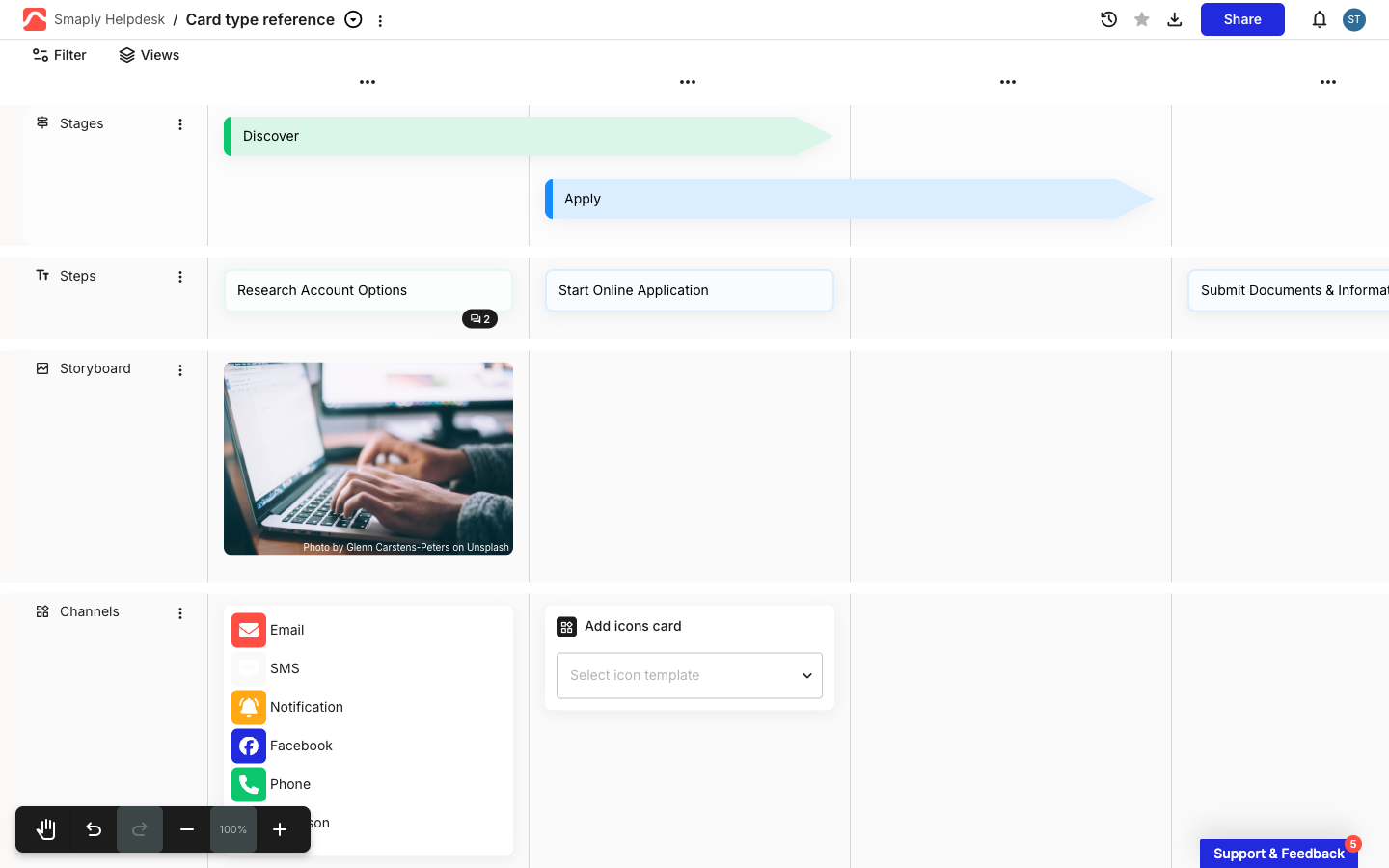
<figure><img src="/files/vPB5OjQkVz5uALn6avBw" alt="A journey map editor. The Stages lane at the top holds a green Discover chevron and a blue Apply chevron that each span several columns. Below it, a Steps lane holds text cards reading Research Account Options, Start Online Application, and Submit Documents and Information, with a Storyboard image lane and a Channels icon lane beneath. A three-dot menu sits centered above each column."><figcaption><p>Columns are the steps; stages group them, and a three-dot menu sits above each column</p></figcaption></figure>

Each column is one step, and cards snap to columns. A card can fill a single column or span several, depending on how much of the journey it covers.

{% hint style="info" icon="clipboard-list" %}

#### In this guide

1. [How to add a column](#how-to-add-a-column)
2. [How to move a column](#how-to-move-a-column)
3. [How to select every card in a column](#how-to-select-every-card-in-a-column)
4. [How to delete a column](#how-to-delete-a-column)
5. [How cards span columns](#how-cards-span-columns)
   {% endhint %}

***

#### How to add a column

There are two ways to add a column, and there's no limit on how many you add:

* **Hover between two column headers** at the top of the map until a blue plus-button appears, then click it. This inserts a column right at that spot, which is the quickest way to add a step in the middle of a journey.
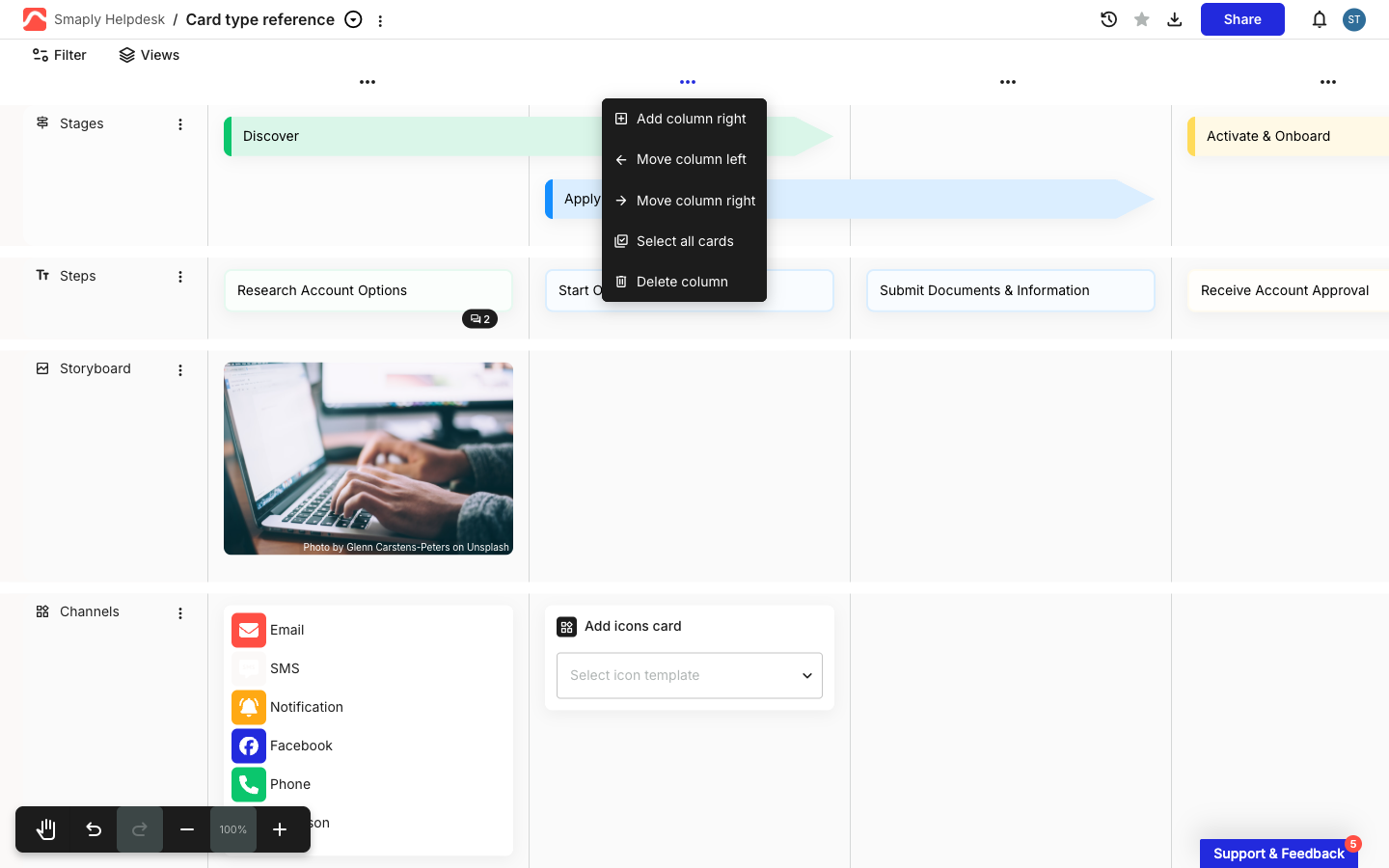
* **Open a column's three-dot menu** and click **Add column right** to add an empty column immediately to the right of that one.

<figure><img src="/files/QEwKhAqP9DFZxnN12wSH" alt="A column header three-dot menu open over a journey map, listing five options top to bottom: Add column right, Move column left, Move column right, Select all cards, and Delete column."><figcaption><p>The column menu: Add column right inserts an empty column</p></figcaption></figure>

{% hint style="warning" %}

#### **Important: Inserting a column shifts the cards to its right**

Adding a column pushes existing content one step to the right. A card that spans several columns only shifts if you insert the new column at the card's starting column; insert it part-way through the span and the card stretches to cover the new column instead.
{% endhint %}

***

#### How to move a column

Open the column's three-dot menu and click **Move column left** or **Move column right**. The column and everything in it swaps places with its neighbour, one step at a time.

***

#### How to select every card in a column

Open the column's three-dot menu and click **Select all cards** to select every card in that column at once. From there you can tag them, assign personas, recolour them, or delete them together.

See [How to bulk edit cards](/journey-maps/how-to-bulk-edit-cards.md) for what you can do with a selection.

***

#### How to delete a column

Open the column's three-dot menu and click **Delete column**. The column and every card in it are removed, and the columns to its right shift left to close the gap.

{% hint style="warning" %}

#### **Important: Deleting a column removes its cards too**

Everything in the column goes with it, so move any cards you want to keep into another column first.
{% endhint %}

***

#### How cards span columns

Cards snap to the column grid, and a single card can span more than one column when its content covers several steps. A stage card stretches across the steps that make up one phase; a text card can span columns to label a process that runs over several steps.

Spanning is set on the card itself, and the steps differ a little by card type:

* [How to use stage cards](/journey-maps/cards/how-to-use-stage-cards.md) - Span a chevron-shaped stage card across the step columns its phase covers.
* [How to use text cards](/journey-maps/cards/how-to-use-text-cards.md) - Expand or shrink a text card across columns to build a process bar.

***

#### Related topics

<table data-column-title-hidden data-view="cards"><thead><tr><th>Title</th><th>Description</th><th data-hidden data-card-target data-type="content-ref">Target</th></tr></thead><tbody><tr><td><strong>How to add and manage lanes</strong></td><td>Add, rename, reorder, and remove the lanes that cross your columns.</td><td><a href="/pages/cEW7pumNPGKdJ65EEAz7">/pages/cEW7pumNPGKdJ65EEAz7</a></td></tr><tr><td><strong>How to use stage cards</strong></td><td>Group your step columns into phases with chevron-shaped stage cards.</td><td><a href="/pages/YeVZqUkvqujOSrFxYHsT">/pages/YeVZqUkvqujOSrFxYHsT</a></td></tr><tr><td><strong>How to use text cards</strong></td><td>Span a text card across columns to label a process or phase.</td><td><a href="/pages/icqgg4Jls9Iv7VWRvRls">/pages/icqgg4Jls9Iv7VWRvRls</a></td></tr><tr><td><strong>How to add and edit cards</strong></td><td>Add cards to a column and edit the mechanics every card type shares.</td><td><a href="/pages/DI00pTOdaJmOwltHKgIa">/pages/DI00pTOdaJmOwltHKgIa</a></td></tr><tr><td><strong>How to bulk edit cards</strong></td><td>Select every card in a column and apply tags, personas, or colour in one go.</td><td><a href="/pages/D239Y2x0Gzcz0VuWHA1p">/pages/D239Y2x0Gzcz0VuWHA1p</a></td></tr></tbody></table>


---

# Agent Instructions
This documentation is published with GitBook. GitBook is the documentation platform designed so that both humans and AI agents can read, navigate, and reason over technical content effectively. Learn more at gitbook.com.

## Querying This Documentation
If you need additional information that is not directly available in this page, you can query the documentation dynamically by asking a question.

Perform an HTTP GET request on the current page URL with the `ask` query parameter, and the optional `goal` query parameter:

```
GET https://helpdesk.smaply.app/journey-maps/lanes/how-to-add-and-manage-columns.md?ask=<question>&goal=<endgoal>
```

`ask` is the immediate question: it should be specific, self-contained, and written in natural language.
`goal` is optional and describes the broader end goal you are ultimately trying to accomplish on behalf of the user. GitBook uses it to tailor the answer towards what is most useful for that goal.

The response will contain a direct answer to the question and relevant excerpts and sources from the documentation.

Use this mechanism when the answer is not explicitly present in the current page, you need clarification or additional context, or you want to retrieve related documentation sections.