For the complete documentation index, see llms.txt. This page is also available as Markdown.

How to copy lanes across journey maps

Copy a whole lane, cards and all, and paste it into any other journey map, even one in another workspace or account.

Copy a lane once and reuse it anywhere. Copy lane takes the whole lane, including all of its cards, and lets you paste it into any other journey map, whether that map is in the same workspace, another workspace, or another account you belong to.

How to copy a lane and paste it into another map

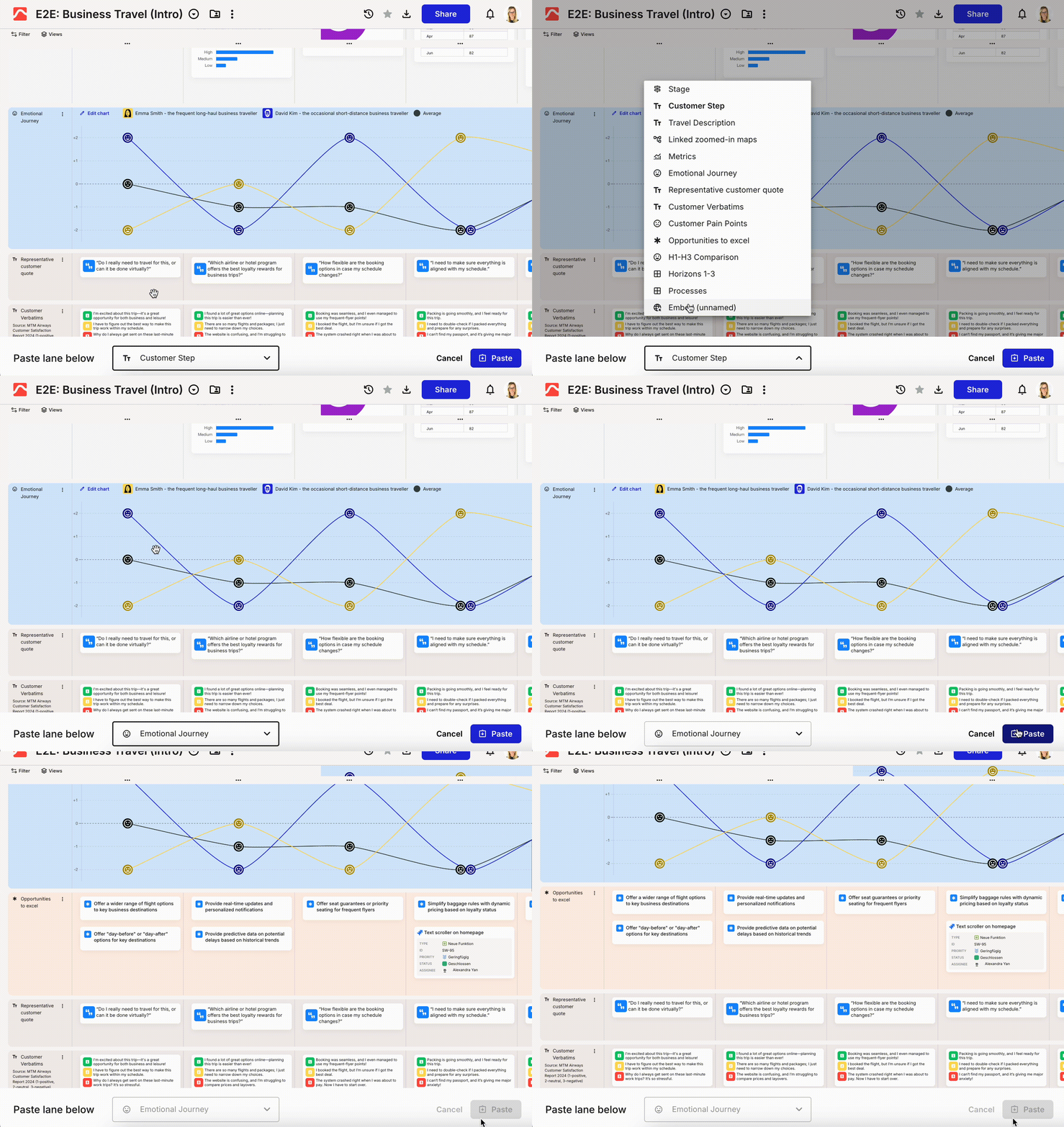
Copying a lane from one journey map using the lane three-dot menu, then pasting it into another map with the Paste lane below banner.
Copy a lane, then paste it into another map
1

Copy the lane

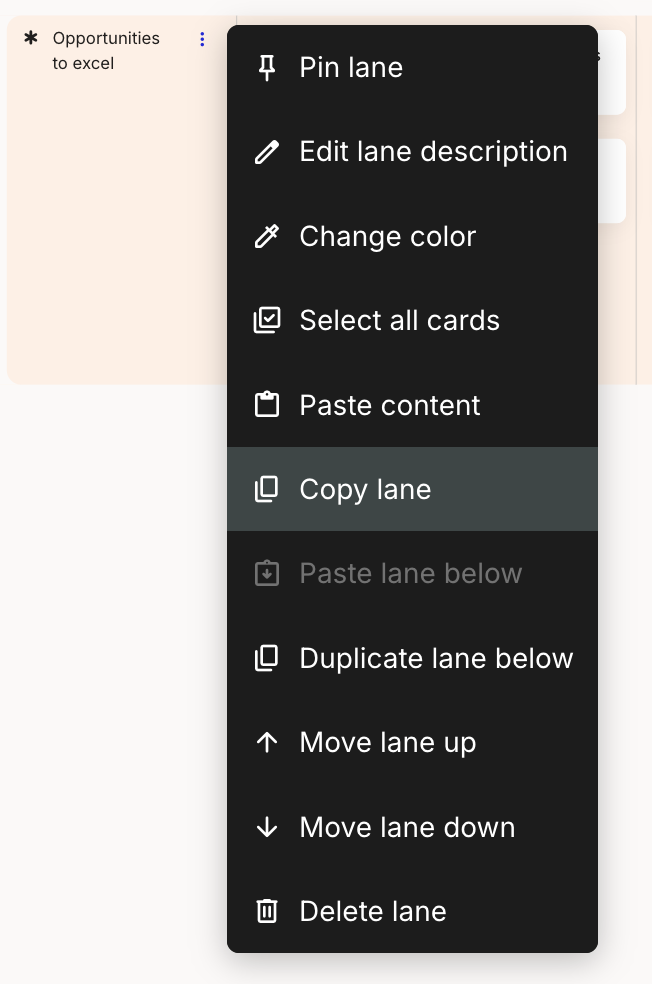
Open the lane's three-dot menu and select Copy lane. This copies the entire lane, including its name, colour, and every card in it.

A lane three-dot menu open on a lane labelled Opportunities to excel. The menu lists Pin lane, Edit lane description, Change color, Select all cards, Paste content, Copy lane, Paste lane below, Duplicate lane below, Move lane up, Move lane down, and Delete lane. Copy lane is highlighted and Paste lane below is greyed out.
The lane menu, with Copy lane selected
2

Open the map you want to paste into and press Cmd/Ctrl+V

Go to the destination map, then paste with Cmd+V (Mac) or Ctrl+V (Windows). The map can be in the same workspace, a different workspace, or a different account.

3

Pick where the lane lands

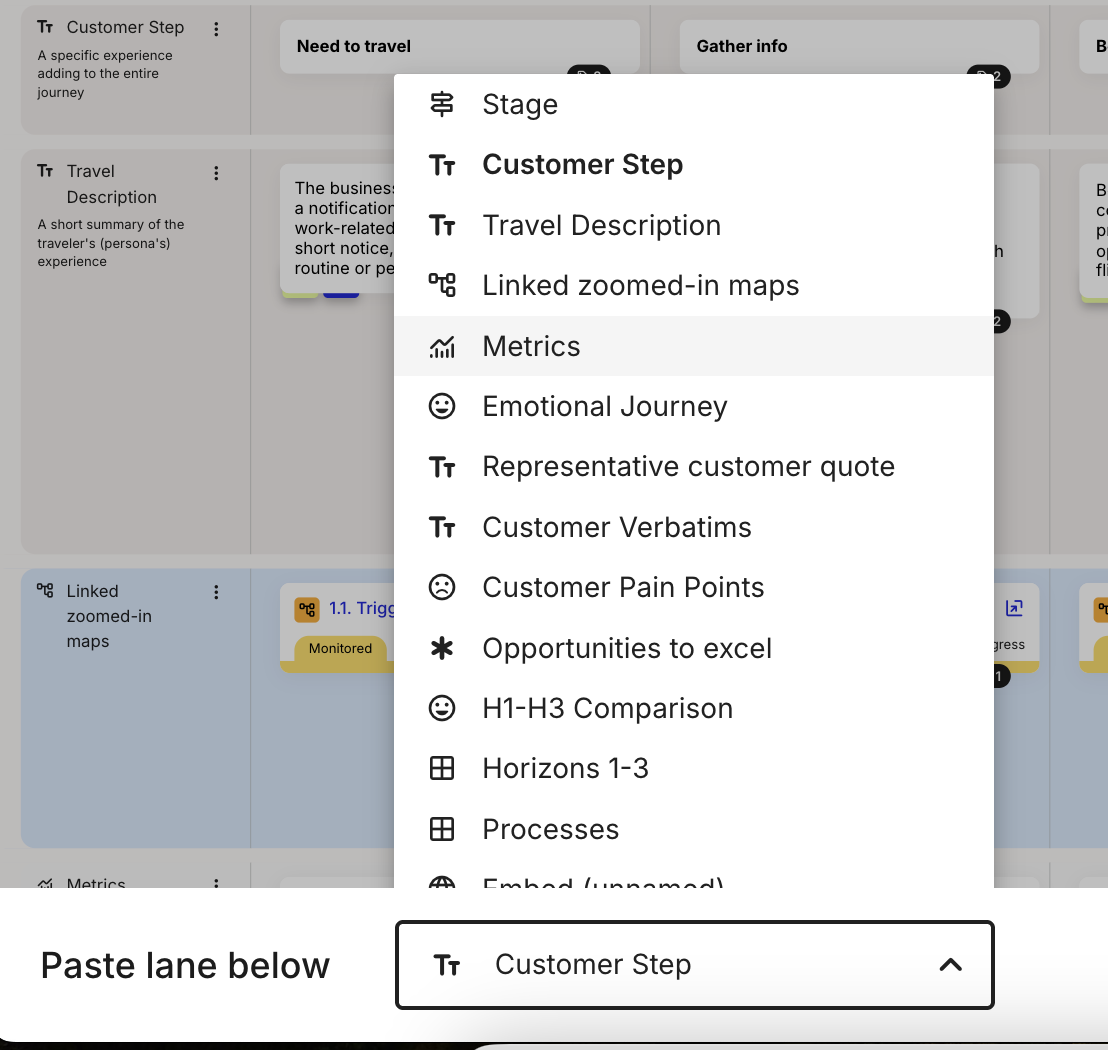
A Paste lane below banner appears at the bottom of the screen with a dropdown. Choose a lane from the dropdown and click Paste. Your copied lane is inserted directly below the lane you pick.

The paste banner at the bottom of the journey map editor, labelled Paste lane below, with an open dropdown listing destination lanes such as Stage, Customer Step, Travel Description, Linked zoomed-in maps, Metrics, and Emotional Journey.
The paste banner, choosing the lane to paste below

You can also paste from the destination lane's three-dot menu with Paste lane below. That menu item stays greyed out until you have copied a lane.

Text, image, icon, slider, stage, and embed cards paste in full. Cards that point to workspace data, such as metrics, portfolio items, and linked journey map cards, only resolve if that data exists in the destination. Pasted into a workspace or account that doesn't have it, those cards arrive in an error state. Items kept in the Account Library stay available across every workspace in the same account.

To paste a list, spreadsheet, or other clipboard content into a lane as cards (rather than pasting a copied lane), use Paste content. See How to use enhanced paste.

Copy a lane vs duplicate a lane

Both make a copy of a lane with its cards. Which one you want depends on where the copy needs to go.

Copy lane

Copies the lane to your clipboard so you can paste it into a different map, including one in another workspace or account.

Best for reusing a lane across maps.

Duplicate lane below

Drops an identical copy directly beneath the original, in the same map, in one click. It doesn't touch your clipboard.

Best for repeating a lane within one map.

Last updated