> For the complete documentation index, see [llms.txt](https://helpdesk.smaply.app/llms.txt). Markdown versions of documentation pages are available by appending `.md` to page URLs; this page is available as [Markdown](https://helpdesk.smaply.app/migration/how-to-import-from-excel.md).

# How to import from Excel

Have a journey map laid out in a spreadsheet? Import the file and Smaply turns your rows and columns into journey map lanes, stages, and cards. To start, open **Journey maps**, click **Import**, choose **Excel**, upload your file, and click **Import**.

{% hint style="info" icon="tag" %}
Importing journey maps is available on the Repository plan and above.
{% endhint %}

{% hint style="warning" icon="list-check" %}

#### Prerequisites

You need Editor access in the workspace, since importing creates a new journey map.
{% endhint %}

Unlike the image and screenshot sources, the Excel import is not an AI reconstruction. It reads the structure of your spreadsheet directly, so the result follows your rows and columns exactly. It accepts **.xlsx**, **.xls**, and **.csv** files, which makes it the way to bring CSV data in too.

#### How to import a journey map from a spreadsheet

{% stepper %}
{% step %}
**Open the import flow**

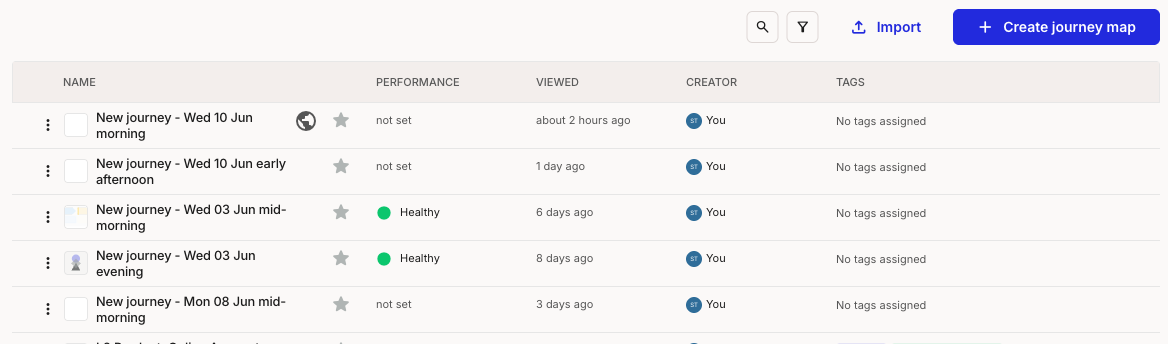
In a workspace, open **Journey maps** and click **Import** in the toolbar, next to **Create journey map**.

<figure><img src="/files/yD3CwPqW3509FPZnMrt4" alt="A journey maps list with a toolbar in the top right. The toolbar has search and filter icons, an Import button, and a Create journey map button."><figcaption><p>Journey maps > Import</p></figcaption></figure>
{% endstep %}

{% step %}
**Choose Excel and click Continue**

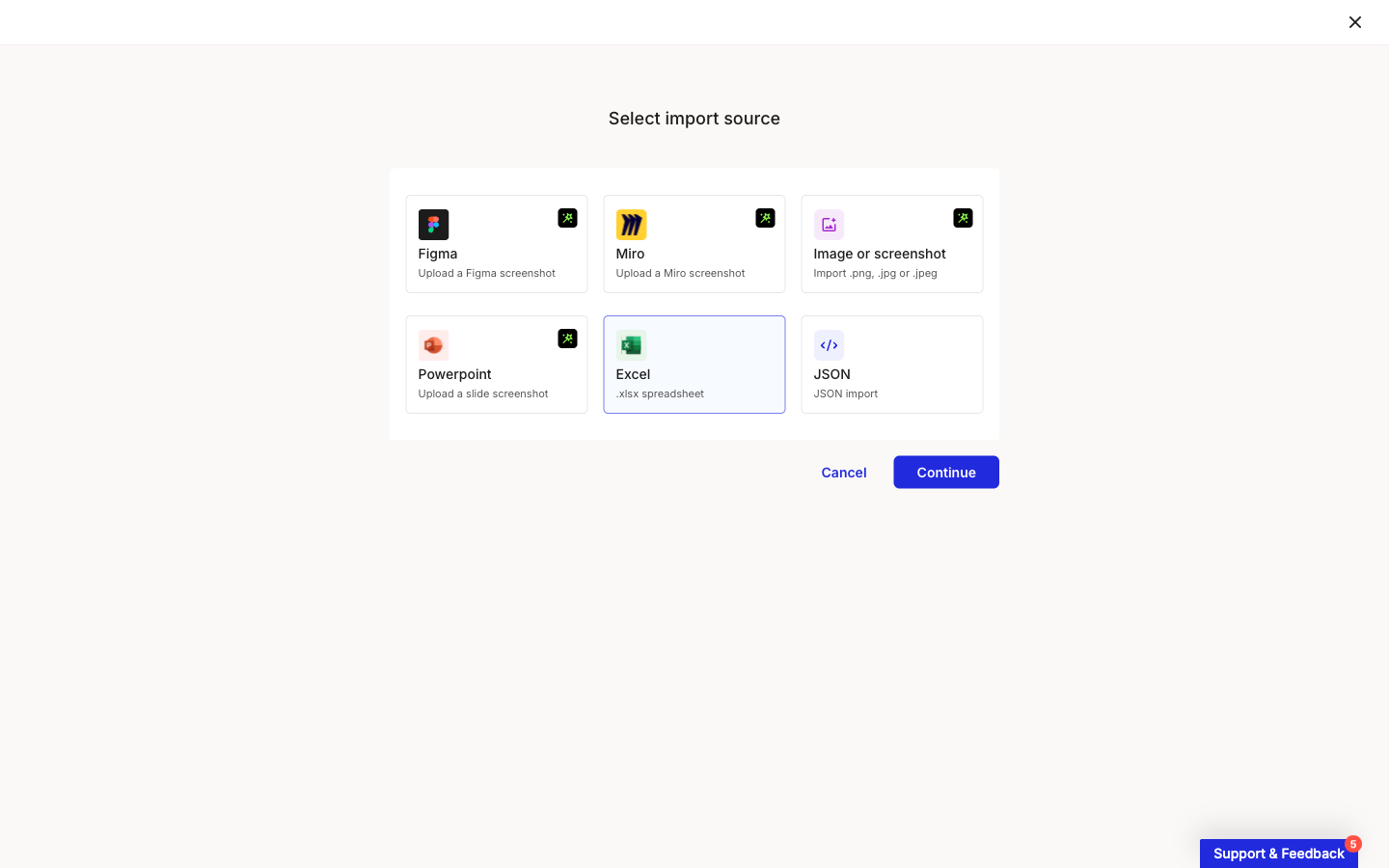
In the **Select import source** modal, choose **Excel** (the ".xlsx spreadsheet" card), then click **Continue**.

<figure><img src="/files/YD3RDOkHq2uUdUXc2VlB" alt="The Select import source modal showing six cards: Figma, Miro, Image or screenshot, and Powerpoint marked with an AI icon, plus a JSON card labelled JSON import. The Excel card labelled .xlsx spreadsheet is selected and highlighted, and the Continue button at the bottom is enabled next to Cancel."><figcaption><p>Select import source > Excel</p></figcaption></figure>
{% endstep %}

{% step %}
**Set how your spreadsheet maps to the journey**

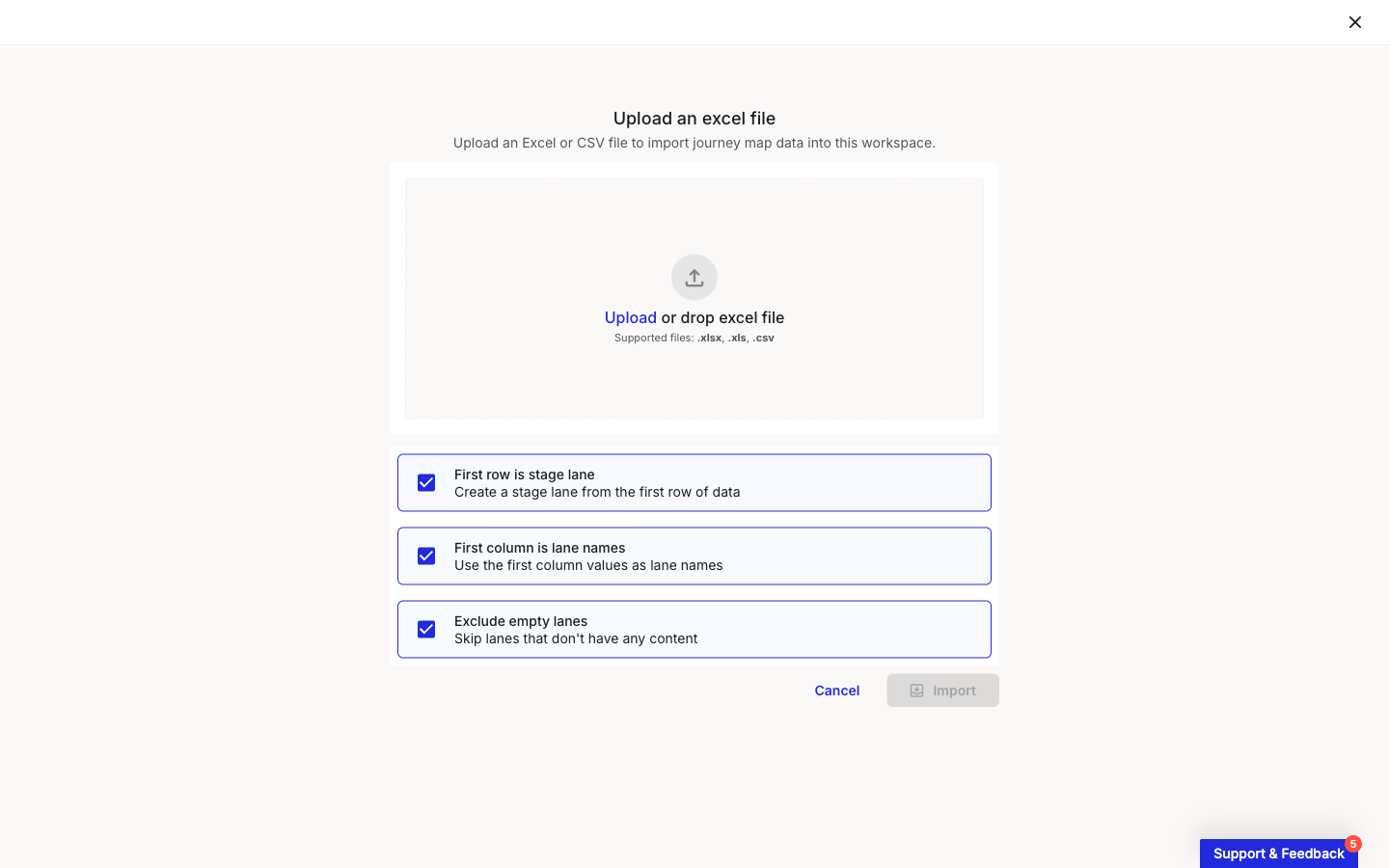
On the **Upload an excel file** step, drag a file into the dropzone or click **Upload**. Smaply accepts **.xlsx, .xls, and .csv**. Before uploading, check the three options below the dropzone, which control how your data becomes a journey map. All three are on by default:

* **First row is stage lane** - Creates a stage lane from the first row of data.
* **First column is lane names** - Uses the values in the first column as lane names.
* **Exclude empty lanes** - Skips lanes that have no content.

Then click **Import**.

<figure><img src="/files/8FLQO8blfsPkA3qZAvef" alt="The Upload an excel file step with a dropzone reading Upload or drop excel file and a note that supported files are .xlsx, .xls, and .csv. Below the dropzone are three checked options: First row is stage lane, First column is lane names, and Exclude empty lanes. An Import button sits at the bottom right."><figcaption><p>Upload an excel file</p></figcaption></figure>
{% endstep %}
{% endstepper %}

#### Lay your spreadsheet out like a journey map

The import maps the grid of your spreadsheet straight onto the grid of a journey map, so the cleaner the layout, the cleaner the result:

* Put each journey step in its own column and each lane (actions, thinking, pain points, and so on) in its own row.
* Keep the stage names in the first row and the lane names in the first column, to match the default options.
* Leave one piece of content per cell. Each filled cell becomes a card.
* Turn off **First row is stage lane** or **First column is lane names** if your sheet does not use that layout, so Smaply does not treat your data as labels.

#### Import an Excel spreadsheet from the editor

You can also start an Excel import from inside an open journey map. Click the three-dot menu next to the map title and choose **Import from Excel**. This opens the same upload step covered above.

#### Related topics

<table data-column-title-hidden data-view="cards"><thead><tr><th>Article</th><th>What it covers</th><th data-hidden data-card-target data-type="content-ref">Target</th></tr></thead><tbody><tr><td><strong>How to import from image</strong></td><td>Upload a screenshot of a map and let Smaply AI rebuild it.</td><td><a href="/pages/gUbzvZgq0NRwr87aVZTt">/pages/gUbzvZgq0NRwr87aVZTt</a></td></tr><tr><td><strong>How to import from JSON</strong></td><td>Re-import a journey map you exported from Smaply as JSON.</td><td><a href="/pages/wnMk7afQMxQhjtiulwvu">/pages/wnMk7afQMxQhjtiulwvu</a></td></tr><tr><td><strong>How to use enhanced paste</strong></td><td>Paste spreadsheet rows straight into a lane of an existing map.</td><td><a href="/pages/8B3eINtya42YPRLS2j7a">/pages/8B3eINtya42YPRLS2j7a</a></td></tr><tr><td><strong>How to create a journey map</strong></td><td>Start a new journey map from scratch, a template, or AI.</td><td><a href="/pages/LfyJzQKJ0Sv9rMnQYKEQ">/pages/LfyJzQKJ0Sv9rMnQYKEQ</a></td></tr></tbody></table>


---

# Agent Instructions
This documentation is published with GitBook. GitBook is the documentation platform designed so that both humans and AI agents can read, navigate, and reason over technical content effectively. Learn more at gitbook.com.

## Querying This Documentation
If you need additional information that is not directly available in this page, you can query the documentation dynamically by asking a question.

Perform an HTTP GET request on the current page URL with the `ask` query parameter, and the optional `goal` query parameter:

```
GET https://helpdesk.smaply.app/migration/how-to-import-from-excel.md?ask=<question>&goal=<endgoal>
```

`ask` is the immediate question: it should be specific, self-contained, and written in natural language.
`goal` is optional and describes the broader end goal you are ultimately trying to accomplish on behalf of the user. GitBook uses it to tailor the answer towards what is most useful for that goal.

The response will contain a direct answer to the question and relevant excerpts and sources from the documentation.

Use this mechanism when the answer is not explicitly present in the current page, you need clarification or additional context, or you want to retrieve related documentation sections.