> For the complete documentation index, see [llms.txt](https://helpdesk.smaply.app/llms.txt). Markdown versions of documentation pages are available by appending `.md` to page URLs; this page is available as [Markdown](https://helpdesk.smaply.app/migration/how-to-import-from-figma.md).

# How to import from Figma

Bring a journey map you've drawn in Figma into Smaply. Export the frame as an image, upload it, and Smaply AI rebuilds it as an editable journey map.

{% hint style="info" icon="compass" %}
To keep a live, interactive Figma frame inside a card instead of rebuilding it, see [How to use embed cards](/journey-maps/cards/how-to-use-embed-cards.md).
{% endhint %}

Smaply imports an image, not a Figma file. AI reconstructs the map from the picture, so the task is to get one clean, legible image out of Figma, then upload it. The import itself is the same for every source and lives in [How to import from image](/migration/how-to-import-from-image.md).

#### How to export your Figma frame as an image

{% stepper %}
{% step %}
**Select the frame**

On the canvas, click the frame that holds your journey map. Selecting it scopes the export to that one frame rather than the whole page. **Can view** access is enough to export, unless the file owner has restricted copying.
{% endstep %}

{% step %}
**Open the Export section**

In the right sidebar, find the **Export** section and click the **+** to add an export setting.
{% endstep %}

{% step %}
**Choose PNG or SVG**

Set the format to **PNG** for the crispest text, or **SVG** if the frame is mostly text and shapes. Both upload cleanly to Smaply. Do not choose **PDF**: Smaply does not accept it.
{% endstep %}

{% step %}
**Set the scale to 2x or 3x**

For a PNG, raise the scale from the default **1x** to **2x** or **3x** so the AI can read the card text. Larger scale means sharper text. SVG is resolution-independent, so it has no scale setting.
{% endstep %}

{% step %}
**Export and save the file**

Click **Export** and save the image. You now have a file ready to upload.
{% endstep %}
{% endstepper %}

If you can't reach the Export section or your frame is simple enough to fit one screen, take an operating-system screenshot instead (macOS **Cmd + Shift + 4**, Windows **Win + Shift + S**) and save it as a PNG. Crop tightly around the map and keep the text legible.

#### Import it into Smaply

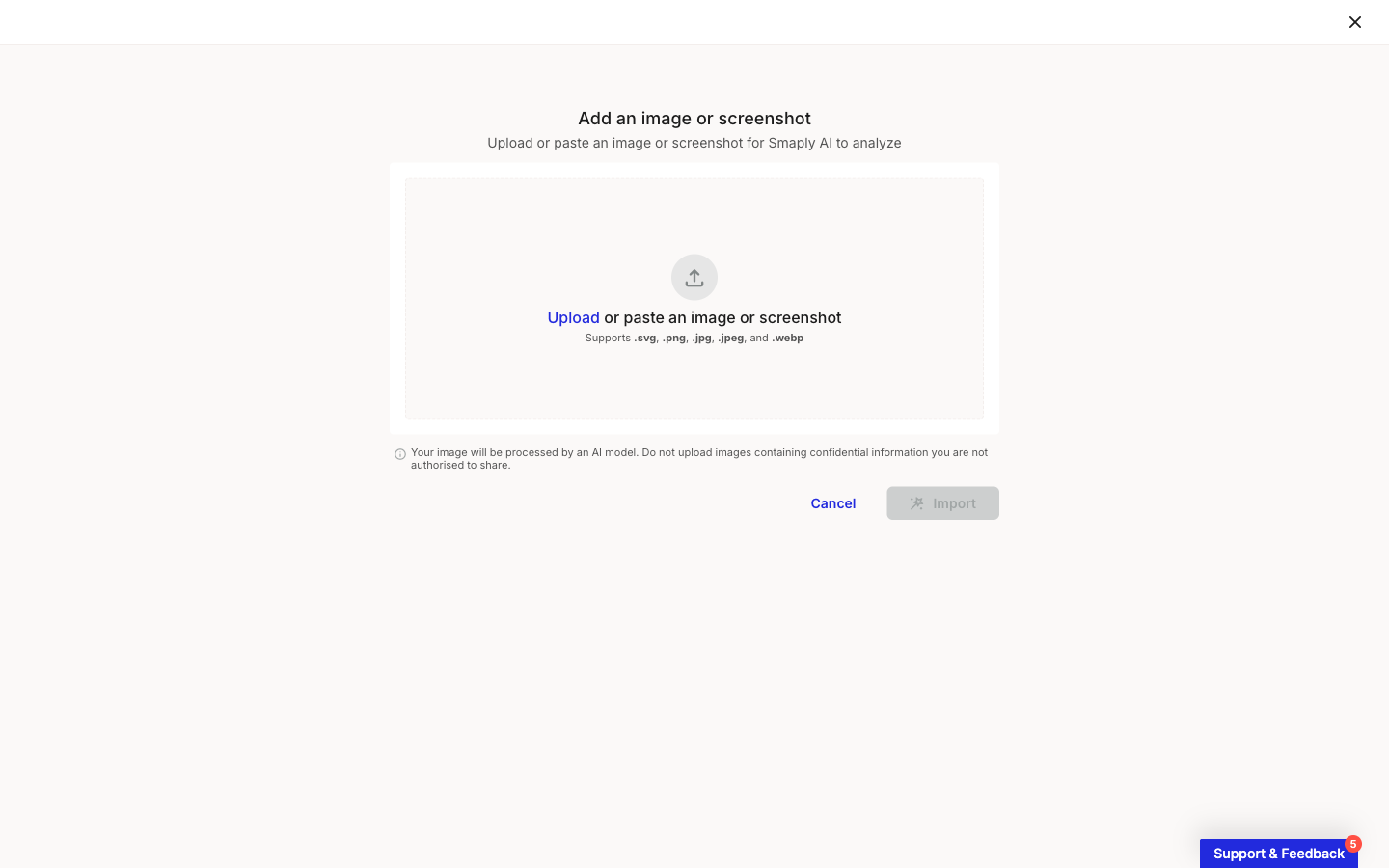
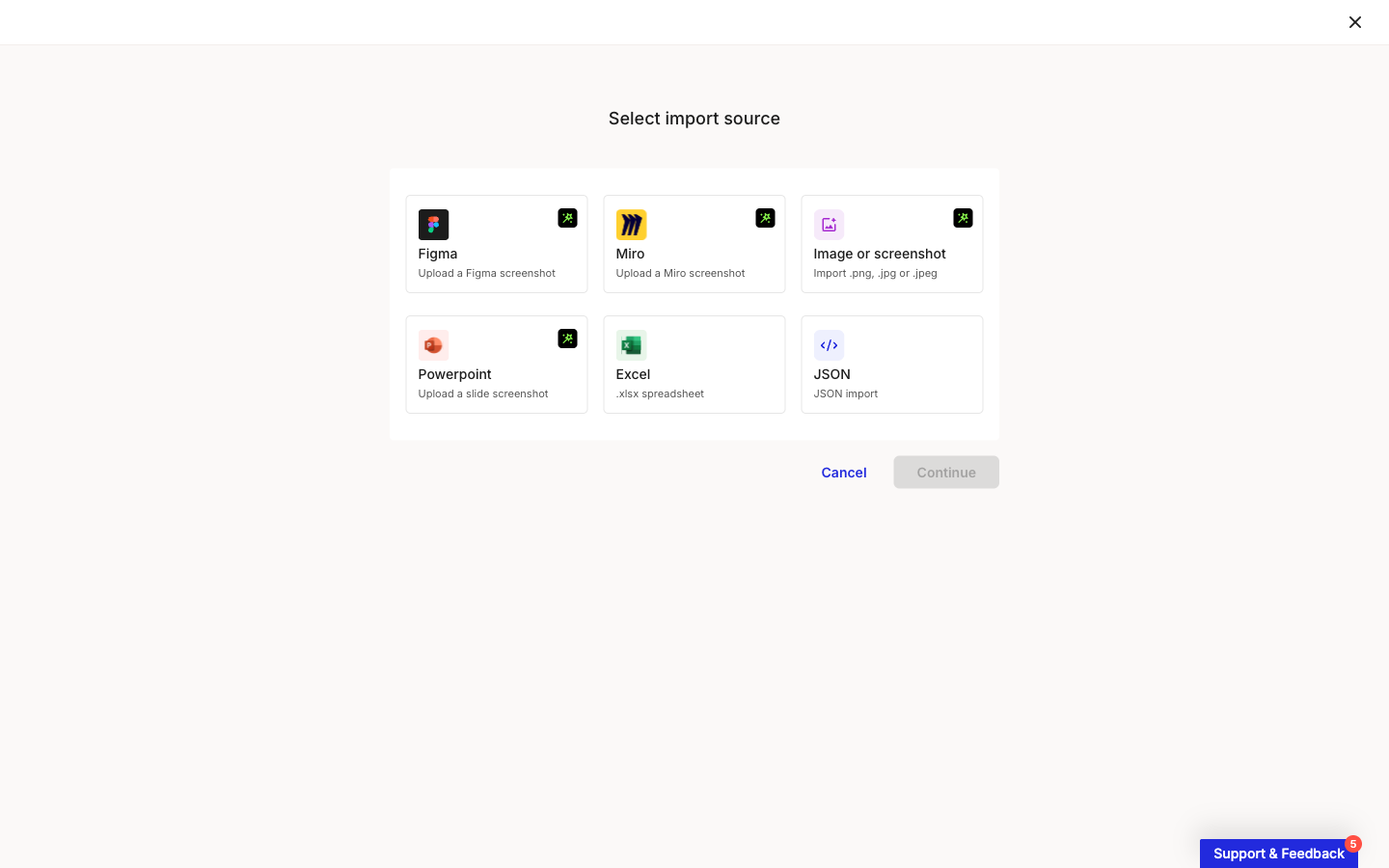
In a workspace, open **Journey maps** and click **Import**. In the **Select import source** modal, pick the **Figma** card, click **Continue**, then upload your exported image and click **Import**.

For the full upload flow and what to expect while the map builds, see [How to import from image](/migration/how-to-import-from-image.md).

Smaply AI reconstructs the journey map from your image, so treat the result as a starting point: open it in the editor and review the lanes, stages, and card text before you rely on it.

#### Related topics

<table data-column-title-hidden data-view="cards"><thead><tr><th>Article</th><th>What it covers</th><th data-hidden data-card-target data-type="content-ref">Target</th></tr></thead><tbody><tr><td><strong>How to import from image</strong></td><td>The full upload-and-rebuild flow that every import source funnels into.</td><td><a href="/pages/gUbzvZgq0NRwr87aVZTt">/pages/gUbzvZgq0NRwr87aVZTt</a></td></tr><tr><td><strong>How to import from Miro</strong></td><td>Export a Miro board or frame as an image, then import it.</td><td><a href="/pages/gvXOJr2HbXd8lxmXktqG">/pages/gvXOJr2HbXd8lxmXktqG</a></td></tr><tr><td><strong>How to import from PowerPoint</strong></td><td>Save a slide as an image, then import it.</td><td><a href="/pages/anEf5fPCdJUNFcwRrmwi">/pages/anEf5fPCdJUNFcwRrmwi</a></td></tr><tr><td><strong>Create a journey map</strong></td><td>Start a journey map from scratch, a template, or AI.</td><td><a href="/pages/LfyJzQKJ0Sv9rMnQYKEQ">/pages/LfyJzQKJ0Sv9rMnQYKEQ</a></td></tr></tbody></table>


---

# Agent Instructions
This documentation is published with GitBook. GitBook is the documentation platform designed so that both humans and AI agents can read, navigate, and reason over technical content effectively. Learn more at gitbook.com.

## Querying This Documentation
If you need additional information that is not directly available in this page, you can query the documentation dynamically by asking a question.

Perform an HTTP GET request on the current page URL with the `ask` query parameter, and the optional `goal` query parameter:

```
GET https://helpdesk.smaply.app/migration/how-to-import-from-figma.md?ask=<question>&goal=<endgoal>
```

`ask` is the immediate question: it should be specific, self-contained, and written in natural language.
`goal` is optional and describes the broader end goal you are ultimately trying to accomplish on behalf of the user. GitBook uses it to tailor the answer towards what is most useful for that goal.

The response will contain a direct answer to the question and relevant excerpts and sources from the documentation.

Use this mechanism when the answer is not explicitly present in the current page, you need clarification or additional context, or you want to retrieve related documentation sections.