> For the complete documentation index, see [llms.txt](https://helpdesk.smaply.app/llms.txt). Markdown versions of documentation pages are available by appending `.md` to page URLs; this page is available as [Markdown](https://helpdesk.smaply.app/migration/how-to-import-from-powerpoint.md).

# How to import from PowerPoint

Bring a journey map you built on a PowerPoint slide into Smaply as an editable journey map.

Smaply imports an image and uses AI to rebuild the journey map from it, so the job is to get a clean image out of PowerPoint, then import it. For the import mechanics and what to expect, see [How to import from image](/migration/how-to-import-from-image.md).

#### How to export your PowerPoint slide as an image

The steps differ by platform: on Windows you use **Save As**, on Mac you use **Export**, and the dialog that picks a single slide is named differently in each.

* [**Windows**](#windows) - Save the slide as a PNG or JPEG with **Save As**, then choose **Just This One**.
* [**Mac**](#mac) - Export the slide as a PNG or JPEG, then choose **Save Current Slide Only**.

{% tabs %}
{% tab title="Windows" %}
{% stepper %}
{% step %}
**Select the slide**

In the slide thumbnail panel, click the slide that holds your journey map.
{% endstep %}

{% step %}
**Open Save As and pick an image format**

Go to **File > Save As** (or **Save a Copy** if the file is on OneDrive or SharePoint). Open the **Save as type** dropdown and choose **PNG** or **JPEG**. PNG keeps text crispest for the AI to read.
{% endstep %}

{% step %}
**Save just this slide**

Click **Save**. When PowerPoint asks which slides to export, choose **Just This One**. Choosing **All Slides** writes every slide out as a separate image instead.
{% endstep %}
{% endstepper %}
{% endtab %}

{% tab title="Mac" %}
{% stepper %}
{% step %}
**Select the slide**

In the slide thumbnail panel, click the slide that holds your journey map.
{% endstep %}

{% step %}
**Open Export and pick an image format**

Go to **File > Export**. Under **File Format**, choose **PNG** or **JPEG**. PNG keeps text crispest for the AI to read.
{% endstep %}

{% step %}
**Save the current slide**

Choose **Save Current Slide Only**, then click **Export**. The alternative, **Save Every Slide**, writes out the whole deck.
{% endstep %}
{% endstepper %}
{% endtab %}
{% endtabs %}

PowerPoint for the web has no native slide-to-image export. Either download the deck and use desktop PowerPoint, or take an operating-system screenshot of the slide (Windows: **Win + Shift + S**; Mac: **Cmd + Shift + 4**) and use that image.

{% hint style="success" icon="lightbulb" %}

#### **Tip: Enlarge the slide for sharper text**

PowerPoint exports at a fixed 96 DPI with no resolution control in the dialog, which can blur small text. For a denser map, enlarge the slide first via **Design > Slide Size > Custom Slide Size** and increase the dimensions, then export. On Mac, enter larger **Width** and **Height** values in the Export dialog.
{% endhint %}

#### Import it into Smaply

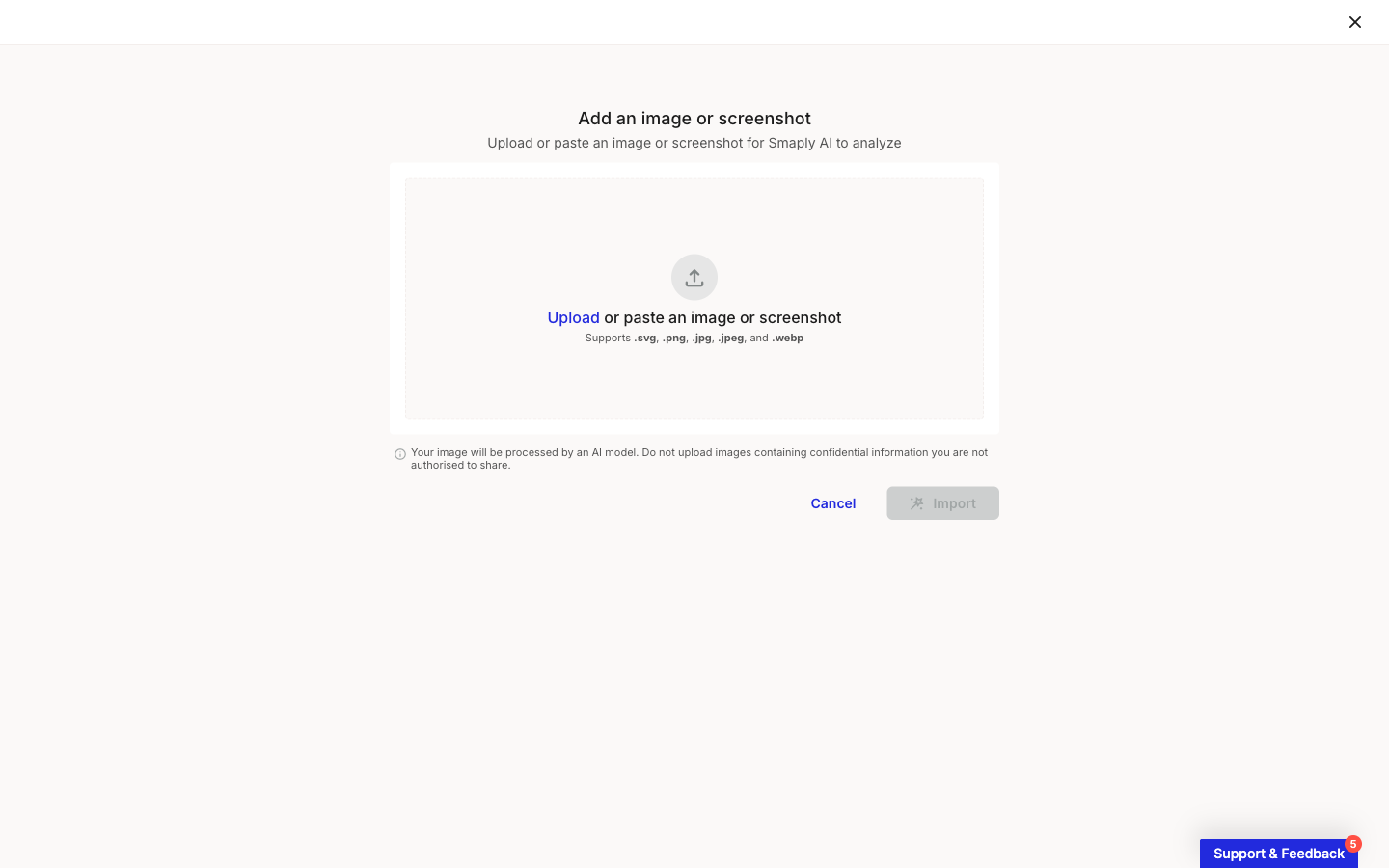
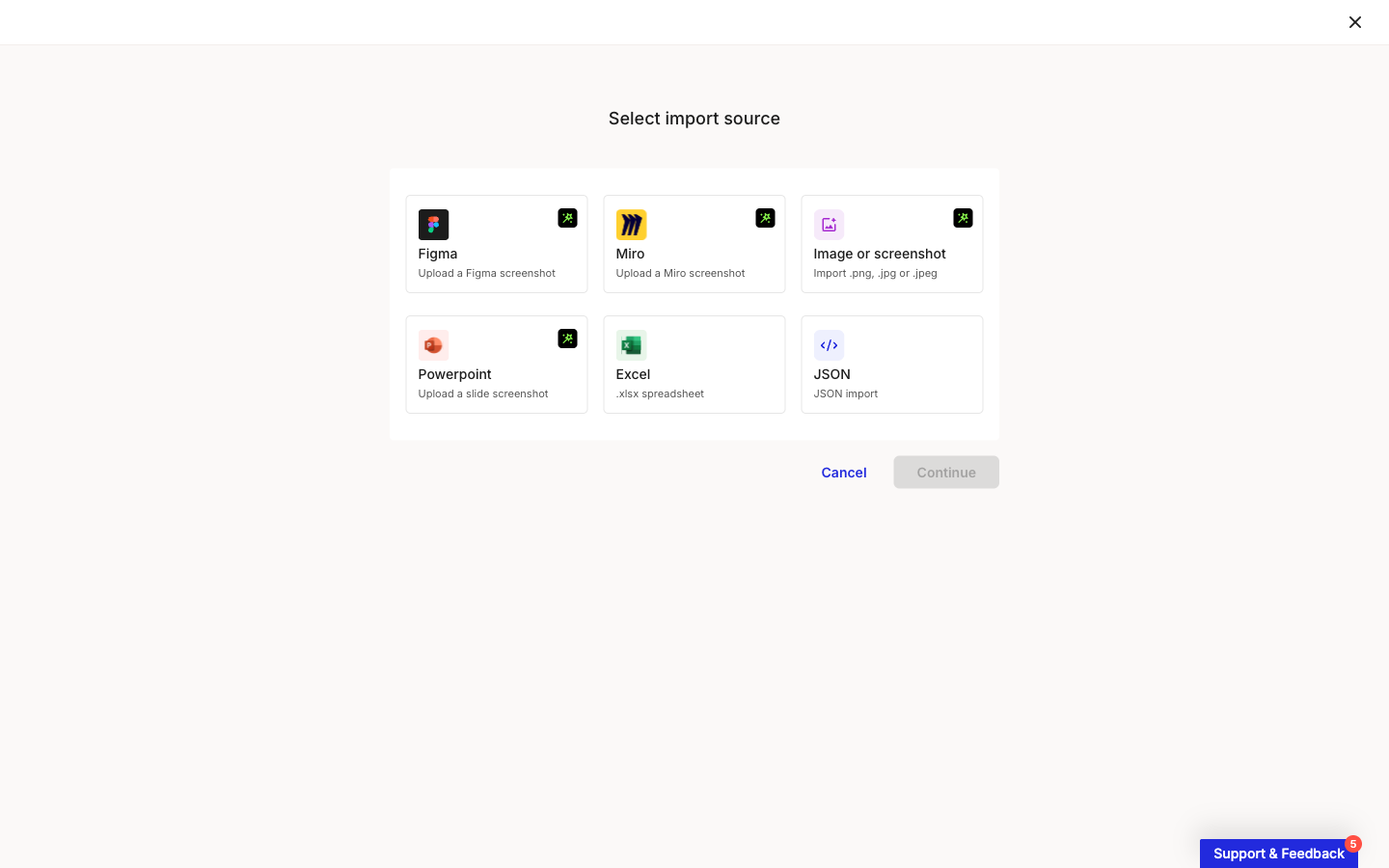
In a workspace, open **Journey maps** and click **Import**, then pick the **Powerpoint** card ("Upload a slide screenshot") and click **Continue**. Upload your exported slide and click **Import**.

<figure><img src="/files/1w8hrjyqN7RWl0zpgZz6" alt="The Select import source modal showing six cards: Figma, Miro, Image or screenshot, and Powerpoint marked with an AI icon, plus an Excel card labelled .xlsx spreadsheet and a JSON card labelled JSON import. Cancel and Continue buttons sit at the bottom."><figcaption><p>Select import source > Powerpoint</p></figcaption></figure>

<figure><img src="/files/xwaFLWCP2vT0T1Y131wW" alt="The Add an image or screenshot step with a dropzone for uploading or pasting an image, a note listing supported formats, and an Import button."><figcaption><p>Add an image or screenshot</p></figcaption></figure>

For the full upload flow and supported formats, see [How to import from image](/migration/how-to-import-from-image.md).

The AI reconstructs a journey map from the picture, so treat the result as a starting point and review the generated map before building on it.

#### Related topics

<table data-column-title-hidden data-view="cards"><thead><tr><th>Title</th><th>Description</th><th data-hidden data-card-target data-type="content-ref">Target</th></tr></thead><tbody><tr><td><strong>How to import from image</strong></td><td>The full image-import flow and what to expect from the AI reconstruction.</td><td><a href="/pages/gUbzvZgq0NRwr87aVZTt">/pages/gUbzvZgq0NRwr87aVZTt</a></td></tr><tr><td><strong>How to import from Miro</strong></td><td>Export a Miro board or frame as an image, then import it into Smaply.</td><td><a href="/pages/gvXOJr2HbXd8lxmXktqG">/pages/gvXOJr2HbXd8lxmXktqG</a></td></tr><tr><td><strong>How to import from Figma</strong></td><td>Export a Figma frame as an image, then import it into Smaply.</td><td><a href="/pages/vSEFXkqD0FJIZlCZRAs8">/pages/vSEFXkqD0FJIZlCZRAs8</a></td></tr><tr><td><strong>Create a journey map</strong></td><td>Start a new journey map from scratch, a template, or AI.</td><td><a href="/pages/LfyJzQKJ0Sv9rMnQYKEQ">/pages/LfyJzQKJ0Sv9rMnQYKEQ</a></td></tr></tbody></table>


---

# Agent Instructions
This documentation is published with GitBook. GitBook is the documentation platform designed so that both humans and AI agents can read, navigate, and reason over technical content effectively. Learn more at gitbook.com.

## Querying This Documentation
If you need additional information that is not directly available in this page, you can query the documentation dynamically by asking a question.

Perform an HTTP GET request on the current page URL with the `ask` query parameter, and the optional `goal` query parameter:

```
GET https://helpdesk.smaply.app/migration/how-to-import-from-powerpoint.md?ask=<question>&goal=<endgoal>
```

`ask` is the immediate question: it should be specific, self-contained, and written in natural language.
`goal` is optional and describes the broader end goal you are ultimately trying to accomplish on behalf of the user. GitBook uses it to tailor the answer towards what is most useful for that goal.

The response will contain a direct answer to the question and relevant excerpts and sources from the documentation.

Use this mechanism when the answer is not explicitly present in the current page, you need clarification or additional context, or you want to retrieve related documentation sections.