> For the complete documentation index, see [llms.txt](https://helpdesk.smaply.app/llms.txt). Markdown versions of documentation pages are available by appending `.md` to page URLs; this page is available as [Markdown](https://helpdesk.smaply.app/portfolio/how-to-import-portfolio-items-from-csv.md).

# How to import portfolio items from a spreadsheet

Bring portfolio items in from a CSV or Excel file, mapping columns to fields and choosing whether each row updates an existing item or creates a new one.

Import a CSV or Excel file of pain points, opportunities, solutions, or other portfolio items instead of adding them one by one. Map each column to a portfolio item field, then let Smaply match each row to an existing item or create a new one.

{% hint style="warning" icon="list-check" %}

#### Prerequisites

You need the **Framework** plan or higher, and Editor or Admin access at the workspace level.
{% endhint %}

{% stepper %}
{% step %}
**Start the import**

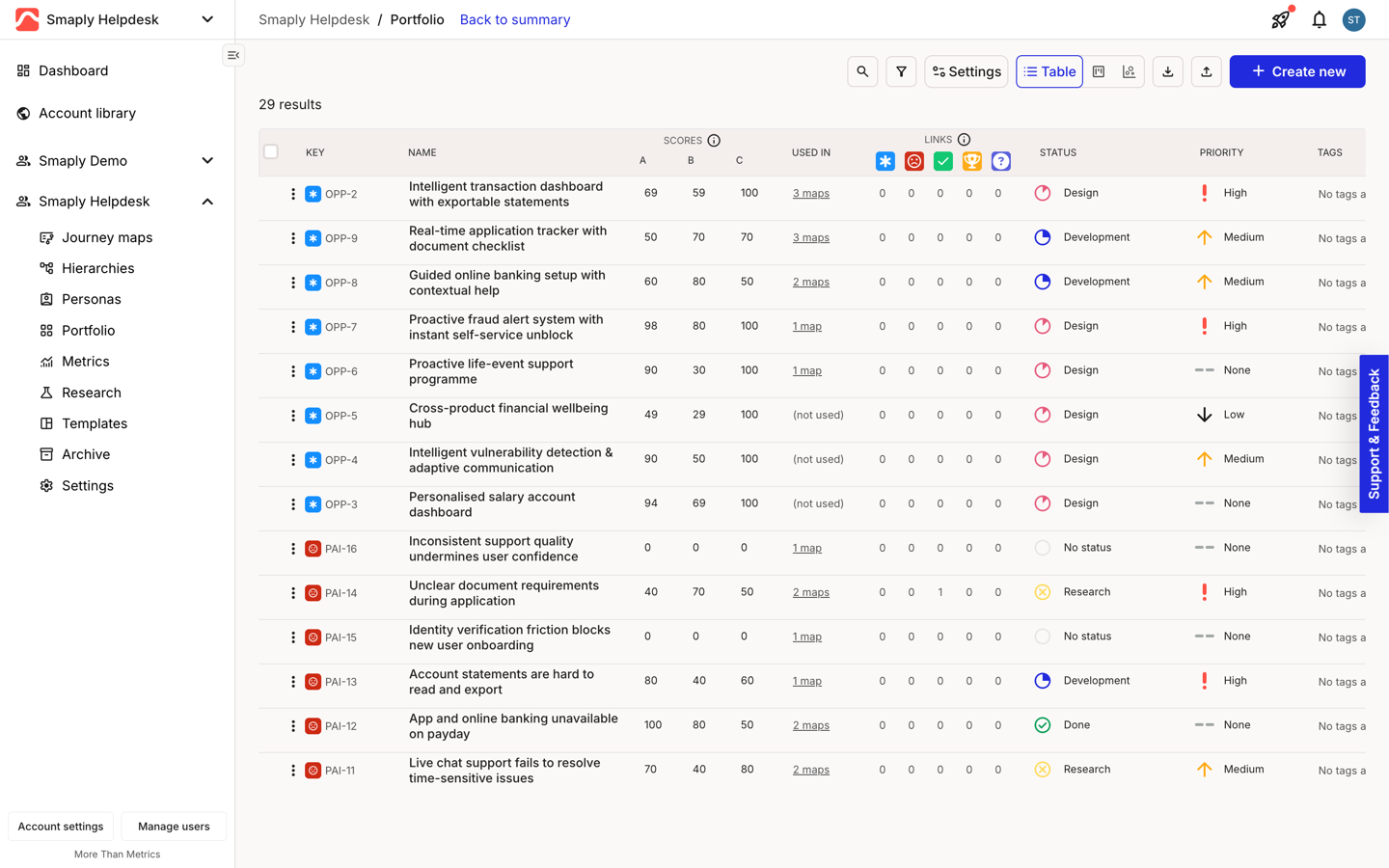
Open the Portfolio **Table** view, then click the upload icon in the toolbar, next to the download icon you'd use to export. The **Import portfolio from a spreadsheet** screen opens.

<figure><img src="https://1197101183-files.gitbook.io/~/files/v0/b/gitbook-x-prod.appspot.com/o/spaces%2For99xDEElfps9uMDY60K%2Fuploads%2Fgit-blob-04745f2e27c9597fd7c781b5dee58167b513c8c9%2Fportfolio-csv-import-01-entry-point-import-button-portfolio-table.png?alt=media" alt="The portfolio Table toolbar showing, from left, search, filter, Settings, the Table/Board/Chart switcher, a download icon, an upload icon, and a blue + Create new button. The upload icon starts the import."><figcaption><p>Import sits next to export in the Table toolbar</p></figcaption></figure>
{% endstep %}

{% step %}
**Upload your file**

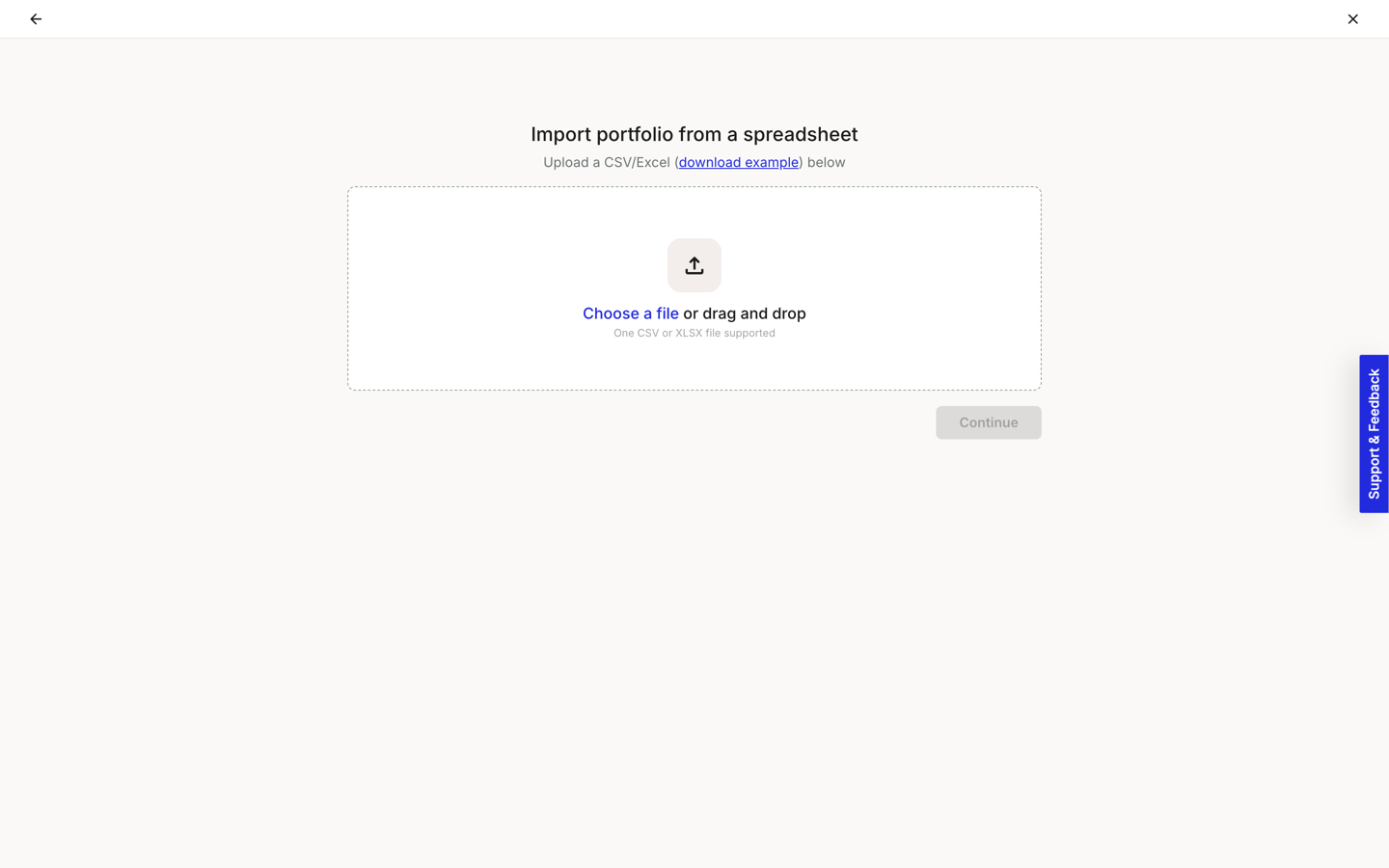
Choose a file or drag one into the dropzone. Smaply accepts one CSV or Excel (.xlsx) file at a time. If you're starting from scratch, click **download example** for a template with the right headers. The file appears under **Selected file**; click **Continue** to move on to mapping.

<figure><img src="https://1197101183-files.gitbook.io/~/files/v0/b/gitbook-x-prod.appspot.com/o/spaces%2For99xDEElfps9uMDY60K%2Fuploads%2Fgit-blob-a0a75d3918e513cc8d7c89755b6ffef248d6a7ca%2Fportfolio-csv-import-02-upload-screen-choose-csv-or-xlsx.png?alt=media" alt="The Import portfolio from a spreadsheet screen, reading Upload a CSV/Excel (download example) below, with a dropzone reading Choose a file or drag and drop, and helper text One CSV or XLSX file supported."><figcaption><p>Upload screen, CSV or Excel</p></figcaption></figure>

{% hint style="warning" %}

#### **Important: your file needs a header row**

The first row must be column headers, not data. Without one, Smaply treats your first real row as the headers and silently drops it from the import.
{% endhint %}
{% endstep %}

{% step %}
**Choose a type, if your file doesn't name one**

If not one row in your file has a recognisable **Type** - there's no Type column, every value is blank, or every value is unrecognised - Smaply asks **What are you importing?** before you get to mapping. Pick one type for the whole file.

<figure><img src="https://1197101183-files.gitbook.io/~/files/v0/b/gitbook-x-prod.appspot.com/o/spaces%2For99xDEElfps9uMDY60K%2Fuploads%2Fgit-blob-109f982cb6af4f74deb504ed99a565ce8c5660bb%2Fportfolio-csv-import-uxi1183-01-what-are-you-importing-pre-mapping-no-type-column.png?alt=media" alt="The What are you importing? screen, reading Choose the portfolio item type for your CSV or spreadsheet, with a list of type cards: Opportunity, Pain point, Solution, Goals, and Risk."><figcaption><p>Choosing a type upfront, when the file doesn't name one</p></figcaption></figure>

This changes the mapping step that follows: **Type** is set to Skip and can't be mapped, the score columns show your chosen type's own dimension names instead of the generic Impact/Reach/Cost, and the import button reads with your type, like **Import 2 solutions**. Going back from mapping returns here without showing what you previously picked; going back again returns to Upload and clears your file.

If at least one row in your file does have a recognisable type, this step is skipped and Type stays mappable as normal - see [What happens to a value that doesn't match](#what-happens-to-a-value-that-doesnt-match) below for what happens to the rows that don't.
{% endstep %}

{% step %}
**Map columns to fields**

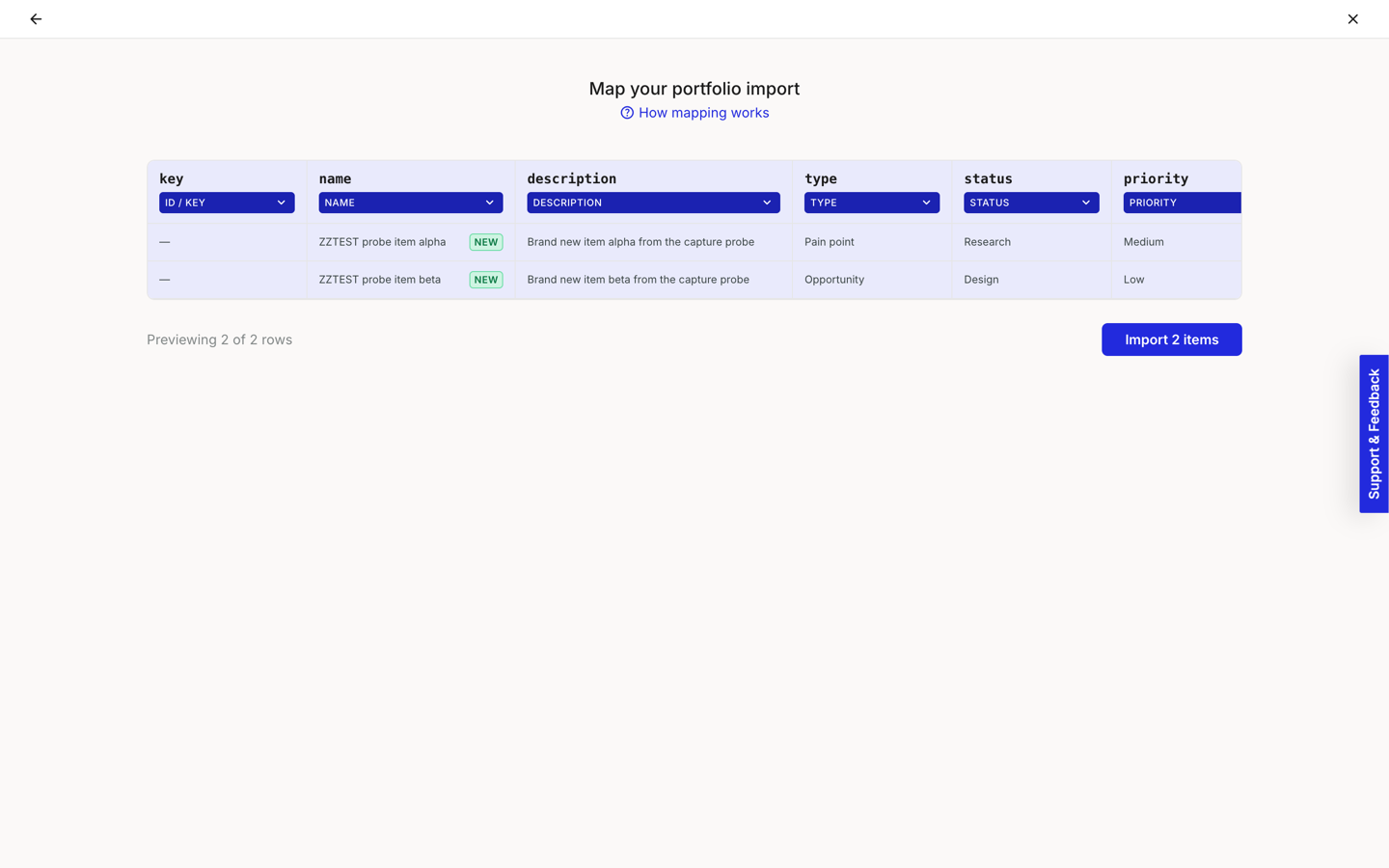
Match each column in your file to a portfolio item field. The available fields are **Name**, **ID / Key**, **Type**, **Description**, **Impact**, **Reach**, **Cost**, **Status**, **Priority**, and **Skip**. Only **Name** is required; any column you don't map, or that doesn't match a field automatically, is set to **Skip** and left out of the import.

<figure><img src="https://1197101183-files.gitbook.io/~/files/v0/b/gitbook-x-prod.appspot.com/o/spaces%2For99xDEElfps9uMDY60K%2Fuploads%2Fgit-blob-323d5c38fcfb06ba6d340b74cfb4aa9a8b96955e%2Frn-2026-08-portfolio-spreadsheet-import.png?alt=media" alt="The Map your portfolio import screen. Each file column has a header and a field dropdown below it: key mapped to ID / Key, name to Name, description to Description, type to Type, status to Status, priority to Priority. Two preview rows are shown, both marked NEW, with an Import 2 items button."><figcaption><p>Map your portfolio import, with a live preview</p></figcaption></figure>

{% hint style="warning" %}

#### **Important: when Type comes from your file, score columns map by position, not by name**

**Impact**, **Reach**, and **Cost** are really just the **first**, **second**, and **third** scoring slots every portfolio item type has, whatever that type calls them. Mapping a column to **Impact** always fills the type's first score dimension, even if the type has renamed that dimension to something else, like Feasibility. Check your target type's dimension order before you map scores, or the values will land under the wrong labels. This doesn't apply if you picked a type upfront on the previous step - the score columns already show that type's real dimension names.
{% endhint %}

A value that doesn't match anything expected, like a **Type** your account doesn't have, is underlined in red with a warning icon; the row still imports; see [What happens to a value that doesn't match](#what-happens-to-a-value-that-doesnt-match) below.
{% endstep %}

{% step %}
**Review new items versus updates**

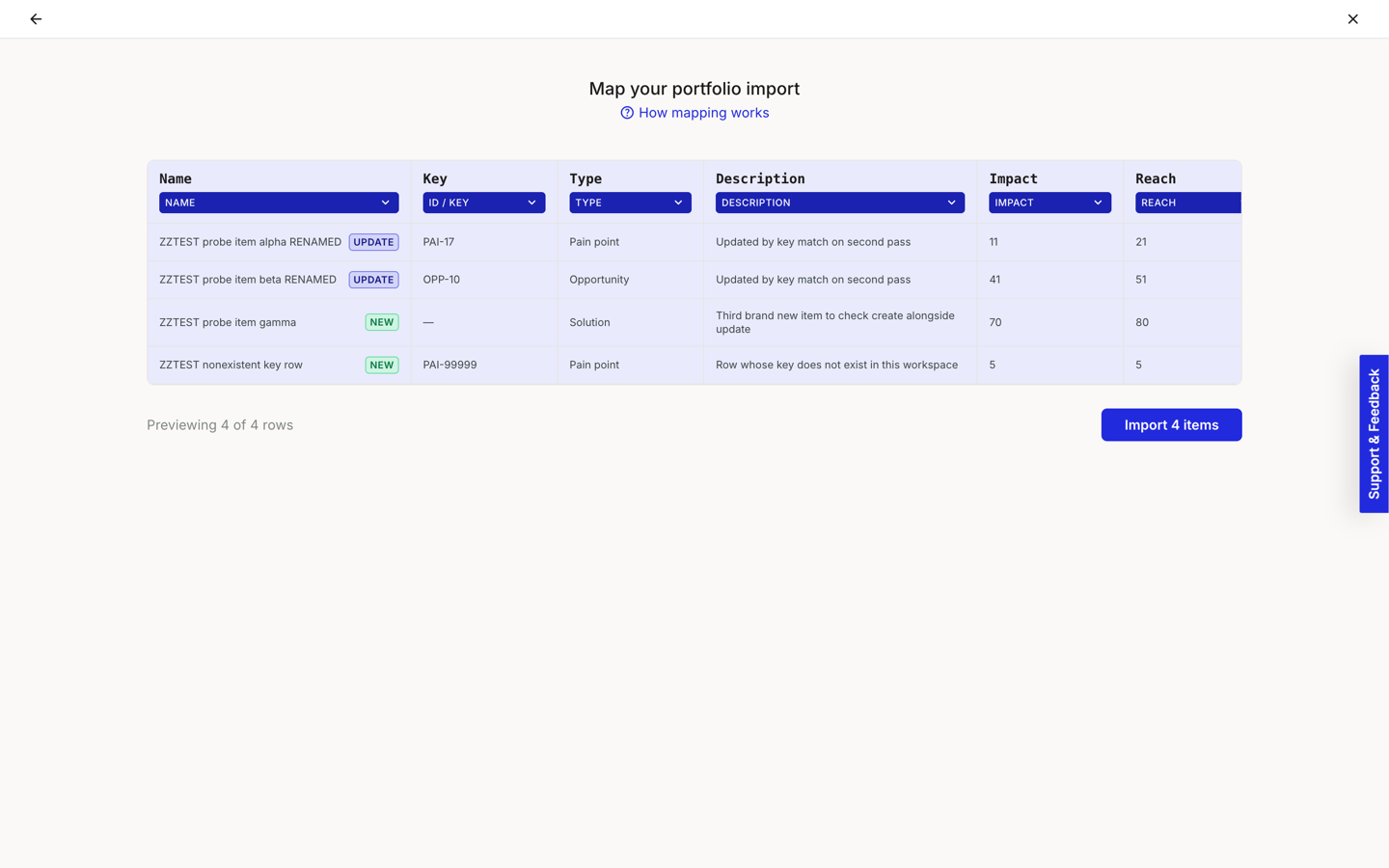
Each row previews as **NEW** or **UPDATE**. This is decided only by the **ID / Key** column - the short key shown in the portfolio Table, like `PAI-16` - never by matching on name. A row with a key that matches an existing item updates it; a row with a blank key, or a key that doesn't match anything, previews as **NEW**.

<figure><img src="https://1197101183-files.gitbook.io/~/files/v0/b/gitbook-x-prod.appspot.com/o/spaces%2For99xDEElfps9uMDY60K%2Fuploads%2Fgit-blob-49781fd9d10d82d3b81b86e364e5670d3f983701%2Fportfolio-csv-import-10-update-vs-create-badges-by-key.png?alt=media" alt="The mapping preview with a Key column populated. Two rows show an UPDATE badge next to a renamed item, and two more show a NEW badge, one with a blank key and one with a key that matches nothing in the account."><figcaption><p>NEW and UPDATE badges, driven by the Key column</p></figcaption></figure>

{% hint style="danger" %}

#### **Warning: importing without a Key creates duplicates, every time**

Smaply doesn't match rows by name. Re-running an import with a blank **ID / Key** column creates a brand new item on every run, even if a row looks identical to one you already imported. To update items safely on a later import, [export the portfolio to CSV](/portfolio/how-to-export-portfolio-to-csv.md) first, edit that file, and re-import it with its **Key** column intact.
{% endhint %}
{% endstep %}

{% step %}
**Confirm and import**

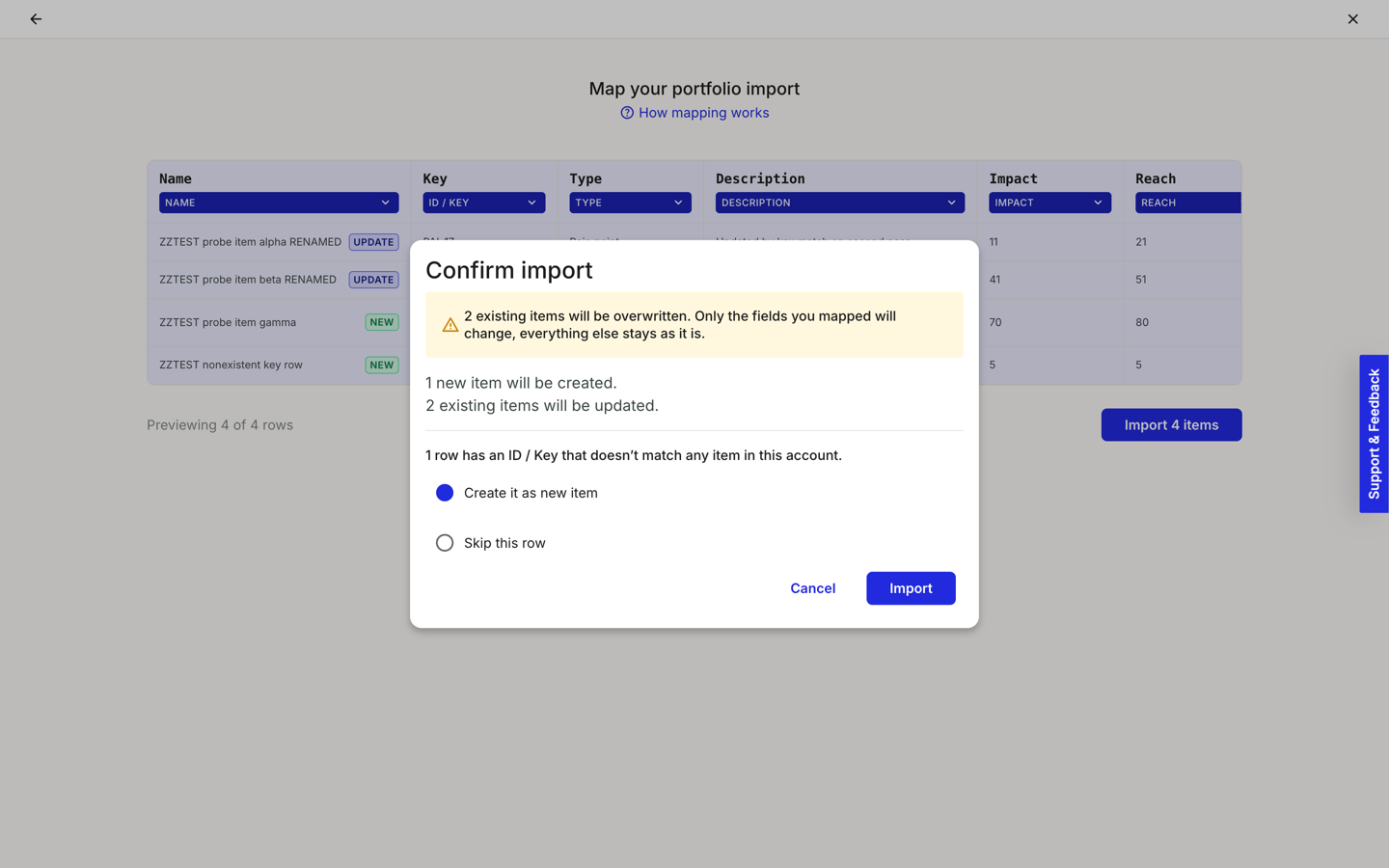
Click **Import \[N] items**. If your file has any updates or unmatched keys, a **Confirm import** dialog summarises what will happen before anything is written.

<figure><img src="https://1197101183-files.gitbook.io/~/files/v0/b/gitbook-x-prod.appspot.com/o/spaces%2For99xDEElfps9uMDY60K%2Fuploads%2Fgit-blob-04f9c5d93aab1d958be26e9bf4a1c5e00fd6534d%2Fportfolio-csv-import-11-confirm-import-overwrite-and-unmatched-key-choice.png?alt=media" alt="The Confirm import dialog. A warning reads 2 existing items will be overwritten, only the fields you mapped will change, everything else stays as it is. Below: 1 new item will be created, 2 existing items will be updated. A further section reads 1 row has an ID / Key that doesn&#x27;t match any item in this account, with radio options Create it as new item and Skip this row, and Cancel and Import buttons."><figcaption><p>Confirm import, before anything is written</p></figcaption></figure>

If any rows have a key that doesn't match an existing item, choose whether to **Create it as new item** (the default) or **Skip this row**. Updating an existing item only changes the fields you mapped; anything you didn't map is left as it is.

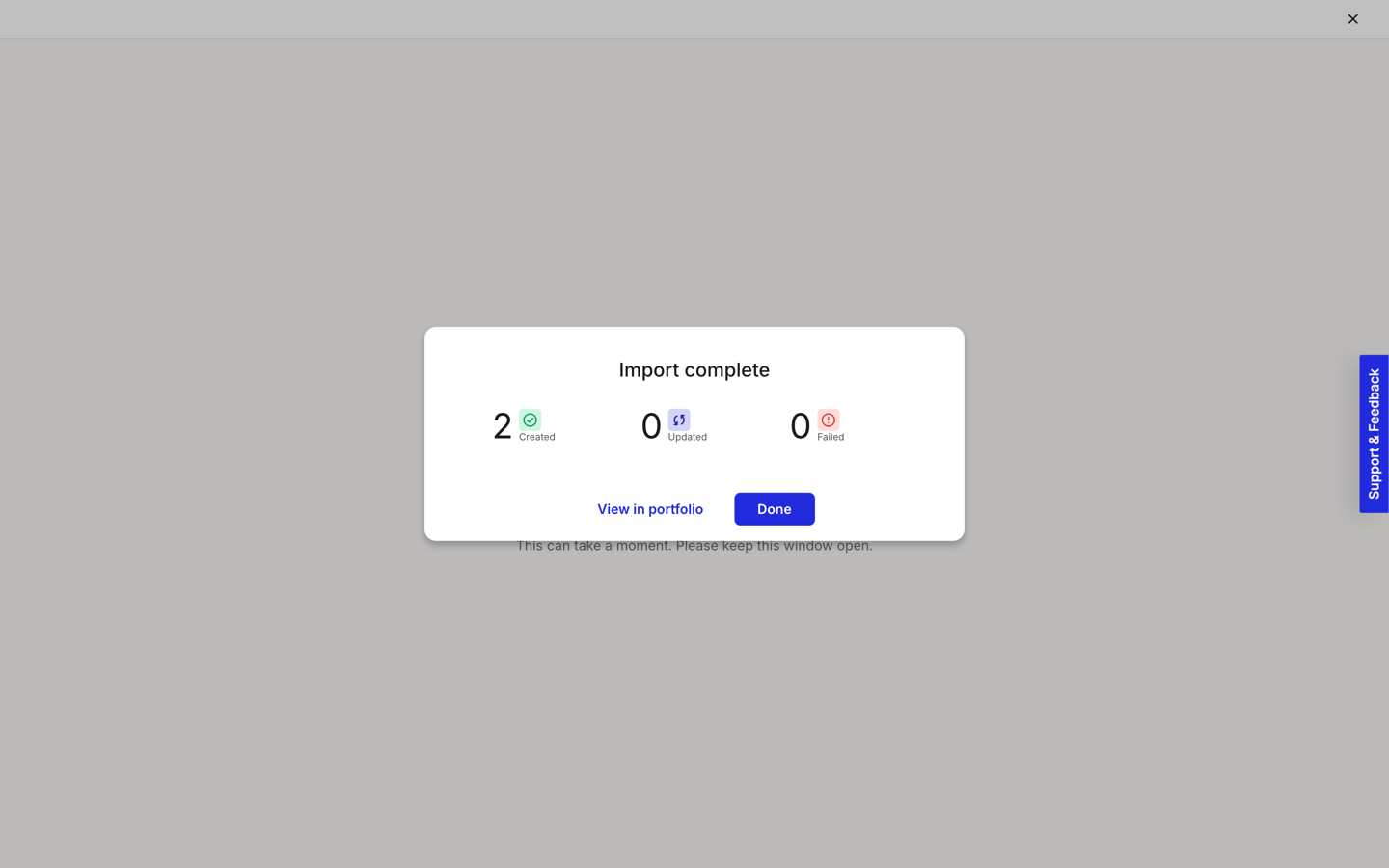
Click **Import** to run it. A progress screen tracks the import; keep the window open until it finishes. **Import complete** then shows how many items were **Created**, **Updated**, and **Failed**.

<figure><img src="https://1197101183-files.gitbook.io/~/files/v0/b/gitbook-x-prod.appspot.com/o/spaces%2For99xDEElfps9uMDY60K%2Fuploads%2Fgit-blob-ac6d3a15448f6555ecf4b2597ba981bf71860213%2Fportfolio-csv-import-07-import-complete-created-updated-failed.png?alt=media" alt="The Import complete dialog showing three counts: 2 Created, 0 Updated, 0 Failed, with View in portfolio and Done buttons."><figcaption><p>Import complete, with a count for each outcome</p></figcaption></figure>
{% endstep %}
{% endstepper %}

***

#### What happens to a value that doesn't match

If your file has **at least one row with a recognisable type**, rows whose **Type** doesn't match one of your account's portfolio item types are flagged during mapping (underlined in red with a warning icon) but not dropped. Instead, an extra step appears after mapping: **What is the remaining item?**, asking you to pick one type for every row whose type couldn't be recognised. Rows with a recognised type keep it; only the unrecognised ones use your choice.

If **not one row** in the file has a recognisable type, Smaply asks this before mapping instead, as described in "Choose a type, if your file doesn't name one" above.

<figure><img src="https://1197101183-files.gitbook.io/~/files/v0/b/gitbook-x-prod.appspot.com/o/spaces%2For99xDEElfps9uMDY60K%2Fuploads%2Fgit-blob-c19e850cd9f06033e7d26f31fe0322622c793ddf%2Fportfolio-csv-import-14-choose-type-for-rows-without-recognised-type.png?alt=media" alt="The What is the remaining item? screen, reading Your file did not say what these are. Choose one type to create them as. The rest keep the type they already have. A list of type cards follows: Opportunity, Pain point, Solution, Goals, and Risk."><figcaption><p>Choosing a type for rows Smaply couldn't recognise</p></figcaption></figure>

This also applies to custom types: importing into a custom type works the same way as a built-in one, and the mapping step's score columns adapt to that type's own scoring dimensions.

#### What you can't import

**Assignee** and **Tags** aren't available as import fields. Set those on items individually after importing, or in bulk from the [portfolio table](/portfolio/prioritization/how-to-use-the-portfolio-table.md) or [board](/portfolio/prioritization/how-to-use-the-portfolio-kanban.md).

#### Troubleshooting

<details>

<summary><strong>My import has fewer rows than my file</strong> - Missing header row</summary>

If your file's first row is data rather than headers, Smaply reads that row as the headers and it doesn't get imported. Add a proper header row and re-upload.

</details>

<details>

<summary><strong>A value is underlined in red during mapping</strong> - Value doesn't match an existing option</summary>

This usually means a **Type**, **Status**, or **Priority** value in your file doesn't match anything in your account. The row still imports; for an unrecognised type, you'll choose a type for it in the **What is the remaining item?** step after mapping. Fix the source value and re-import if you want it mapped correctly on the first pass instead.

</details>

<details>

<summary><strong>I imported the same file twice and now have duplicates</strong> - No name-based matching</summary>

Smaply matches rows to existing items only by the **ID / Key** column, never by name. Re-importing a file with a blank Key column always creates new items. [Export the portfolio](/portfolio/how-to-export-portfolio-to-csv.md) to get each item's current Key, add that column to your file, and re-import to update instead of duplicate.

</details>

#### Related topics

<table data-column-title-hidden data-view="cards"><thead><tr><th>Title</th><th>Description</th><th data-hidden data-card-target data-type="content-ref">Target</th></tr></thead><tbody><tr><td><strong>How to export portfolio to CSV</strong></td><td>The reverse direction, and how to get a file with each item's Key for a safe re-import.</td><td><a href="/portfolio/how-to-export-portfolio-to-csv.md">Export portfolio to CSV</a></td></tr><tr><td><strong>How to create a portfolio item</strong></td><td>Add a single pain point, opportunity, solution, or custom-typed item by hand.</td><td><a href="/portfolio/how-to-create-a-portfolio-item.md">Create a portfolio item</a></td></tr><tr><td><strong>How to create custom portfolio item types</strong></td><td>Define the types and scoring dimensions a spreadsheet import would map columns to.</td><td><a href="/portfolio/how-to-create-custom-portfolio-item-types.md">Custom item types</a></td></tr><tr><td><strong>How to use the portfolio table</strong></td><td>Where the Key column lives, and how to find an item's Key for a re-import.</td><td><a href="/portfolio/prioritization/how-to-use-the-portfolio-table.md">Table</a></td></tr></tbody></table>


---

# Agent Instructions
This documentation is published with GitBook. GitBook is the documentation platform designed so that both humans and AI agents can read, navigate, and reason over technical content effectively. Learn more at gitbook.com.

## Querying This Documentation
If you need additional information that is not directly available in this page, you can query the documentation dynamically by asking a question.

Perform an HTTP GET request on the current page URL with the `ask` query parameter, and the optional `goal` query parameter:

```
GET https://helpdesk.smaply.app/portfolio/how-to-import-portfolio-items-from-csv.md?ask=<question>&goal=<endgoal>
```

`ask` is the immediate question: it should be specific, self-contained, and written in natural language.
`goal` is optional and describes the broader end goal you are ultimately trying to accomplish on behalf of the user. GitBook uses it to tailor the answer towards what is most useful for that goal.

The response will contain a direct answer to the question and relevant excerpts and sources from the documentation.

Use this mechanism when the answer is not explicitly present in the current page, you need clarification or additional context, or you want to retrieve related documentation sections.