> For the complete documentation index, see [llms.txt](https://helpdesk.smaply.app/llms.txt). Markdown versions of documentation pages are available by appending `.md` to page URLs; this page is available as [Markdown](https://helpdesk.smaply.app/portfolio/how-to-link-portfolio-items.md).

# How to link portfolio items

To link portfolio items, open one, go to its **Linked items** tab, and add the items you want to connect it to. Links work in both directions, so you only make them once.

{% hint style="info" icon="tag" %}

#### Plan availability

Linking portfolio items is available on the **Governance** plan.
{% endhint %}

{% hint style="warning" icon="list-check" %}

#### Prerequisites

* An Editor or Admin role on the workspace
* At least one other portfolio item to link to
  {% endhint %}

#### How to link one portfolio item to another

{% stepper %}
{% step %}
**Open the portfolio item**

From the **Portfolio**, open an item from the **Table** view, or click a portfolio item card on a journey map. The item opens in its edit modal.
{% endstep %}

{% step %}
**Open the Linked items tab and click + Add linked items**

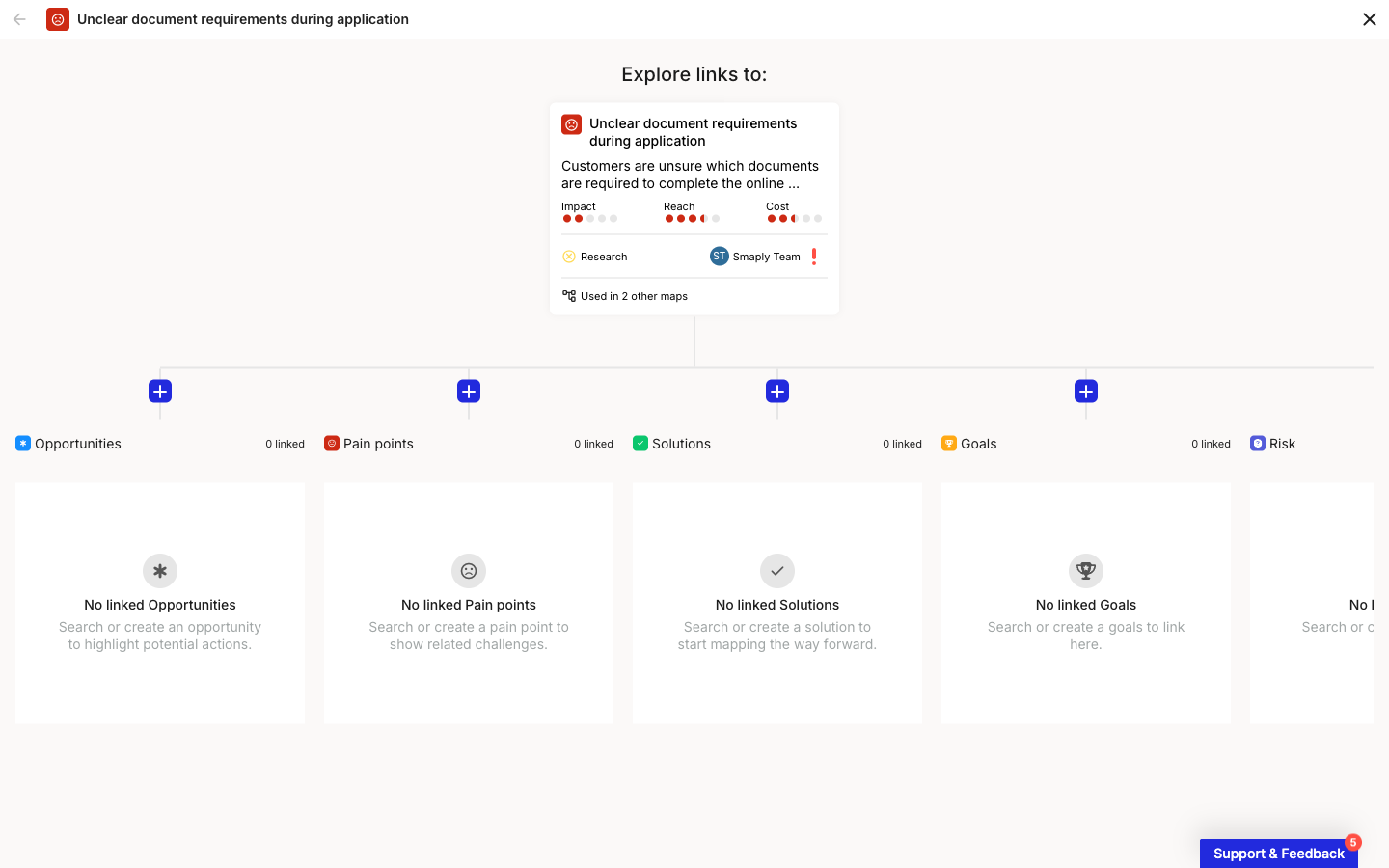
Select **Linked items**, then **+ Add linked items**. The **Explore links to** view opens, with one column for each portfolio item type in your workspace.

<figure><img src="/files/oTkeiy3PX9zpMBtdSkX4" alt="The Explore links to view for a portfolio item, with a column for each portfolio item type in the workspace and a plus button on each column to add a linked item."><figcaption><p>Explore links to, one column per item type</p></figcaption></figure>
{% endstep %}

{% step %}
**Pick a type and search for the item**

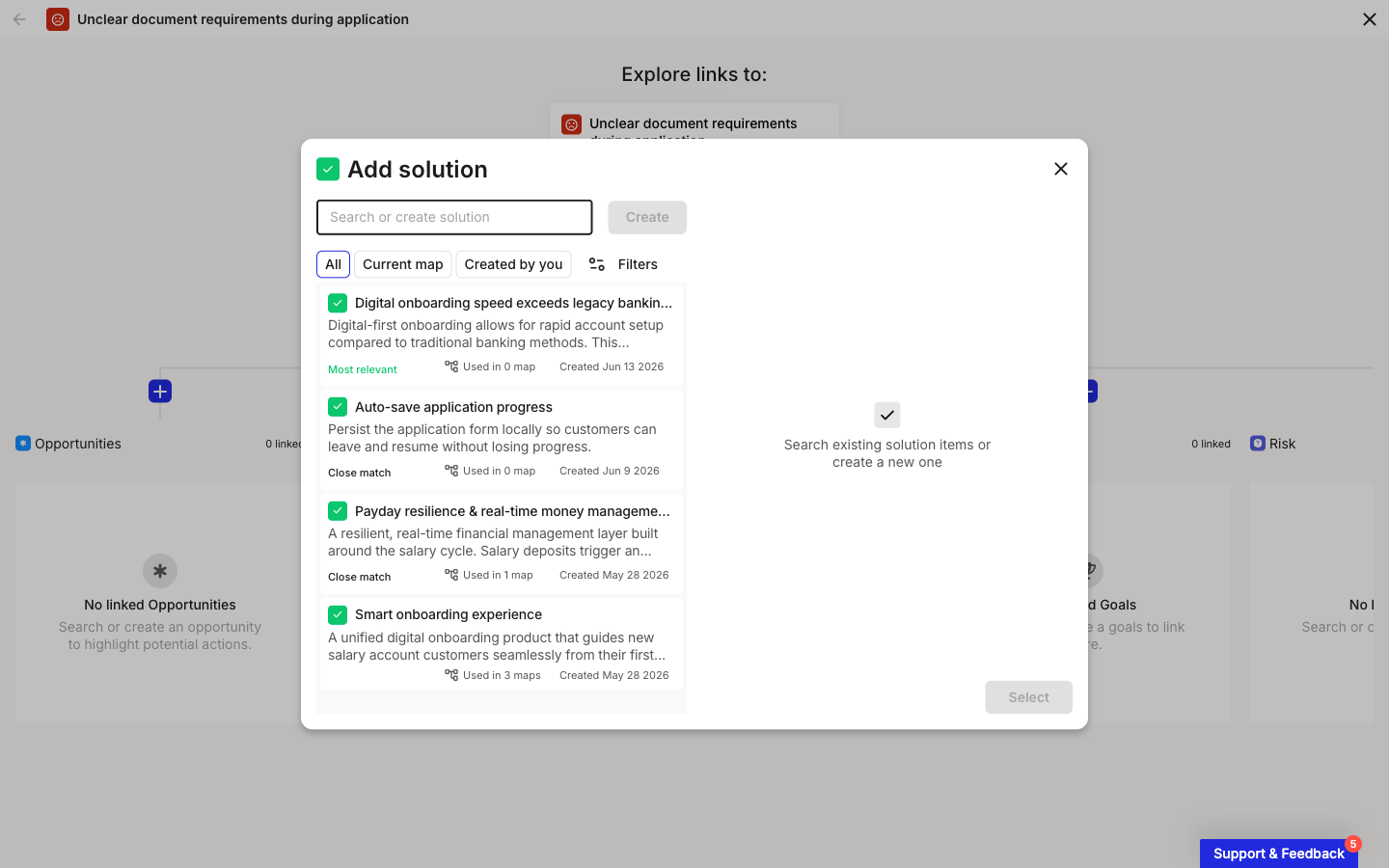
Click **+** on the column for the type you want to link, for example **Solutions**. In the panel that opens, search for the item, or click **Create** to make a new one inline. Narrow the list with the **All**, **Current map**, and **Created by you** filters.

<figure><img src="/files/oFFKpsOyA8MidqBxQX0T" alt="A panel titled Add solution, with a search field, All / Current map / Created by you filters, a list of matching items each with a relevance label, and a Select button."><figcaption><p>Search for an item to link, or create one</p></figcaption></figure>
{% endstep %}

{% step %}
**Select the item**

Check the item you want and click **Select**. It joins that column. Add as many links as you need, then close the view.
{% endstep %}

{% step %}
**Review the link**

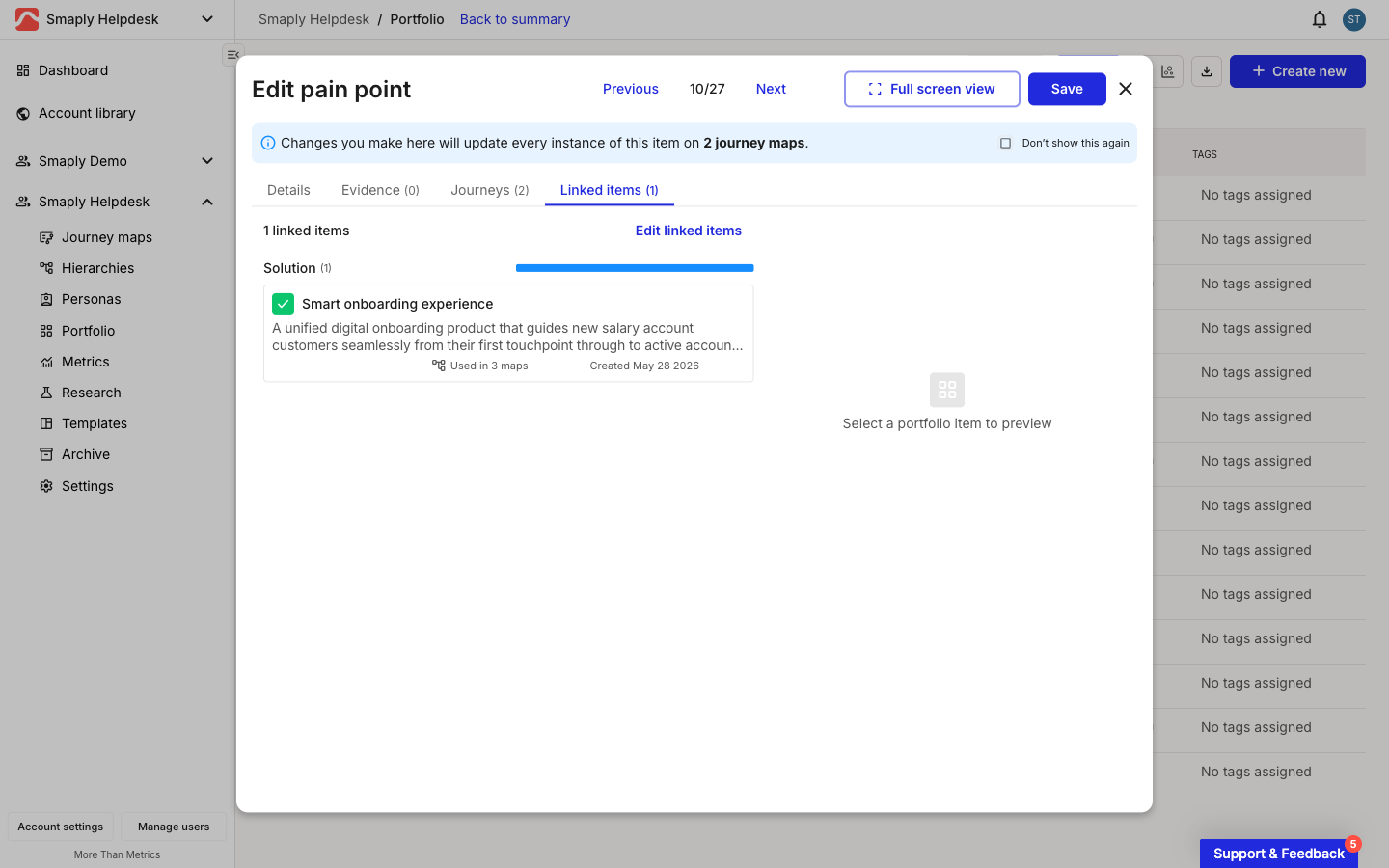
Back on the **Linked items** tab, the linked item appears grouped under its type with a progress bar. Click it to preview its full details in a side panel.

<figure><img src="/files/JdHtrXrHfSf0JRvO26Na" alt="A portfolio item&#x27;s Linked items tab showing one linked solution grouped under its type heading with a progress bar."><figcaption><p>The linked item on the Linked items tab</p></figcaption></figure>
{% endstep %}
{% endstepper %}

***

#### How links work

* **Any type to any type** - Link a pain point to an opportunity, an opportunity to a solution, or any other combination. Links are not limited to a fixed pain point to opportunity to solution sequence.
* **Both directions at once** - A link you add from one item shows on the other item too. You do not create it twice.
* **No limit** - Link an item to as many others as you need.
* **Status at a glance** - Each linked item carries its status, shown by colour (for example green for done, blue for in progress), with a progress bar per type so you can read how a cluster of work is tracking.

Linking is different from the same item appearing on more than one journey map, which happens on its own and is not a link. For that, see [How to use portfolio item cards](/journey-maps/cards/how-to-use-portfolio-item-cards.md). To back an item with quotes and sources rather than connect it to other items, see [How to add evidence to a portfolio item](/portfolio/how-to-add-evidence.md).

***

#### How to remove a link

Open the **Linked items** tab and click **Edit linked items** to reopen the **Explore links to** view. Find the linked item and turn its selection off. The link is removed from both items right away, and neither item is otherwise changed.

***

#### How to see links across your portfolio

The **Table** view in the portfolio prioritization views has a **Links** column showing how many links each item has, so you can spot well-connected items and gaps at a glance. See [How to use the portfolio table](/portfolio/prioritization/how-to-use-the-portfolio-table.md).

#### Related topics

<table data-column-title-hidden data-view="cards"><thead><tr><th>Article</th><th>What it covers</th><th data-hidden data-card-target data-type="content-ref">Target</th></tr></thead><tbody><tr><td><strong>How to add evidence to a portfolio item</strong></td><td>Back an item with quotes, feedback, and source links.</td><td><a href="/pages/M7pLmvLqe5OLNTD1V9B1">/pages/M7pLmvLqe5OLNTD1V9B1</a></td></tr><tr><td><strong>How to create a portfolio item</strong></td><td>Create pain points, opportunities, solutions, and custom-typed items.</td><td><a href="/pages/ccKByq3EkMP6r9UQIneW">/pages/ccKByq3EkMP6r9UQIneW</a></td></tr><tr><td><strong>How to use portfolio item cards</strong></td><td>Place a portfolio item as a card on a journey map.</td><td><a href="/pages/7otLTFAejxDBK1QT5H5e">/pages/7otLTFAejxDBK1QT5H5e</a></td></tr><tr><td><strong>How to add findings to portfolio</strong></td><td>Promote research insights into portfolio items, with quotes carried as evidence.</td><td><a href="/pages/rMOU7uLeTQCUU7SflZu0">/pages/rMOU7uLeTQCUU7SflZu0</a></td></tr></tbody></table>


---

# Agent Instructions
This documentation is published with GitBook. GitBook is the documentation platform designed so that both humans and AI agents can read, navigate, and reason over technical content effectively. Learn more at gitbook.com.

## Querying This Documentation
If you need additional information that is not directly available in this page, you can query the documentation dynamically by asking a question.

Perform an HTTP GET request on the current page URL with the `ask` query parameter, and the optional `goal` query parameter:

```
GET https://helpdesk.smaply.app/portfolio/how-to-link-portfolio-items.md?ask=<question>&goal=<endgoal>
```

`ask` is the immediate question: it should be specific, self-contained, and written in natural language.
`goal` is optional and describes the broader end goal you are ultimately trying to accomplish on behalf of the user. GitBook uses it to tailor the answer towards what is most useful for that goal.

The response will contain a direct answer to the question and relevant excerpts and sources from the documentation.

Use this mechanism when the answer is not explicitly present in the current page, you need clarification or additional context, or you want to retrieve related documentation sections.