> For the complete documentation index, see [llms.txt](https://helpdesk.smaply.app/llms.txt). Markdown versions of documentation pages are available by appending `.md` to page URLs; this page is available as [Markdown](https://helpdesk.smaply.app/portfolio/prioritization/how-to-use-the-portfolio-kanban.md).

# How to use the portfolio kanban

The Board view is Smaply's kanban board for your portfolio: it lays every item out in columns so you can see your work by where it stands. It groups by status out of the box, you can drag a card from one column to another to move it along, and you can switch the grouping to priority, assignee, or tag category whenever a different cut is more useful.

{% hint style="warning" icon="list-check" %}

#### Prerequisites

Anyone in the workspace can open and read the Board. Moving cards (which changes the field the board is grouped by) needs Editor access at the workspace level.
{% endhint %}

#### How to open the Board view

The Board lives on the portfolio views screen, alongside the Table and Chart views. The Portfolio menu opens on the Summary dashboard first, so you get there in two moves.

{% stepper %}
{% step %}
**Open the portfolio views screen**

Click **Portfolio** in the workspace sidebar to open the Summary, then click **View details** in the header (or **Explore all** on any type card). Both open the views screen.
{% endstep %}

{% step %}
**Switch to the Board**

In the **Table / Board / Chart** switcher at the top right, click **Board**.

<figure><img src="/files/yqEwfjFlF3hDxMksoOyO" alt="The portfolio view switcher, a segmented control with Board selected and labelled, and Table and Chart as icon-only toggles."><figcaption><p>The Table / Board / Chart switcher, Board active</p></figcaption></figure>

The screen remembers the last view you used, so the next time you open the portfolio it lands here.
{% endstep %}
{% endstepper %}

***

#### What the columns mean

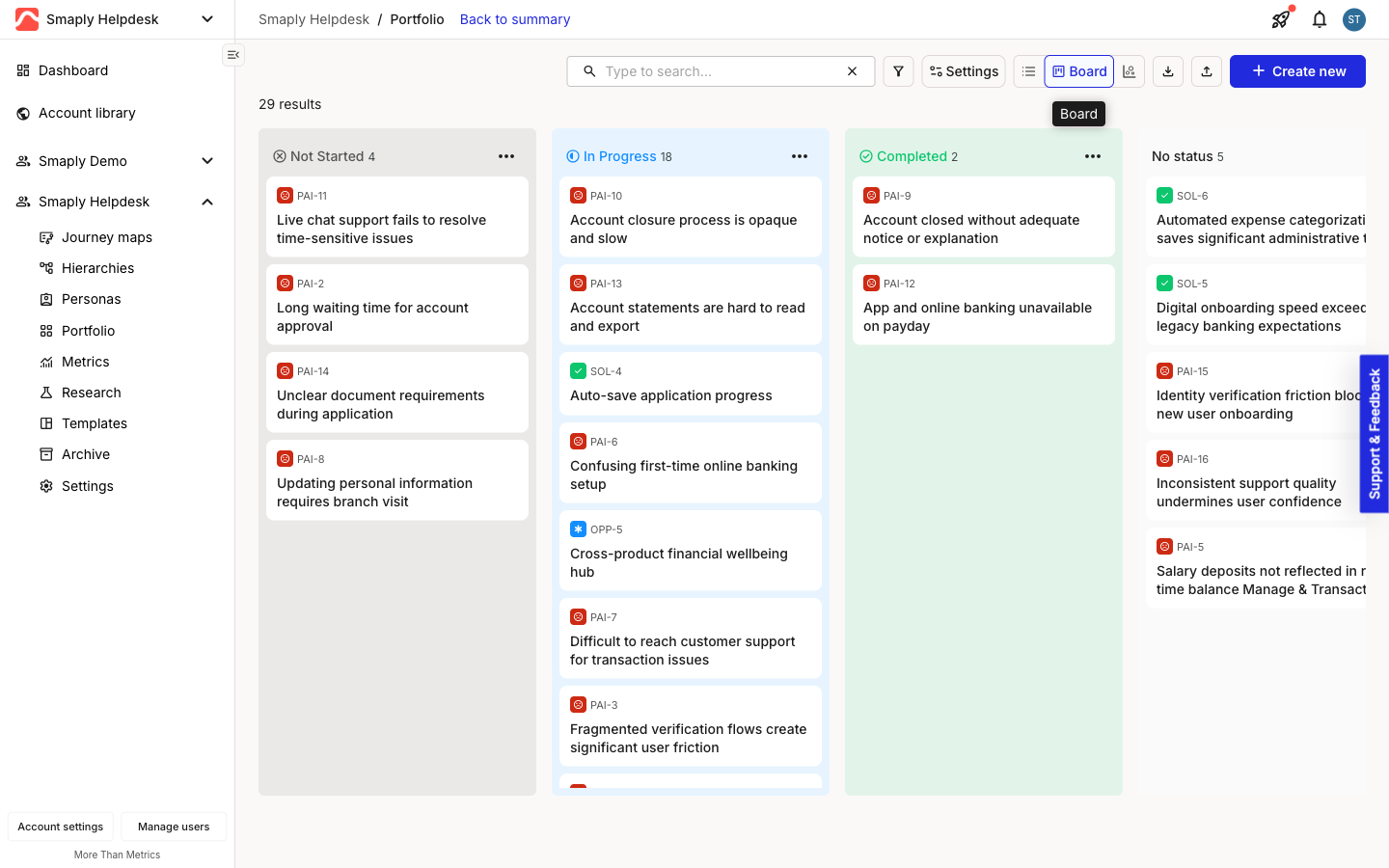
By default the Board groups items by status, and each column is a status category: **Not Started**, **In Progress**, **Completed**, and **No status** for items whose status hasn't been set. Each column header carries a live count and a `...` menu, and cards show the item's type icon and title.

<figure><img src="/files/wtoIBRQLZdzgoWwynhzc" alt="The portfolio Board view with four columns: Not Started (4 items), In Progress (17 items), Completed (2 items), and No status (1 item). Each card shows a type icon and a title, and each column header shows a count and a three-dot menu."><figcaption><p>Portfolio Board, grouped by status category</p></figcaption></figure>

The categories are fixed, but the individual statuses underneath them are not. Each portfolio item type defines its own statuses, and each maps to one of these categories. A type's statuses might run Research, Design, Development, and Done, for example, where Research and Design count as In Progress and Done counts as Completed. That is why two cards in the same column can show different underlying statuses. To change which statuses a type has and how they group, see [How to create custom portfolio item types](/portfolio/how-to-create-custom-portfolio-item-types.md).

***

#### How to group the board by priority, assignee, or tag category

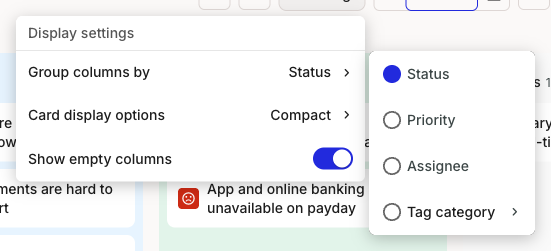
Status is only the default. Open **Settings** (the **Display settings** menu) and pick a different dimension under **Group columns by** to lay the same items out a different way:

* **Status** - delivery stage (the default).
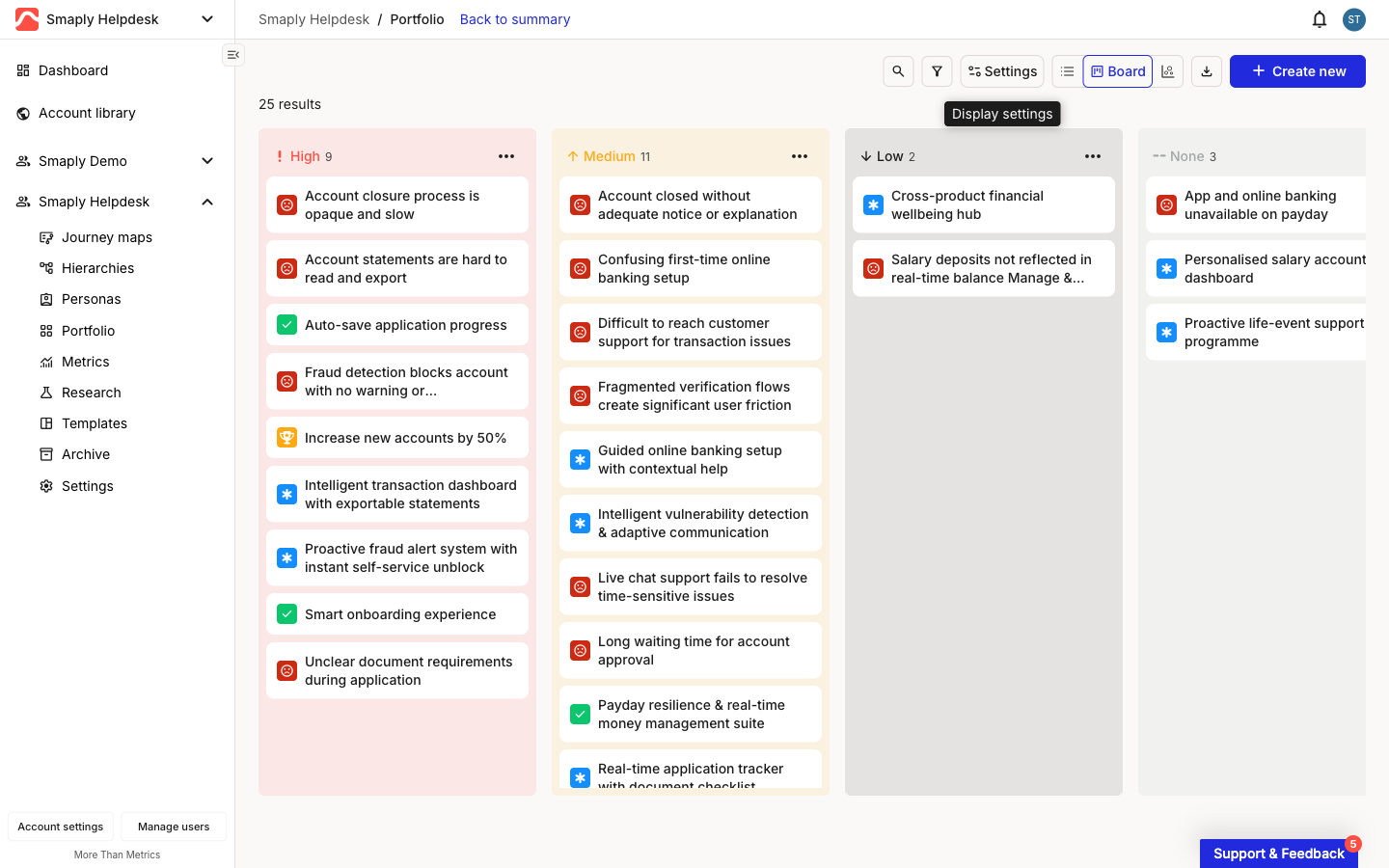
* **Priority** - High, Medium, Low, and None columns, to see how much high-priority work is outstanding.
* **Assignee** - one column per owner, to balance and review workload.
* **Tag category** - columns from one of your tag categories.

<figure><img src="/files/DnX58Qg1NcenFe8ImqtF" alt="The Board Display settings menu open with the Group columns by submenu expanded, listing Status, Priority, Assignee, and Tag category. Status is selected."><figcaption><p>Display settings > Group columns by</p></figcaption></figure>

For example, grouping by priority replaces the status columns with High, Medium, Low, and None, so the board becomes a priority backlog you can rebalance at a glance.

<figure><img src="/files/Jjo93FyQmHJGHcBOjWqc" alt="The portfolio Board regrouped by priority, with columns High, Medium, Low, and None, each holding portfolio item cards."><figcaption><p>The same board, grouped by Priority</p></figcaption></figure>

The same **Display settings** menu also sets **Card display options** (Compact or Standard) and a **Show empty columns** toggle.

***

#### How to move an item

Drag a card from one column to another to move it. The board updates the field it is grouped by to match the new column, so dragging a card to a different column changes its status when grouped by status, its priority when grouped by priority, and so on. The columns re-count as you go.

To set a value precisely, or to change several fields at once, open the item instead.

{% stepper %}
{% step %}
**Open the item**

Click the item's card to open it. The edit modal opens on the **Details** tab.
{% endstep %}

{% step %}
**Change the field and save**

Pick a new value from the **Status** dropdown (or **Priority**, **Assignee**, or **Tags** to match how the board is grouped), then click **Save**. The board re-sorts the item into its new column.
{% endstep %}
{% endstepper %}

***

#### How to filter the board

Click the filter icon in the toolbar to narrow the board to a subset of items. The same dimensions are available as on the Table view, so you can focus on one journey map, type, priority, assignee, or tag. The column counts update to reflect what's left after filtering.

#### Related topics

<table data-column-title-hidden data-view="cards"><thead><tr><th>Title</th><th>Description</th><th data-hidden data-card-target data-type="content-ref">Target</th></tr></thead><tbody><tr><td><strong>How to use the portfolio table</strong></td><td>Review items row by row with filtering and sorting.</td><td><a href="/pages/Mz77ioM4nJgfxggwyXja">/pages/Mz77ioM4nJgfxggwyXja</a></td></tr><tr><td><strong>How to use the portfolio chart</strong></td><td>Plot items on scoring axes for workshop-style prioritization.</td><td><a href="/pages/Bvvajkxb89h2CT9fR2mF">/pages/Bvvajkxb89h2CT9fR2mF</a></td></tr><tr><td><strong>How to use the portfolio summary</strong></td><td>Scan volume, activity, and status across every item type.</td><td><a href="/pages/abuTV30fMWJUfseHuf1v">/pages/abuTV30fMWJUfseHuf1v</a></td></tr><tr><td><strong>How to create custom portfolio item types</strong></td><td>Define the statuses and scoring each type uses.</td><td><a href="/pages/v2QYLoJduQKY2uguPORV">/pages/v2QYLoJduQKY2uguPORV</a></td></tr></tbody></table>


---

# Agent Instructions
This documentation is published with GitBook. GitBook is the documentation platform designed so that both humans and AI agents can read, navigate, and reason over technical content effectively. Learn more at gitbook.com.

## Querying This Documentation
If you need additional information that is not directly available in this page, you can query the documentation dynamically by asking a question.

Perform an HTTP GET request on the current page URL with the `ask` query parameter, and the optional `goal` query parameter:

```
GET https://helpdesk.smaply.app/portfolio/prioritization/how-to-use-the-portfolio-kanban.md?ask=<question>&goal=<endgoal>
```

`ask` is the immediate question: it should be specific, self-contained, and written in natural language.
`goal` is optional and describes the broader end goal you are ultimately trying to accomplish on behalf of the user. GitBook uses it to tailor the answer towards what is most useful for that goal.

The response will contain a direct answer to the question and relevant excerpts and sources from the documentation.

Use this mechanism when the answer is not explicitly present in the current page, you need clarification or additional context, or you want to retrieve related documentation sections.