> For the complete documentation index, see [llms.txt](https://helpdesk.smaply.app/llms.txt). Markdown versions of documentation pages are available by appending `.md` to page URLs; this page is available as [Markdown](https://helpdesk.smaply.app/research-hub/how-to-add-findings-to-portfolio.md).

# How to add findings to portfolio

Turn the insights you found in an investigation into portfolio items your team can prioritize, with the underlying quotes carried over as evidence and linked back to where they came from.

{% hint style="info" icon="tag" %}

#### Plan availability

Research Hub AI is available on paid plans, from **Repository** up. Promoting an insight is a standard portfolio action with no separate gate.
{% endhint %}

Before you start, open the investigation whose findings you want to promote, and review the insights so they say what you want a portfolio item to say. See [How to create an investigation](/research-hub/how-to-create-an-investigation.md) and [How to review insights and quotes](/research-hub/how-to-review-insights-and-quotes.md).

{% hint style="info" icon="clipboard-list" %}

#### What you'll do

1. [Open the add-to-portfolio flow](#how-to-open-the-add-to-portfolio-flow)
2. [Place each insight in the portfolio](#how-to-place-each-insight-in-the-portfolio)
3. [Trace a finding back to its source](#how-to-trace-a-finding-back-to-its-source)
4. [Filter the portfolio by investigation](#how-to-filter-the-portfolio-by-investigation)
   {% endhint %}

#### How to open the add-to-portfolio flow

You can promote insights one at a time or in a batch. Both routes open the same guided flow.

* **One insight** - Open the insight to show its detail panel, then click **Add to portfolio** in the panel header.
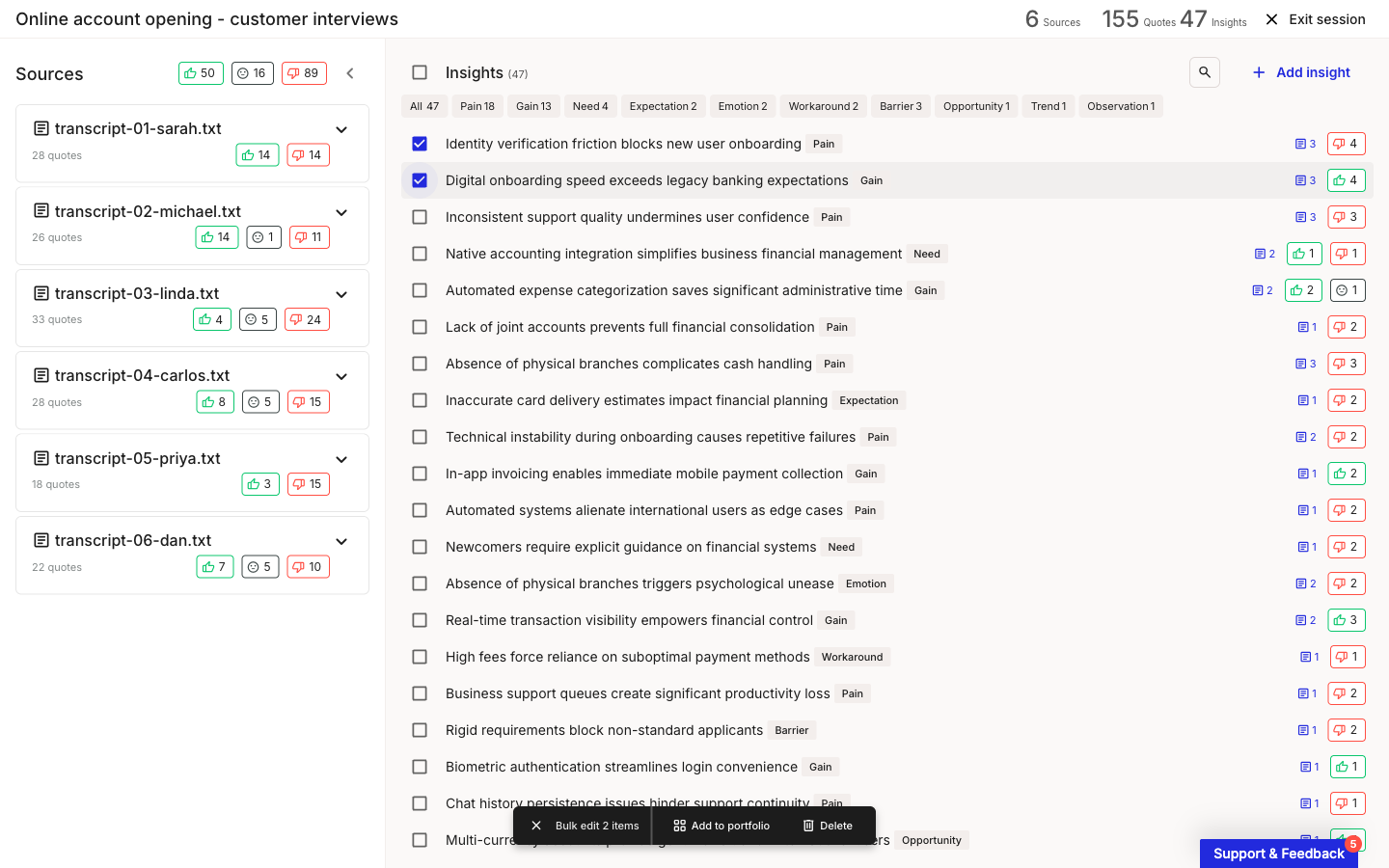
* **Several at once** - Select insights with their row checkboxes. A **Bulk edit** bar appears at the bottom of the **Insights** panel. Click **Add to portfolio**.

<figure><img src="/files/ziJN4uvFDzCcN588Iwmv" alt="Investigation session view with two insights checked and a Bulk edit bar showing Add to portfolio and Delete actions."><figcaption><p>Select insights, then Add to portfolio from the Bulk edit bar</p></figcaption></figure>

***

#### How to place each insight in the portfolio

The flow lists every insight you're promoting under **Items** on the left. Select an item to choose where it goes, using the options on the right under **Select how to add this insight to the portfolio**. An item stays marked **Needs review** until you've made that choice.

You have three options per item.

{% stepper %}
{% step %}
**Create a new portfolio item**

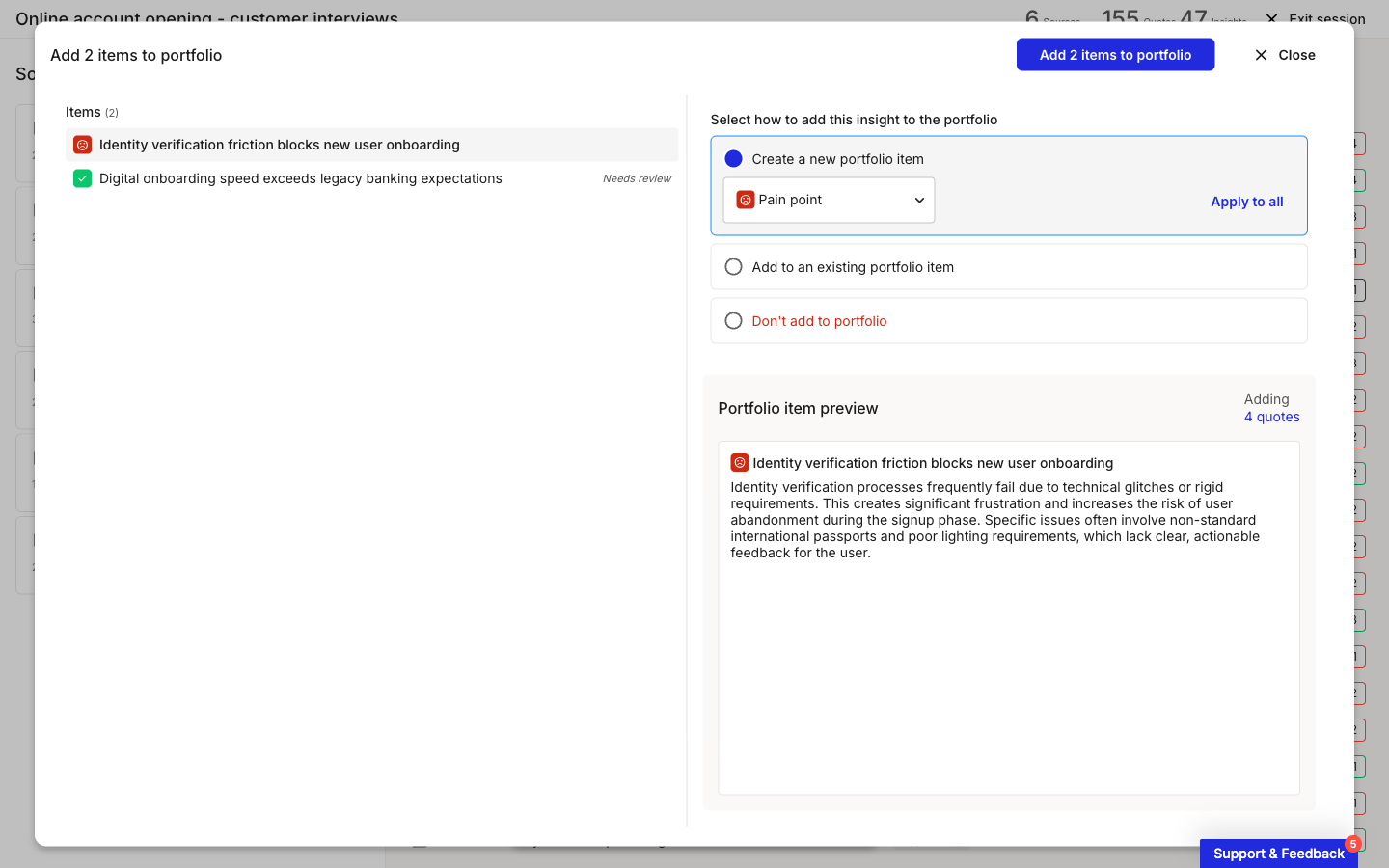
Pick the portfolio item **type** from the dropdown. The standard types are **Pain point**, **Opportunity**, and **Solution**, alongside any custom types your account has added. To set the same type for every item in one go, click **Apply to all**.

<figure><img src="/files/R1IGNiX2t33wpSgOKroR" alt="Portfolio item type dropdown open, showing Opportunity, Pain point, Solution, and the custom types Goals and Risk."><figcaption><p>The type picker, with this account's custom types below the standard three</p></figcaption></figure>

The **Portfolio item preview** shows the new item's name and description and how many quotes come with it ("Adding N quotes"). Those quotes land on the item as evidence.

<figure><img src="/files/L2xMhlkfgp83va5FXyd7" alt="Add-to-portfolio flow with the Items list on the left and three options on the right. Create a new portfolio item is selected with the type set to Pain point, and a portfolio item preview shows the item name, description, and quote count."><figcaption><p>Creating a new portfolio item from an insight</p></figcaption></figure>
{% endstep %}

{% step %}
**Add to an existing portfolio item**

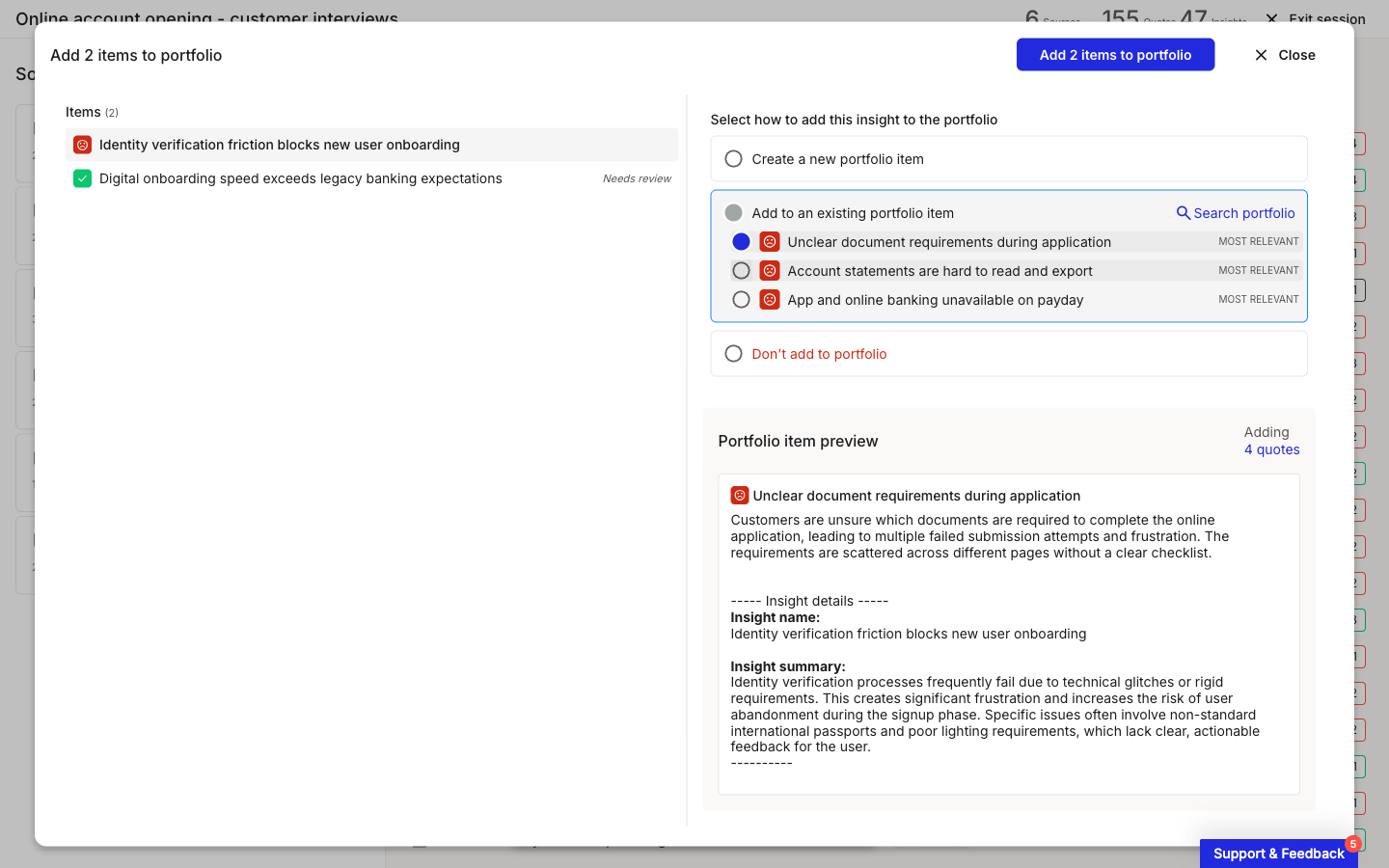
Smaply suggests existing items that match the insight, tagged **MOST RELEVANT**. Pick one, or click **Search portfolio** to find any item yourself. The insight's name and summary are appended to that item's description, and its quotes are added to the item's **Evidence** tab.

<figure><img src="/files/srK5Md7Dfa9QS69mE94Z" alt="Add to an existing portfolio item selected, listing three suggested items each tagged MOST RELEVANT, with a Search portfolio link and a preview of the chosen item."><figcaption><p>Suggested matches for an insight, tagged MOST RELEVANT</p></figcaption></figure>
{% endstep %}

{% step %}
**Don't add to portfolio**

Choose this to skip the insight and leave it in the investigation only. It won't create or change any portfolio item.
{% endstep %}

{% step %}
**Confirm**

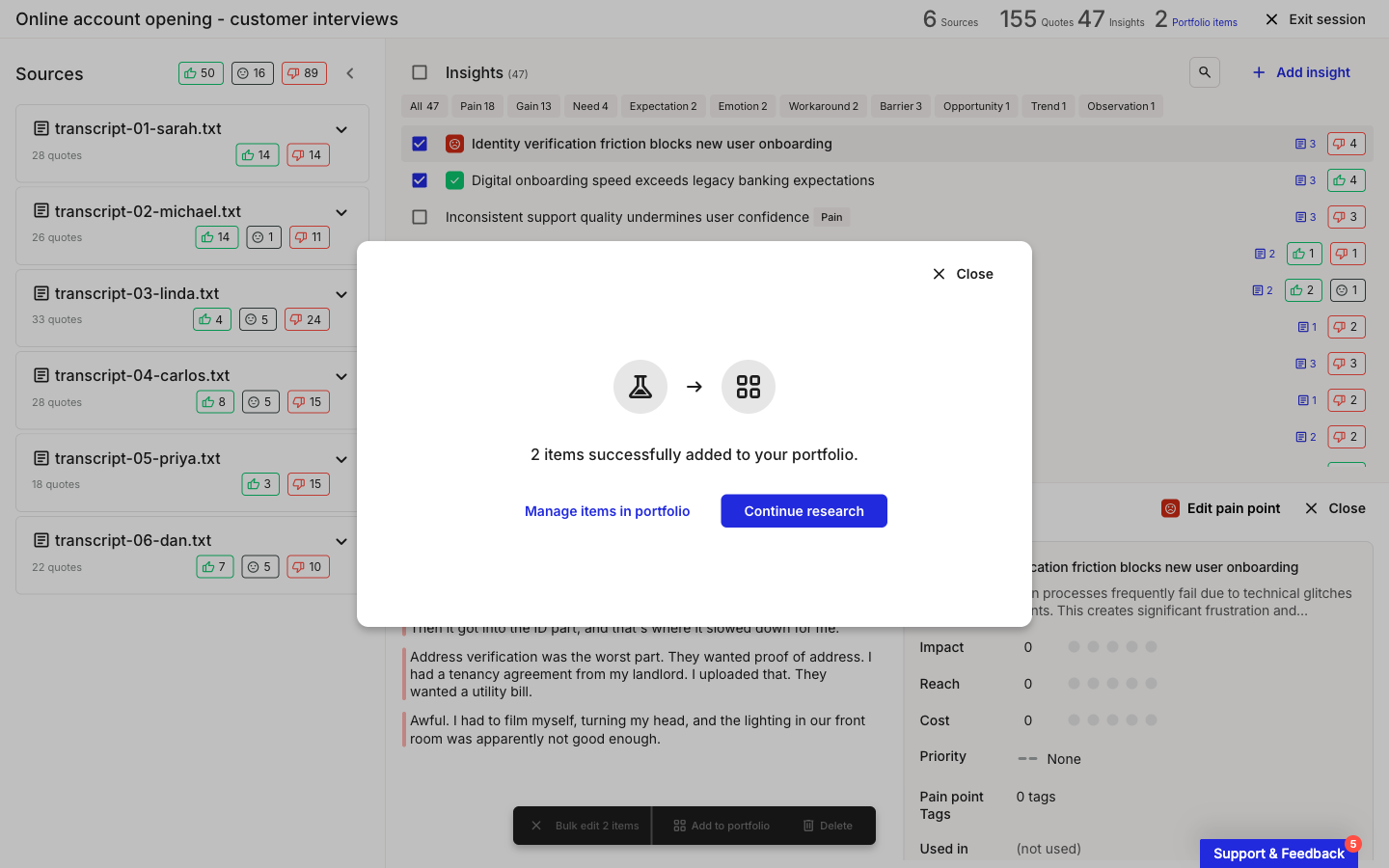
Once every item is placed, click **Add \[N] items to portfolio** in the header. Smaply confirms with "N items successfully added to your portfolio." From there, **Manage items in portfolio** opens the portfolio in a new tab, filtered to this investigation, or **Continue research** returns you to the session.

<figure><img src="/files/2xQP4RZa3L6DRJI60XTj" alt="Completion dialog reading 2 items successfully added to your portfolio, with Manage items in portfolio and Continue research buttons."><figcaption><p>Confirmation after promoting insights</p></figcaption></figure>
{% endstep %}
{% endstepper %}

{% hint style="success" icon="lightbulb" %}

#### **Tip: A portfolio item type is not the same as an insight category**

The **Pain point / Opportunity / Solution** types you pick here are portfolio item types. They're separate from the insight categories (Pain, Emotion, Gain, and so on) that the AI assigns during analysis.
{% endhint %}

You don't need a research investigation to build evidence. To add a quote, piece of feedback, or source link to a portfolio item by hand, see [How to add evidence to a portfolio item](/portfolio/how-to-add-evidence.md).

***

#### How to trace a finding back to its source

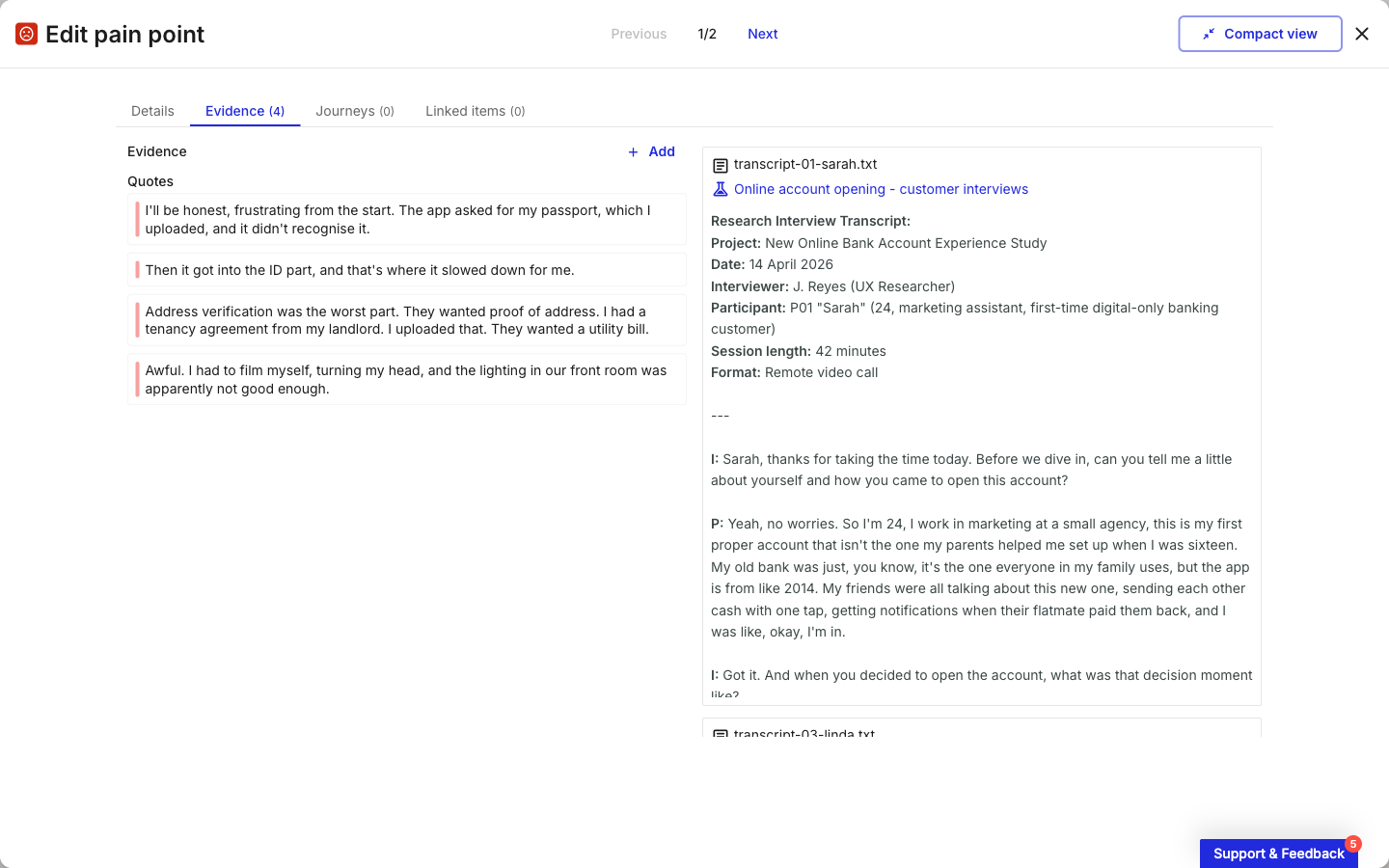
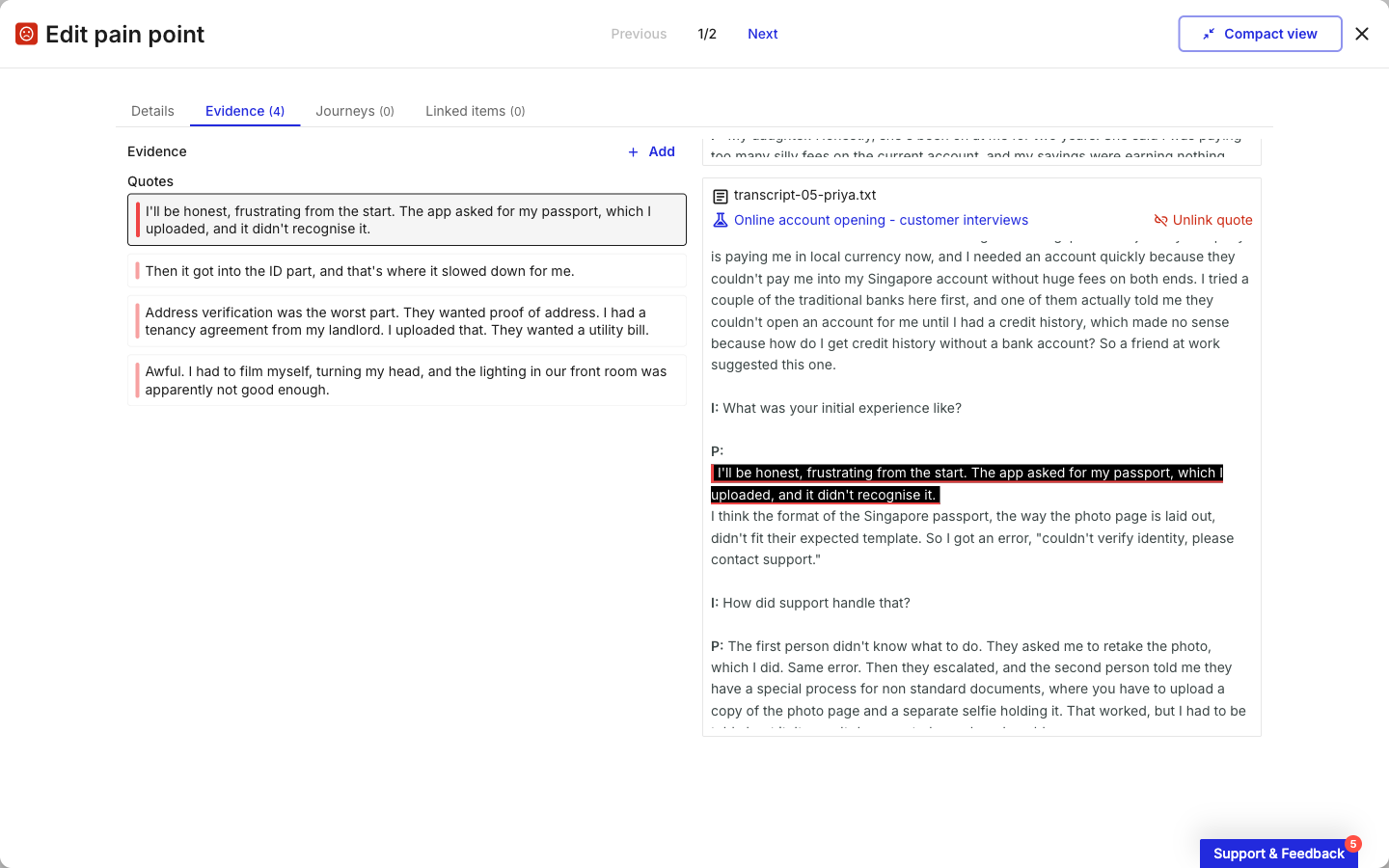
Every promoted quote stays linked to the transcript it came from. Open the portfolio item, go to its **Evidence** tab, and select a quote. Its source transcript opens on the right with the quote highlighted in place and a link back to the investigation.

<figure><img src="/files/MxBnJctia0DMd506W04E" alt="Portfolio item editor on the Evidence tab, listing four quotes on the left and the full source transcript on the right with a link to the investigation."><figcaption><p>The Evidence tab of a promoted portfolio item</p></figcaption></figure>

To remove a quote from the item, click **Unlink quote** in the source preview. This detaches it from the portfolio item without touching the original quote in the investigation.

<figure><img src="/files/aYuomSlCAr63wLjS7Cez" alt="A selected evidence quote highlighted within its source transcript, with an Unlink quote action and a link back to the source investigation."><figcaption><p>A quote highlighted in its source, with the Unlink quote action</p></figcaption></figure>

***

#### How to filter the portfolio by investigation

To see which portfolio items came from a given investigation, filter the **Portfolio** by research. Opening **Manage items in portfolio** from the completion dialog does this for you: the **Table** view loads with a **Research is \[investigation name]** filter chip and a count of matching items. You can also apply the **Research** filter yourself from any portfolio view.

<figure><img src="/files/uraVmazWryJkwevl0yPF" alt="Portfolio Table view filtered by Research is the investigation name, showing two matching portfolio items with a result count."><figcaption><p>The portfolio filtered to one investigation</p></figcaption></figure>

#### Related topics

<table data-column-title-hidden data-view="cards"><thead><tr><th>Article</th><th>What it covers</th><th data-hidden data-card-target data-type="content-ref">Target</th></tr></thead><tbody><tr><td><strong>How to review insights and quotes</strong></td><td>Refine insights and quotes before you promote them.</td><td><a href="/pages/YT2UFNzR9ohQUKQsKECn">/pages/YT2UFNzR9ohQUKQsKECn</a></td></tr><tr><td><strong>How to add evidence to a portfolio item</strong></td><td>Add evidence by hand, including quotes, feedback, and source links.</td><td><a href="/pages/M7pLmvLqe5OLNTD1V9B1">/pages/M7pLmvLqe5OLNTD1V9B1</a></td></tr><tr><td><strong>How to create a portfolio item</strong></td><td>Create pain points, opportunities, solutions, and custom-typed items directly.</td><td><a href="/pages/ccKByq3EkMP6r9UQIneW">/pages/ccKByq3EkMP6r9UQIneW</a></td></tr><tr><td><strong>How to use portfolio item cards</strong></td><td>Place promoted items as cards on a journey map.</td><td><a href="/pages/7otLTFAejxDBK1QT5H5e">/pages/7otLTFAejxDBK1QT5H5e</a></td></tr></tbody></table>


---

# Agent Instructions
This documentation is published with GitBook. GitBook is the documentation platform designed so that both humans and AI agents can read, navigate, and reason over technical content effectively. Learn more at gitbook.com.

## Querying This Documentation
If you need additional information that is not directly available in this page, you can query the documentation dynamically by asking a question.

Perform an HTTP GET request on the current page URL with the `ask` query parameter, and the optional `goal` query parameter:

```
GET https://helpdesk.smaply.app/research-hub/how-to-add-findings-to-portfolio.md?ask=<question>&goal=<endgoal>
```

`ask` is the immediate question: it should be specific, self-contained, and written in natural language.
`goal` is optional and describes the broader end goal you are ultimately trying to accomplish on behalf of the user. GitBook uses it to tailor the answer towards what is most useful for that goal.

The response will contain a direct answer to the question and relevant excerpts and sources from the documentation.

Use this mechanism when the answer is not explicitly present in the current page, you need clarification or additional context, or you want to retrieve related documentation sections.