> For the complete documentation index, see [llms.txt](https://helpdesk.smaply.app/llms.txt). Markdown versions of documentation pages are available by appending `.md` to page URLs; this page is available as [Markdown](https://helpdesk.smaply.app/research-hub/how-to-review-insights-and-quotes.md).

# How to review insights and quotes

After Smaply analyzes your transcripts, the session view is where you check its work: read the quotes it highlighted, correct their sentiment, edit or add insights, and decide what carries forward into your portfolio. Every AI suggestion is yours to keep, change, or remove.

{% hint style="info" icon="tag" %}

#### Plan availability

Research Hub AI is available on Smaply's paid plans (**Repository** and above). On the **Free** plan there are no AI-extracted quotes or insights to review.
{% endhint %}

{% hint style="warning" icon="list-check" %}

#### Prerequisites

You have an investigation that has finished analyzing. If you haven't created one yet, see [How to create an investigation](/research-hub/how-to-create-an-investigation.md).
{% endhint %}

{% hint style="info" icon="clipboard-list" %}

#### In this guide

1. [Open the session view](#open-the-session-view)
2. [Review and refine quotes](#review-and-refine-quotes)
3. [Review and edit insights](#review-and-edit-insights)
4. [Edit several insights at once](#edit-several-insights-at-once)
   {% endhint %}

#### Open the session view

From the **Research** list, open the three-dot menu on your investigation's row and select **View Analysis**. (Right after analysis finishes, **Explore findings** takes you to the same place.)

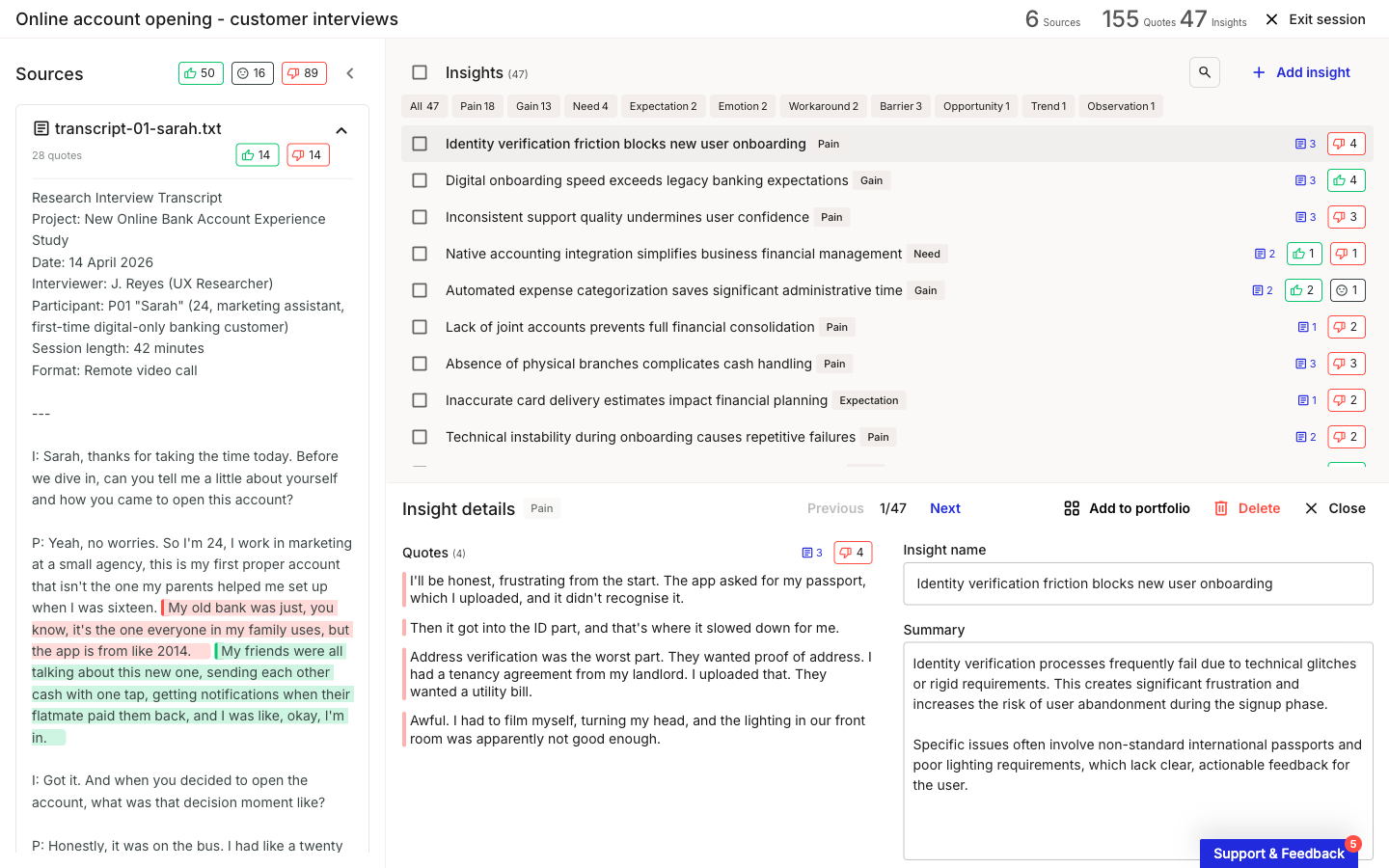
<figure><img src="/files/XGdFJSRCAbMPQ9C9VBBW" alt="Investigation session view with three panels: a Sources list on the left, an Insights list in the center, and an insight detail panel below. The header shows the investigation name and counters for Sources, Quotes, and Insights."><figcaption><p>The session view: Sources on the left, Insights in the center, the detail panel for a selected insight</p></figcaption></figure>

The session view has two working panels plus a detail panel that opens when you select an insight:

* **Sources** (left) - your uploaded transcripts and the quotes pulled from each.
* **Insights** (center) - every insight the analysis generated, grouped by category.
* **Insight details** - opens below the panels when you click an insight, where you edit its name, summary, and linked quotes.

The header carries the investigation name, running counts of **Sources**, **Quotes**, and **Insights**, and an **Exit session** button to return to the list.

***

#### Review and refine quotes

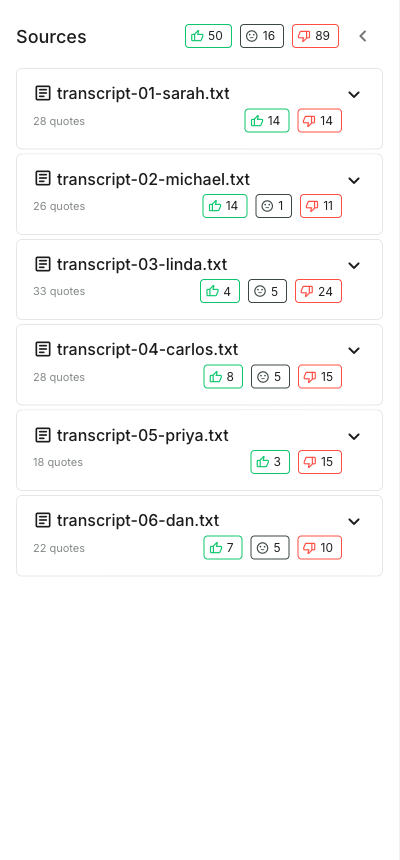
Quotes live inside the transcripts in the **Sources** panel. The top of the panel shows the sentiment split across the whole investigation; each source lists its filename, quote count, and its own positive, neutral, and negative counts.

<figure><img src="/files/PQBn7cuWScUOvdUxqcdk" alt="Sources panel showing an aggregate sentiment summary at the top and six transcript files below, each with a quote count and a breakdown of positive, neutral, and negative sentiment counts."><figcaption><p>Sources panel, with aggregate and per-source sentiment</p></figcaption></figure>

Click a source to expand its transcript. AI-extracted quotes appear as colored highlights in the text: green for positive sentiment, pink for negative. Hover a highlight to see the AI-generated summary of that quote.

<figure><img src="/files/TssXmyZoK0fujOVcg2Ff" alt="An expanded transcript in the Sources panel. Passages of the interview are highlighted in green and pink, marking the quotes the AI extracted and the sentiment it assigned to each."><figcaption><p>An expanded transcript with positive (green) and negative (pink) quote highlights</p></figcaption></figure>

You can adjust any quote directly in the transcript:

* **Change its sentiment** - switch the highlight color (green for positive, pink for negative; a neutral face marks a neutral quote).
* **Remove a quote** - deselect its highlight so the text is no longer marked as a quote.
* **Add a quote** - highlight any passage of transcript text that the AI missed.
* **Link a quote to an insight** - drag the highlight into an insight in the center panel.

***

#### Review and edit insights

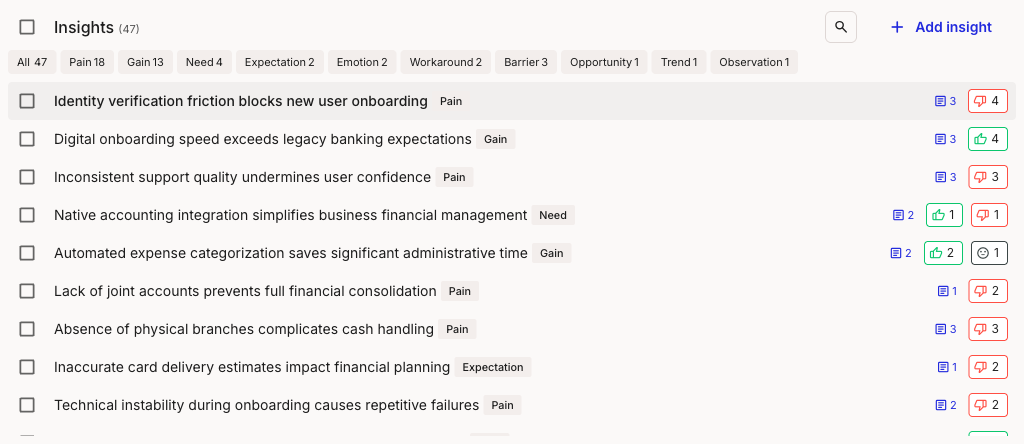
The **Insights** panel lists every insight from the analysis. The count next to the heading is the total; the category tabs across the top let you filter to one category at a time. The full set is **All**, **Pain**, **Gain**, **Need**, **Expectation**, **Emotion**, **Workaround**, **Barrier**, **Opportunity**, **Trend**, and **Observation**, each tab showing how many insights fall under it.

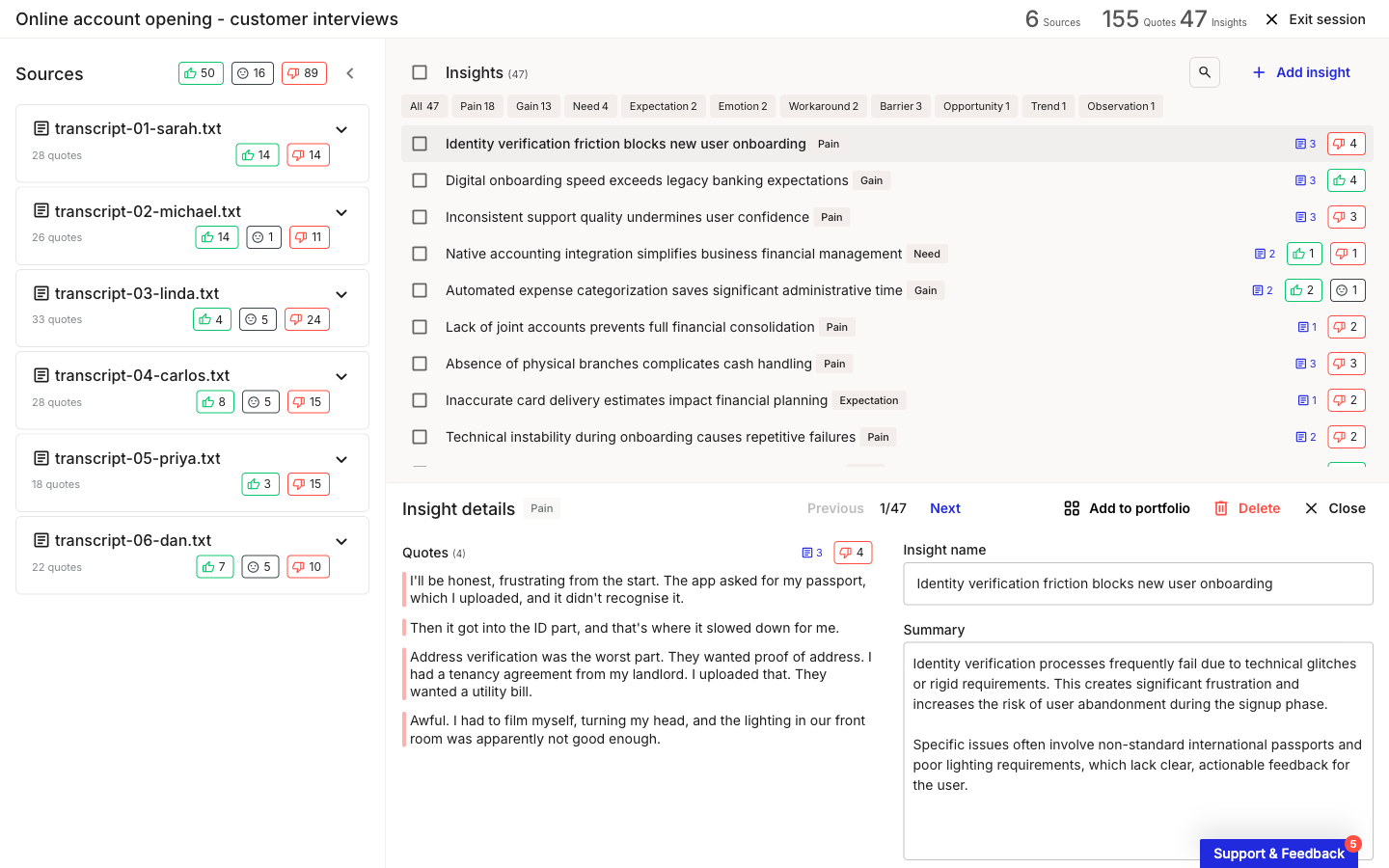
<figure><img src="/files/pvaOwObs89r5C9uotjYP" alt="Insights panel header with a select-all checkbox, the insight count, a search icon, and an Add insight button. Below sits a row of category filter tabs (All, Pain, Gain, Need, Expectation, Emotion, Workaround, Barrier, Opportunity, Trend, Observation) above the list of insight rows."><figcaption><p>Insights panel: category tabs, search, and Add insight</p></figcaption></figure>

Each row shows the insight name, its category, and counters for its linked quotes and their sentiment. Use the search icon to find an insight by name, or **+ Add insight** to create one the analysis didn't surface.

Click any insight to open its details below the panels.

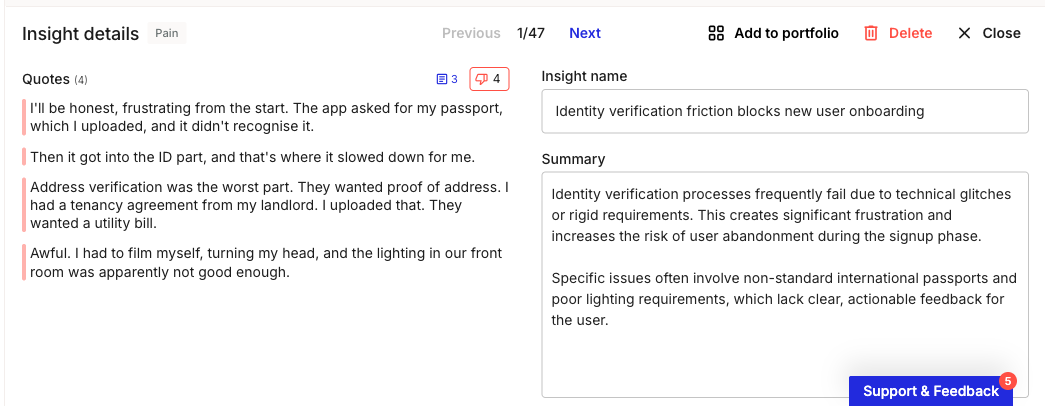
<figure><img src="/files/0CepK3gDLYL1J8BmnNEa" alt="Insight details panel. The left side lists the insight&#x27;s linked quotes; the right side has editable Insight name and Summary fields. The top row has Previous and Next navigation, a position counter, and Add to portfolio, Delete, and Close actions."><figcaption><p>Insight details: editable name and summary, linked quotes, and the panel actions</p></figcaption></figure>

The **Insight name** and **Summary** fields are editable. Edit them in place to refine the wording or correct what the AI generated. The **Quotes** list shows every quote linked to this insight, and **Previous** and **Next** step through the insights without leaving the detail view.

When an insight is ready to carry into your portfolio, click **Add to portfolio** to start the guided flow. To remove an insight, click **Delete**; **Close** returns you to the list.

{% hint style="info" %}
Insight categories (Pain, Gain, Need, and so on) are a research-synthesis layer. They are not the same as portfolio item types (Pain point, Opportunity, Solution). You choose the portfolio type later, when you add a finding to the portfolio.
{% endhint %}

***

#### Edit several insights at once

To act on more than one insight, select their checkboxes (or the checkbox beside the **Insights** heading to select all). A **Bulk edit** bar appears with the number of items selected.

<figure><img src="/files/jbTao21RWXo4GgXED3QE" alt="A Bulk edit bar showing two items selected, with Add to portfolio and Delete actions and a control to close the selection."><figcaption><p>The bulk-edit bar for selected insights</p></figcaption></figure>

From the bar you can **Add to portfolio** to send the whole selection through the add flow together, or **Delete** to remove them all at once.

#### What carries into your portfolio

Adding insights to your portfolio is its own guided flow, where you choose whether each one becomes a new portfolio item or joins an existing one, and the quotes ride along as evidence. See [How to add findings to portfolio](/research-hub/how-to-add-findings-to-portfolio.md).

#### Related topics

<table data-column-title-hidden data-view="cards"><thead><tr><th>Article</th><th>What it covers</th><th data-hidden data-card-target data-type="content-ref">Target</th></tr></thead><tbody><tr><td><strong>How to create an investigation</strong></td><td>Start an investigation, upload transcripts, and let AI extract quotes, sentiment, and insights.</td><td><a href="/pages/bYRXhV15DwXPFxORlX4I">/pages/bYRXhV15DwXPFxORlX4I</a></td></tr><tr><td><strong>How to add findings to portfolio</strong></td><td>Promote insights and quotes from an investigation into portfolio items as evidence.</td><td><a href="/pages/rMOU7uLeTQCUU7SflZu0">/pages/rMOU7uLeTQCUU7SflZu0</a></td></tr></tbody></table>


---

# Agent Instructions
This documentation is published with GitBook. GitBook is the documentation platform designed so that both humans and AI agents can read, navigate, and reason over technical content effectively. Learn more at gitbook.com.

## Querying This Documentation
If you need additional information that is not directly available in this page, you can query the documentation dynamically by asking a question.

Perform an HTTP GET request on the current page URL with the `ask` query parameter, and the optional `goal` query parameter:

```
GET https://helpdesk.smaply.app/research-hub/how-to-review-insights-and-quotes.md?ask=<question>&goal=<endgoal>
```

`ask` is the immediate question: it should be specific, self-contained, and written in natural language.
`goal` is optional and describes the broader end goal you are ultimately trying to accomplish on behalf of the user. GitBook uses it to tailor the answer towards what is most useful for that goal.

The response will contain a direct answer to the question and relevant excerpts and sources from the documentation.

Use this mechanism when the answer is not explicitly present in the current page, you need clarification or additional context, or you want to retrieve related documentation sections.