How to export a journey map as PDF
Export a journey map to PDF, choosing which extras to include and letting the layout fit to one page automatically.
Last updated
Export a journey map to PDF, choosing which extras to include and letting the layout fit to one page automatically.
To export a journey map, open it in the editor, click the download icon in the top-right corner, choose which features to include, and click Export to PDF. The file downloads automatically once it's ready. PDF is the only export format for journey maps.
Clear any active filters first. While a filter is applied, the download icon is greyed out and export is unavailable. See How to filter a journey map for the Clear and Clear all controls.
Open the export options
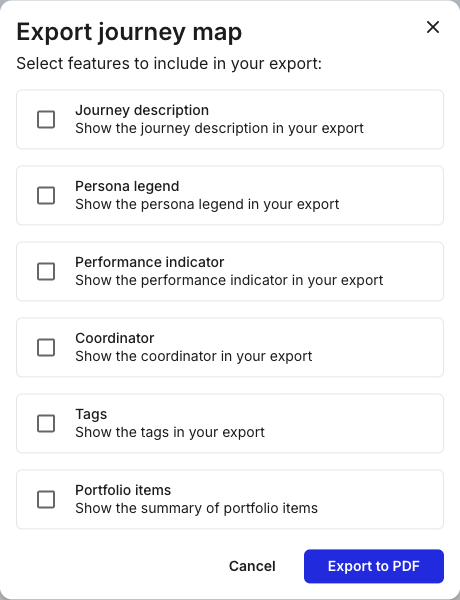
In the journey map editor, click the download icon in the top-right corner, near the version history and favourite icons. The Export journey map modal opens.
Choose what to include
Tick the features you want in the export. All six are off by default, so an export with nothing ticked gives you the map on its own.

Each option adds one element to a header section above the map:
Journey description - the description from the journey information panel
Persona legend - the personas used on the map and their colours
Performance indicator - the map's status (Healthy, Monitored, or Attn needed)
Coordinator - the assigned coordinator
Tags - the tags applied to the map
Portfolio items - the summary of portfolio items, with counts and progress per type
Export and wait for the download
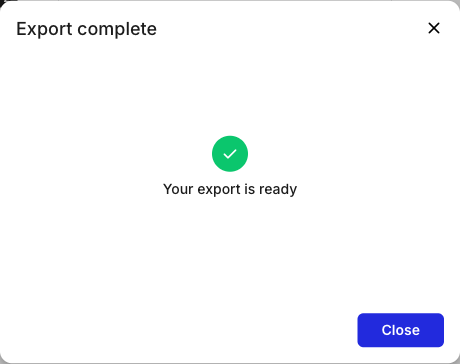
Click Export to PDF. An Export complete dialog with Your export is ready appears when the file is done, and the PDF downloads automatically. Click Close to dismiss the dialog.

Changes you make during export may end up in the file. Wait for the Export complete dialog before touching the map again.
The PDF shows the full journey map exactly as it appears in the editor: every visible lane, card, stage, and step, plus any features you ticked in the export options. The journey information section is always included.
The layout fits automatically, so there are no page-size, orientation, or scale settings to choose:
The full width of the map always fits on a single page.
Very large maps (around 50 columns or more) scale down to fit that width.
Spanned cards are never split across a page break.
If your account has a branding logo configured, it appears on the PDF. To set or change it, see How to set up custom branding.
Last updated