> For the complete documentation index, see [llms.txt](https://helpdesk.smaply.app/llms.txt). Markdown versions of documentation pages are available by appending `.md` to page URLs; this page is available as [Markdown](https://helpdesk.smaply.app/sharing-and-exporting/how-to-share-a-journey-map-via-html-link.md).

# How to share a journey map via HTML link

Generate a read-only link to a journey map so anyone can open it in their browser, without a Smaply account. Open the Share dialog, turn on the **Share link (view only)**, and copy the URL.

{% hint style="info" icon="compass" %}
Want teammates to edit or comment instead? See [How to invite users](/account-and-team/users-and-roles/how-to-invite-users.md). This article covers public, read-only sharing only.
{% endhint %}

{% hint style="warning" icon="list-check" %}

#### Prerequisites

Only an Admin can generate or manage the public link. Editors and Viewers can open a journey map but can't create, change, or disable its Share link.
{% endhint %}

{% hint style="info" icon="clipboard-list" %}

#### Quick links

1. [How to create a Share link for a journey map](#how-to-create-a-share-link-for-a-journey-map)
2. [Share link vs map access](#share-link-vs-map-access)
3. [What people see when they open a Share link](#what-people-see-when-they-open-a-share-link)
4. [How to share a filtered view instead of the whole map](#how-to-share-a-filtered-view-instead-of-the-whole-map)
5. [How to disable the link](#how-to-disable-the-link)
   {% endhint %}

#### How to create a Share link for a journey map

{% stepper %}
{% step %}
**Open the Share dialog**

Open the Share dialog from either entry point: click the **Share** icon in the top bar of the journey map editor, or, from the journey map list, open a map's three-dot menu and select **Share**.
{% endstep %}

{% step %}
**Find the Share link (view only) panel**

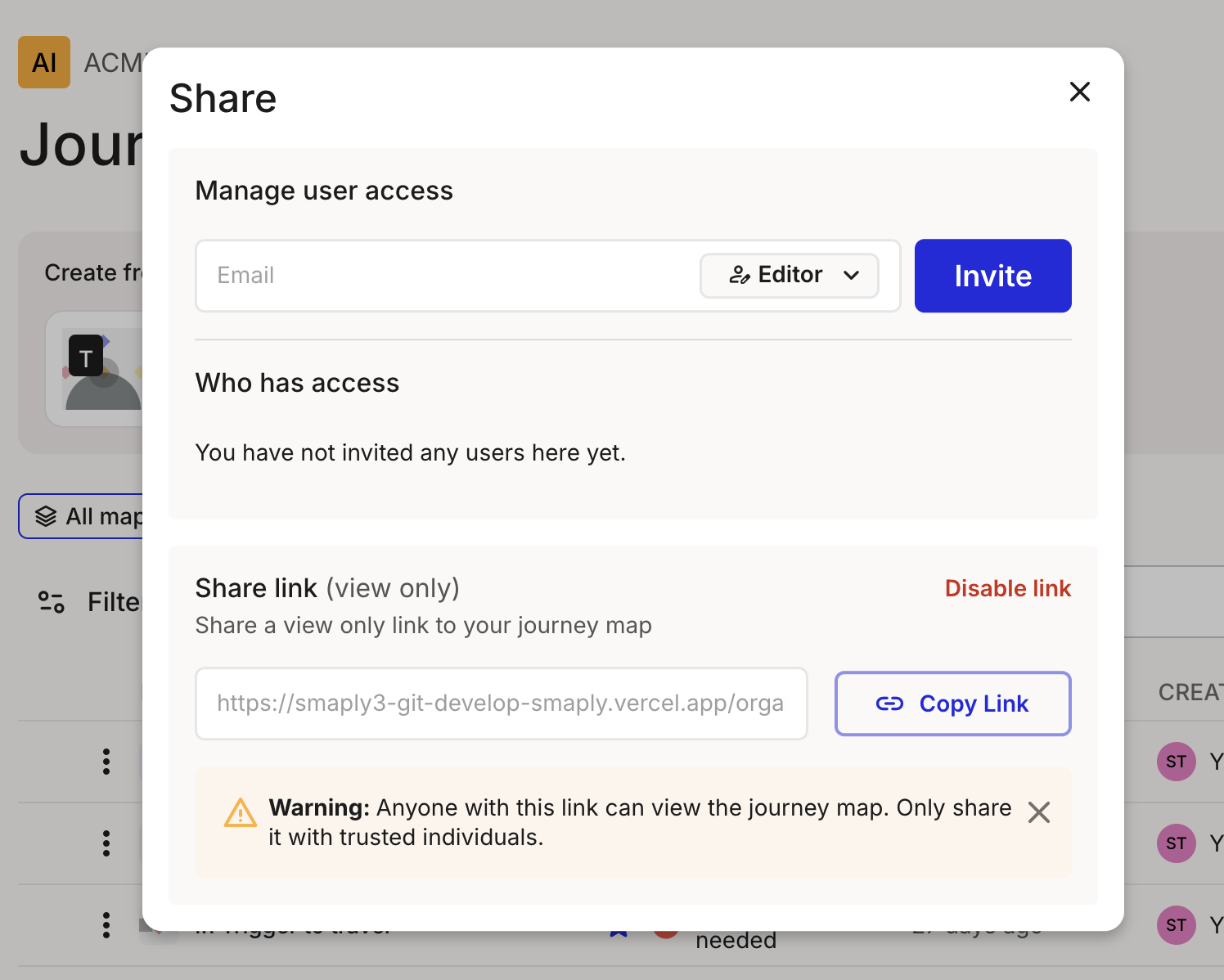
<figure><img src="/files/td28kaV7KXikiRWgJlTJ" alt="The Share dialog showing the Share link (view only) panel with a read-only URL field, a Copy Link button, a Disable link action, and a warning that anyone with the link can view the journey map."><figcaption><p>The Share dialog, with the Share link (view only) panel at the bottom</p></figcaption></figure>

The Share dialog handles both sharing methods. **Manage user access** at the top invites people to the map; the **Share link (view only)** panel below it generates the public link.
{% endstep %}

{% step %}
**Turn on the link**

Enable the **Share link (view only)** panel. Smaply generates a unique URL for this map.

{% hint style="warning" %}

#### **Important: Anyone with this link can view the journey map**

Treat the URL like a password. Share it only through channels you trust, and disable the link when you no longer need it.
{% endhint %}
{% endstep %}

{% step %}
**Copy the link**

Click **Copy Link** and paste the URL wherever you're sharing it.
{% endstep %}

{% step %}
**Optional: add password protection**

{% hint style="info" icon="tag" %}
Password protection is available on the **Framework** plan and above.
{% endhint %}

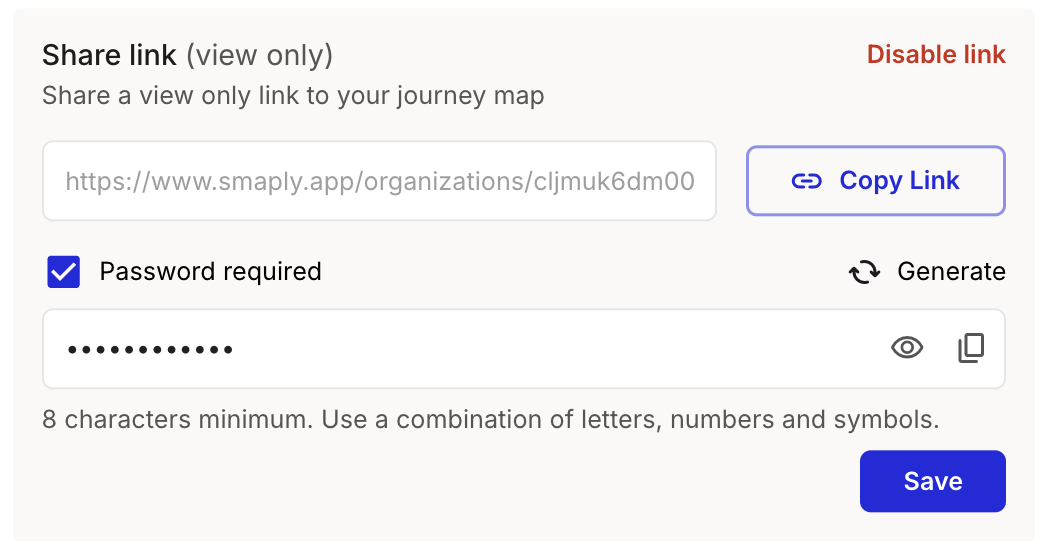
<figure><img src="/files/I0TkwGtvZN5S6faer2W0" alt="The Share link panel with Password required enabled, showing a Generate action, the masked password field with reveal and copy icons, the eight-character-minimum rule, and a Save button."><figcaption><p>Password required, with the Generate and Save controls</p></figcaption></figure>

Tick **Password required** to make viewers enter a password before the map loads. Click **Generate** for a compliant password or type your own, then click **Save**. Passwords need 8 characters minimum and a combination of letters, numbers, and symbols.

{% hint style="warning" %}

#### **Important: Copy the password before you close the dialog**

Store it somewhere safe and share it separately from the link. If you lose it, generate a new one and save again.
{% endhint %}
{% endstep %}
{% endstepper %}

#### Share link vs map access

These are two different ways to share a journey map. Pick the one that fits your audience.

|                            | Share link (HTML)                        | Map access                                             |
| -------------------------- | ---------------------------------------- | ------------------------------------------------------ |
| **Best for**               | Quick external viewing                   | Team collaboration and feedback                        |
| **Smaply account needed?** | <i class="fa-xmark">:xmark:</i> No       | <i class="fa-check">:check:</i> Yes                    |
| **Who can open?**          | Anyone with the link (password optional) | People invited at Admin, Editor, or Viewer level       |
| **Read-only?**             | <i class="fa-check">:check:</i> Yes      | Viewers yes (can comment); Editors and Admins can edit |
| **Can comment?**           | <i class="fa-xmark">:xmark:</i> No       | <i class="fa-check">:check:</i> Yes                    |

If you need feedback or edits from the person you're sharing with, invite them to the map instead of sending a Share link.

#### What people see when they open a Share link

The shared page renders read-only and closely mirrors the editor. It shows all visible lanes, cards, stages, and steps. Your account logo appears in the top-left and a "powered by Smaply" badge in the top-right.

A collapsible journey information panel at the top displays the map name, description, performance indicator, coordinator, tags, and a portfolio items summary.

Viewers can't edit or comment. If you need comments, invite them to the map instead.

#### How to share a filtered view instead of the whole map

If you apply a filter or open a saved view on the map before you generate the Share link, that filter state persists on the shared page. Useful for sharing a focused cut with specific stakeholders.

For a dedicated URL per audience, share saved views directly. See [How to share a saved view](/sharing-and-exporting/how-to-share-a-saved-view.md).

#### How to disable the link

To revoke access, open the Share dialog, find the **Share link (view only)** panel, and click **Disable link**. Access is revoked immediately, and anyone who still has the URL sees an error instead of the map.

{% hint style="warning" %}

#### **Important: Re-enabling the link creates a new URL**

When you enable a disabled link again, Smaply mints a new URL and the old one stays dead. A link can't be paused and resumed at the same address, so copy and share the new URL after you re-enable.
{% endhint %}

#### Related topics

<table data-column-title-hidden data-view="cards"><thead><tr><th>Article</th><th>What it covers</th><th data-hidden data-card-target data-type="content-ref">Target</th></tr></thead><tbody><tr><td><strong>How to invite users</strong></td><td>Invite users at account, workspace, or journey-map level so collaborators can comment or edit</td><td><a href="/pages/F1Nzd1jlynqOnRaG0WSM">/pages/F1Nzd1jlynqOnRaG0WSM</a></td></tr><tr><td><strong>How to share a saved view</strong></td><td>Share a filtered perspective via its own HTML link</td><td><a href="/pages/EzewsMl4q3GLzrR9AXm0">/pages/EzewsMl4q3GLzrR9AXm0</a></td></tr><tr><td><strong>How to export a journey map as PDF</strong></td><td>Produce a static file for offline sharing or print</td><td><a href="/pages/bFw8ZAfXKB40zpzNx0GL">/pages/bFw8ZAfXKB40zpzNx0GL</a></td></tr><tr><td><strong>How to save and apply a view</strong></td><td>Save filter and display settings as a named view for reuse</td><td><a href="/pages/0biJxUYNUHzaN0wxgwEg">/pages/0biJxUYNUHzaN0wxgwEg</a></td></tr></tbody></table>


---

# Agent Instructions
This documentation is published with GitBook. GitBook is the documentation platform designed so that both humans and AI agents can read, navigate, and reason over technical content effectively. Learn more at gitbook.com.

## Querying This Documentation
If you need additional information that is not directly available in this page, you can query the documentation dynamically by asking a question.

Perform an HTTP GET request on the current page URL with the `ask` query parameter, and the optional `goal` query parameter:

```
GET https://helpdesk.smaply.app/sharing-and-exporting/how-to-share-a-journey-map-via-html-link.md?ask=<question>&goal=<endgoal>
```

`ask` is the immediate question: it should be specific, self-contained, and written in natural language.
`goal` is optional and describes the broader end goal you are ultimately trying to accomplish on behalf of the user. GitBook uses it to tailor the answer towards what is most useful for that goal.

The response will contain a direct answer to the question and relevant excerpts and sources from the documentation.

Use this mechanism when the answer is not explicitly present in the current page, you need clarification or additional context, or you want to retrieve related documentation sections.