For the complete documentation index, see llms.txt. This page is also available as Markdown.

How to use shape cards

Build a flowchart inside a journey map with square, diamond, circle, triangle, hexagon, and pill shapes joined by arrows.

A shape card is a single diagram node. Use a diamond where a process branches and a pill where it starts or ends, then join them with connector arrows.

A BPMN flow lane built from shape cards, showing an order flow across Customer, Order Desk, and Warehouse swimlanes: a round Order submitted shape leads to a rectangular review order step, a diamond In stock? decision branches to a red not in stock pill or a blue in stock pill, and the flow continues to pack & ship and a round order shipped shape.
A BPMN process built from shape cards and connector arrows
Shape cards live in flow and freeform lanes, which are available on the Repository plan and above.


How to add a shape card to a flow or freeform lane

Shape cards are only offered in flow lanes and freeform lanes. The card picker in a text lane, a grid lane, or any other lane type has no shapes in it.

In both lane types, adding a card takes a modifier key, because plain clicking and dragging draws a connector:

  • In a flow lane - hold Cmd (Mac) or Ctrl (Windows), hover an empty cell, and click + Add card.

  • In a freeform lane - hold Cmd (Mac) or Ctrl (Windows) and click any spot on the canvas.

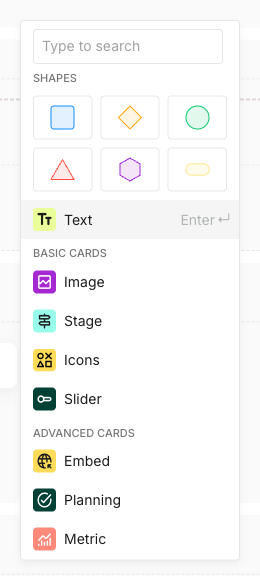
SHAPES is the first group in the picker that opens, above the Text quick-select, laid out as a grid of six swatches rather than a labelled row: Square, Diamond, Circle, Triangle, Hexagon, and Pill. Hover a swatch to see its name. For the rest of the picker and the shared add-card mechanics, see How to add and edit cards.

The add-card picker with a SHAPES group at the top, laid out as a three-by-two grid of swatches: a blue square, an orange diamond, and a green circle on the first row, a red triangle, a purple hexagon, and a yellow pill on the second. Below it, the Text quick-select with an Enter hint, then BASIC CARDS with Image, Stage, Icons, and Slider, and ADVANCED CARDS with Embed, Planning, and Metric.
SHAPES sits above the Text quick-select in the picker
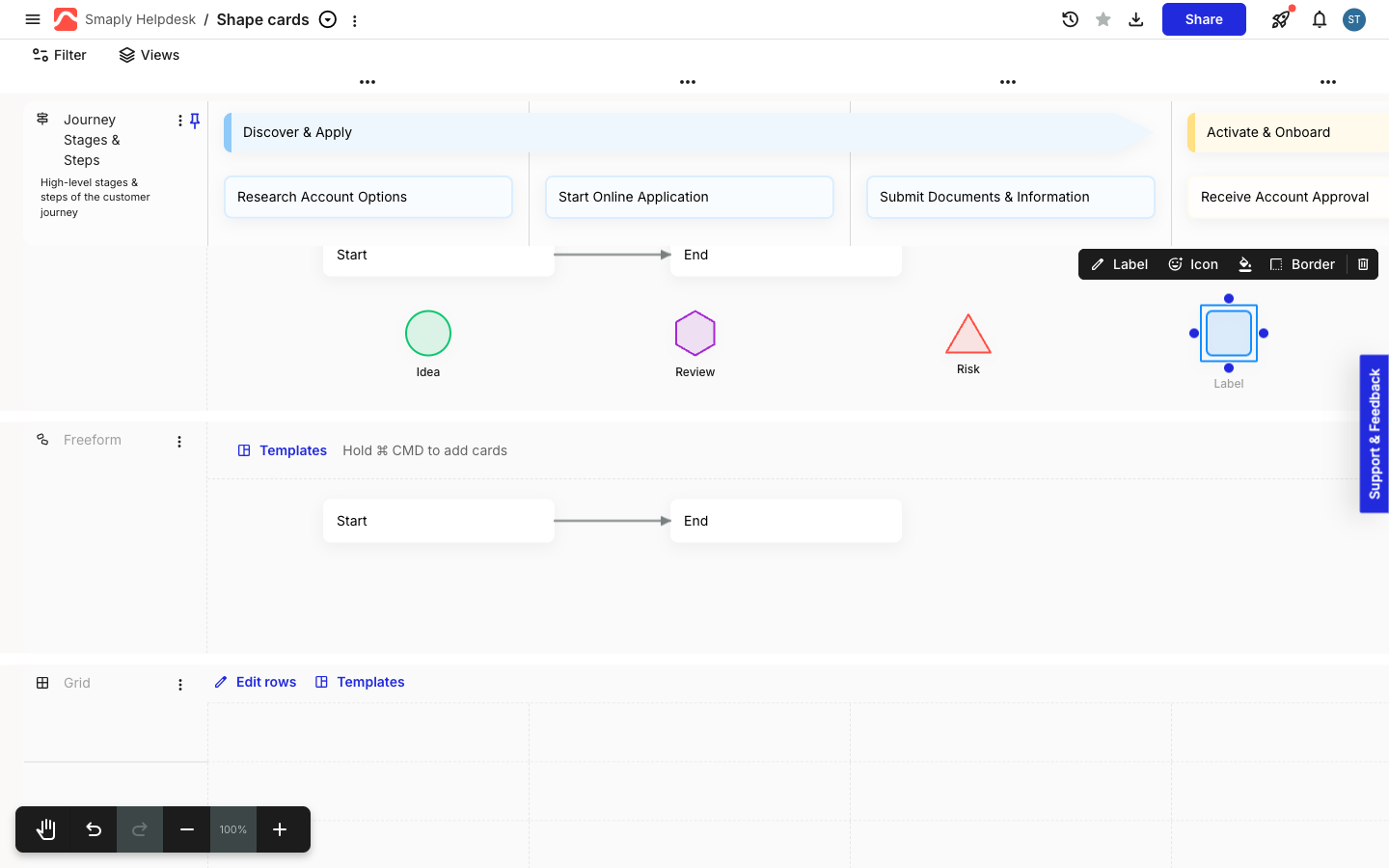
Click a swatch to drop that shape straight into the lane. There's no second step and no sub-menu. In a freeform lane the shape lands exactly where you clicked, so you can spread a diagram across the canvas instead of following the columns.

Important: One shape can't be changed into another


How to set a shape's label

A shape card carries a label underneath the shape rather than text inside it, and typing while the shape is selected does nothing. A new shape arrives with the placeholder Label.

A newly added blue square shape card selected in a lane, showing its placeholder label reading Label underneath and its floating toolbar above showing Label, Icon, a paint bucket, Border, and a trash icon.
A new shape card, with its placeholder label
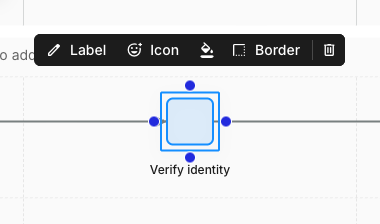
Select the shape and click Label on the floating toolbar, then type into the box that opens below the shape. Click anywhere outside the box to commit what you typed. Pressing Escape cancels the edit and leaves the previous label in place.

A selected blue square shape card labelled Verify identity, with its floating toolbar above showing Label, Icon, a paint bucket, Border, and a trash icon.
The toolbar on a selected shape card

How to put an icon inside a shape

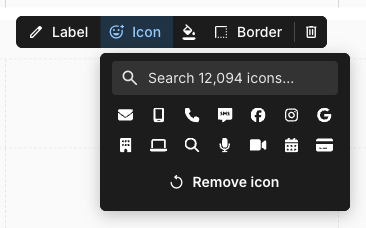
Click Icon on the toolbar and pick one of the suggested icons, or search the library by name. The icon sits inside the shape and the label stays underneath it, which is how you mark a node as a message, a check, or a failure without writing it out. Click Remove icon to clear it again.

The icon picker open from a shape card's toolbar, with a search field reading Search 12,094 icons, two rows of suggested icons including an envelope, a phone, a camera, and a calendar, and a Remove icon button at the bottom.
The icon picker on a shape card

How to set a shape's colour, background, and border

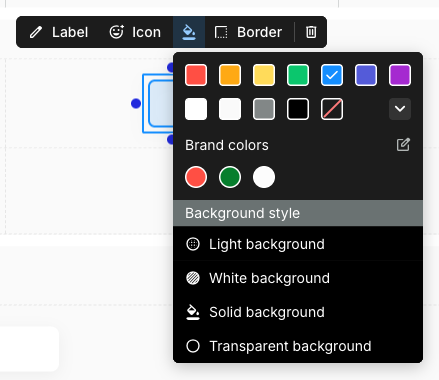
The paint bucket on the toolbar opens the same picker as any other card, with the accent colour grid, Brand colors, and the four Background style options. A shape can be a solid block of colour, a pale tint, or an outline on a transparent fill. See Card color and background style for how the styles differ.

The colour picker open from a shape card's toolbar, showing an accent colour grid, a Brand colors section with three swatches, and a Background style list with Light background, White background, Solid background, and Transparent background.
Colour and background style on a shape card
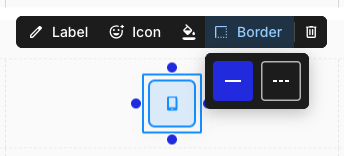
Border is specific to shape cards. Click it and choose the solid or dashed line. Solid is the default, and a dashed outline reads well for a step that's optional, out of scope, or not yet agreed.

The Border menu open from a shape card's toolbar, offering two options: a solid line, currently selected and highlighted blue, and a dashed line.
Border: a solid or dashed line

How to connect shapes with arrows

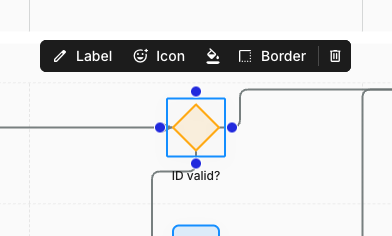
Connectors come from the lane, not from the card, so a shape connects exactly like an ordinary card. Click a shape to show its four attach points, one at the middle of each edge, then drag from an attach point onto the card you want the arrow to point at.

A selected orange diamond shape card labelled ID valid?, showing four blue connector attach points at the middle of its top, right, bottom, and left edges, with connector arrows already running to and from it.
A selected shape shows the same four attach points as any other card
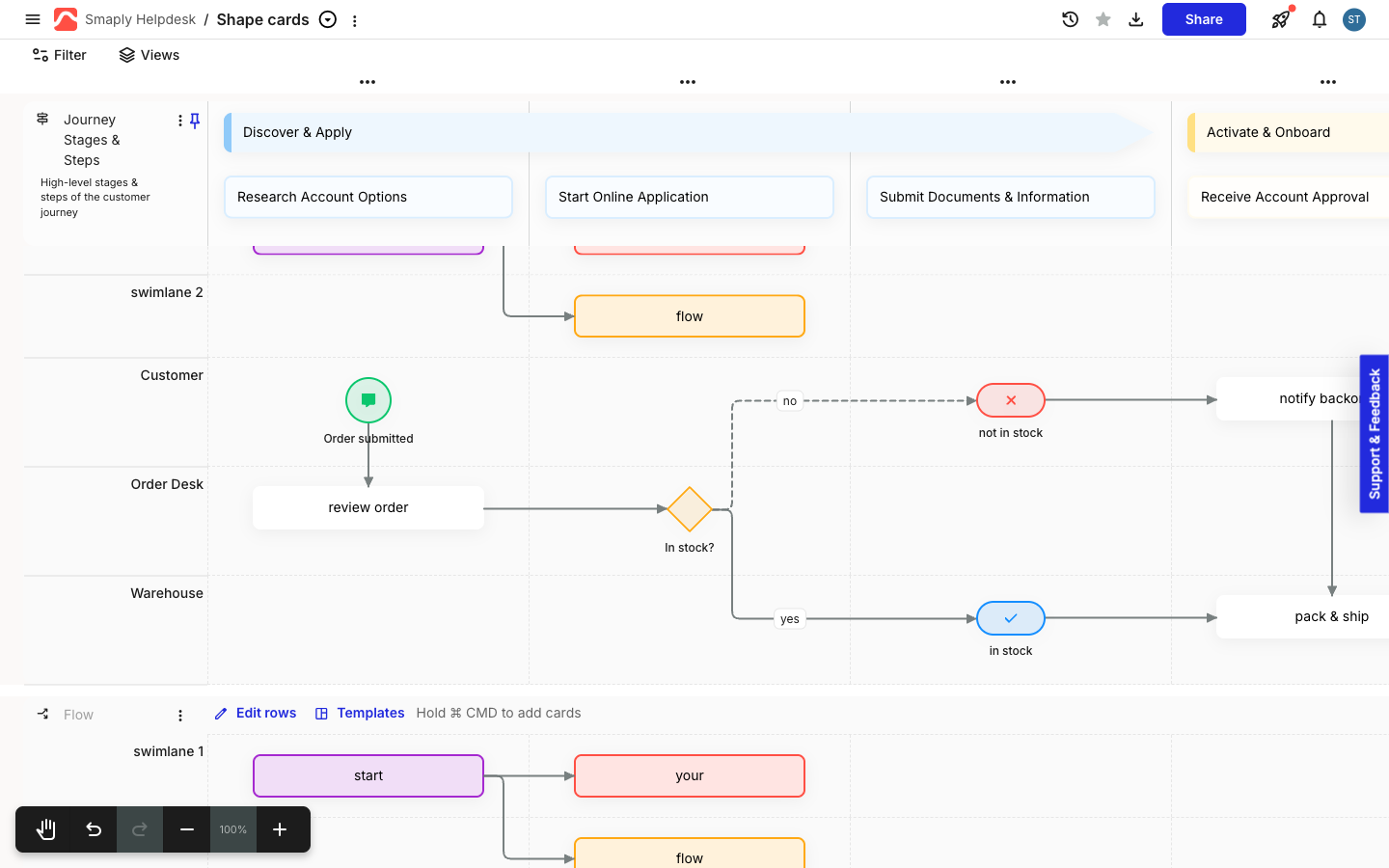
Shapes and ordinary cards connect to each other freely, so a diamond can branch out to a text card and back again. For drawing, re-routing, and removing connectors, see How to use flow lanes. For the same arrows on an open canvas, see How to use freeform lanes.


How to start a shape flowchart from a flow lane template

Two of the flow lane templates are built from shape cards. BPMN lays out swimlanes of shape nodes with labelled and dashed connectors, and Decision tree branches diamonds into outcome squares. Both get you a working diagram faster than placing every node yourself, and every shape in them stays editable. Click Templates in the lane header to pick one, and see How to use flow lanes for what the other templates do.

A flow lane after the BPMN template is applied, with Customer, Order Desk, and Warehouse swimlanes. A green circle with a message icon labelled Order submitted points to a white card reading review order, which points to an orange diamond labelled In stock?. A dashed connector labelled no runs to a red pill with a cross labelled not in stock, and a solid connector labelled yes runs to a blue pill with a tick labelled in stock.
The BPMN template, built from shape cards and plain cards on one connector chain

Important: A template adds to a lane, it doesn't replace what's there


What shape cards can't do

A shape card is minimal: a label, an optional icon, a colour and background, and a border style are the whole feature set, and there's no card details panel behind them. Compared with an ordinary card, a shape card has no:

  • text formatting, since the label is plain text with no bold, size, font, or list controls

  • Card header

  • details panel, and so no Personas, Card tags, or Comments

  • Duplicate, Copy, Expand, Shrink, or Height, and no three-dot menu to hold them

  • place in Change card type, in either direction, so a text card can't become a shape and a shape can't become anything else

If a node in your diagram needs tags, personas, or comments, use an ordinary card for that node and connect it to the shapes around it. The BPMN template does exactly this, mixing plain cards into the same connector chain as its shapes. For everything an ordinary card can do, see How to add and edit cards.


Last updated