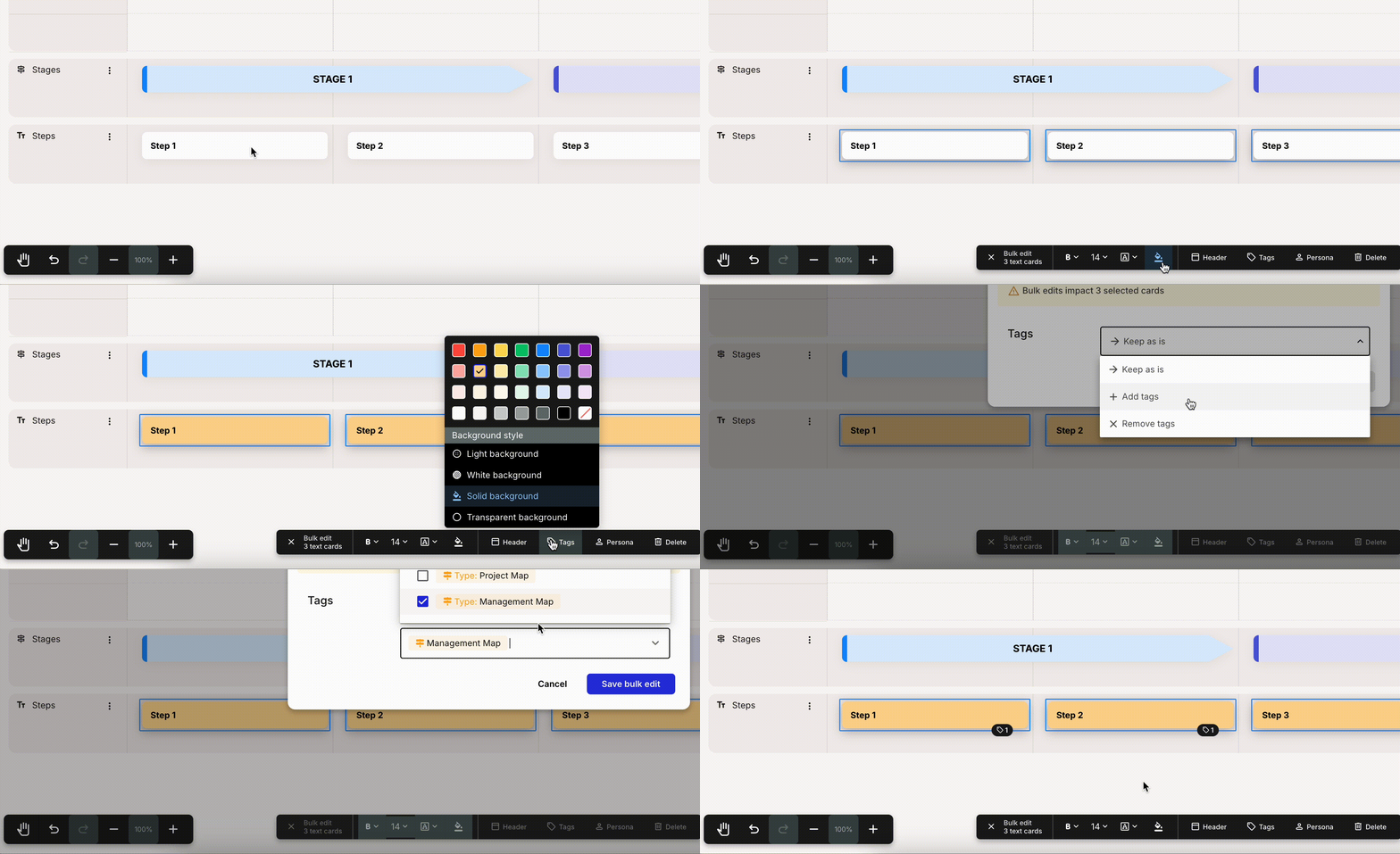
> For the complete documentation index, see [llms.txt](https://helpdesk.smaply.app/llms.txt). Markdown versions of documentation pages are available by appending `.md` to page URLs; this page is available as [Markdown](https://helpdesk.smaply.app/journey-maps/how-to-bulk-edit-cards.md).

# How to bulk edit cards

Change many cards in a journey map in one go instead of one at a time. Select the cards, then use the bulk action bar to tag them, assign personas, recolour or restyle them, or delete them together.

{% hint style="info" icon="compass" %}
If you want to act on whole journey maps from the dashboard list rather than cards inside one, see [How to bulk-edit journey maps in the list](/journey-maps/how-to-bulk-edit-journey-maps-in-the-list.md).
{% endhint %}

#### How to select multiple cards

There are three ways to select more than one card:

* **Select all cards in a lane** - Open the lane's three-dot menu and click **Select all cards**.
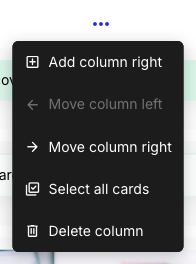
* **Select all cards in a column** - Open the column header's three-dot menu and click **Select all cards**.
* **Pick cards by hand** - Hold **Shift** and click each card you want. This works across different lanes and columns.

<figure><img src="/files/2pzkjikrIZFj6Hd819p9" alt="A column header three-dot menu open in the journey map editor, listing Add column right, Move column left, Move column right, Select all cards, and Delete column."><figcaption><p>Column menu > Select all cards</p></figcaption></figure>

#### How to apply a bulk action

<figure><img src="/files/09XU2kdL8qrjmOqVUVXR" alt="Several cards selected in a journey map, with the bulk action bar appearing at the bottom of the editor to apply an action across the whole selection."><figcaption><p>Select multiple cards, then apply a bulk action from the bar</p></figcaption></figure>

{% stepper %}
{% step %}
**Select the cards you want to change**

Use any of the three methods above. You can combine them, for example select a whole lane, then Shift+click a few more cards in another lane.
{% endstep %}

{% step %}
**Choose an action from the bulk bar**

Once two or more cards are selected, a bulk action bar appears at the bottom of the editor. Click the action you want to apply to every selected card. The actions on offer depend on whether your selection is one card type or several (see below).

<figure><img src="/files/mo1NjSn1THaL6W55zLWY" alt="The bulk action bar at the bottom of the journey map editor, labelled Bulk edit, 3 text cards. It shows bold, font size, font, and fill controls followed by Header, Tags, Persona, and Delete actions."><figcaption><p>The bulk bar for a single-type selection, with the full action set</p></figcaption></figure>
{% endstep %}
{% endstepper %}

The **Tags**, **Persona**, **fill** (colour and background), and **Delete** actions are always available. **Tags** and **Persona** add or remove the same tag or persona across the whole selection. **Delete** removes every selected card at once.

#### Which actions you get: same type vs mixed type

The bulk bar changes depending on the cards you pick. Card formatting and the card header only work when every selected card is the same type, because not all card types share those controls.

{% columns %}
{% column %}
**One card type selected**

The bar reads **Bulk edit** with a count, for example **3 text cards**. You get the full action set: text formatting (**Bold**, size, font), **fill**, **Header**, **Tags**, **Persona**, and **Delete**.

Single-type selections also unlock that type's own actions, such as changing the display type of portfolio cards.
{% endcolumn %}

{% column %}
**Mixed card types selected**

The bar reads **Filter** with a count, for example **3 items**. Only the actions every card shares stay on the bar: **fill**, **Tags**, **Persona**, and **Delete**.

To reach a type's formatting actions, narrow the selection with the **Filter** dropdown.
{% endcolumn %}
{% endcolumns %}

<figure><img src="/files/XUei3e7RA4MZuf5DJJI9" alt="The bulk action bar for a mixed selection, labelled Filter, 3 items, showing only the fill, Tags, Persona, and Delete actions."><figcaption><p>A mixed-type selection keeps only the shared actions</p></figcaption></figure>

To work on one type within a mixed selection, click **Filter** and choose a card type. The dropdown lists each type in the selection with its count.

<figure><img src="/files/wOW5k3xKxP5bc5g7n5Eo" alt="The Filter dropdown open above the bulk bar, listing Stage, Text, and Image card types, each with a count of 1."><figcaption><p>Filter the selection down to one card type</p></figcaption></figure>

Once the selection is narrowed to a single type, that type's actions appear on the bar, the same set you would see if you had selected only those cards to begin with.

#### Related topics

<table data-column-title-hidden data-view="cards"><thead><tr><th>Article</th><th>What it covers</th><th data-hidden data-card-target data-type="content-ref">Target</th></tr></thead><tbody><tr><td><strong>How to add and edit cards</strong></td><td>The card toolbar, details panel, colours, and header for a single card.</td><td><a href="/pages/DI00pTOdaJmOwltHKgIa">/pages/DI00pTOdaJmOwltHKgIa</a></td></tr><tr><td><strong>How to use text cards</strong></td><td>Text formatting in detail, including bulk formatting by filtering a selection to Text.</td><td><a href="/pages/icqgg4Jls9Iv7VWRvRls">/pages/icqgg4Jls9Iv7VWRvRls</a></td></tr><tr><td><strong>How to assign a persona to a card</strong></td><td>Assigning personas to cards, including bulk-assigning to a selection.</td><td><a href="/pages/42b6nVolnvr4VE3kfJ6s">/pages/42b6nVolnvr4VE3kfJ6s</a></td></tr><tr><td><strong>How to use tags</strong></td><td>Applying tags to cards and filtering a journey map by them.</td><td><a href="/pages/jphiiSaFZL5tyD29Kfyt">/pages/jphiiSaFZL5tyD29Kfyt</a></td></tr></tbody></table>


---

# Agent Instructions
This documentation is published with GitBook. GitBook is the documentation platform designed so that both humans and AI agents can read, navigate, and reason over technical content effectively. Learn more at gitbook.com.

## Querying This Documentation
If you need additional information that is not directly available in this page, you can query the documentation dynamically by asking a question.

Perform an HTTP GET request on the current page URL with the `ask` query parameter, and the optional `goal` query parameter:

```
GET https://helpdesk.smaply.app/journey-maps/how-to-bulk-edit-cards.md?ask=<question>&goal=<endgoal>
```

`ask` is the immediate question: it should be specific, self-contained, and written in natural language.
`goal` is optional and describes the broader end goal you are ultimately trying to accomplish on behalf of the user. GitBook uses it to tailor the answer towards what is most useful for that goal.

The response will contain a direct answer to the question and relevant excerpts and sources from the documentation.

Use this mechanism when the answer is not explicitly present in the current page, you need clarification or additional context, or you want to retrieve related documentation sections.